VMware Workstation Pro setup remains the industry standard for Type 2 hypervisors, sitting on top of the host operating system to provide deep optimisations that are known to enhance virtual machine performance close to physical systems. In 2026, the concept of desktop virtualisation has shifted. Now it is much easier & much more accessible to run multiple operating systems on one machine. After the acquisition of VMware by Broadcom, the whole licensing model saw a transformation that has benefited the tech community around the globe.
In 2024, Broadcom made VMware Workstation Pro free for individuals for their personal, commercial, & also educational use, retiring the limited “Player” version. Whether you are a developer, security researcher, or even a student, mastering this setup will allow you to test various risky environments, develop cross-platform applications, & also explore new OS (operating systems) without changing your primary hardware configuration.
Table of Contents
VMware Tutorial for Beginners: The Complete VMware Workstation Installation Guide
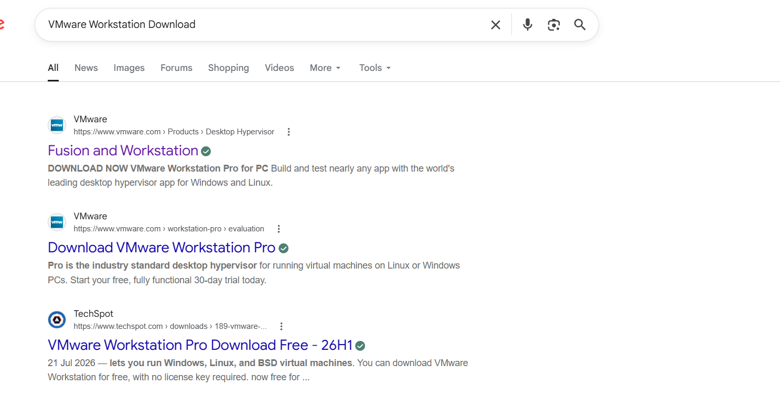
1. In the first step, go to the Google Search page, which is known as the SERP (Search Engine Results Page). Then type in the search query as VMware Workstation Download. Click on the best-suited link. Check the logo for landing on the correct official site.
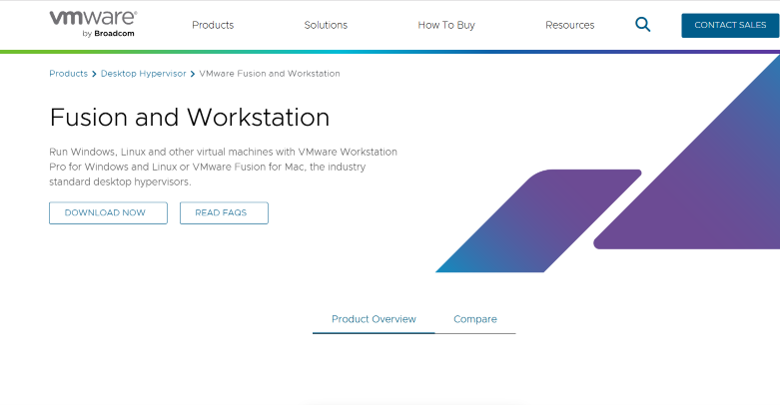
2. Afterwards, you need to enter the VMware Workstation Pro Setup site & then click on the Download Now option.
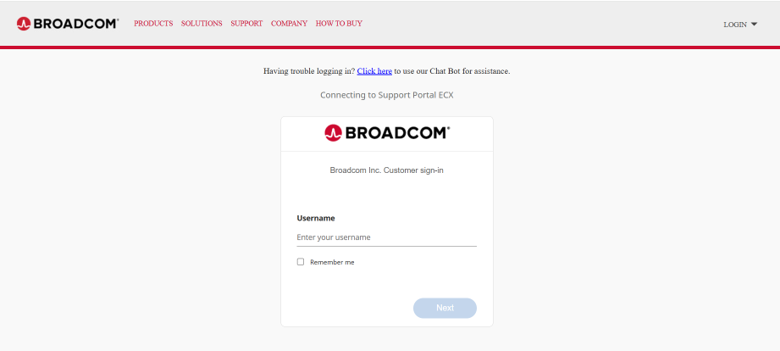
3. In the next step, a new window will emerge known as BROADCOM. There, you will have to sign in with the latest details. Add the username and other required details.
4. Go to User Registration by entering the email address & the CAPTCHA code. Click on the button labeled Next to go forward in the process.

5. Verify the Email Address by entering the OTP that you must have received on your Gmail account. Click on Verify and Continue.
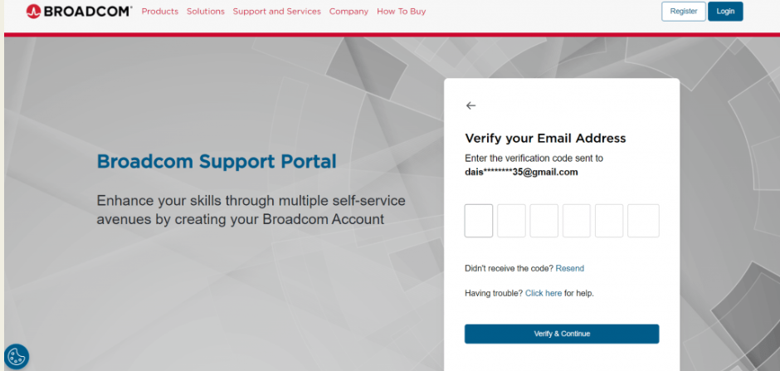
6. For confirmation of the registration, complete the Registration Form by entering the important details like First Name, Last Name, Country, etc.
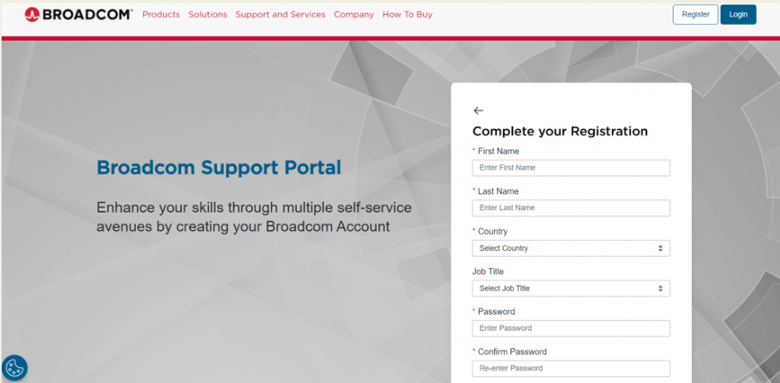
7. Then, to confirm the registration has been done, see the ” Registered Successfully” sign.
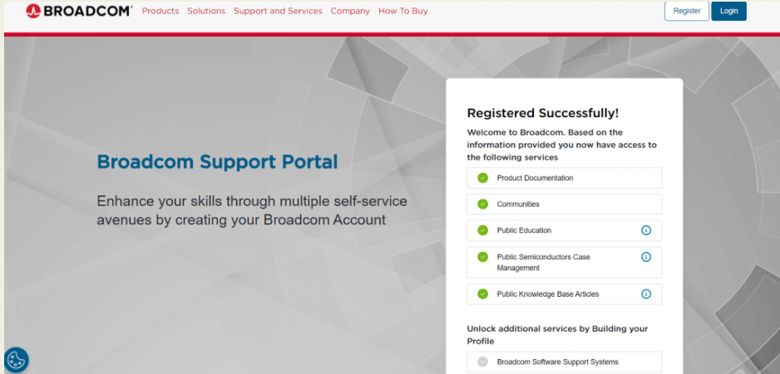
8. Afterwards, you can see the Welcome to Broadcom Support option.
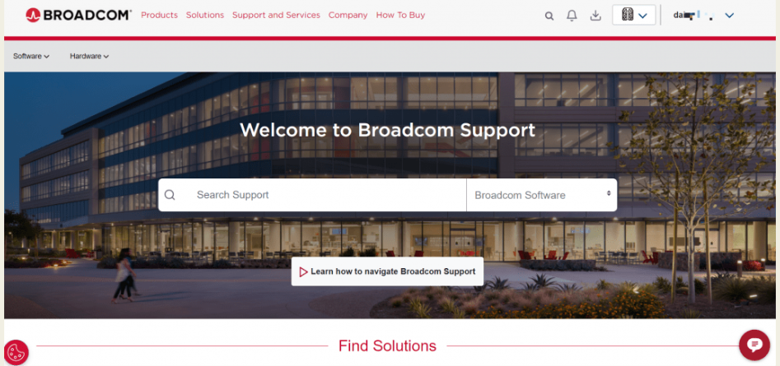
9. Then go to your Dashboard by entering Dashboard in the search bar.
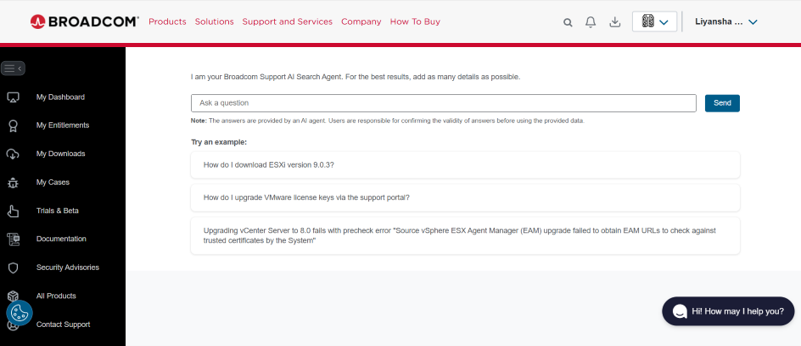
10. After entering your Dashboard, go to My Downloads, and then select Free Software Download Available Here. This is a new thing observed in the VMware Workstation Pro Setup 2026, unlike the VMware Workstation Pro old version setup guide.
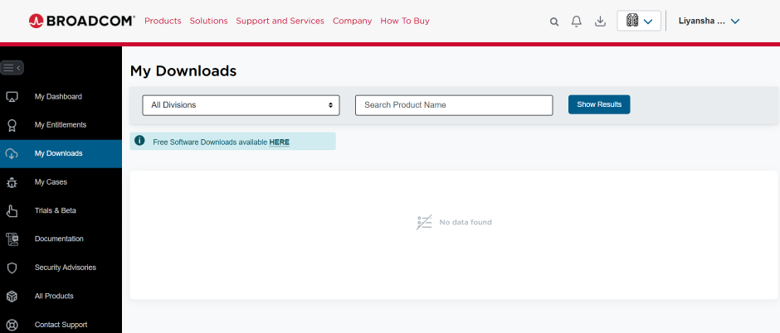
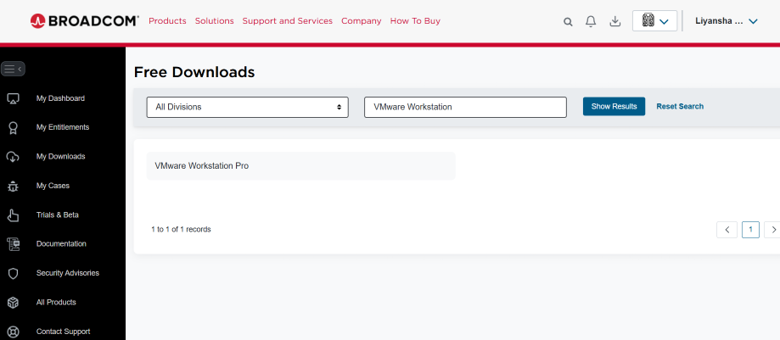
11. Search for the Product Name “VMware Workstation”. Then, select the VMware Workstation Pro option.
12. Then, out of the various options, choose VMware Workstation Pro 17.0 for Windows.
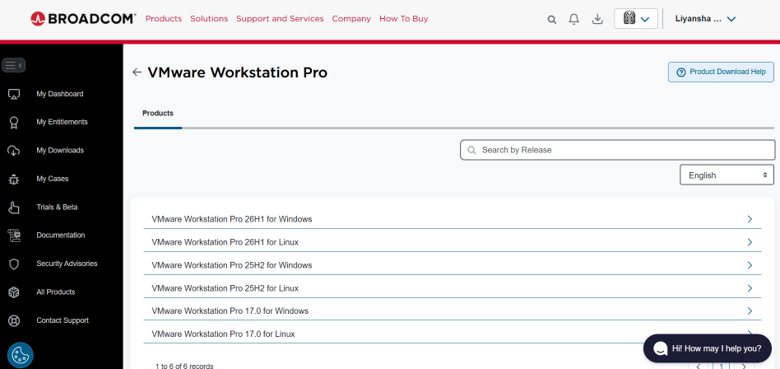
13. After clicking VMware Workstation Pro 17.0 for Windows, click on 17.6.4 Release.
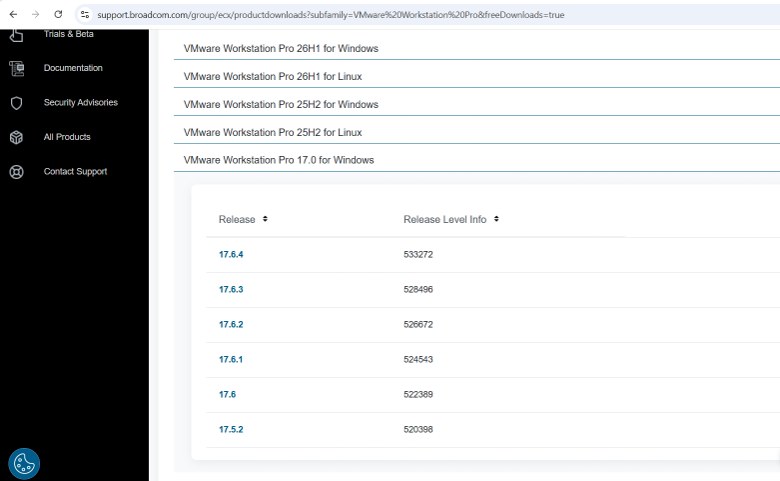
14. A new page will open. Search for Terms and Conditions. Then, open the Terms and Conditions, and afterwards close it, & then click on I agree to the Terms and Conditions. Without this you will not be able to move forward.
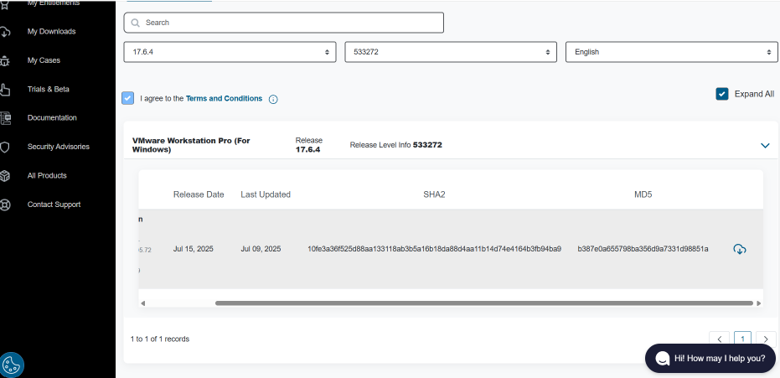
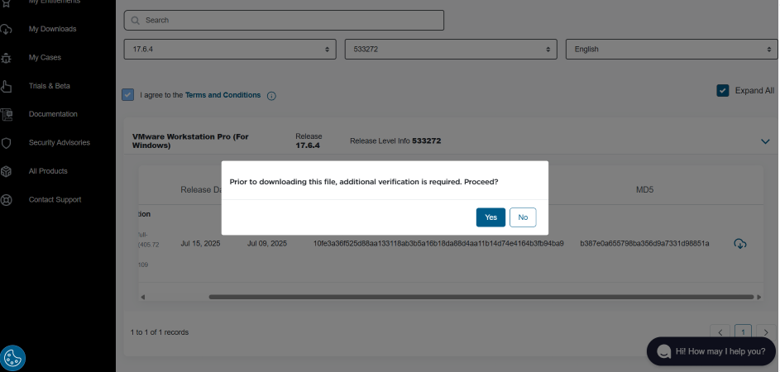
15. Then, click on the Download option given on the extreme right, adjacent to MD5. Then a pop-up will open stating Do the Trade compliance form filling.
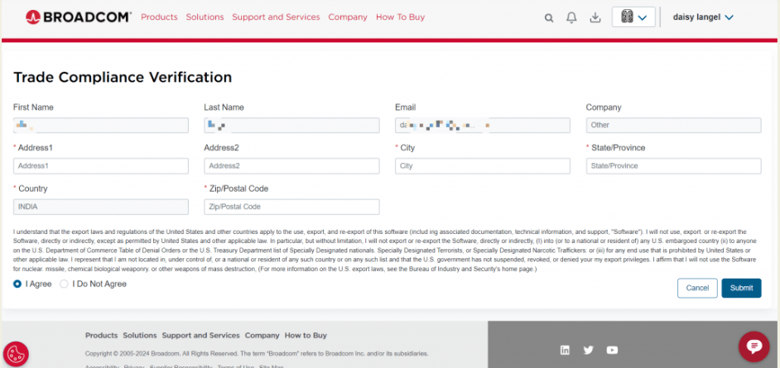
16. Then, you will have to fill out the Trade compliance form. Enter the Name, address, & other details.
17. Then go to Download option again in extreme right.
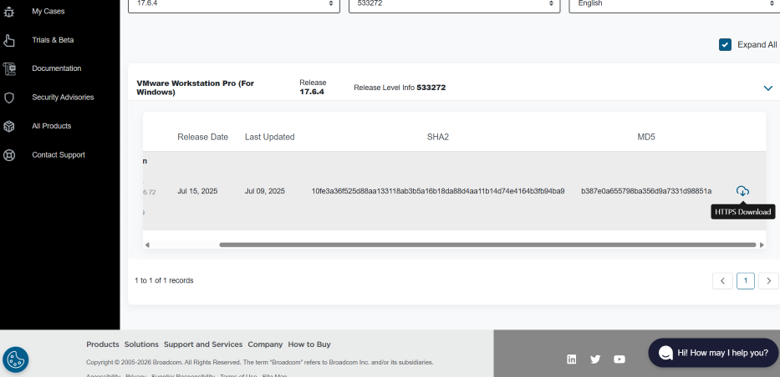
18. Then, finally, your VMware Workstation setup will start. Look below at how the setup screen will look like.
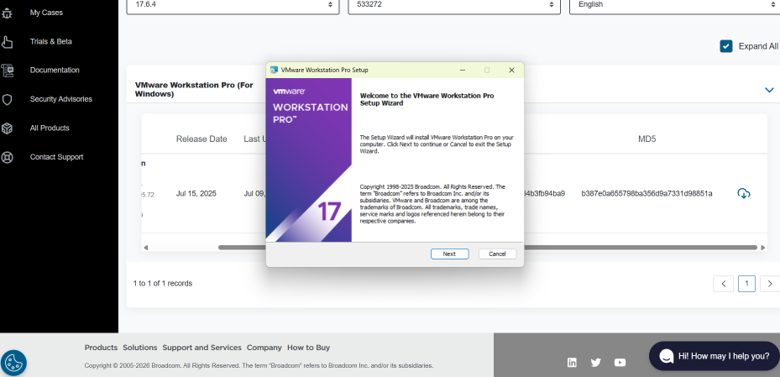
19. Then just select the options that keep coming up on your screen. The picture guide is given below
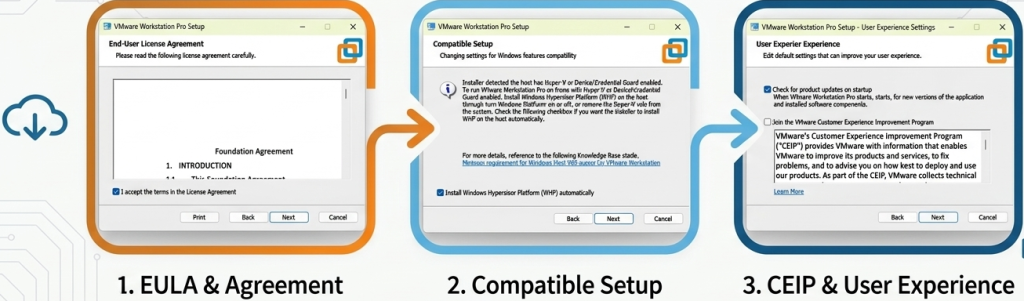
Note: Joining the customer experience improvement programme is totally optional
20. Then, click on the option that appears on the screen, such as Custom Setup, Shortcuts, & Ready to install VMware Pro
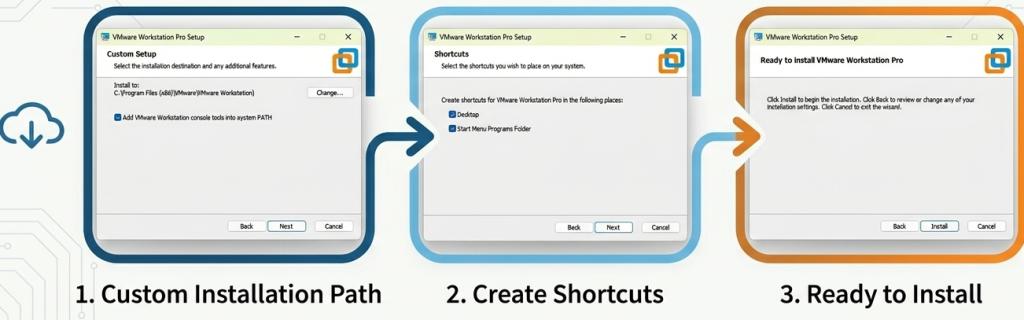
21. After that, the installation will run, and you will see the option below
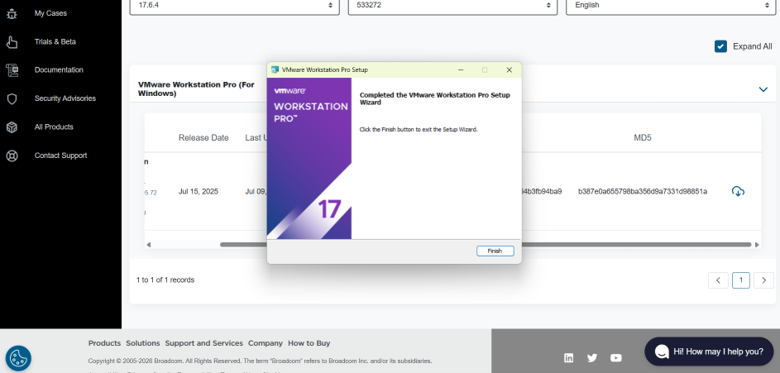
22. Click Finish to complete the installation procedure.
Why VMware Still Leads in 2026?
The Oracle VM VirtualBox is a strong open-source alternative to VMware. As per the observation, VMware holds a clear lead in various categories due to the following reasons:
- Benchmarks from 2026 show that VMware generally takes less host memory (4.2GB vs 4.8GB for a standard Windows 11 VM) & also delivers 10-15% better CPU efficiency in general tasks.
- Its support for DirectX 11 & OpenGL 4.5 also makes it a superior choice for graphics-heavy applications & light gaming.
- Furthermore, for professionals who need to move workloads into a data center, VMware provides easy integration with vSphere & ESXi, allowing for easy migration of virtual disks.
Conclusion
Installing VMware Workstation Pro in 2026 is quite an easy and simple process that offers professional-level power at no cost for most of the users. Virtualisation gives you the power to carry an entire server architecture in your pocket, and with the right setup, you can work efficiently as well as securely across any operating system you choose. If you run into persistent issues, the VMware community forums & Broadcom’s technical documentation remain valuable resources for troubleshooting & also optimisation
FAQs
Below are the VMware Workstation Pro Setup FAQs:
Q. What is VMware Workstation?
A. VMware Workstation is a hosted Type 2 hypervisor software for x64 Windows & various Linux computers. It allows users to run VMs, containers, & Kubernetes clusters simultaneously on a single physical host machine without even rebooting. After the licensing changes in the year 2024, Broadcom decided to make both Workstation Pro & Fusion Pro completely free for personal, educational, & commercial use. This has effectively ended the more limited “Player” version of VMware.
Q. Is VMware Workstation Pro now free?
A. Yes, VMware Workstation Pro is now free of charge after it was acquired by Broadcom. From 2024, there is no fee for the license. This was done so that more and more people can access it for personal as well as professional use.
Q. Is VMware Workstation 17 Pro free?
A. Yes, VMware Workstation 17 Pro is completely free of charge. From 2024, there is no fee for the license. This was done so that more and more people can access it for personal as well as professional use.
Q. How can I install virtual Machine Windows in VMware Workstation?
A. The setup is very easy. All you have to do is open VMware Workstation. Then follow these steps:
- Click File > New Virtual Machine.
- Choose either Typical or Custom setup.
- Select the operating system (OS) installation source (ISO file, disc, or network installation).
- Configure the various hardware settings (e.g., CPU, disk size, memory).
- Complete the setup & in the end, power on the VM.
Discover more from Root Learning
Subscribe to get the latest posts sent to your email.




One thought on “VMware Workstation Fast Setup Made Simple: 2026 Installation Guide”