Unlock the ultimate step-by-step guide to installing Arch Linux with ease and confidence. Learn how to prepare, configure, and optimize your VMware Workstation for a seamless Arch Linux experience in 2026.
Table of Contents
Introduction: Arch Linux Evolution in 2026
Arch Linux continues to stand out as one of the most flexible and customizable operating systems available. Its rolling-release model ensures that users always have access to the latest software and security updates, making it a future-ready choice for developers, IT professionals, and enthusiasts. With Arch Linux, you gain complete control over your system, tailoring every aspect to meet your exact needs while enjoying unmatched stability and performance.
Why Arch Linux Shines?
Arch Linux remains powerful and adaptable in 2026 because of its simplicity and user-centric design. Unlike other distributions, Arch Linux empowers users to build their environment from the ground up, ensuring efficiency and precision.
Its lightweight nature makes it ideal for modern workloads, while the active community provides extensive documentation and support. This combination of flexibility, speed, and reliability makes Arch Linux a trusted platform for innovation and experimentation.
Running a modern operating system in VMware Workstation delivers a seamless way to unlock its full potential without disrupting your primary setup. Virtualization empowers you to safely test configurations, deploy applications, and experiment with advanced environments in a controlled space, ensuring both flexibility and reliability.
Its lightweight design guarantees smooth performance even within virtual machines, while VMware Workstation enhances the experience with robust integration tools, advanced networking, and efficient resource management. Together, they form a powerful combination for developers, learners, and enterprises striving for agility, innovation, and efficiency in 2026.
Guidelines to Install in VMware
The guidelines for installation of Arch Linux in VMware are as follows:
Step 1: To download the ISO file. Click the link Arch Linux – Downloads and select the specific region – For INDIAN Region click the link and select the first file of the list.

Step 2: Open the VMware Workstation for the further installation process.
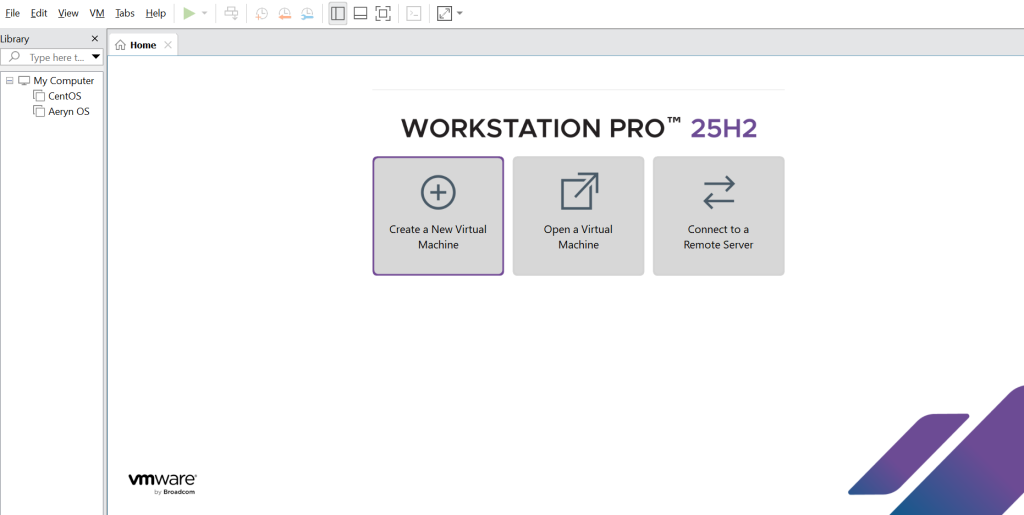
Step 3: Click on Create a New Virtual Machine.
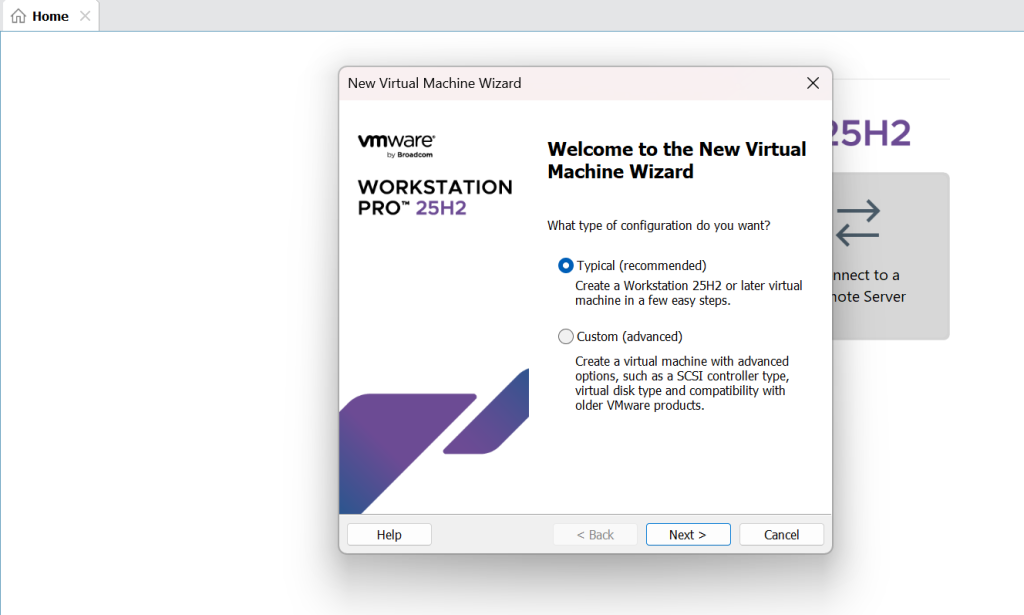
Step 4: Select on Typical option and click on Next.
Step 5: Select the Installer Disc Image option and browse the ISO file from your system and click on Next.
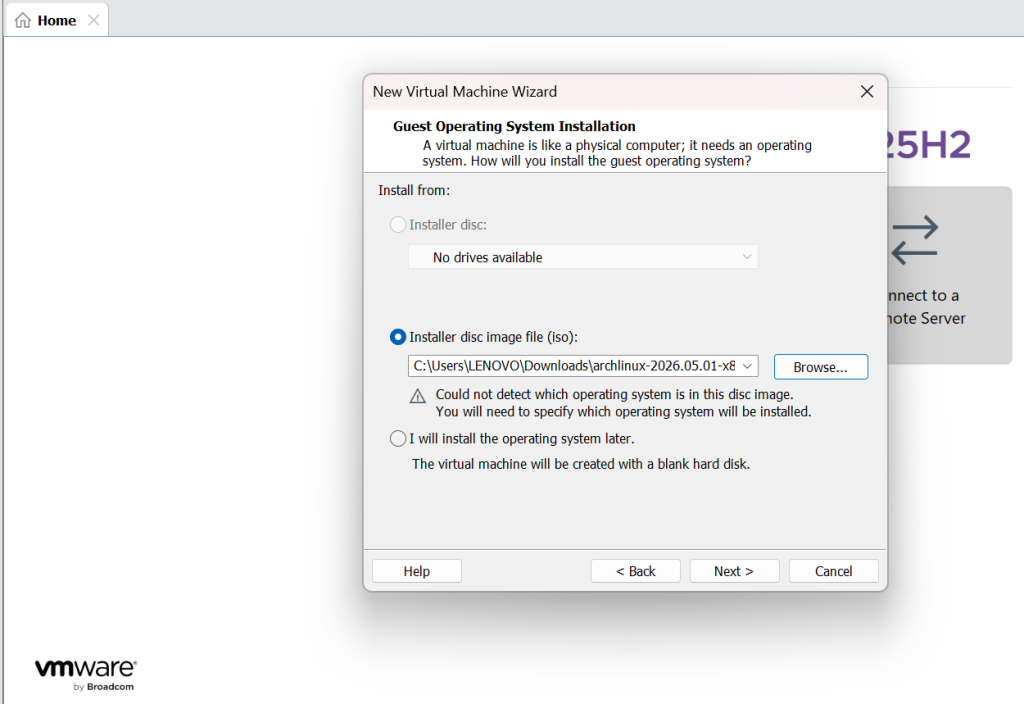
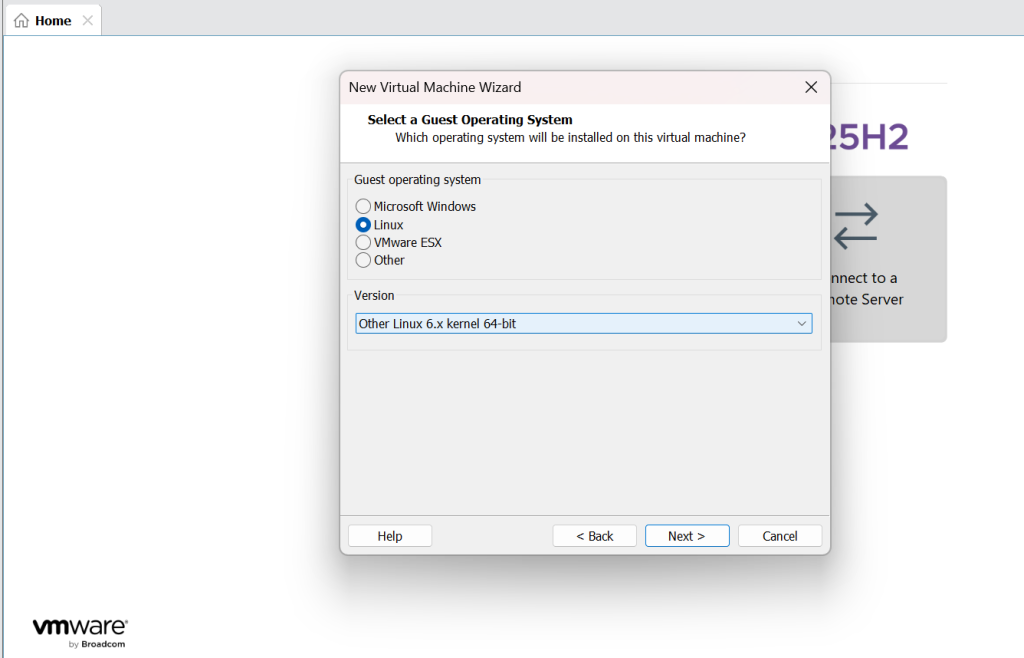
Step 6: Select the guest operating system as Linux. Select the latest version for Linux and click on Next.
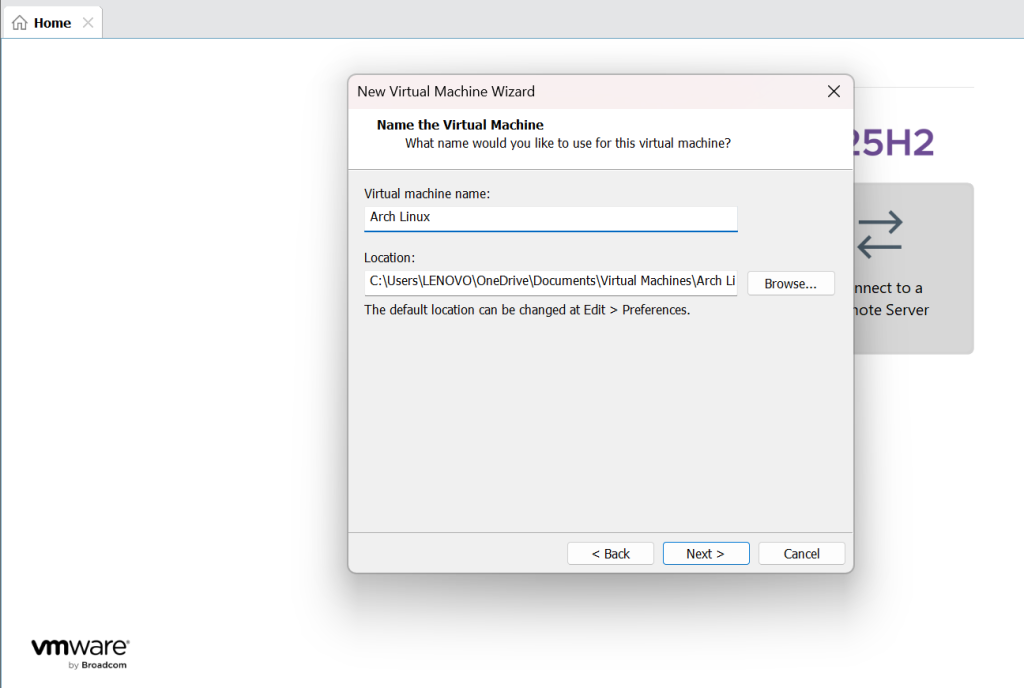
Step 7: Rename with your OS file as Arch Linux and click on Next.
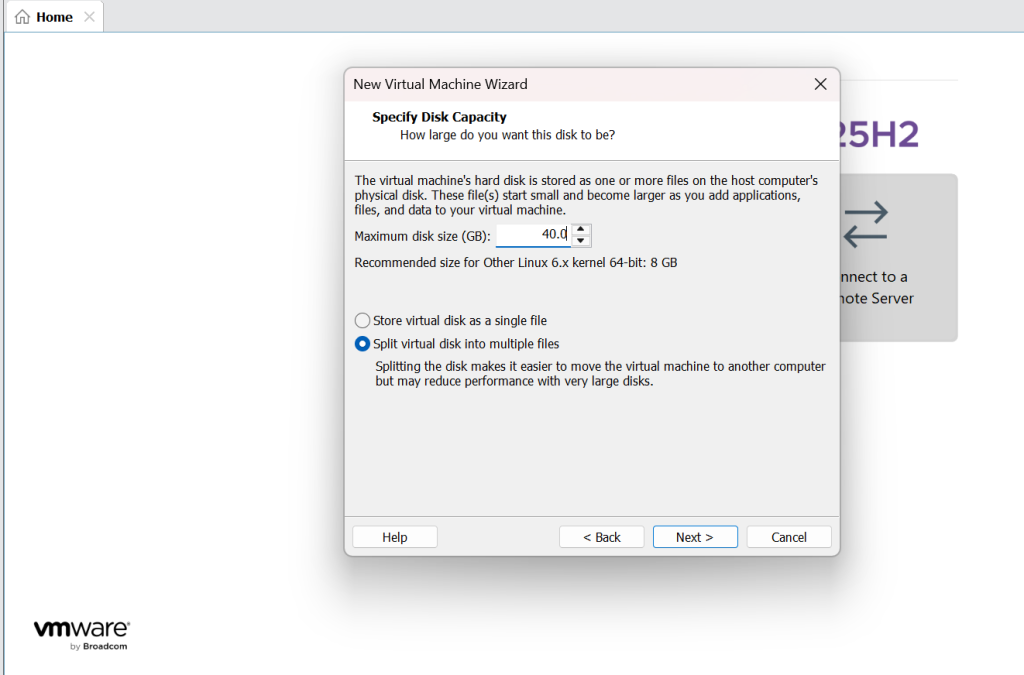
Step 8: Select the Disk Space and changed into 40GB for better performance and click on Next.
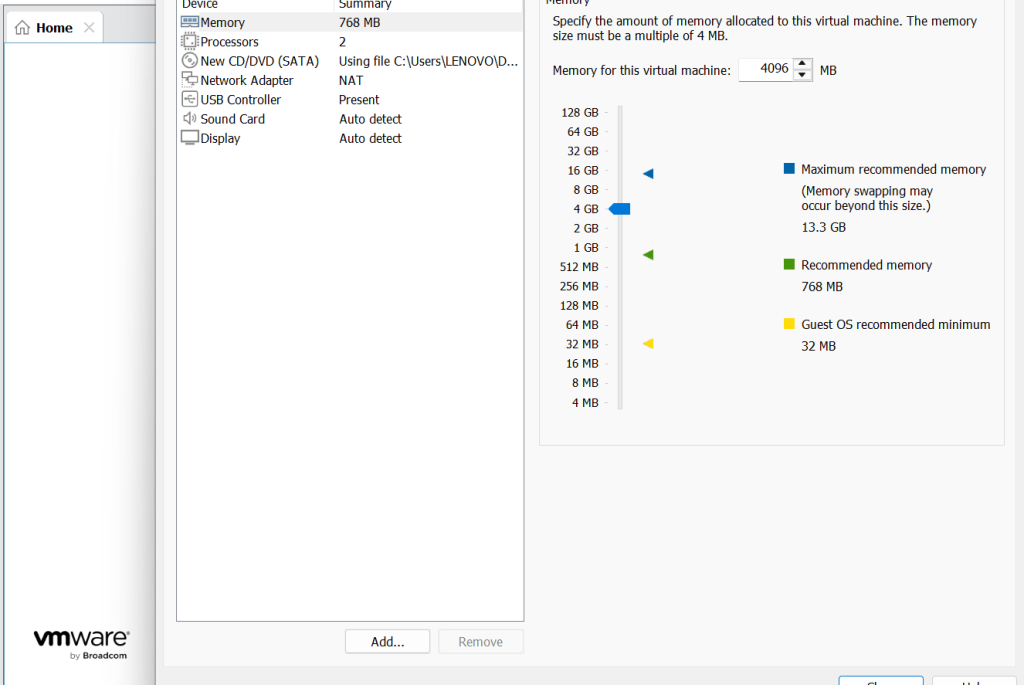
Step 9: Customized your hardware, change the Memory from 1GB to around 4GB and click on close and after completed this process click on Finish.
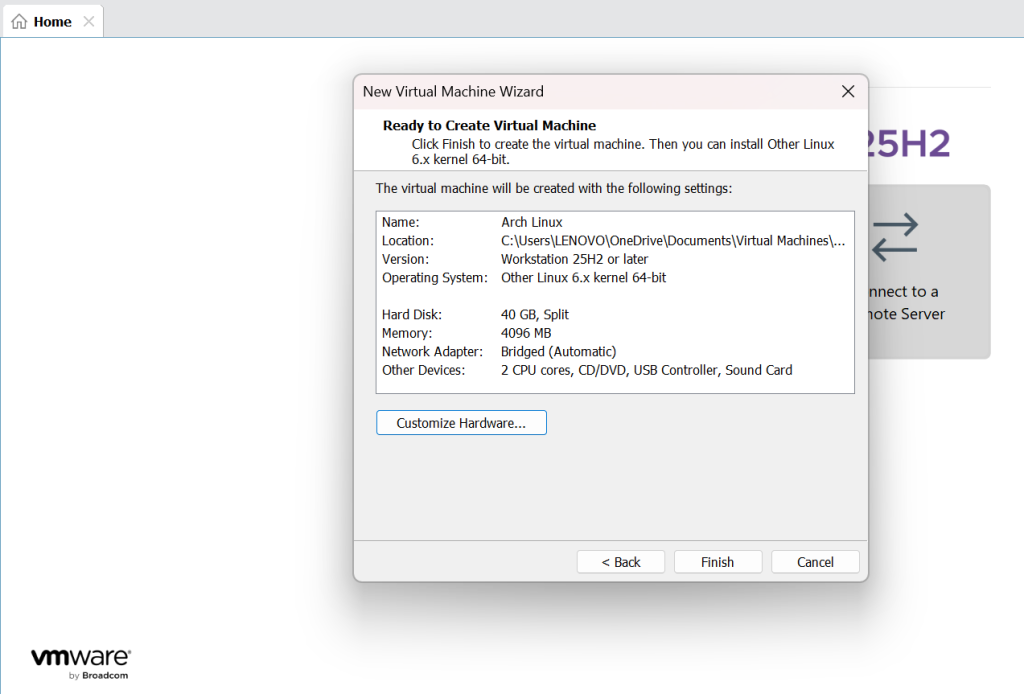
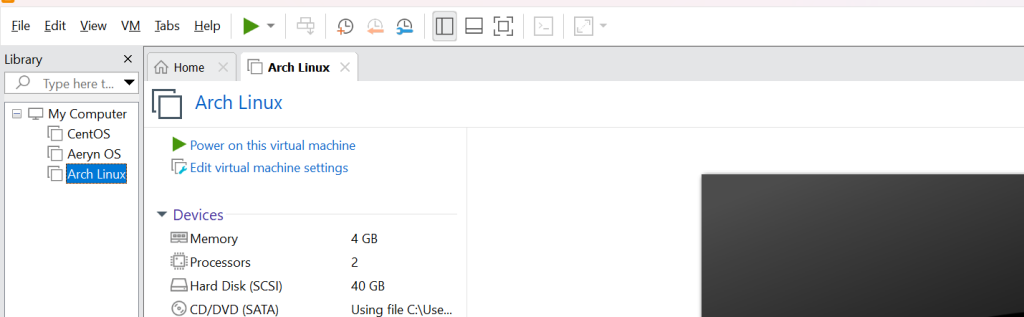
Step 10: Click on Power on This Virtual Machine, to on Arch Linux on VMware Workstation.
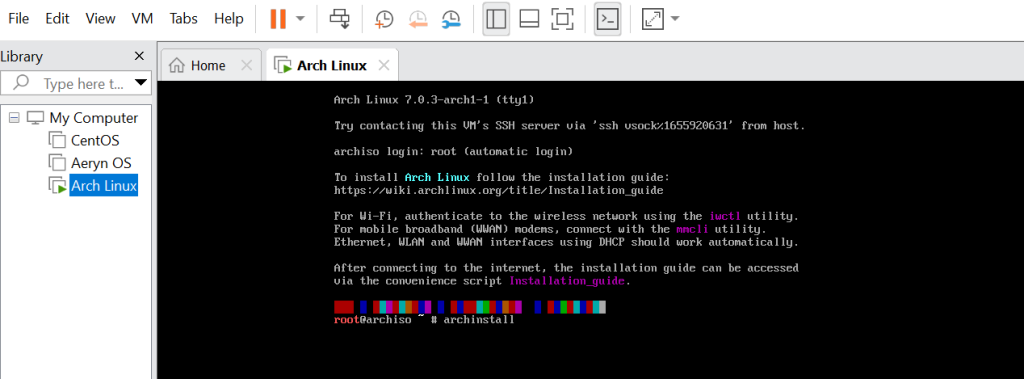
Step 11: Now click on the first option, Arch Linux install medium (x86_64, BIOS) and press Enter and write the command archinstall in the terminal and press Enter.
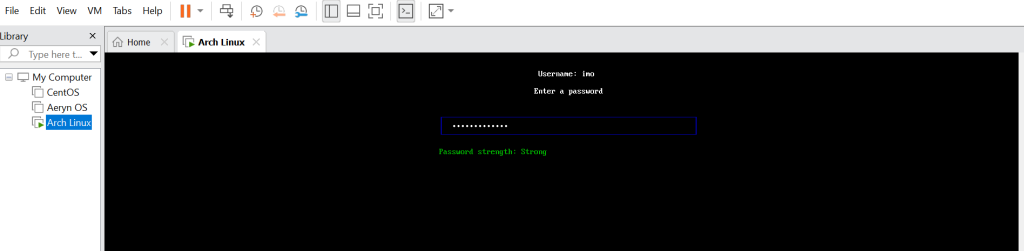
Step 12: Now, after Step 11, there are different steps needs to follow:
- First, Click on Authentication, click on Root Password and set a strong password.

- Second, set a user id by selecting the second option in Authentication and setup User ID with Password.
Step 13: After that, click on back and redirected to original page and click on Install. The Installation process will take some time. Just Wait and Be Patience.
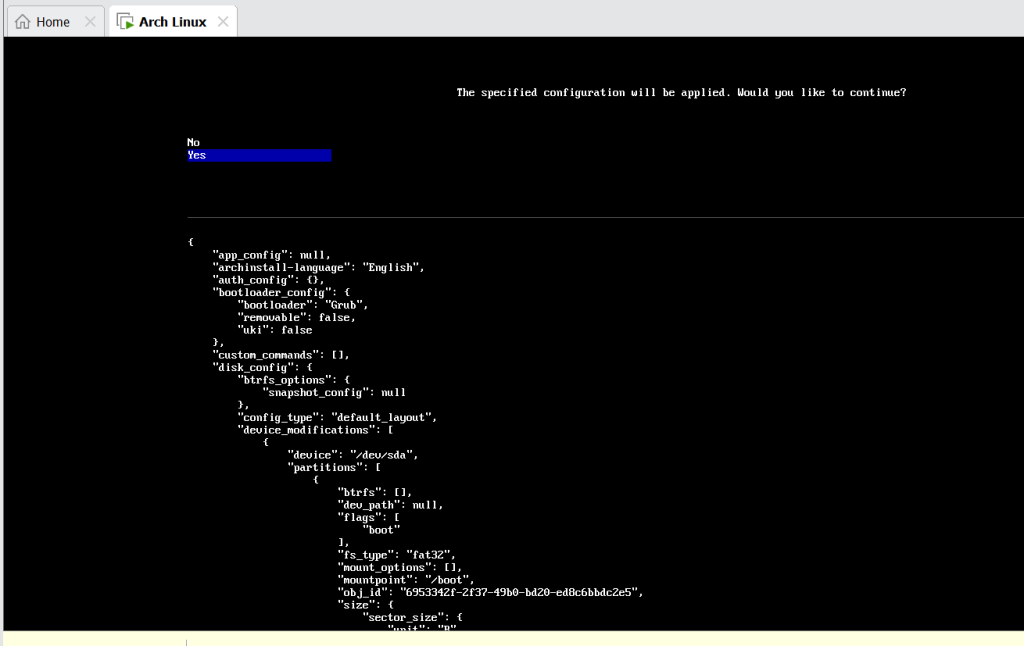
Step 14: After Completion of Installation Process. Reboot the system, by click the option.
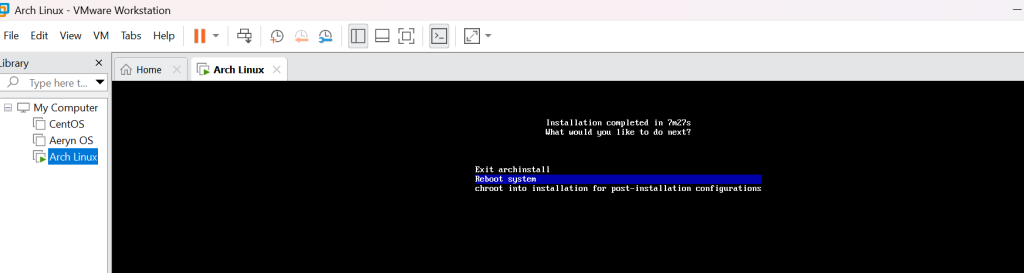
Step 15: The Arch Linux installation is completed and Ready to Use.
Dynamic Virtual Environment Expansion
One of the most rewarding next steps after completing your setup is expanding the system with desktop environments that enhance usability and visual appeal. Options such as GNOME, KDE Plasma, or XFCE bring intuitive interfaces, customizable layouts, and modern features that make everyday tasks more efficient. Selecting the right environment allows you to balance performance with aesthetics, ensuring a smooth and enjoyable experience tailored to your needs.
Beyond the basics, 2026 opens the door to advanced configurations that elevate your virtual machine into a powerful platform for innovation. You can fine-tune networking, optimize resource allocation, and integrate cutting-edge tools for automation and cloud connectivity. Exploring these features helps you push the boundaries of virtualization, transforming your setup into a robust environment that supports growth, creativity, and technical mastery.
Conclusion
As technology continues to evolve in 2026, virtualization remains a powerful way to explore new systems and expand your technical skills. By completing the installation process, you’ve unlocked a flexible environment that can be tailored to your needs, whether for learning, development, or enterprise use.
This journey is not just about setting up a system as it’s about building confidence and gaining control over your digital workspace.
Follow For More Contents on RootLearning.in
FAQs
What is a desktop environment?
A desktop environment is a graphical interface that makes using the system more intuitive and user-friendly.
Which desktop environments are popular?
GNOME, KDE Plasma, and XFCE are widely used for their balance of performance and customization.
Can I install multiple desktop environments?
Yes, you can install more than one and switch between them, though it may require extra configuration.
Why use virtualization for experiments?
Virtualization provides a safe environment to test setups without affecting your main system.
What advanced configurations are possible in 2026?
Options include fine-tuning networking, optimizing resources, and integrating automation tools.
Is resource optimization important?
Yes, it ensures smooth performance and prevents unnecessary strain on your hardware.
Discover more from Root Learning
Subscribe to get the latest posts sent to your email.