
Unlock a brilliant Opera setup on CentOS Virtual Machine in VMware Workstation 2026. Follow this seamless installation guide to enjoy optimized browsing, enhanced security, and a smooth user experience in your virtual environment
Table of Contents
Why Opera on CentOS?
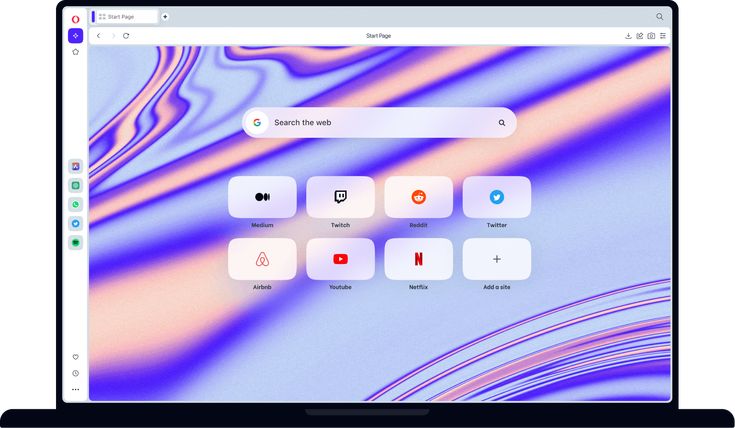
The Opera Setup Guide for CentOS in VMware Workstation 2026 highlights the unique advantages of combining a lightweight yet powerful browser with a stable Linux environment. Opera is known for its speed, built‑in VPN, ad‑blocking, and resource efficiency, making it an excellent choice for users running CentOS inside a virtual machine.
When working in VMware Workstation, performance and resource allocation are critical. Opera’s optimized design ensures smooth browsing even in low‑resource environments, which is often the case with virtual machines. By installing Opera on CentOS, developers, students, and IT professionals can enjoy a secure, fast, and customizable browsing experience without compromising system stability.
Another reason Opera stands out is its cross‑platform synchronization. Users can sync bookmarks, extensions, and settings across devices, ensuring continuity between the virtual machine and the host system. This makes Opera not just a browser, but a practical productivity tool for anyone leveraging CentOS in VMware Workstation.
In short, Opera on CentOS offers a brilliant balance of performance, security, and usability, making it a preferred choice for those who want a seamless browsing experience in 2026.
Guidelines for Installation
- System Preparation
Before beginning the Opera Setup Guide on CentOS in VMware Workstation 2026, it’s essential to prepare your virtual environment properly. This ensures smooth installation, optimal performance, and a stable browsing experience.
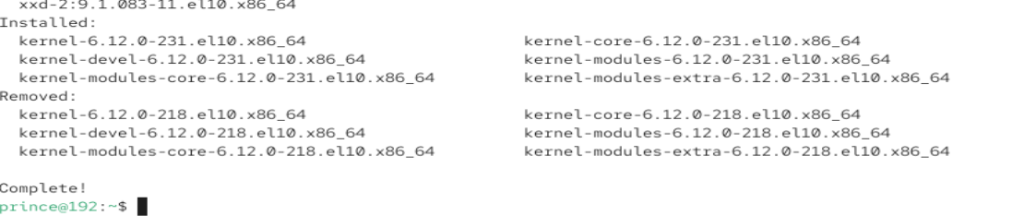
- Run Command to update CentOS: sudo dnf update -y
- Ensure VMware Tools Are Installed
VMware Tools improve integration between the host and guest system. They enable features like shared clipboard, drag‑and‑drop, and better graphics performance. Installing VMware Tools ensures Opera runs seamlessly inside your CentOS VMware workstation.
- For allocation guidelines, please read the article of Step-by-Step Guidelines for Installation of CentOS in VMware
2. Download Opera RPM
To continue the Opera Setup Guide for CentOS in VMware Workstation 2026, the next step is downloading the Opera browser package. This ensures you have the latest stable release optimized for Linux environments.
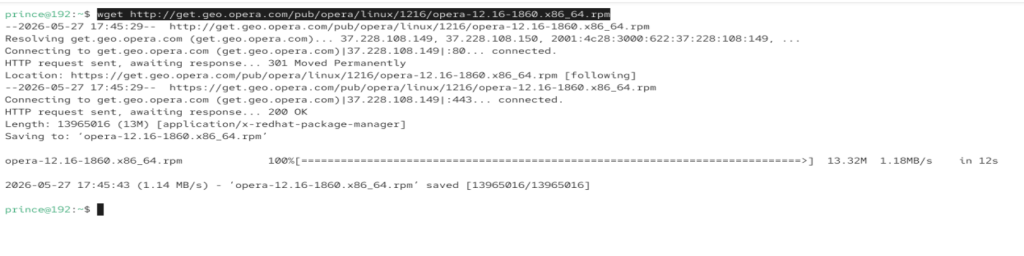
- Visit Opera’s Official Linux Download Page: Opera Setup Guide For Download OR Run Command in Terminal: wget http://get.geo.opera.com/pub/opera/linux/1216/opera-12.16-1860.x86_64.rpm
3. Opera Setup Guide for Installation
In the Opera Setup Guide for CentOS in VMware Workstation 2026, the installation step is where you bring Opera into your virtual environment after downloading the RPM package. This ensures a smooth browsing experience with Opera’s built‑in VPN, ad‑blocker, and sync features.
- Download the latest .rpm version of opera.
- Download the package using the command: rpm -ivh opera-12.16-1860.x86_64.rpm
- For installation: sudo rpm -ivh opera-stable.rpm
Installing Opera through either DNF or RPM ensures the browser is properly registered in your CentOS environment. This step in the Opera Setup Guide 2026 guarantees optimized performance inside VMware Workstation, allowing you to enjoy Opera’s speed, security, and customization features.
4. Opera Setup Guide for Configuration
Once Opera is installed on CentOS in VMware Workstation, the next step in the Opera Setup Guide 2026 is configuring the browser to ensure optimal performance, security, and usability inside your virtual machine.
Set Opera as Default Browser
- Navigate to Settings → Default Browser.
- Select Opera as the default option to streamline workflows and ensure all links open directly in Opera.
Enable Hardware Acceleration
- Go to Settings → Advanced → System.
- Toggle Use hardware acceleration when available.
- This improves graphics rendering and video playback inside VMware Workstation, especially if your VM has limited resources.
Configure Privacy & Security
- Enable Opera’s built‑in VPN for secure browsing.
- Turn on Ad‑Blocker to reduce resource usage and improve page load speed.
- Adjust site permissions for better control.
Sync Opera Account
- Log in with your Opera account under Settings → Synchronization.
- Sync bookmarks, extensions, history, and passwords across devices.
- This ensures continuity between your CentOS VM and host machine.
5. Opera Setup Guide for Test Installation
After completing the installation, the next step in the Opera Setup Guide for CentOS in VMware Workstation 2026 is to verify that Opera is working correctly. This ensures your setup is seamless and ready for practical use.
- To Launch Opera, Run Command: opera
This command should launch the Opera browser window inside your CentOS VM.
Verify Browsing Functionality
- Navigate to any website to confirm internet connectivity.
- Test Opera’s built‑in features such as the VPN and ad‑blocker to ensure they are functioning properly.
Check Opera Version
- Run Command: opera –version
This verifies that the latest stable release is installed and ready for use in 2026.
Testing the installation ensures that Opera is fully integrated into your CentOS VM environment. It validates the success of the Opera Setup Guide, confirming that you can now enjoy optimized performance, enhanced security, and seamless browsing inside VMware Workstation.
Conclusion
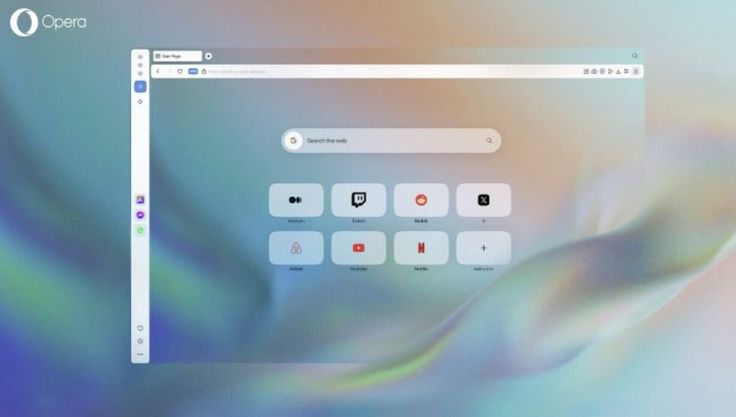
Completing the Opera installation on CentOS in VMware Workstation 2026 provides a reliable, secure, and efficient browsing environment inside your virtual machine. By carefully preparing the system, downloading the correct RPM package, installing Opera with DNF or RPM, and configuring it for optimal performance, you ensure a smooth experience that balances speed, usability, and security.
Opera’s lightweight design makes it ideal for virtualized environments, while its built‑in features like VPN, ad‑blocking, and synchronization enhance productivity and privacy. Testing the installation confirms stability, and troubleshooting steps ensure you can quickly resolve any issues.
With this setup, CentOS users in VMware Workstation gain a modern browser solution that supports both everyday browsing and professional use cases such as web development, secure testing, and cross‑platform workflows. This guide empowers you to make the most of Opera in 2026, ensuring your virtual environment runs at its best.
FAQs
Can Opera run smoothly on CentOS VM?
Yes, Opera is lightweight and works efficiently even in resource‑limited virtual machines.
Do I need VMware Tools for Opera?
Yes, installing VMware Tools improves integration, graphics, and overall performance.
Is Opera secure for browsing in a VM?
Opera includes a built‑in VPN and ad‑blocker, making it secure for browsing inside a virtual environment.
How do I update Opera on CentOS?
You can update Opera using sudo dnf update or by downloading the latest RPM package.
Can I sync Opera settings across devices?
Yes, Opera allows syncing bookmarks, history, and extensions across multiple devices.
Discover more from Root Learning
Subscribe to get the latest posts sent to your email.