Discover 5 powerful steps to successful installation open-source applications on CentOS Linux in VMware Workstation. Learn how to prepare your environment, update packages, and deploy tools like Apache, Git, and Docker with ease. Boost productivity and achieve positive outcomes in your virtual labs with this practical guide.
Table of Contents
Why Open-Source Applications Matter?
In the modern digital landscape, open‑source applications have become essential tools for developers, businesses, and organizations worldwide. They provide transparency, flexibility, and community‑driven innovation, making them a reliable choice for building and testing projects.
Unlike proprietary software, open‑source solutions empower users to customize features, adapt systems to unique needs, and collaborate with global communities. This freedom fosters creativity and ensures long‑term sustainability.
Another key reason why open‑source applications matter is their role in cost‑effectiveness and accessibility. Teams can achieve successful installation without the burden of expensive licensing fees, while still benefiting from frequent updates and security patches.
This makes them ideal for environments like CentOS Linux in VMware Workstation, where stability and scalability are critical for enterprise workloads and developer labs.
For developers, the successful installation of open‑source applications brings immediate positive outcomes: faster workflows, improved productivity, and enhanced collaboration. Whether it’s deploying web servers, managing databases, or orchestrating containers, open‑source tools provide a strong foundation for innovation.
They bridge the gap between imagination and practicality, allowing individuals and organizations to achieve more while contributing to a global ecosystem of shared knowledge.
Preparing CentOS Linux Environment
- Step 1: Verify System Requirements
Ensure your virtual machine has adequate resources for CentOS Linux.
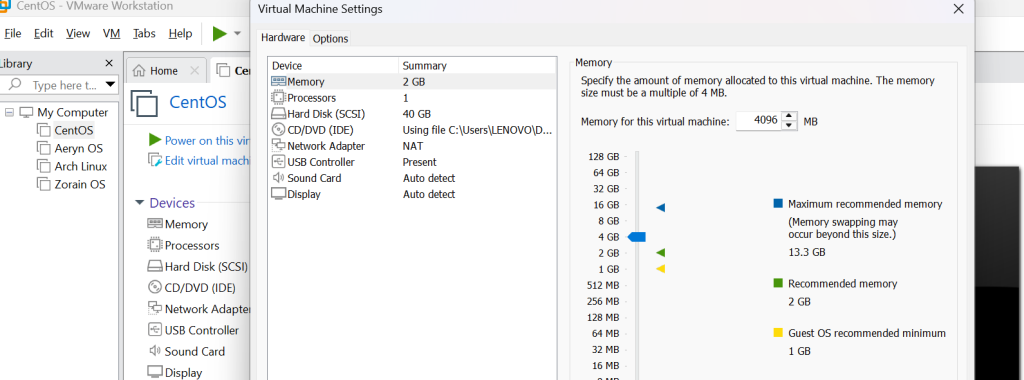
Allocate at least 2 GB RAM (preferably 4 GB for smooth performance)
Assign 20 GB disk space or more depending on applications
Enable virtualization in BIOS/UEFI settings
- Step 2: Install CentOS Linux ISO
Download and mount the CentOS ISO image to begin installation.
Download the latest CentOS ISO from the official site.
Attach ISO to VMware Workstation virtual machine
Boot VM and follow installation wizard
- Step 3: Configure Network Settings
Networking must be enabled for package downloads and updates.
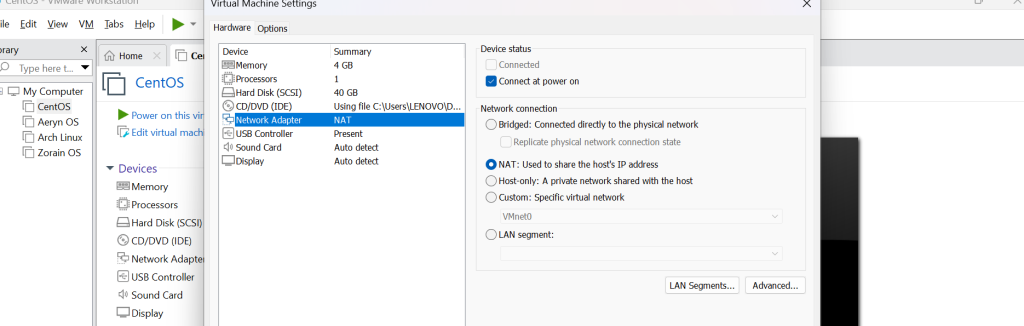
Select NAT or Bridged networking in VMware
Verify IP address using ip addr
Test connectivity with ping google.com
- Step 4: Update System Packages
Keep your CentOS environment secure and stable.
Run command sudo yum update -y
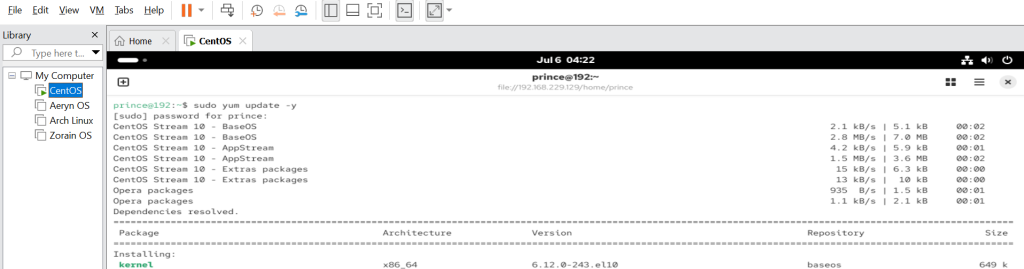

Install essential utilities command: sudo yum install wget curl nano -y

Reboot system after updates
- Step 5: Enable Essential Services
Prepare CentOS for open‑source applications and successful installation.
Enable firewall, Run Command: sudo systemctl enable firewalld && sudo systemctl start firewalld
Enable SSH for remote access: sudo systemctl enable sshd && sudo systemctl start sshd
Confirm services, run command: systemctl status
Updating System Packages for Stability
After preparing your CentOS Linux environment, the next critical step is updating system packages. This ensures your operating system remains secure, reliable, and optimized for open‑source applications and successful installation
Step-by-Step Guidelines.
- Step 1: Update All System Packages
Run the following command to bring every package up to date:
sudo yum update -y
- Step 2: Install Essential Utilities
Add basic tools that developers frequently rely on for configuration and troubleshooting:
sudo yum install wget curl nano -y

- Step 3: Clean Up Old Packages
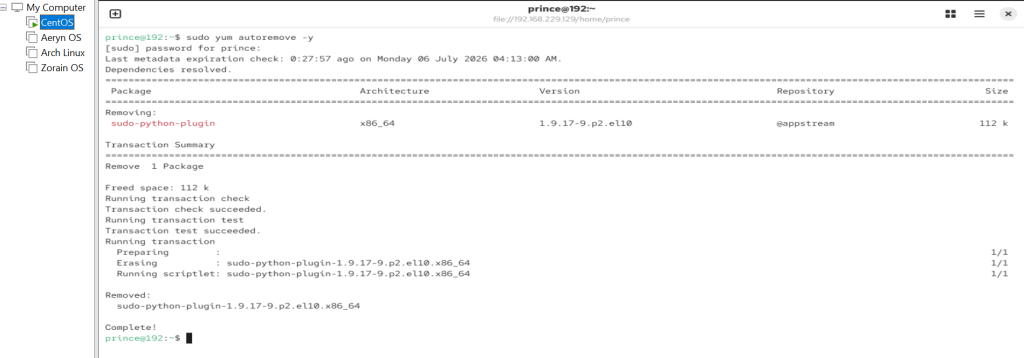
Remove unnecessary or outdated packages to free up disk space and avoid conflicts: sudo yum autoremove -y
- Step 4: Reboot the System
After updates, reboot your CentOS VM to apply all changes:
Run Command: sudo reboot
- Step 5: Verify Package Versions
Check installed versions to confirm updates were successful:
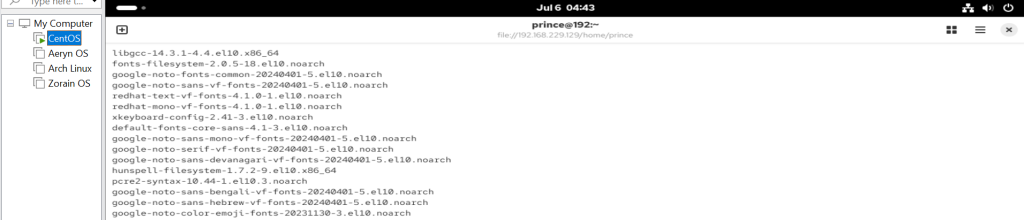
Run Command: rpm -qa | less
Installing Essential Development Tools
Installing development tools on Linux is a critical part of preparing your server environment setup. These tools enable successful installation of applications like Apache, Git, and Docker.
By ensuring your stable OS environment has the right compilers and libraries, you create a reliable foundation for open‑source applications deployment and successful installation in VMware Workstation.
Step-by-Step Guidelines:
- Step 1: Install the Development Tools Group
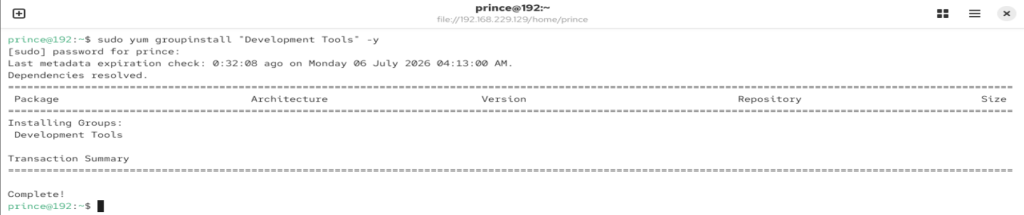
CentOS provides a package group called Development Tools that includes compilers, debuggers, and libraries.
Run Command: sudo yum groupinstall “Development Tools” -y
- Step 2: Install Additional Libraries
Some open‑source applications require extra libraries for smooth compilation.
Run Command: sudo yum install gcc gcc-c++ make automake -y

These packages are essential for successful installation of software from source.
- Step 3: Install Version Control (Git)
Git is a must‑have for developers working with collaborative projects.
Run Command: sudo yum install git -y

- Step 4: Install Scripting Languages (Python, Perl)
Many applications depend on scripting languages for automation.
Run Command: sudo yum install python3 perl -y

- Step 5: Verify Installation
Check installed tools to confirm everything is ready:
Run Commands: gcc –version

git –version

python3 –version

Installing Popular Open‑Source Applications
Step‑by‑Step guidance for Installing Popular Open‑Source Applications in VMware and successful installation on CentOS Linux. This covers Apache, MariaDB, PHP, Git, and Docker the most commonly used tools for web hosting, databases, scripting, version control, and containerization.
Step-by-Step Guidelines
- Step 1: Install Apache Web Server
Apache is a widely used open‑source web server for hosting applications.
Run in terminal- Update packages: sudo yum update -y
Install Apache: sudo yum install httpd -y
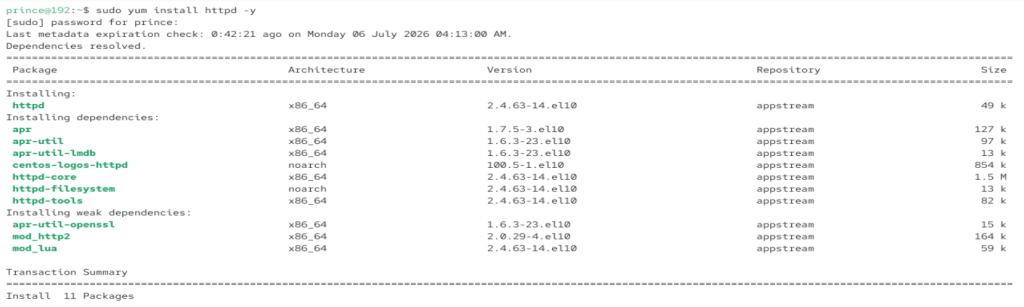

Enable service: sudo systemctl enable httpd

Start service: sudo systemctl start httpd
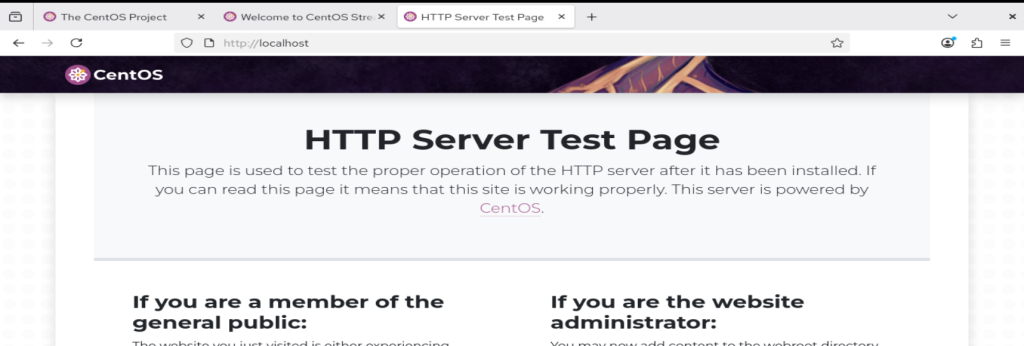
Verify: open http://localhost in browser
- Step 2: Install MariaDB Database
Run Command in Terminal: sudo yum install mariadb-server -y
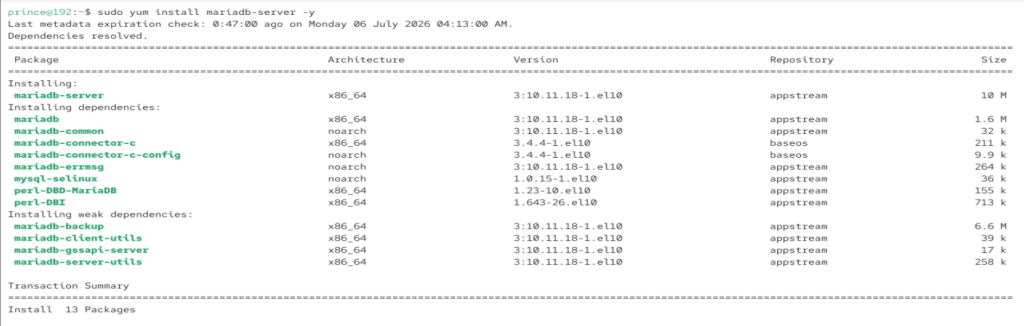
Enable service: sudo systemctl enable mariadb

Start service: sudo systemctl start mariadb
Secure installation: sudo mysql_secure_installation

Verify: mysql -V

- Step 3: Install PHP for Web Applications
PHP enables server‑side scripting for dynamic web applications.
Run Command in terminal: sudo yum install php
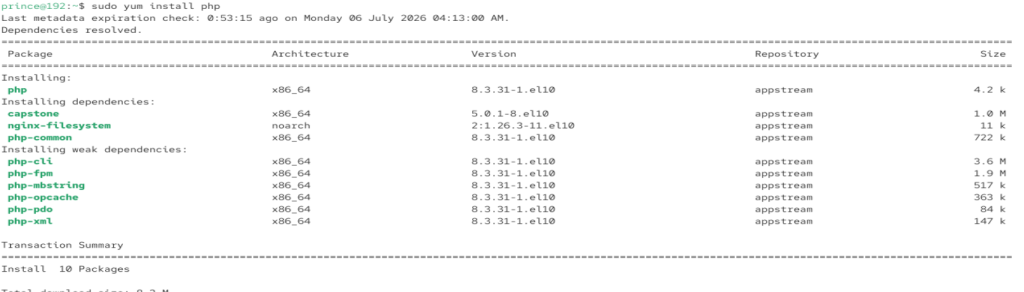
Run Command: sudo yum install php php-mysqlnd php-fpm
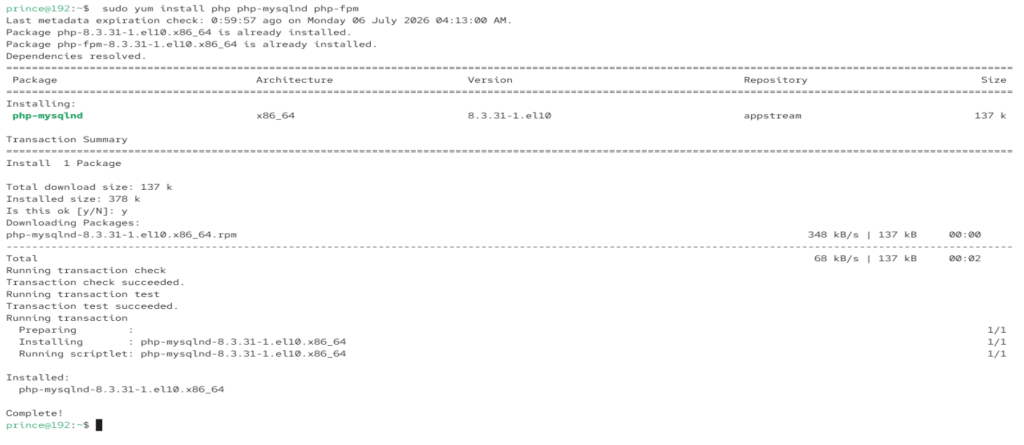
Restart Apache: sudo systemctl restart httpd
Verify: create info.php file with <?php phpinfo(); ?> and open in browser
- Step 4: Install Git Version Control
Git is essential for version control and collaborative development.
Run Command in Terminal: sudo yum install git -y
Verify installation: git --version
Configure user: git config --global user.name "Your Name"
- Step 5: Install Docker for Containers
Docker allows containerized application deployment on CentOS.
Run Command in terminal- Add repo: sudo yum install -y yum-utils
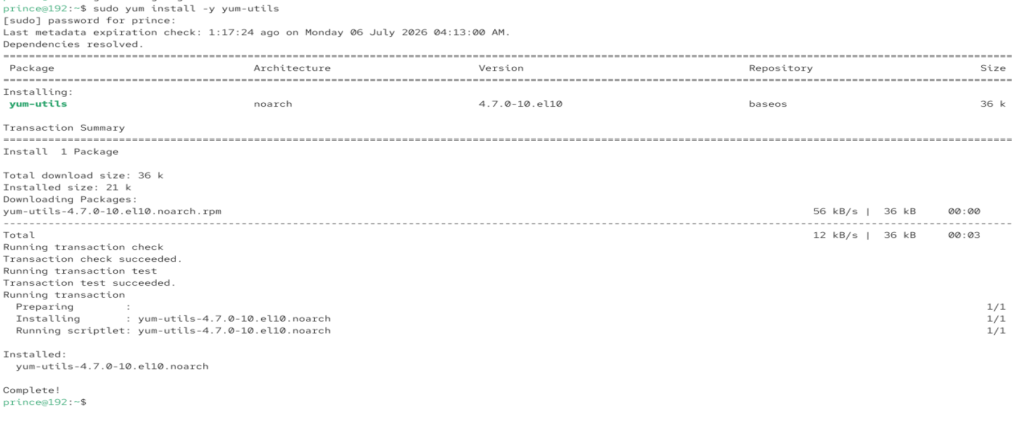
Configure repo: sudo yum-config-manager --add-repo https://download.docker.com/linux/centos/docker-ce.repo

Install Docker: sudo yum install docker-ce docker-ce-cli containerd.io -y
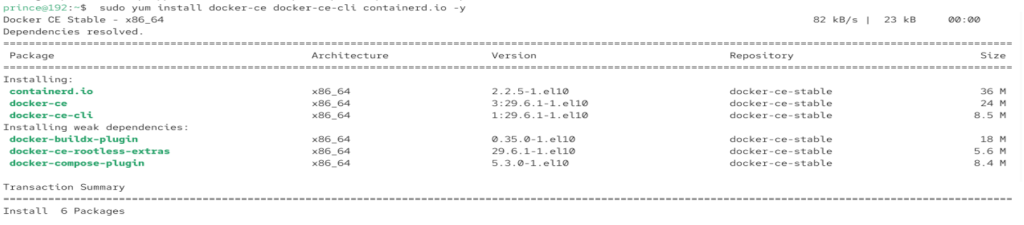
Enable service: sudo systemctl enable docker

Start service: sudo systemctl start docker
Verify: docker --version

Testing and Verifying Successful Installation in VMware Workstation
To ensure your CentOS Linux environment inside VMware Workstation is fully ready, the final step is Testing and Verifying Successful Installation.
This process confirms that each open‑source application was installed correctly and is functioning as expected. Below is a detailed step‑by‑step guide.
- Step 1: Verify Apache Web Server
Confirm Apache is running and serving pages.
Run Command: `systemctl status httpd` – Ensure status shows active
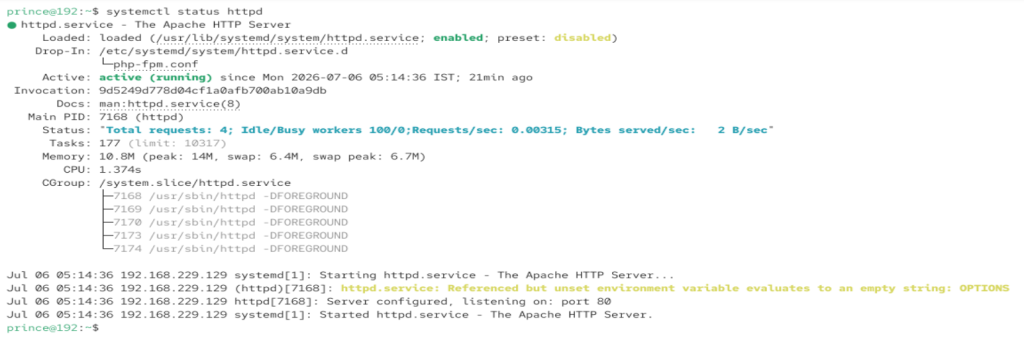
Open browser in VMware and visit http://localhost
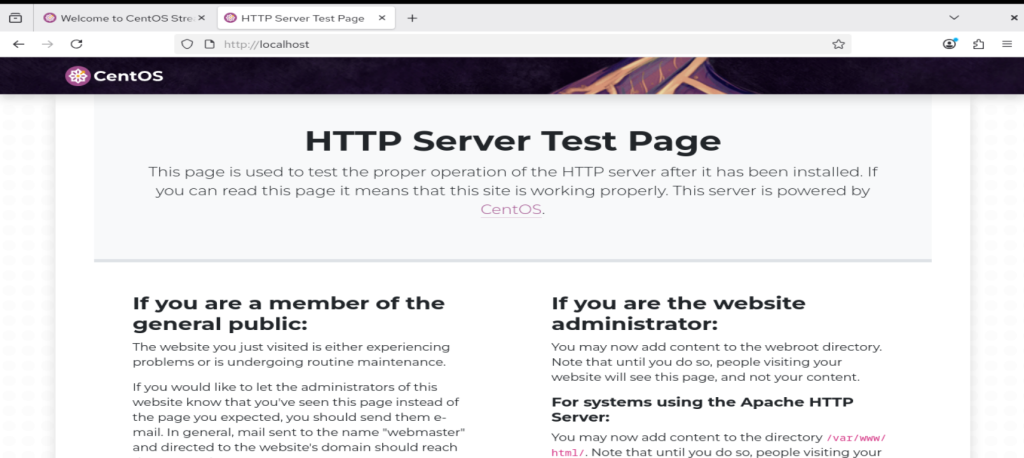
Look for the Apache test page
- Step 2: Check MariaDB Database
Validate that MariaDB is installed and secure.
Run Command: systemctl status mariadb – Confirm service is active
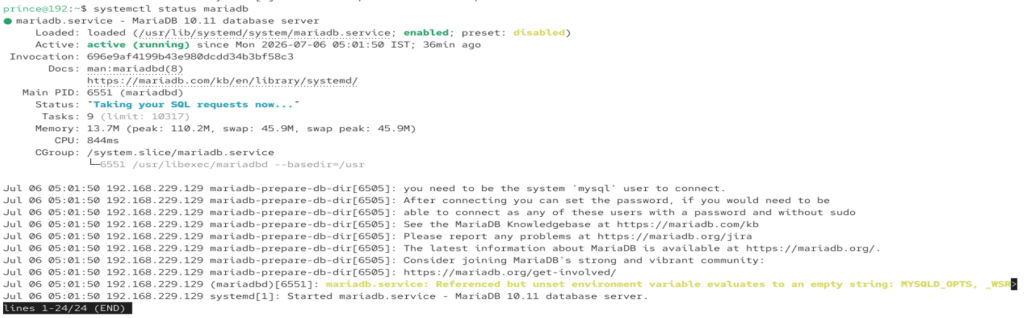
Log in with: mysql -u root -p
Run Command: SHOW DATABASES; to verify functionality.
- Step 3: Test PHP Integration
Run Command: Create `/var/www/html/info.phpwith<?php phpinfo(); ?>- Restart Apache: sudo systemctl restart httpd`
Visit: http://localhost/info.php
Look for PHP configuration page
- Step 4: Confirm Git Installation
Check Git version and configuration.
Run Command: git –version– Ensure version number displays
Configure user: git config --global user.name "Your Name"
Verify with git config --list
Confirm Docker is installed and running containers.
Run Command: docker –version- Start service:sudo systemctl start docker
Test with docker run hello-world
Ensure output confirms successful container run
Conclusion
The adoption of open‑source applications on CentOS Linux within VMware Workstation delivers a wide range of benefits for developers, organizations, and learners. By leveraging community‑driven tools, users gain access to software that is transparent, secure, and highly customizable. This flexibility ensures that every successful installation contributes to building a stable and scalable environment for both experimentation and enterprise workloads.
One of the most significant outcomes of using open‑source applications is cost efficiency. Unlike proprietary solutions, these tools eliminate licensing fees while still offering powerful features and frequent updates. This makes CentOS Linux an ideal platform for deploying web servers, databases, and containerized applications in virtual labs. The result is reduced operational overhead and improved productivity across teams.
Another positive outcome is the collaborative nature of open‑source ecosystems. Every successful installation connects developers to a global community that continuously enhances performance, security, and usability. This shared knowledge accelerates innovation and ensures long‑term sustainability for projects.
Finally, combining CentOS Linux with VMware Workstation provides a controlled, flexible environment where users can test, verify, and optimize their setups. The synergy between virtualization and open‑source applications empowers developers to achieve reliable results, foster creativity, and build solutions that scale seamlessly.
| For More Such Amazing Technical Articles/Blogs on Linux Visit: www.rootlearning.in |
FAQs
Why should I use open‑source applications on CentOS Linux?
Open‑source applications provide transparency, flexibility, and cost savings. They are community‑driven, secure, and ideal for enterprise workloads or virtual labs.
What is the importance of updating system packages before installation?
Updating ensures a stable OS environment, prevents compatibility issues, and secures your system for successful installation.
Which popular open‑source applications can I install on CentOS?
Common tools include Apache, MariaDB/MySQL, PHP, Git, and Docker, all essential for web hosting, databases, scripting, version control, and containerization.
How do I verify that applications are installed correctly?
Check service status with systemctl, run version commands
Can VMware Workstation handle multiple open‑source applications?
Yes, VMware provides a flexible environment where you can run multiple applications simultaneously, making it ideal for Linux environment setup and testing.
Discover more from Root Learning
Subscribe to get the latest posts sent to your email.