Discover 4 powerful benefits of running CentOS on VMware in 2026. Learn how beginners can easily install, optimize performance, secure servers, and scale environments with practical, step‑by‑step approaches.
Table of Contents
Introduction
When it comes to virtualization, beginners often look for a reliable, secure, and cost‑effective operating system to start with. The benefits of running CentOS are widely recognized in the IT community its stability, enterprise‑grade performance, and long‑term support make it a trusted choice. Pairing CentOS on VMware creates a powerful combination: VMware’s flexible virtualization platform enhances CentOS’s strengths, giving beginners a practical way to learn server management, optimize resources, and experiment safely.
In 2026, this setup remains one of the most effective ways to build skills in Linux administration while enjoying scalability, security, and ease of use.
Benefits of Running CentOS on VMware
- Easy Installation and Setup
CentOS integrates smoothly with VMware, making installation straightforward even for beginners. By combining CentOS’s stability with VMware’s intuitive virtualization tools, new users can quickly set up a reliable Linux environment without needing advanced technical knowledge. The installation process is guided through VMware’s “New Virtual Machine Wizard,” which simplifies resource allocation and ISO selection.
Once CentOS is installed, adding VMware Tools enhances usability by improving performance, enabling seamless mouse integration, and supporting better display resolution. This practical approach ensures that even those just starting out in virtualization can confidently deploy CentOS on VMware and begin exploring server management in a secure, controlled environment.
For Practical Approach:
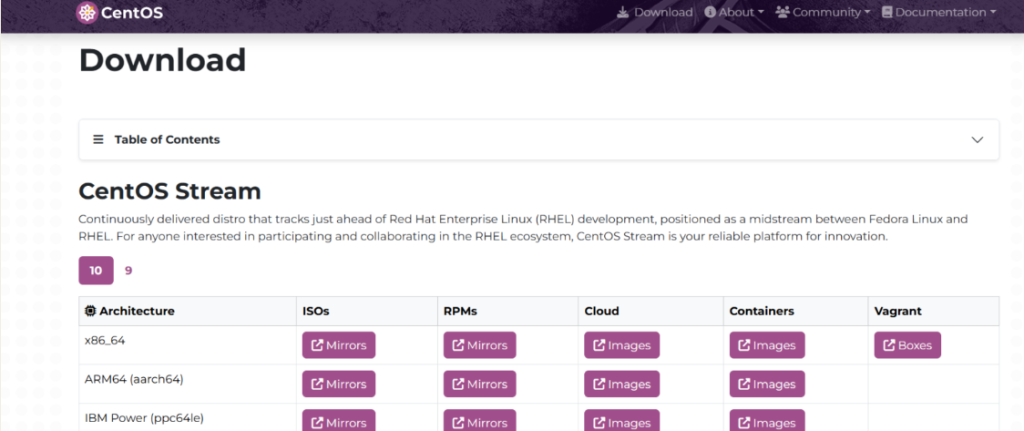
Step 1: Download CentOS ISO file. using the link Download – The CentOS Project
Step 2: Download latest Architecture from ISOs by clicking on the Mirrors.
Step 3: Open VMware Workstation and create the new virtual machine by clicking on “New Virtual Machine” from the File in menu bar.
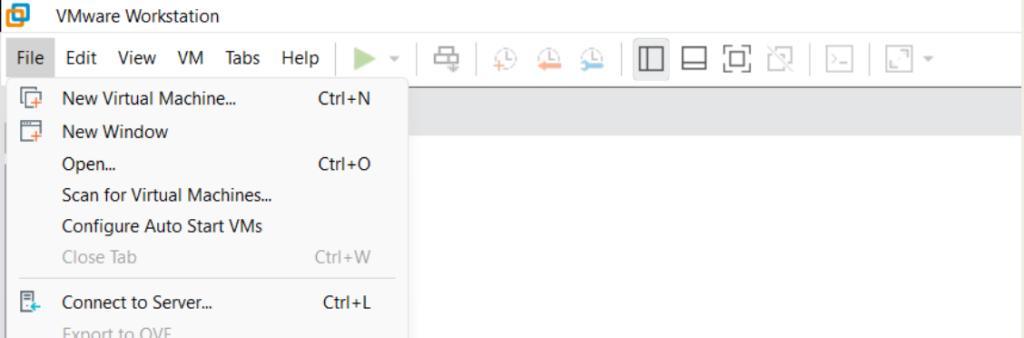
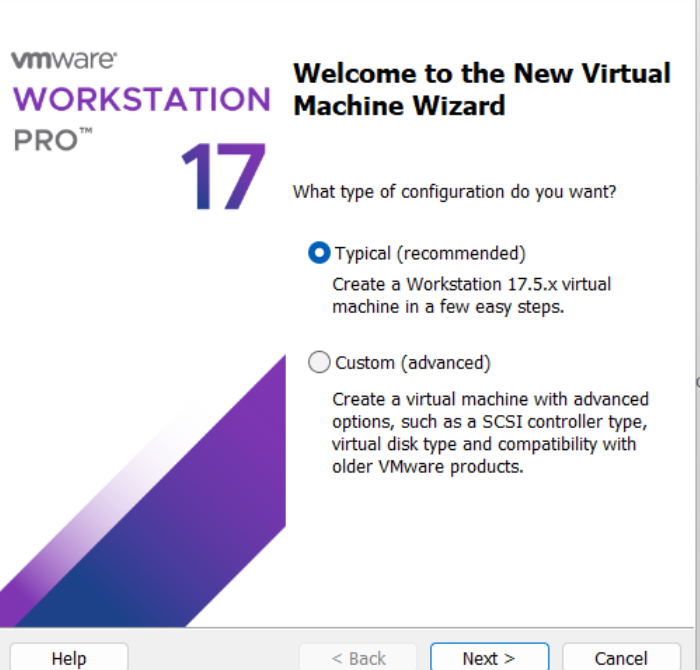
Step 4: Select Default option and click on Next
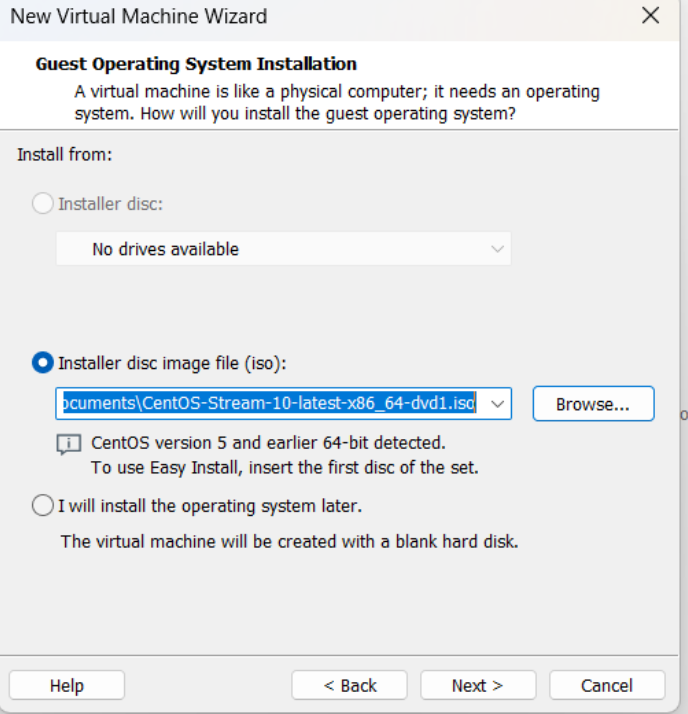
Step 5: Browse and select our CentOS 10 ISO file from our local location and click on Next.
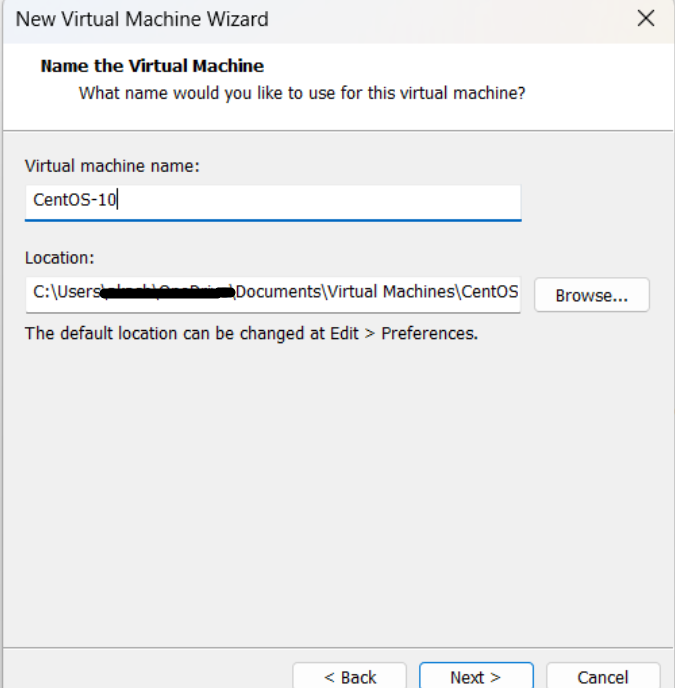
Step 6: Now we will give a name to our virtual machine and click on Next.
You can also change the location of your virtual machine data by clicking on Browse and select the new location
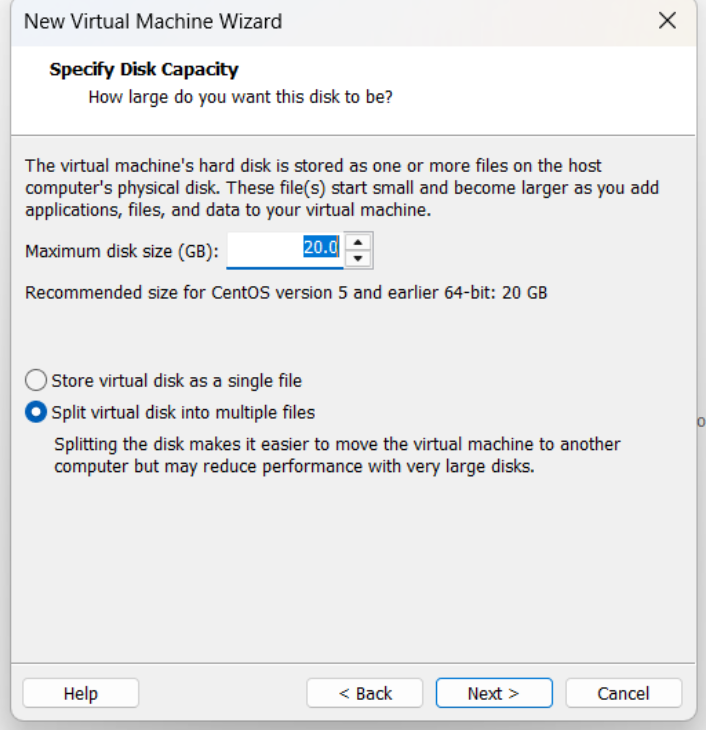
Step 7: Select the disk space to our virtual machine as it is beta version so I will go with the default 20 GB space and click on Next.
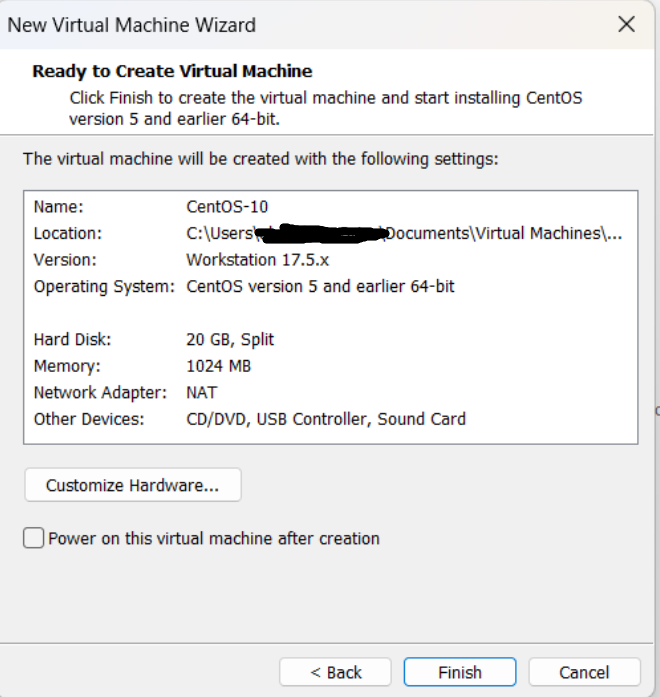
Step 8: Click on “Customize hardware” to customize hardware and increase the memory space and click on Finish.
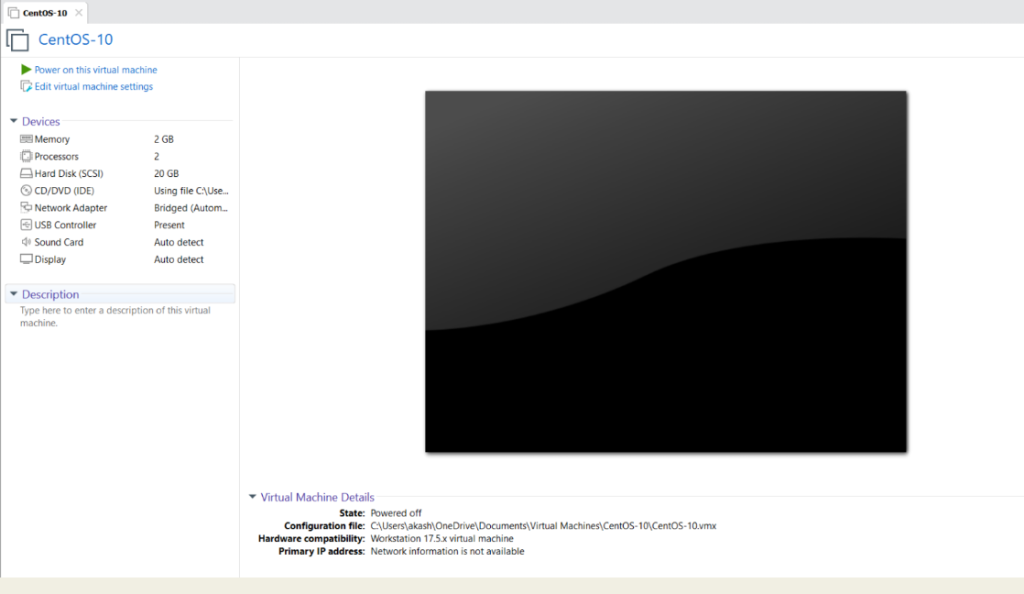
Step 9: Start the virtual machine by clicking on “Power on this virtual machine “.
Step 10: Click on “Install CentOS” by going up with the help of arrow key.
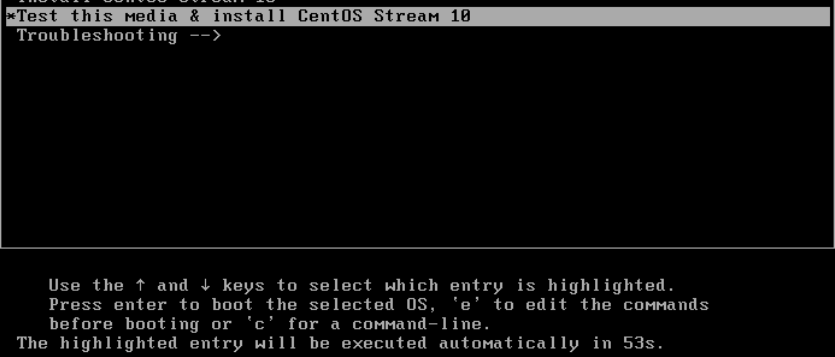
Step 11: After completion of the boot, follow the procedure of Setting Password, setting the language, location etc.
Step 12: After the completion of all procedure, CentOS is ready to use in your VMware Workstation.

- Powerful Performance Optimization
One of the most valuable benefits of running CentOS on VMware is the ability to fine‑tune resource allocation, ensuring that CentOS operates at peak efficiency. VMware provides flexible controls over CPU, memory, and disk resources, allowing beginners to experiment with different configurations and immediately see performance improvements. By adjusting these settings, users can optimize workloads without needing advanced hardware, making CentOS on VMware a cost‑effective and practical solution.
To achieve performance optimization, beginners can start by allocating sufficient RAM and CPU cores based on the applications they plan to run. Enabling disk caching and selecting the right storage controller further enhances speed and responsiveness. Installing VMware Tools is another crucial step, as it improves system integration, boosts I/O performance, and ensures smoother operation. Regular updates to both CentOS and VMware also play a key role in maintaining compatibility and efficiency.
This practical approach ensures that even new users can unlock the powerful performance benefits of CentOS on VMware, creating a stable and responsive environment that grows with their skills in 2026.
For Practical Approach:
Step 1: Open VMware Workstation/ESXi and select your CentOS virtual machine.
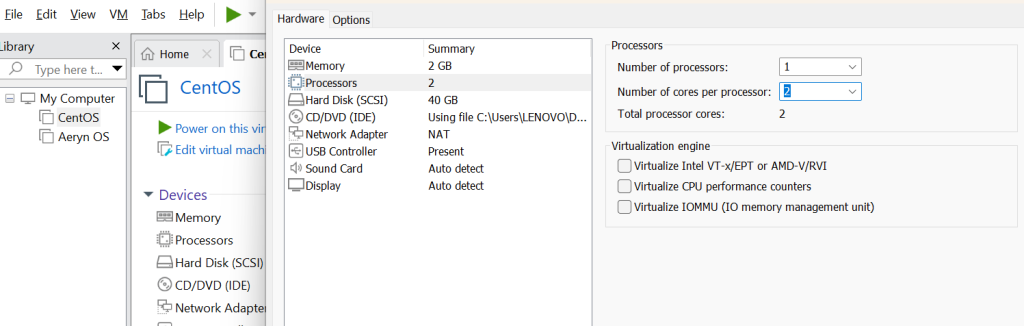
Go to VM Settings → Hardware → Processors.
Increase the number of CPU cores if your workload requires more processing power.
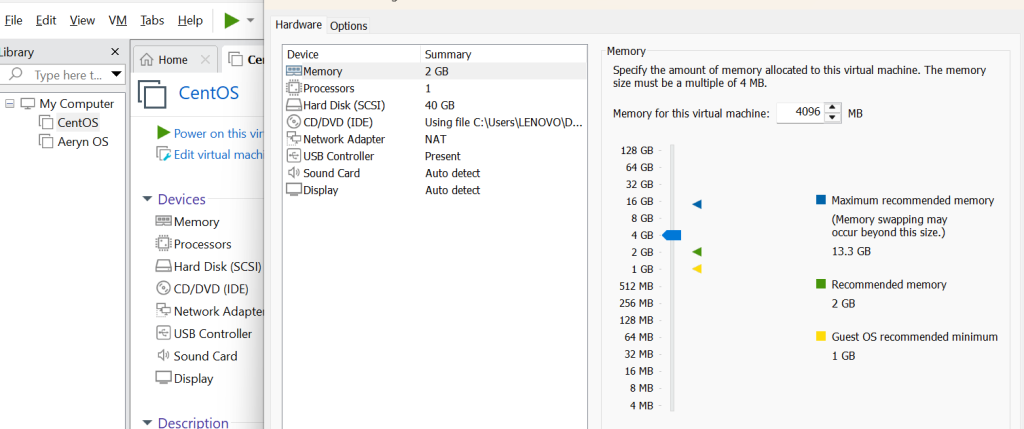
Navigate to Memory settings and allocate RAM based on workload (e.g., 2 GB for light use, 4–8 GB for heavier applications).
Step 2: Enable Disk Caching and Optimize Storage Controllers
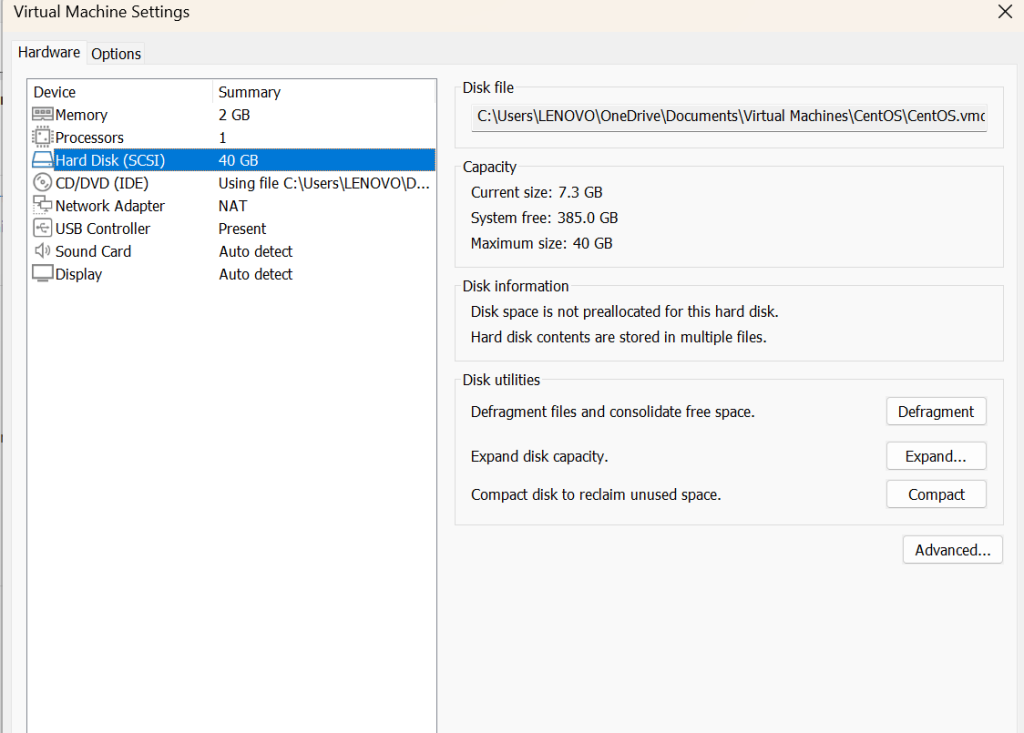
In VM Settings → Hard Disk, check the Advanced options.
Enable disk caching to improve read/write performance.
Choose the recommended SCSI controller (LSI Logic or VMware Paravirtual) for better efficiency.
Defragment or optimize the virtual disk periodically to maintain speed.
Step 3: Keep CentOS and VMware Tools Updated
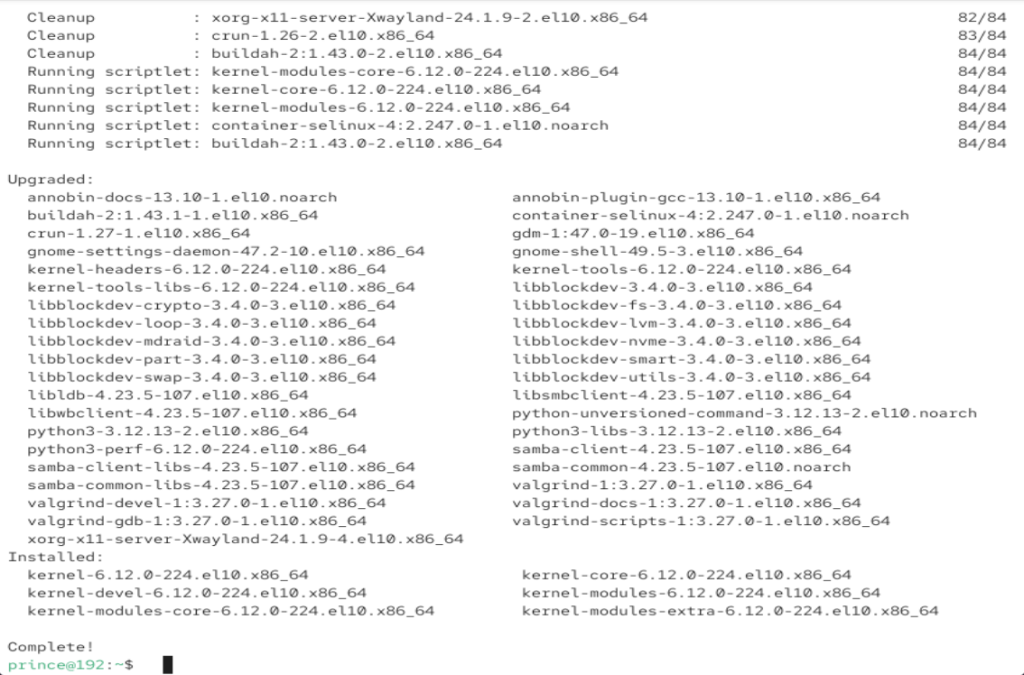
Install or update VMware Tools by selecting Install VMware Tools from the VMware menu.
Run command: sudo yum update -y for installation updates.
Mount the VMware Tools ISO inside CentOS and run the installer:
Run Command: sudo mount /dev/cdrom /mnt
cd /mnt
sudo ./vmware-install.pl
Restart the VMware after the settings.
- Secure and Stable Environment
A secure and stable environment is one of the most important benefits of running CentOS on VMware, especially for beginners in 2026. CentOS has long been recognized for its enterprise‑grade stability and robust security features, making it a trusted choice for server deployments. When combined with VMware’s virtualization platform, users gain an additional layer of isolation that protects workloads from external threats and system failures. This synergy ensures that CentOS on VMware not only delivers consistent performance but also provides a safe environment for learning and experimentation.
Beginners can confidently explore Linux administration, knowing that VMware snapshots allow quick recovery from mistakes, while CentOS’s built‑in tools like SELinux and firewalls strengthen system defenses. Together, these features create a reliable foundation for anyone starting their journey in virtualization and server management.
For Practical Approach:
Configure firewalls and SELinux policies within CentOS.
Step 1: Verify SELinux Status
Ensure SELinux is enabled and enforcing policies.
Run Command: getenforce or sestatus
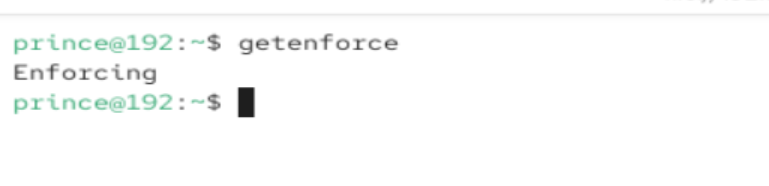
If output is Enforcing, SELinux is active.
If Permissive or Disabled, consider enabling it.
Step 2: Enable SELinux if Disabled
Switch SELinux to enforcing mode for stronger security.
Edit /etc/selinux/config
Set SELINUX=enforcing
Reboot the system to apply changes
Step 3: Manage SELinux Policies
Adjust policies to allow legitimate applications while blocking unauthorized actions.
Use semanage and setsebool commands.
Example: semanage port -a -t http_port_t -p tcp 8080
Example: setsebool -P httpd_can_network_connect on.
Step 4: Check Firewalld Status
Confirm Firewalld is running to manage network traffic
Run command: systemctl status firewalld
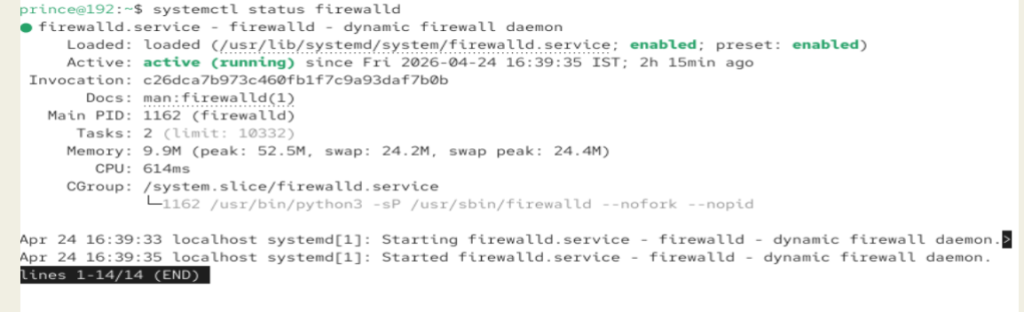
If inactive start with: sudo systemctl start firewalld
Enable at boot: sudo systemctl enable firewalld
Step 5: Configure Firewall Zones
Assign interfaces to zones for tailored security policies.
Use firewall-cmd commands.
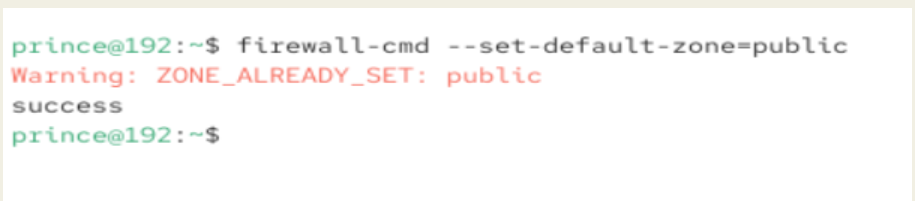
Example: firewall-cmd --set-default-zone=public .
Example: firewall-cmd --zone=public --add-service=http --permanent .

Step 6: Reload and Verify Rules
Apply changes and confirm firewall rules are active.
Run Command: firewall-cmd –reload

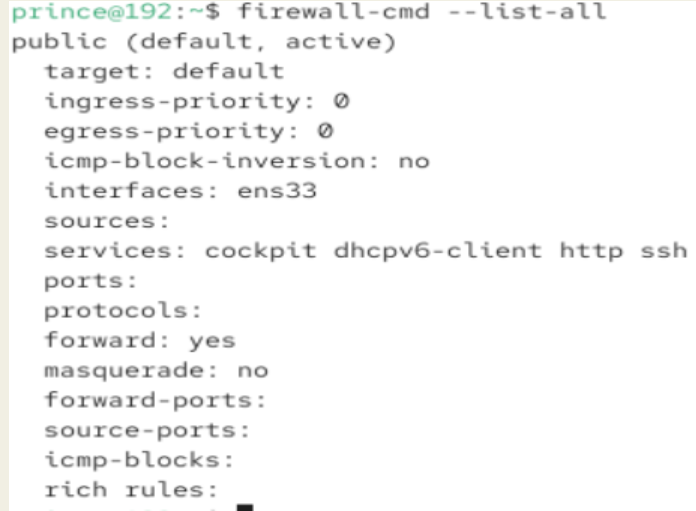
Check active rules: firewall-cmd --list-all
- Scalability and Flexibility for Beginners
One of the most significant benefits of running CentOS on VMware is the scalability and flexibility it offers, especially for beginners who are just starting their journey in virtualization.
With CentOS on VMware, users can begin with a small, lightweight virtual machine and gradually expand resources such as CPU, memory, and storage as their skills and requirements grow. This adaptability ensures that the benefits of running CentOS are not limited to advanced users but are accessible to anyone learning system administration.
The combination of CentOS on VMware allows beginners to experiment with different configurations without risk, thanks to VMware’s snapshot and cloning features. By leveraging these tools, users can test updates, security patches, or new applications while maintaining a stable environment.
The benefits of running CentOS in this setup also extend to networking, where VMware provides NAT and bridged modes that simulate real‑world server environments. This makes CentOS on VMware an ideal platform for learning practical skills in 2026.
As beginners progress, the benefits of running CentOS become even more evident: scalability ensures that workloads can grow without requiring new hardware, while flexibility allows for easy customization of environments. Whether it’s experimenting with automation, deploying web servers, or managing databases, CentOS on VMware provides a secure, stable, and expandable foundation.
Ultimately, the benefits of running CentOS in VMware empower learners to build confidence, gain hands‑on experience, and prepare for more advanced IT challenges.
Practical Approach:
Step 1: Start with a Small VM
Create a new CentOS VM in VMware.
Allocate 2 GB RAM and 1 CPU core.
Assign 20 GB disk space for initial setup.
Install CentOS and confirm smooth operation.
Step 2: Expand Resources as Needed
Shut down the VM before making changes.
Add more RAM (e.g., 4–8 GB).
Increase CPU cores for heavier applications.
Expand disk size using VMware settings.
Step 3: Clone VMs for Testing
Use VMware’s Clone VM option.
Create a full clone for independent testing.
Experiment with updates or new software without affecting the main VM.
Step 4: Experiment with Networking Options
Configure NAT mode to share host’s IP.
Use Bridged mode for direct network access.
Test firewall and SELinux rules in different setups.
Practice connecting multiple VMs for server‑client scenarios.
Final Thoughts.
In conclusion, running CentOS within VMware provides beginners in 2026 with a reliable pathway to learn virtualization and server management in a safe, controlled environment. The combination of straightforward installation, performance optimization, enhanced security, and scalable flexibility makes this setup both practical and future‑ready.
By starting small and gradually expanding, learners can build confidence while experimenting with real‑world scenarios without the risk of system instability. This approach not only supports skill development but also ensures a smooth transition into more advanced IT practices, making it an excellent foundation for anyone beginning their journey in Linux administration and virtualization.
FAQs
Is CentOS free to use on VMware?
Yes, CentOS is an open‑source Linux distribution, and you can run it on VMware without licensing costs.
Do beginners need advanced hardware to run CentOS on VMware?
No, you can start with basic hardware. VMware allows you to allocate resources flexibly, so even entry‑level systems can handle CentOS smoothly.
How does VMware help beginners learn CentOS?
VMware provides a safe environment where you can experiment with CentOS, use snapshots to recover from mistakes, and test different configurations without risk.
Can CentOS virtual machines be scaled easily in VMware?
Yes, you can expand CPU, memory, and storage as your needs grow, making it ideal for beginners who want to gradually build skills.
Is CentOS secure when running inside VMware?
Yes, CentOS offers strong built‑in security features, and VMware adds an extra layer of isolation to protect your workloads.
Discover more from Root Learning
Subscribe to get the latest posts sent to your email.