This is a practical guide for your AI setup on Linux. AI and ML are defining technologies of our time — reshaping work, careers, and industries. But they come at a cost: massive energy consumption, expensive infrastructure, and data centers that demand constant cooling and maintenance. The only way out of this bottleneck is efficiency. That’s where Linux comes in. Of all operating systems, AI performs best on Linux — and virtually every major AI project in the world runs on it. That’s exactly what we’re covering today.
Table of Contents
What is Linux?
Linux is an operating system developed by Linus Torvalds. It was launched in 1991. It is a free and open source software, which means its source code is available on the internet for people to tinker with. It has a large developer community all around the world. It is known for effectively managing computer hardware and its resources. It acts as a superior competitor to Windows and MacOS. AI setup on Linux is preferred because of its command-line efficiency and huge customizability options.
AI setup on Linux is encouraged because of its core features, which are as follows:
Open-source and free: The Linux Operating System’s source code is free to view, modify, and distribute. This allows for global collaboration and technical advancements.
Stability and Reliability: Linux is very stable without needing many upgrades and updates. It can operate for years without needing a reboot.
Security: Linux’s open source nature can give a negative impression about its security. But that’s not the case. It is a highly secure system. It is known for using strict permissions and a community-driven patch system. This reduces Linux’s vulnerability to malware and viruses.
Customizations: It offers a whole range of customizations, ranging from user interfaces to system behaviors, making it a flexible option for an AI setup on Linux.
Portability and Performance: Linux is very lightweight and efficient. It can run on multiple types of hardware, including older models and embedded devices.
Multi-tasking: Linux supports multiple users and allows users to run multiple applications simultaneously. This provides a critical advantage for a pure AI setup on Linux.
Comprehensive software repository: Linux, on its own, is a kernel. It becomes a complete OS by including tools and applications. Distributions like Ubuntu and Fedora provide built-in package managers to install and update software programs easily.
What technical advantages does an AI setup on Linux offer?
Linux was built for quick, rapid development. It was made open source so that developers can customize it as per their needs and requirements. AI is an emerging field and it is moving very fast. That is why Linux proves to be the best partner for AI. There are no licensing issues and no waiting on a vendor to roll out support for relevant Python versions and modules. The developers have the ultimate hand in how they want Linux to behave.
Some technical advantages that developers get for an AI setup on Linux are as follows:
Memory Management: Linux gives better and more advanced memory management systems than other operating systems. It offers a lower OS overhead, which comes out to be roughly around 800MB less VRAM usage than Windows. This offers multiple benefits for AI setup on Linux. It helps developers train larger models, manage higher context windows, and decrease hallucinations.
Input/Output Optimization: Linux provides better I/O optimization than its counterparts. I/O operations can account for up to 90 percent of the total time to train models. Linux helps by maximizing GPU utilization, which reduces training times and operational costs. This helps Linux handle large datasets more efficiently than other operating systems, such as Windows and macOS.
Scheduler Customization: Linux provides the best scheduler customizations for AI training. By customizing the Linux scheduler, developers can maximize CPU/GPU utilization during the training period. It helps in aligning computing threads with physical memory (NUMA), reducing I/O bottlenecks, and eliminating neighbour interference. Developers can use tools like cgroups v2, numactl, and taskset to prevent data starvation and consistent training throughput.
Why does AI perform better on Linux?
Artificial Intelligence needs top-of-the-line GPU performance. And Linux helps you achieve this effortlessly. CUDA, which is Nvidia’s GPU computing toolkit, works exceptionally well on Linux. A customized AI setup for Linux can save hours while training large language models. It provides you with the best set of drivers and kernel modules to achieve this. To summarize, Linux and AI integrate much better.
What AI tools are supported in Linux?
Linux offers a near-perfect environment for AI tools and libraries. Some of the major libraries, such as TensorFlow, PyTorch, HuggingFace Transformers, OpenCV, and many more, are trained and tested on Linux itself. It is the first choice of OS when technical writers decide to write documentation for an AI setup in Linux. Community help and packages also favor Linux more as their preferred operating system.
Artificial Intelligence and Machine Learning run on Python. And Linux offers great support for Python libraries and development environments. Anaconda, Jupyter, and virtual environments can be set up very easily. The integration and development are way smoother in Linux than in other operating systems.
AI Setup on Linux (Basic Edition)
Now, we will begin our guide to AI setup on Linux.
Prerequisites: We are using VMWare Workstation 17 Player for non-commercial use only. We have also set up a virtual machine with Ubuntu 22.04 64-bit. Please make sure that you have these requirements for this AI setup on Linux guide.
Follow the steps below to get your first AI setup on Linux:
- Open the VMWare application on your desktop.
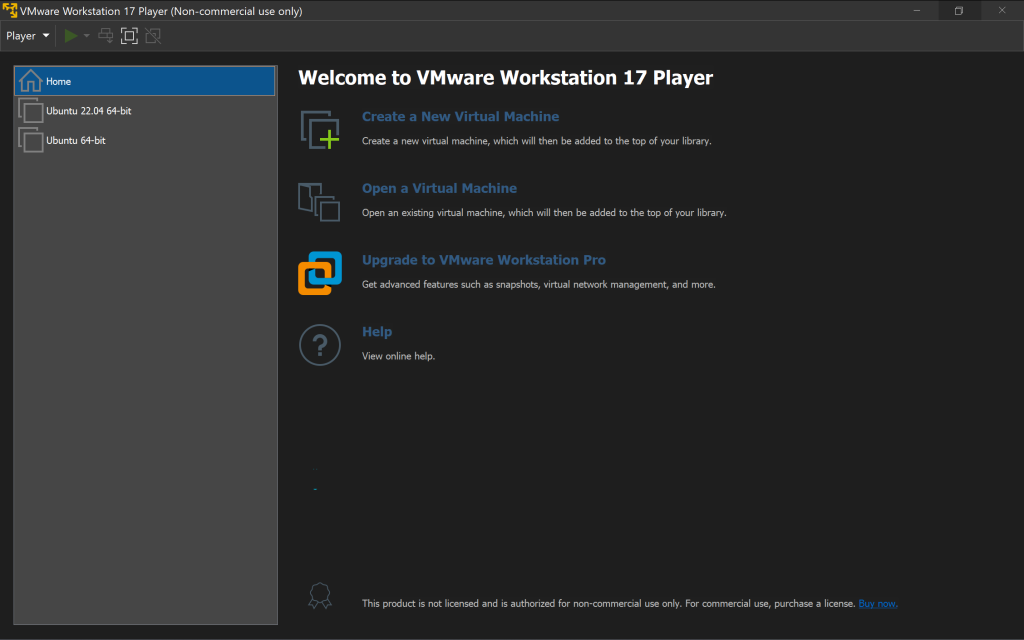
- Navigate to the virtual machine you want to use for this guide. We will be using Ubuntu 22.04 64-bit. Click on “Run virtual machine”.
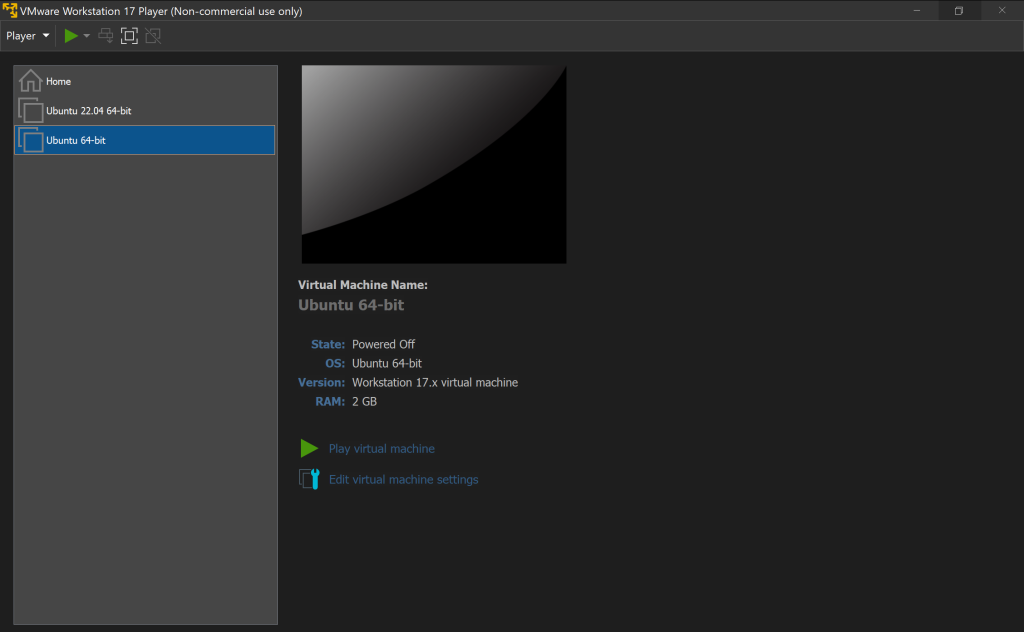
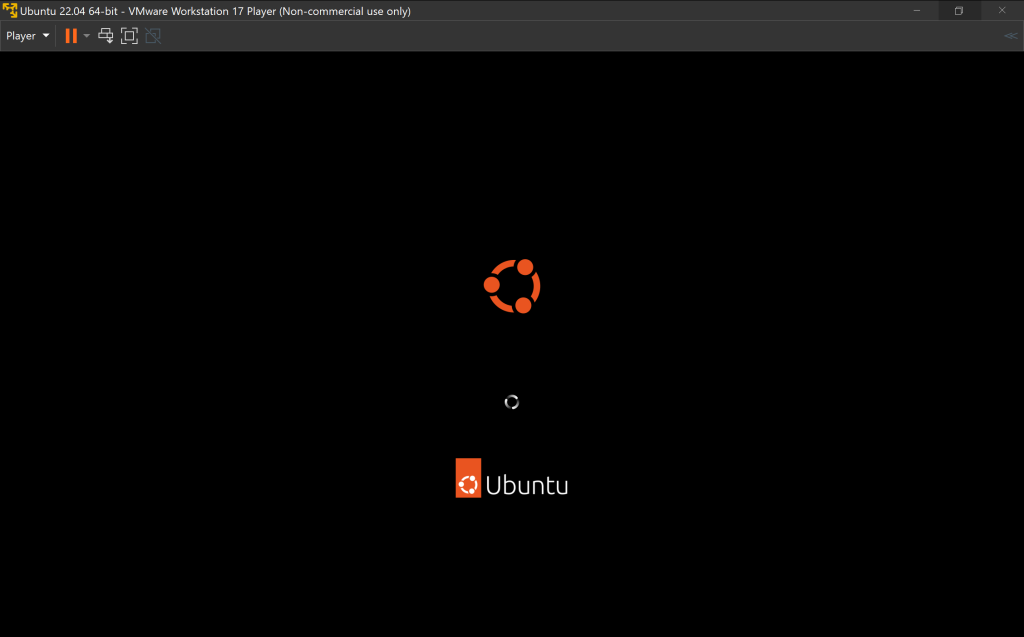
- Now, wait and let your virtual machine boot up. You will see the starting screen.
- Open the terminal.
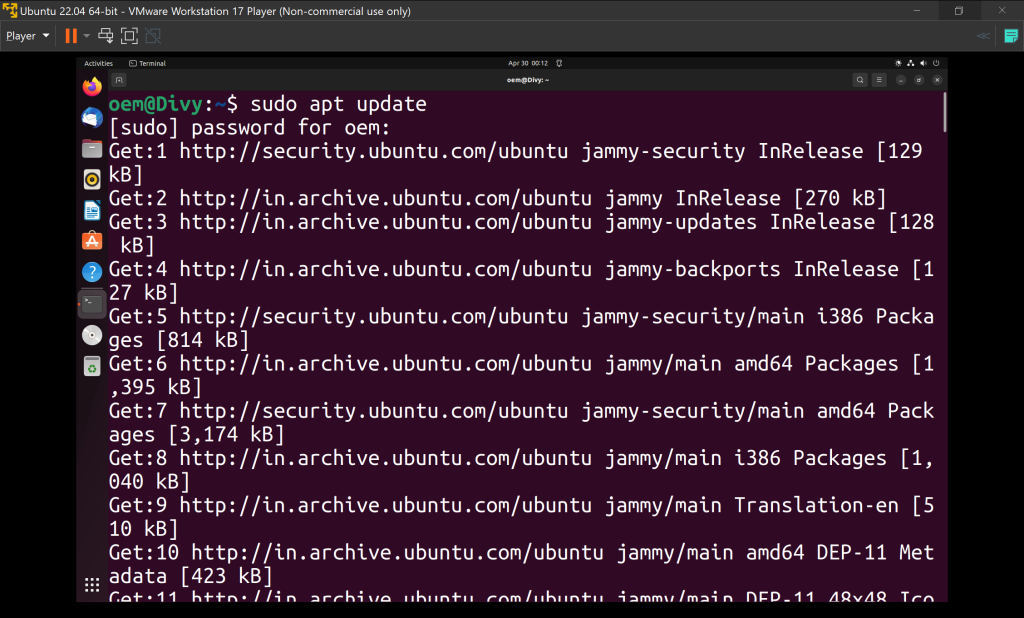
- Run the following command to download and install any updates for the system: sudo apt update. Enter your sudo password. Upon successful completion, you will see information like “537 packages can be upgraded”. This depends on system-to-system.
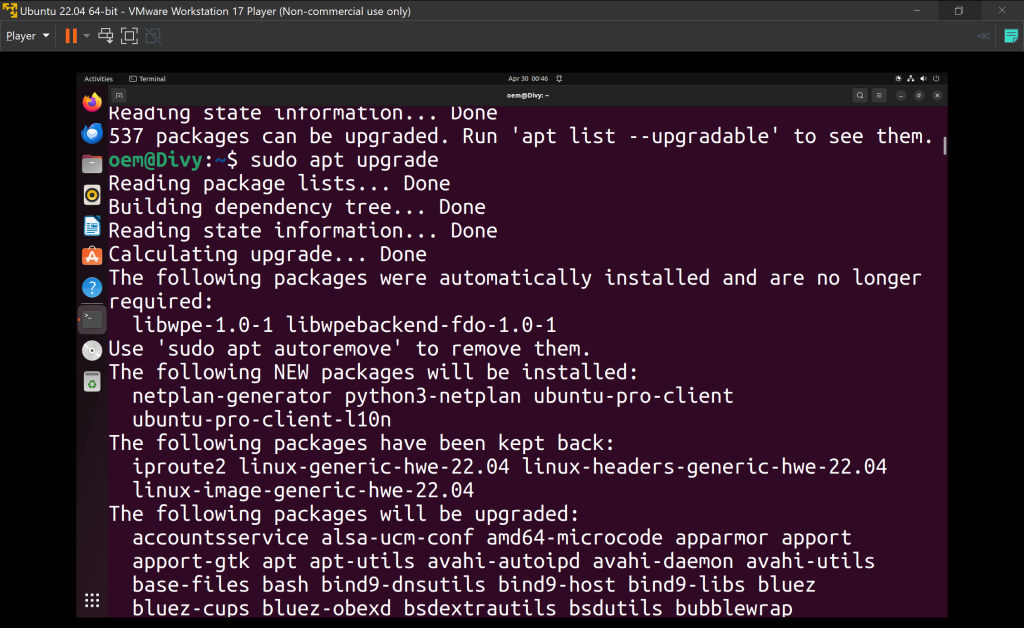
- Then, run the command: sudo apt upgrade. This will upgrade the system, and it’s tools, and software to the latest version.
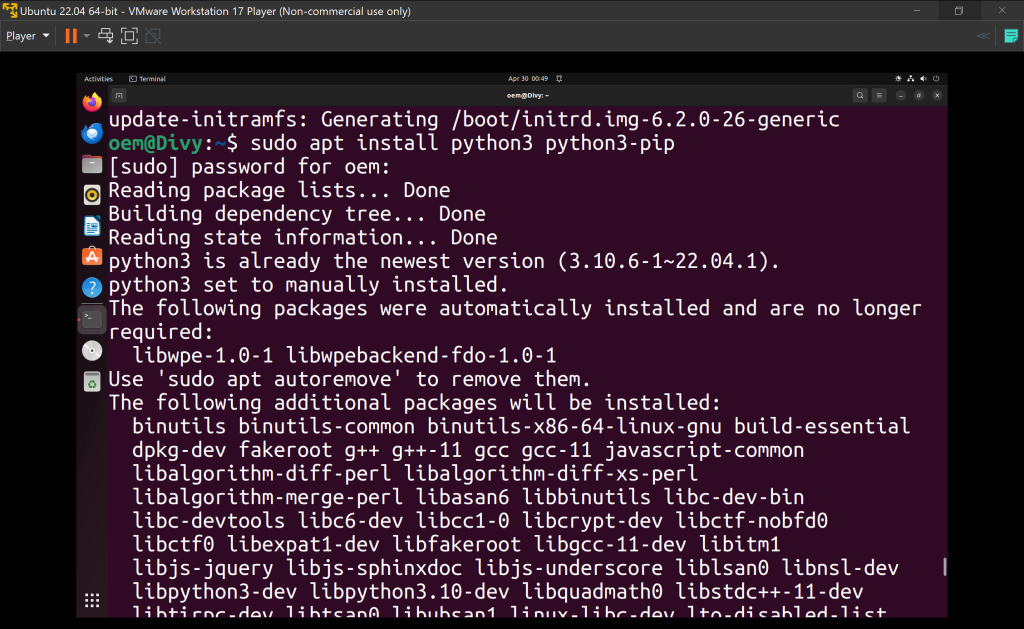
- Install Python and the PIP library by running the following command: sudo apt install python3 python3-pip.
- Now, let’s install a virtual environment. Virtual environments help us by keeping our installations modular and structured. They act as an environment inside which all development happens. This does not affect other parts of the system. Run the following command to install a virtual environment: sudo apt install python3-venv
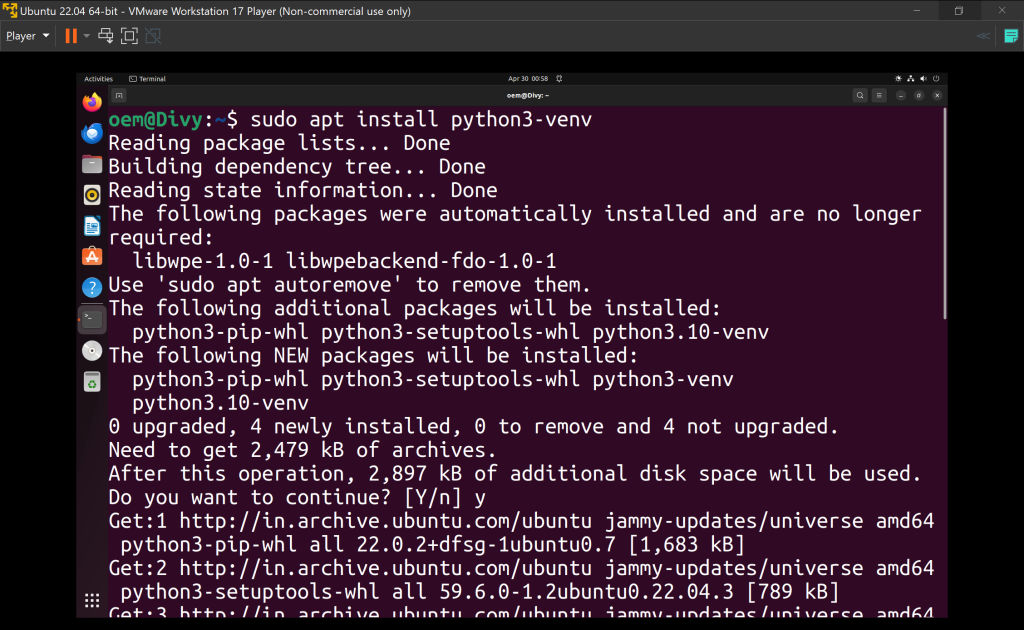
- Now, let’s create a virtual environment. Run the following command to create one: python3 -m venv ai_env
- Check whether your virtual environment was created or not by using the command: ls -la. You should see everything present in your home directory. Ensure that ai_env is present in this list.
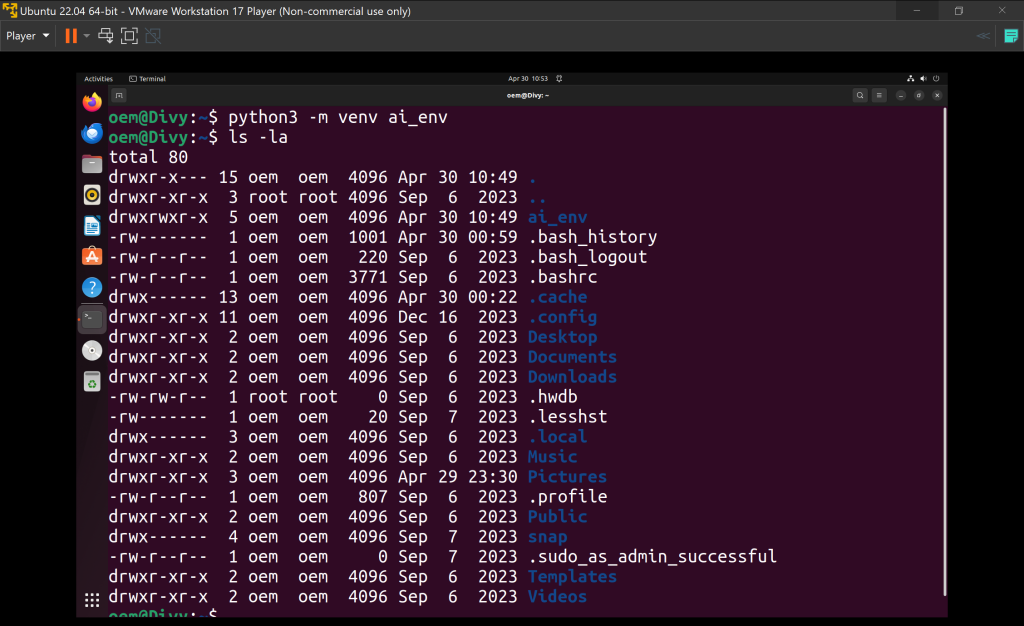
- Now, let’s activate the virtual environment. Run the following command: source ai_env/bin/activate.
- Now, it’s time to do the first step in our AI setup on Linux. Let’s install TensorFlow. Run the following command: pip install tensorflow. Remember that our virtual environment should be activated before running this command.
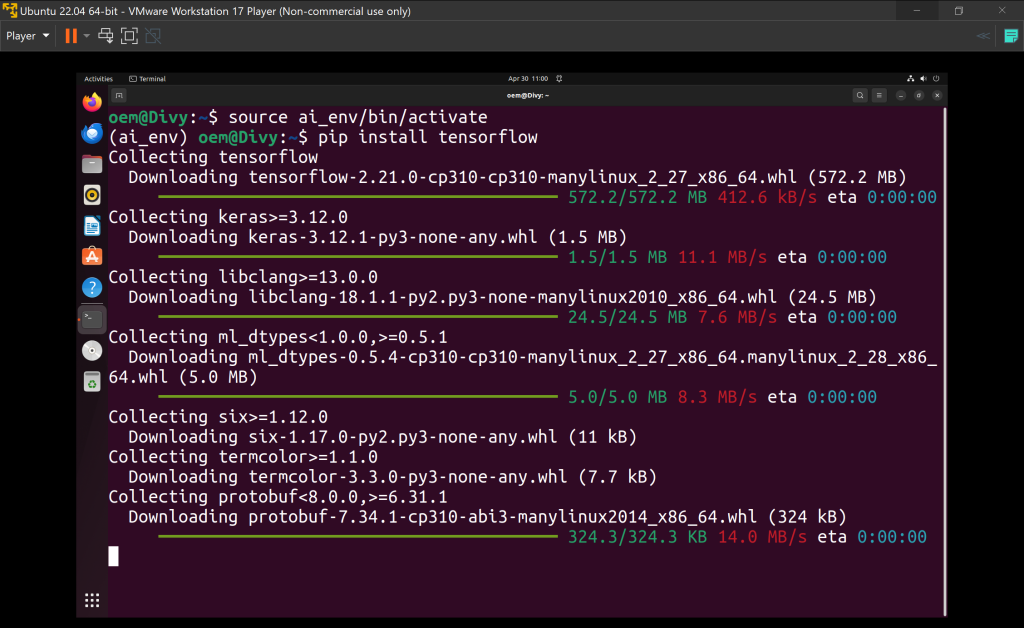
- Now, we will install PyTorch and its relevant libraries in Linux. You can use a different virtual environment for installing Torch, but in this guide, we will go with one master virtual environment. Run the following command to install it: pip install torch torchvision torchaudio.
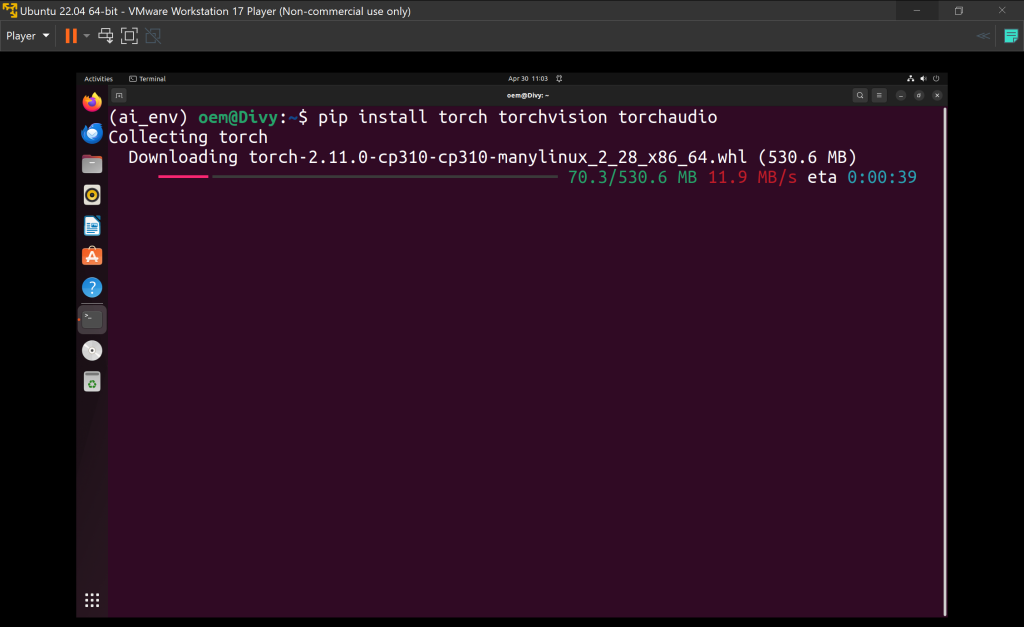
- You can check whether the virtual environment and the AI libraries inside it are working or not by creating a Python file. Import torch and print its version. If you get the version number as the output, congrats! You are successful in creating your own AI setup on Linux.
- Before closing the terminal, don’t forget to deactivate the virtual environment. Run the command: deactivate to do this.
And there you go! You now have your AI setup in Linux. Don’t forget to tinker with these amazing libraries and create something innovative.
Conclusion
Linux isn’t just a preference for AI development; it’s a competitive advantage. Better memory management, I/O optimization, and seamless GPU support mean less friction and faster results. The AI setup for Linux covered here is just the starting line. The real work and the real fun begin when you start experimenting.
Frequently Asked Questions
Q. Do I need a powerful machine to run an AI setup on Linux?
A. Not necessarily. Basic AI experimentation with libraries like TensorFlow and PyTorch can run on modest hardware. However, training large models will benefit significantly from a dedicated GPU and higher RAM.
Q. Which Linux distribution is best for AI development?
A. Ubuntu is the most popular choice due to its large community, extensive package support, and compatibility with major AI frameworks. Fedora and Debian are solid alternatives.
Q. Can I run this setup on a physical machine instead of a virtual machine?
A. Absolutely — and it will perform better. VMWare is used in this guide for accessibility, but a native Linux installation gives you full hardware access, which matters especially for GPU-intensive workloads.
Q. Why use a virtual environment instead of installing libraries globally?
A. Virtual environments keep dependencies isolated per project. This prevents version conflicts when working across multiple AI projects simultaneously.
Q. Is Windows Subsystem for Linux (WSL) a good alternative to a full Linux setup?
A. WSL works for light experimentation, but it has limitations around GPU access and system-level customization. For serious AI development, a native or VM-based Linux setup is the better path.
Q. Do I need to know Linux commands to get started?
A. Basic command-line familiarity is enough to follow this guide. As you go deeper into AI development on Linux, your comfort with the terminal will naturally grow.
Discover more from Root Learning
Subscribe to get the latest posts sent to your email.