
Unlock peak productivity in 2026 with CentOS cron jobs! Learn how to automate tasks, schedule processes, and streamline workflows using this ultimate guide for developers, sysadmins, and IT professionals.
Table of Contents
Introduction to Cron Jobs
Cron jobs are a powerful scheduling tool built into CentOS that allow users to automate repetitive tasks with precision. At their core, cron jobs are commands or scripts set to run at specific times or intervals, eliminating the need for manual intervention.
In 2026, as businesses and developers increasingly rely on automation to streamline operations, cron jobs remain a cornerstone of system administration and productivity.
What Cron Jobs Are and Why They Matter in 2026?
A cron job is essentially a scheduled task that runs automatically according to predefined rules in the crontab file. Whether it’s performing backups, cleaning up temporary files, or monitoring system health, cron job ensures that essential processes happen consistently and on time.
In 2026, with workloads becoming more complex and IT teams managing hybrid environments, cron job provides reliability and efficiency that modern organizations cannot afford to overlook.
Benefits of Automation for Productivity
The biggest advantage of using automation with cron job is the boost in productivity. By automating routine tasks, system administrators and developers free up valuable time to focus on innovation and problem-solving. Automation reduces human error, ensures consistency, and keeps systems running smoothly without constant oversight.
For example, automated database backups or log rotations not only save time but also protect against data loss. In 2026, where speed and efficiency define competitive success, cron jobs empower professionals to achieve more with less effort.
Setting Up Cron on CentOS
Installing and Enabling Cron Service
- To begin using cron jobs on CentOS, you first need to ensure that the cron package is installed. Most CentOS distributions come with cron pre-installed, but it’s always best to verify.
- You can install it using the package manager with: sudo dnf install cronie
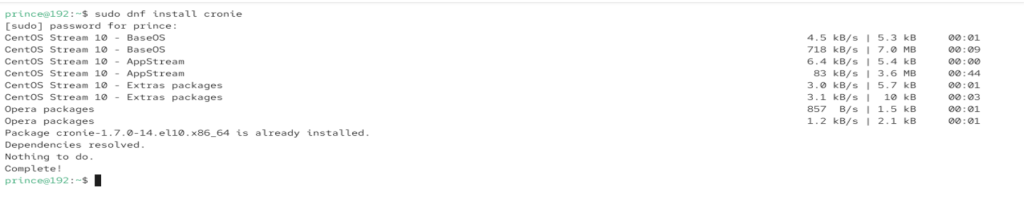
- Once installed, enable the cron service so that it starts automatically at boot:
- Run Command: sudo systemctl enable crond and sudo systemctl start crond
- It will be enabled and start in the background
Verifying Cron Daemon Status
- After installation process is successful, it’s important to confirm that the cron daemon is active and functioning correctly.
- Run Command: systemctl status crond
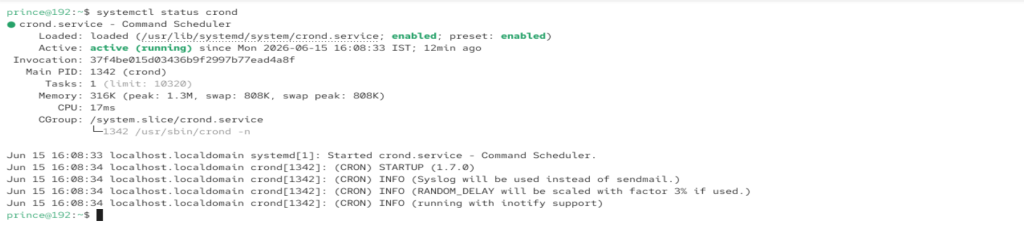
- If the service is running, you’ll see an “active (running)” message.
Understanding Crontab Syntax in CentOS
Minute, Hour, Day, Month, Weekday Fields Explained
The crontab syntax is the backbone of scheduling tasks in CentOS. Each cron job line is divided into five time-related fields followed by the command to execute. These fields represent minute, hour, day of month, month, and day of week.
For Example:
- Minute (0–59): Defines the exact minute a task should run.
- Hour (0–23): Specifies the hour of the day.
- Day of Month (1–31): Determines which day of the month the job executes.
- Month (1–12): Indicates the month of the year.
- Day of Week (0–6): Represents days from Sunday (0) to Saturday (6).
Examples of Common Scheduling Patterns
To make cron jobs for more practically approach, let us deep dive into some practical approach examples:
- Run every day at midnight, Run Command: 0 0 * * */path/to/script.sh
- Execute every Monday at 9 AM, Run Command: 0 9 * * 1/path/to/script.sh
- Perform a task every 15 minutes, Run Command: */15 * * * */path/to/script.sh
*For Using the Command mentioned above, the user must have some files saved in OS*.
Creating and Managing Cron Jobs in CentOS
Each user in CentOS has their own crontab file where they can define personal scheduled tasks. To edit it, you simply run: As I do not possess any files, Cron Jobs did not generate any files.
- To view the files in CentOS with their own crontab files, Run Command: crontab -e
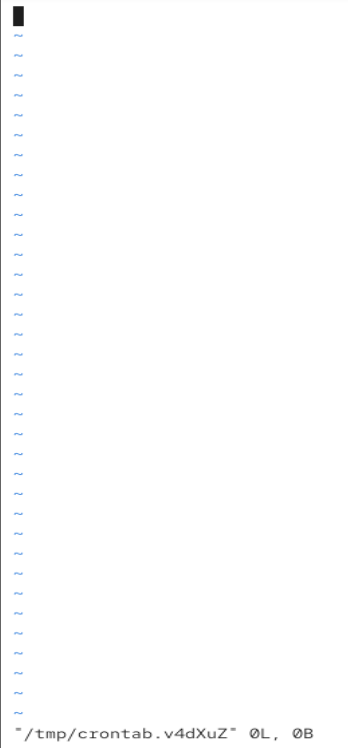
- This opens the crontab editor, allowing you to add or modify jobs. Once saved, the cron daemon automatically loads the new schedule. You can also list existing jobs with
crontab -lor remove them entirely usingcrontab -r.

*As I had No Files Save in OS, so the result shows that No Crontab for Prince*.
Automating Productivity Tasks with Cron in CentOS
Backups and Log Rotation
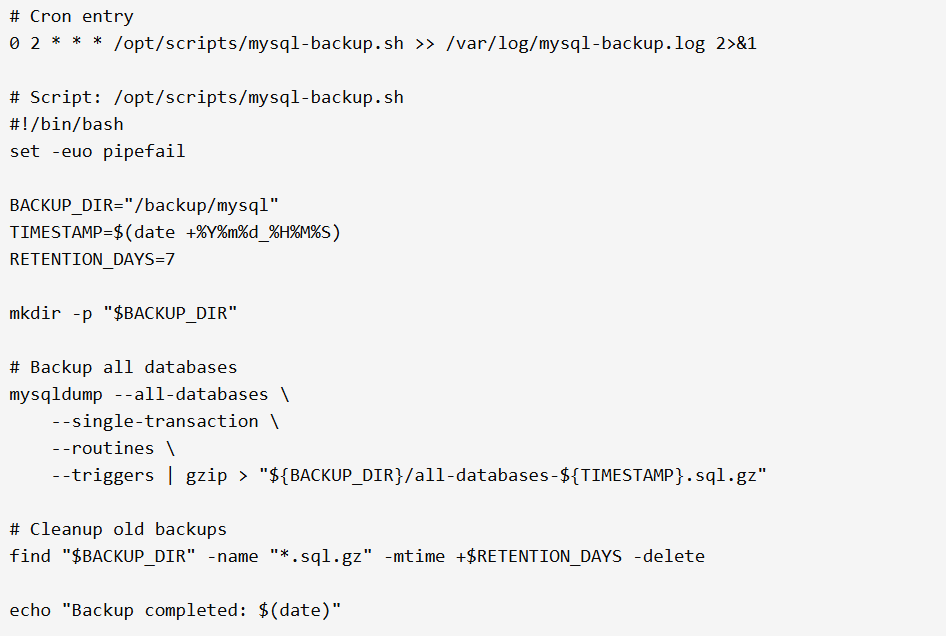
One of the most common uses of cron jobs is automating backups and log rotation. By scheduling regular database or file system backups, you ensure that critical data is always protected without manual effort. Similarly, log rotation scripts can be scheduled to archive or delete old logs, preventing storage bloat and keeping systems clean.
For Log Rotation:
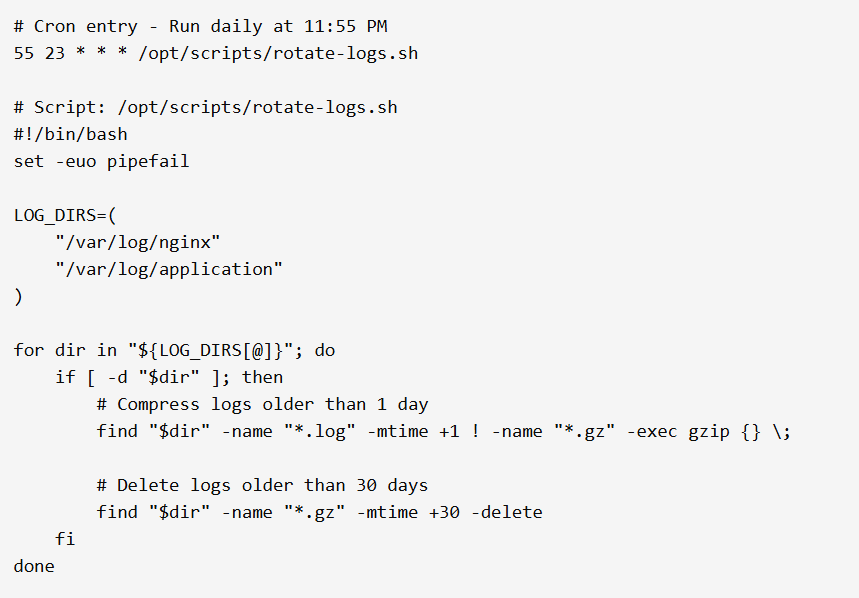
For Database Backup:
System Updates and Monitoring
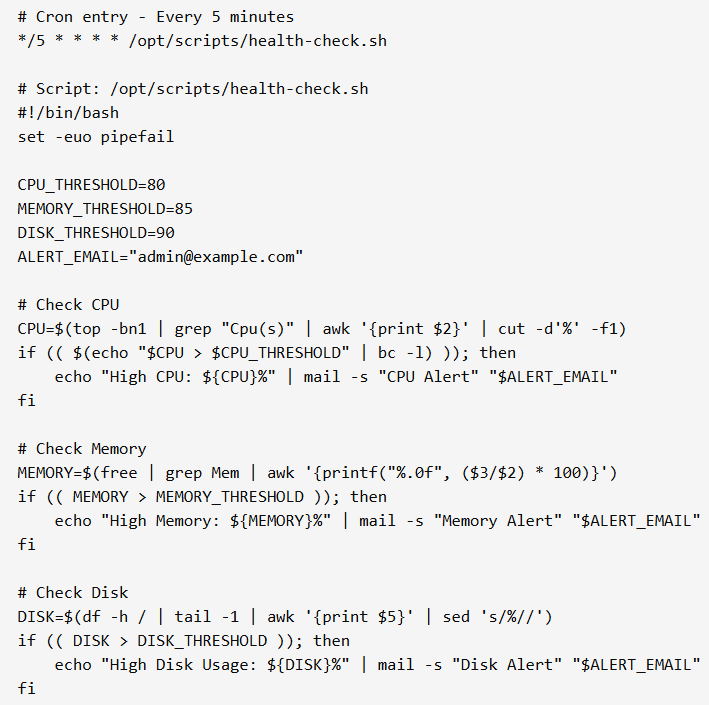
Another essential task is system updates and monitoring. Cron jobs can be configured to automatically check for updates, apply patches, or run monitoring scripts that track CPU usage, memory consumption, and disk space. By automating these processes, administrators can maintain system stability and security with minimal intervention.
Scheduled monitoring also ensures that potential issues are detected early, keeping workflows uninterrupted and boosting overall efficiency.
- For System health Check
Custom Scripts for Workflow Automation
Beyond standard maintenance, cron jobs shine when used for custom workflow automation. Developers and IT teams can write scripts tailored to their needs such as syncing files between servers, sending automated reports, or triggering alerts when thresholds are exceeded. These scripts, when scheduled with cron, create seamless workflows that run in the background, freeing professionals to focus on strategic tasks.
Troubleshooting Cron Jobs in CentOS
Common Errors and Fixes
Cron jobs often fail due to simple misconfigurations. One frequent issue is using relative paths instead of absolute ones. Since cron runs in a minimal environment, commands like python3 may not work unless you specify /usr/bin/python3.
Another common error is forgetting to set proper permissions on scripts; ensure they are executable with chmod +x script.sh. Additionally, environment variables such as $PATH may differ from your interactive shell, so explicitly define them within the script or crontab entry. These practical adjustments prevent most cron job errors.
Debugging with Logs
CentOS records cron activity in /var/log/cron, where you can check whether jobs were triggered. Redirecting output and errors to log files is another effective approach:
Run Command: 0 2 * * * /usr/bin/python3 /scripts/backup.py >> /var/log/backup.log 2>&1
This ensures you capture both standard output and errors for review. For deeper debugging, you can add MAILTO="your@email.com" at the top of your crontab to receive job results via email. These methods make cron job debugging straightforward and actionable.
Security and Optimization of Cron in CentOS
Restricting Cron Access
Securing cron is essential to prevent unauthorized users from scheduling tasks that could compromise system stability. CentOS provides two key files for access control: /etc/cron.allow and /etc/cron.deny. By listing specific usernames in cron.allow, you can explicitly grant permission to run cron jobs, while cron.deny blocks listed users. For example, if only administrators should have access, add their usernames to cron.allow and leave cron.deny empty. This approach ensures that only trusted accounts can schedule tasks, reducing the risk of malicious or accidental misuse.
Another practical measure is to monitor cron job activity through /var/log/cron and configure alerts for suspicious entries. Combining access restrictions with logging creates a secure environment where cron jobs remain under tight control.
Performance Tuning for Large-Scale Automation
When managing large-scale cron automation, performance optimization becomes critical. Running too many jobs simultaneously can overload system resources, leading to delays or failures. To avoid this, stagger job schedules so that heavy tasks just like backups or batch processing in run during off-peak hours.
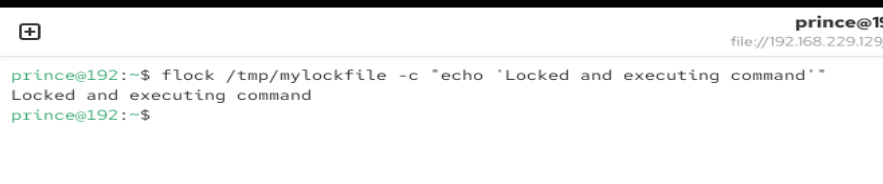
For jobs that may overlap, Use Flock command
- Run Command: flock /tmp/mylockfile -c “echo ‘Locked and executing command'”
- This command is used to lock the file
Final Thoughts: Why Cron Remains Essential in 2026?
Despite the rise of modern automation tools, cron continue to be indispensable in 2026. Their simplicity, reliability, and lightweight nature make them ideal for routine scheduling tasks across servers and applications. Cron requires minimal resources, integrates seamlessly with scripts, and provides a proven framework that system administrators trust.
In environments where stability and predictability are critical, cron remains the backbone of automation, ensuring that essential tasks like backups, monitoring, and updates run consistently without fail.
While cron is still widely used, new automation alternatives and integrations are reshaping the landscape. Tools like systemd timers offer enhanced error handling and monitoring, while enterprise solutions such as Ansible, Jenkins, and Kubernetes Cron provide scalability and orchestration across distributed systems. These platforms allow for more complex workflows, containerized environments, and cloud-native automation.
The future lies in hybrid integrations by combining cron’s simplicity with modern orchestration tools. For example, cron can trigger scripts that interact with APIs, cloud services, or CI/CD pipelines, bridging traditional scheduling with advanced automation. This synergy ensures that cron remains relevant while adapting to evolving IT ecosystems.
FAQs
What is cron used for?
It schedules tasks to run automatically at specific times or intervals.
How do I check if cron is running?
Use systemctl status crond to verify if the service is active.
Can cron run scripts?
Yes, you can schedule shell scripts or commands to execute automatically.
Where are cron logs stored?
Logs are usually found in /var/log/cron for monitoring and debugging.
How do I edit my cron jobs?
Run crontab -e to open and edit your personal job list.
Can multiple jobs run at the same time?
Yes, but it’s best to stagger heavy tasks to avoid resource conflicts.
Discover more from Root Learning
Subscribe to get the latest posts sent to your email.