Bazzite OS is a new Operating System which is gaining popularity. For decades, Windows has dominated PC gaming because most games are designed specifically for Microsoft’s ecosystem. However, this long-standing dominance began to shift rapidly with the release of Valve’s Linux-based Steam Deck. Today, thanks to Bazzite OS, players can bring that identical console-like experience to almost any desktop PC or gaming handheld
Bazzite is a community-built, Fedora-based operating system designed to offer SteamOS-style usability with broader hardware support and enhanced performance.
Table of Contents
How to Install Bazzite OS 2026?
Below are the steps to install Bazzite OS 2026:
- Download the Bazzite OS from its official website by entering details like what Hardware you are downloading it for and others.
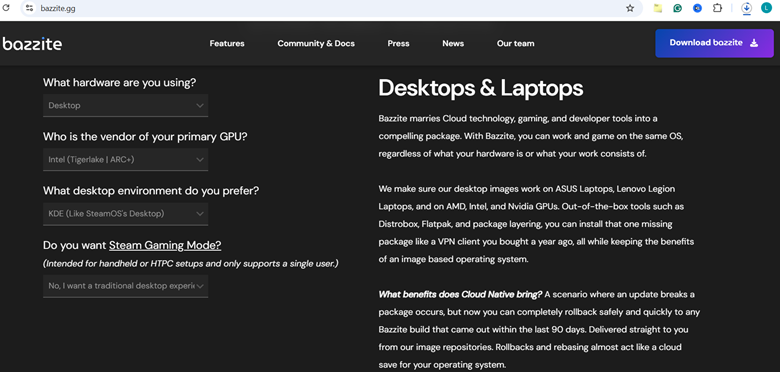
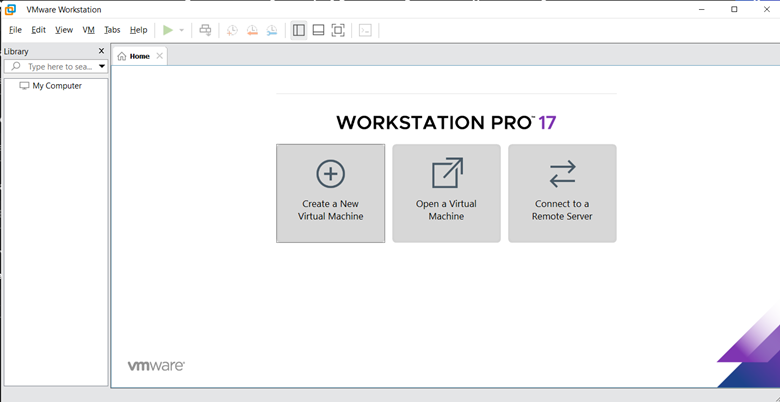
- Then, go to your VMware platform and click on Create New Virtual Machine. To know how to install VMware, click here.
- Then a pop-up will open. There, choose Typical settings.
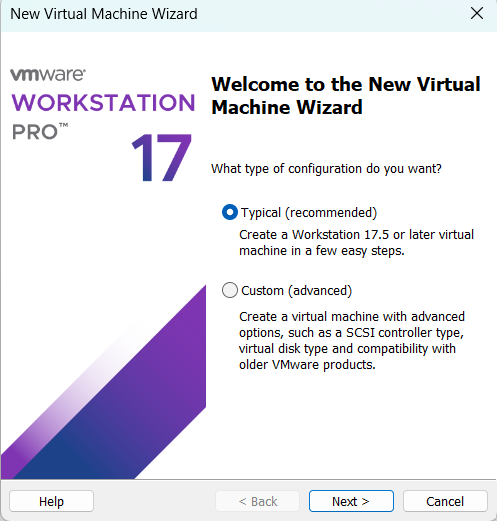
- Then choose the Next option.
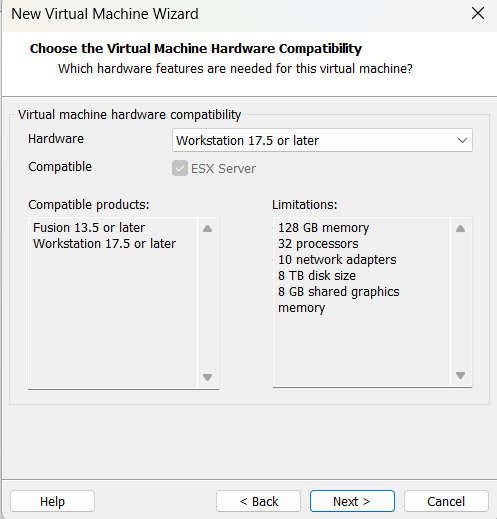
- In this step, add the downloaded Bazzite OS file in the section Installer Disc Image File (ISO).
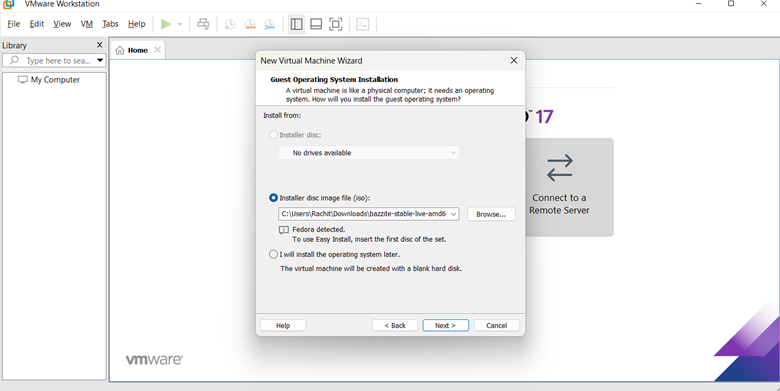
Note: A Fedora-detected phrase will appear as soon as you add the Bazzite OS file.
*The phrase “Fedora detected” appears as an operating system identification message in installation scripts, various software configuration tools, or security software (such as Redhat/ Centos/ Fedora detected), indicating that the host system is running Fedora Linux.
- Then click on I will install the operating system later.
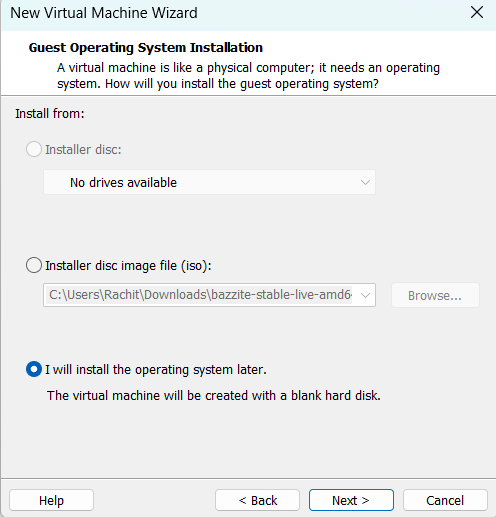
- Then click on the Next option, and you will land on Select a Guest Operating System.
- In this step, select Linux and then, under Version, select Fedora 64-bit (this instructs VMware to default the new virtual machine to UEFI mode instead of legacy BIOS. This is a very important step; without this, nothing will function.
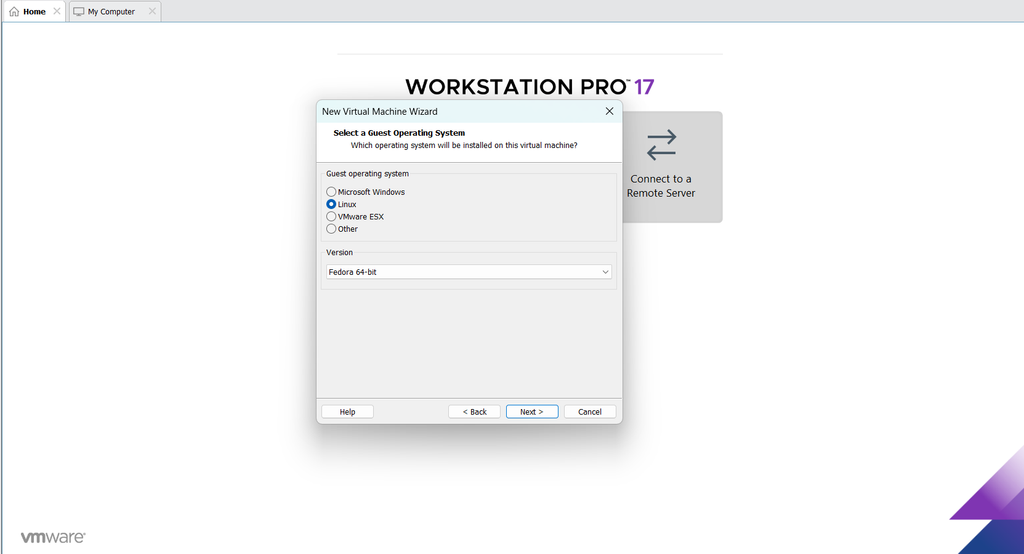
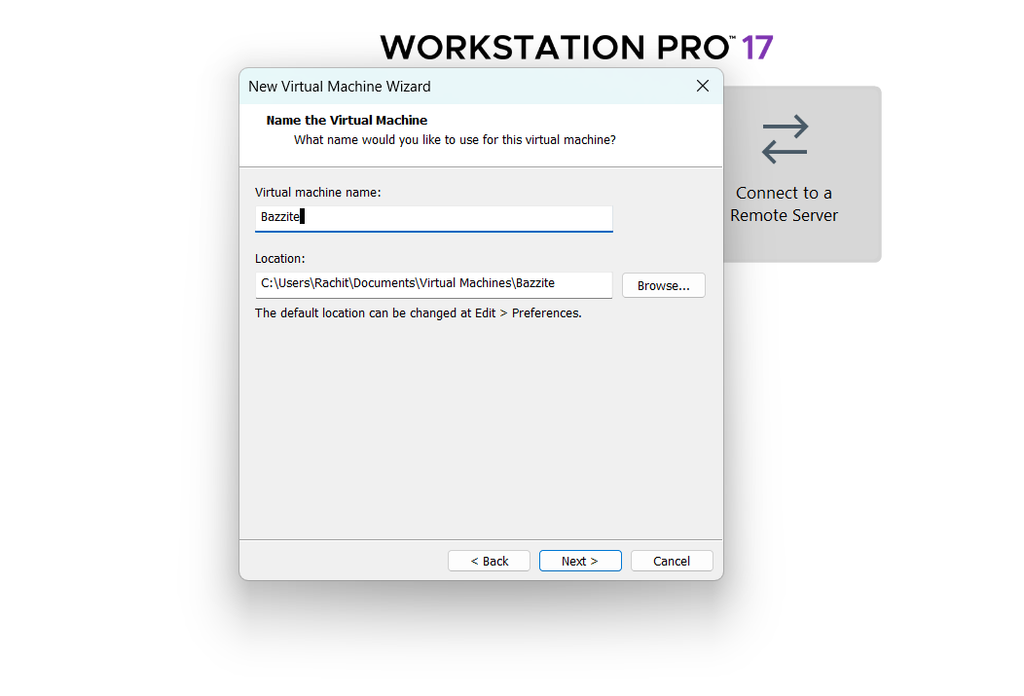
- Then click Next. Name the virtual Machine as ‘Bazzite‘.
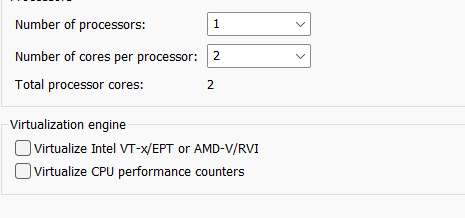
- Then change the number to 1 in the number of processors & 2 in no. of cores per processor. It will make your VM Machine smoother.
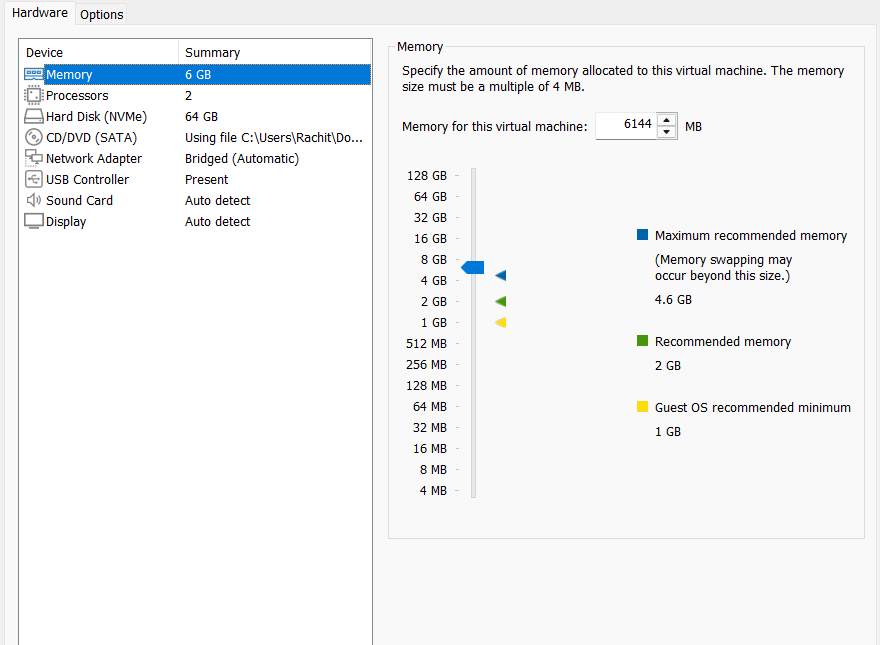
- Then click on Next and manually select 6 GB. Keeping the GB at 8 will lead to smooth functioning. So try for 8 GB.
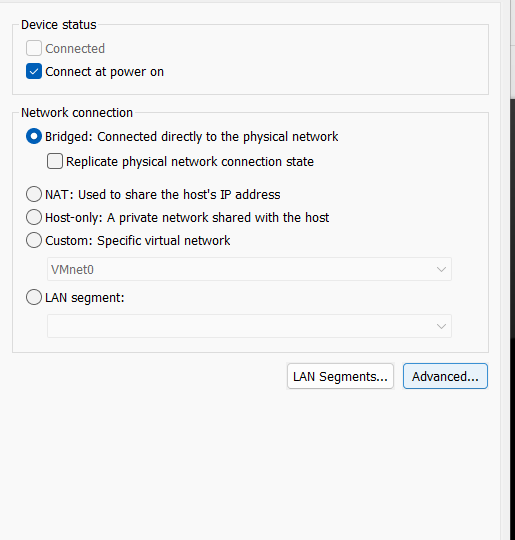
- Then select the Network Type and choose Bridged (First Option).
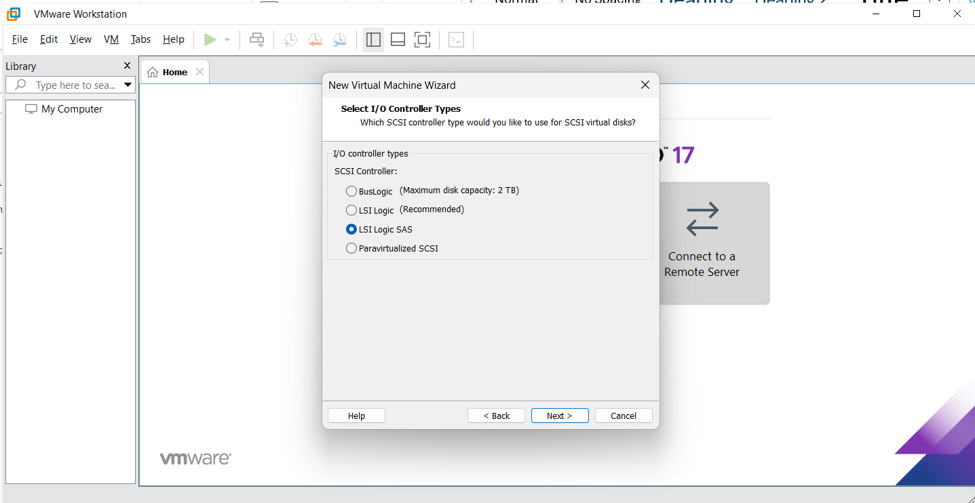
- Then select the I/O Controller Type and choose LSI Logic SAS. It has robust kernel support I/O Controller Type: Choose LSI Logic SAS. It has robust kernel support out-of-the-box in Fedora/Bazzite without needing extra driver installation.
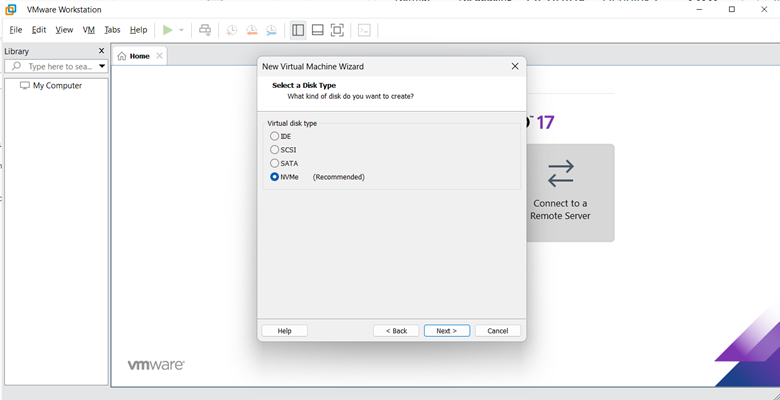
- In this step, select the disk type as NVMe (if your physical computer uses an SSD & you are on VMware Workstation 17) or SCSI (as the highly stable, standard fallback).
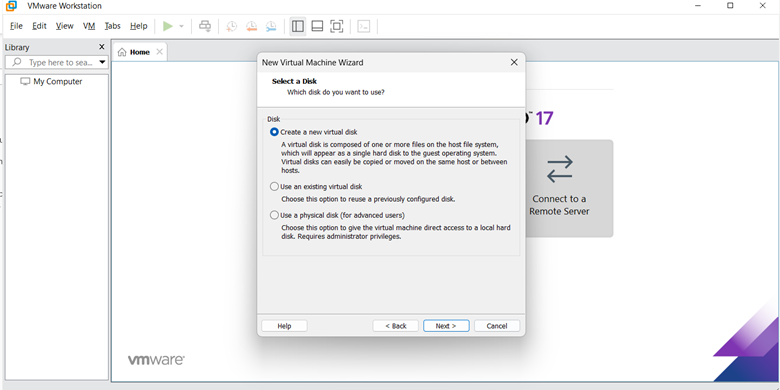
- In this step, a disk option will appear. Since this is a fresh installation, you need a clean, empty virtual hard drive to install Bazzite onto.
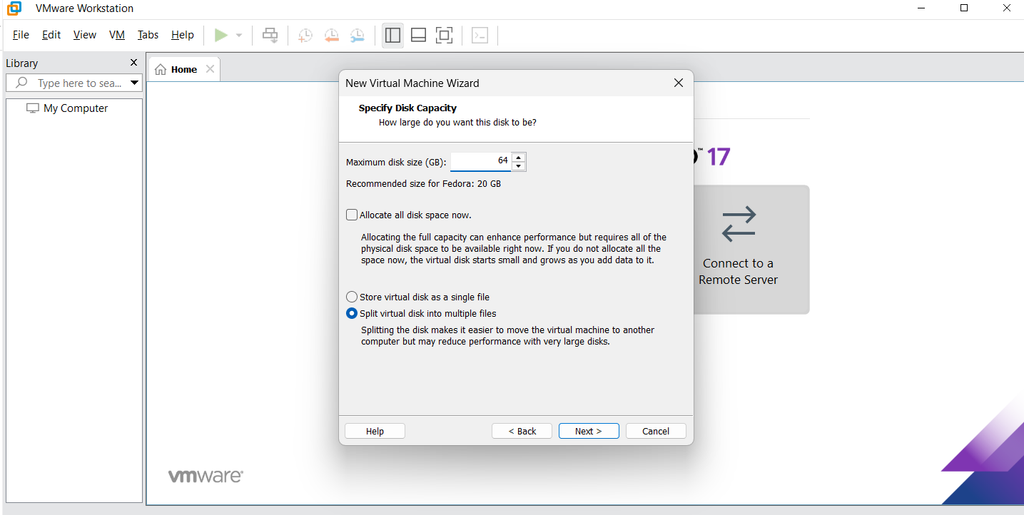
- Now allocate minimum 64 GB for the Bazzite to work smoothly. Then you can Choose “Store virtual disk as a single file”. This can offer slightly better performance, but “Split virtual disk into multiple files” makes it quite easier to move the virtual machine to another computer or even another drive later. Either option will work fine for you.
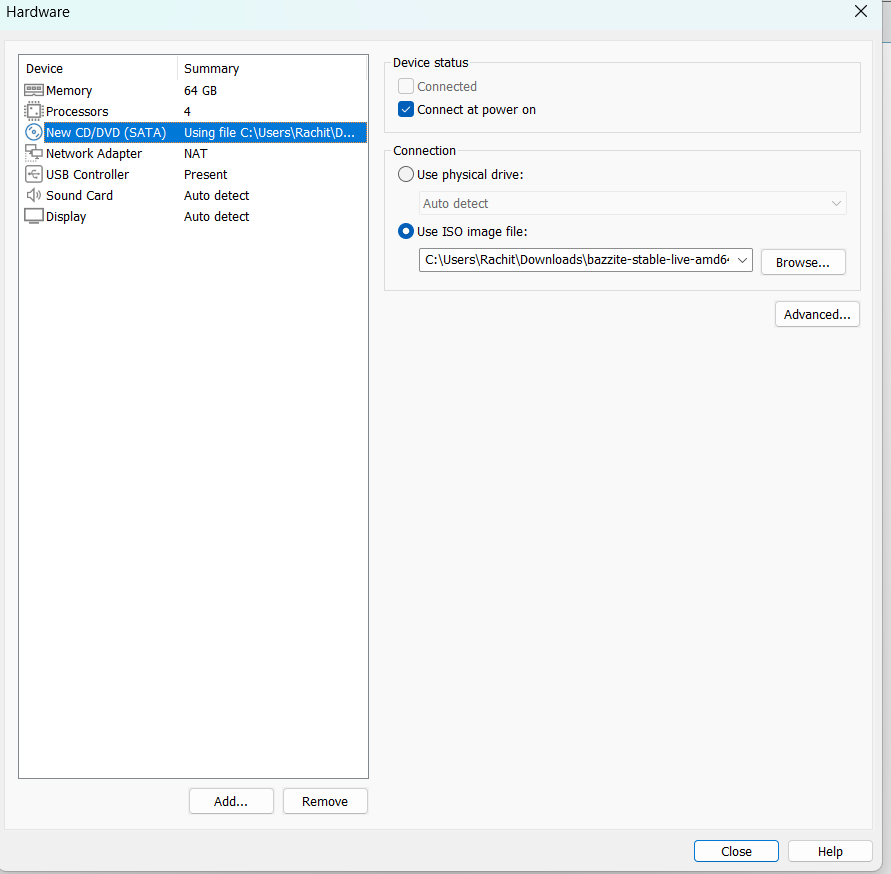
- Do not click Finish yet. Instead, click the “Customize Hardware…” button to open the settings menu & then make the important changes. Click on CD/DVD (SATA) on the left. On the right, select “Use ISO image file”, click Browse, and select your downloaded Bazzite
.isofile. Make sure “Connect at power on” is checked.
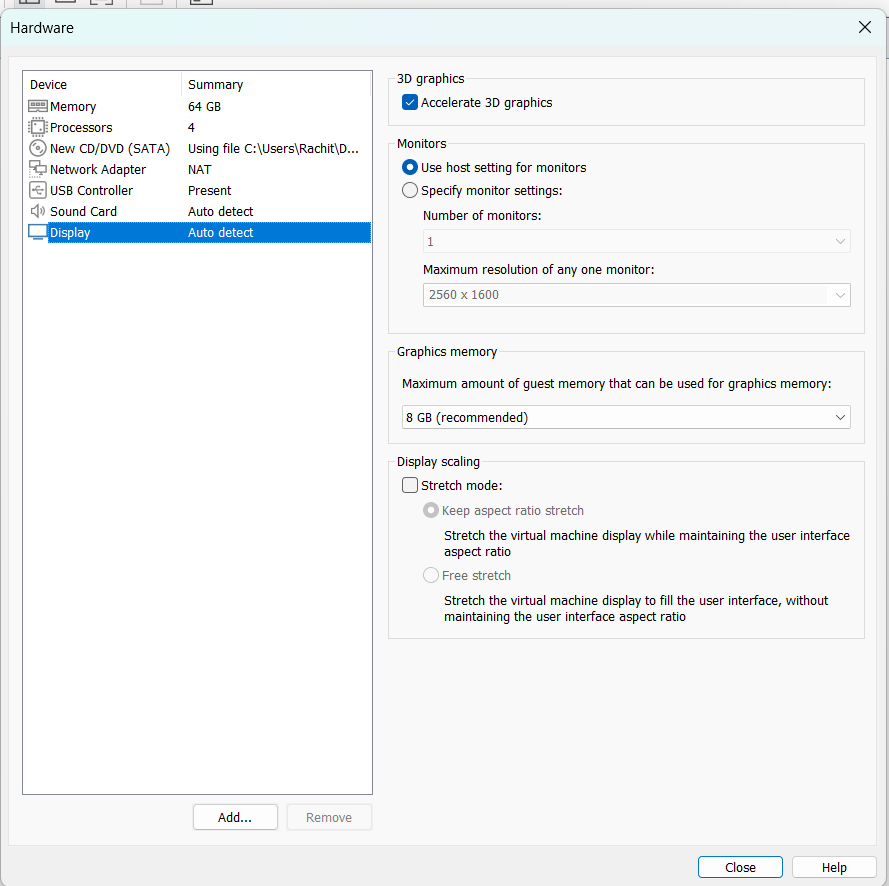
- Then click on the Display option on the left, and then click on the box Accelerate 3D graphics. If you skip this step, Bazzite will boot into a permanent blank black screen inside VMware.
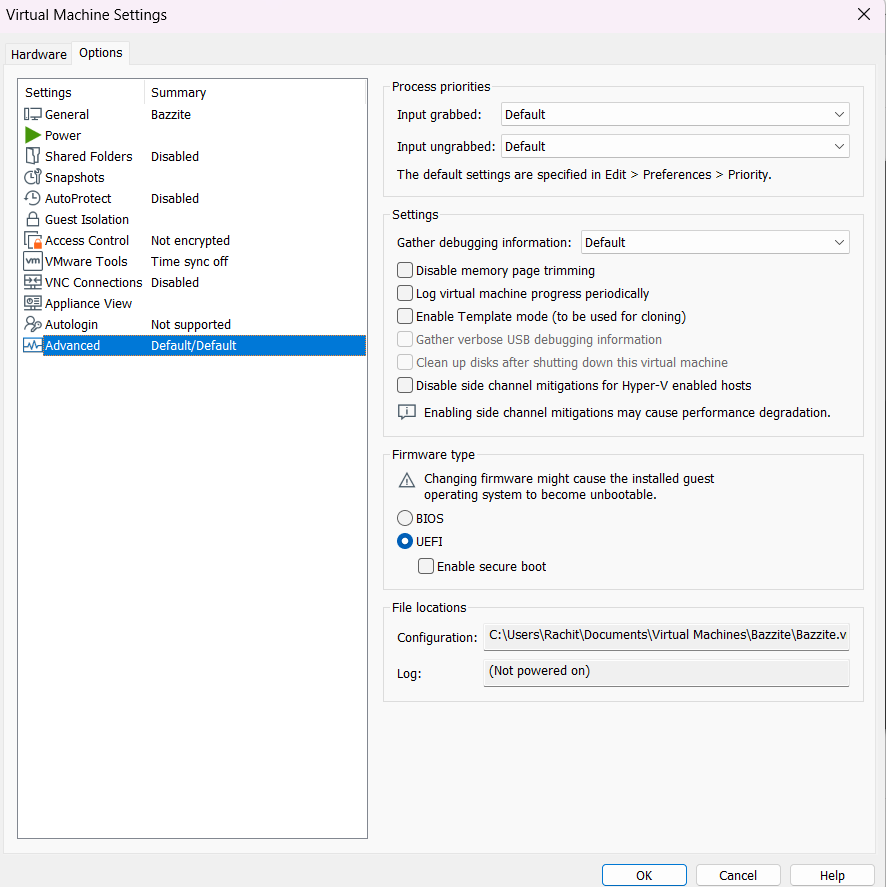
- Verify UEFI & System requirements in the next step. For that, go to Virtual Machine Settings. Afterwards, go to the Options Tab and then select Advanced Options. There, select UEFI.
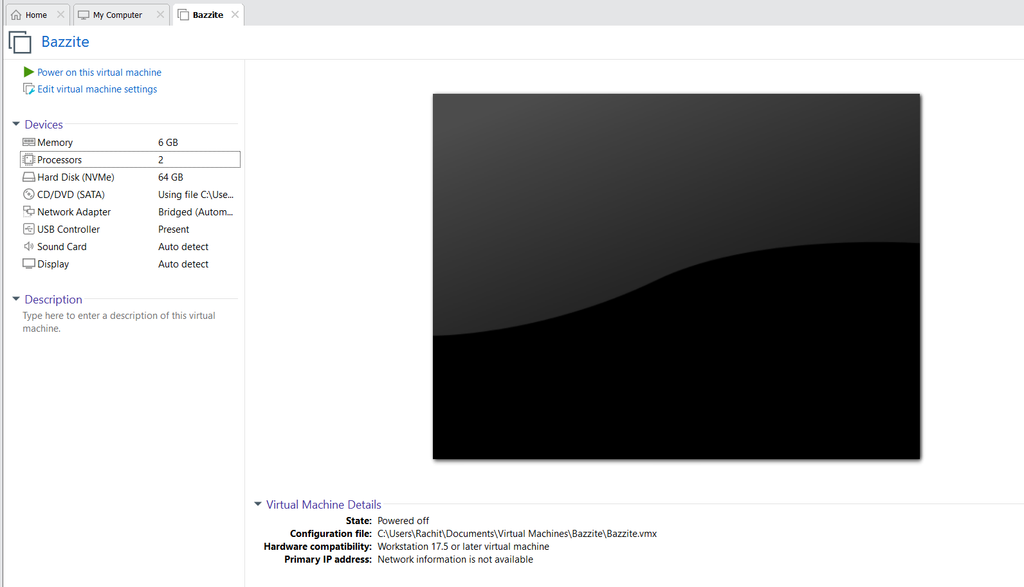
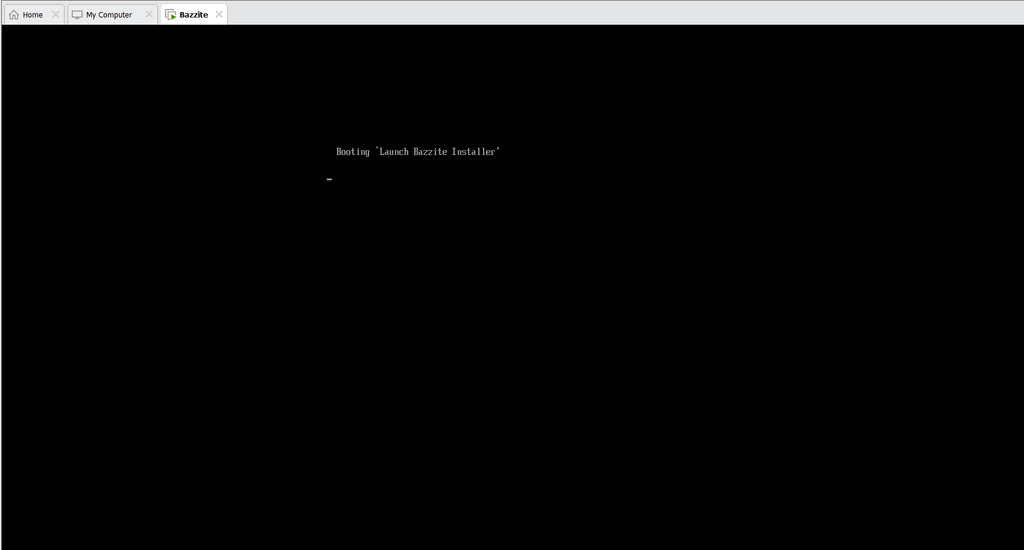
- Then, power on the Virtual Machine. This screen will appear.
- Afterwards, we arrive at the boot and installation procedure.
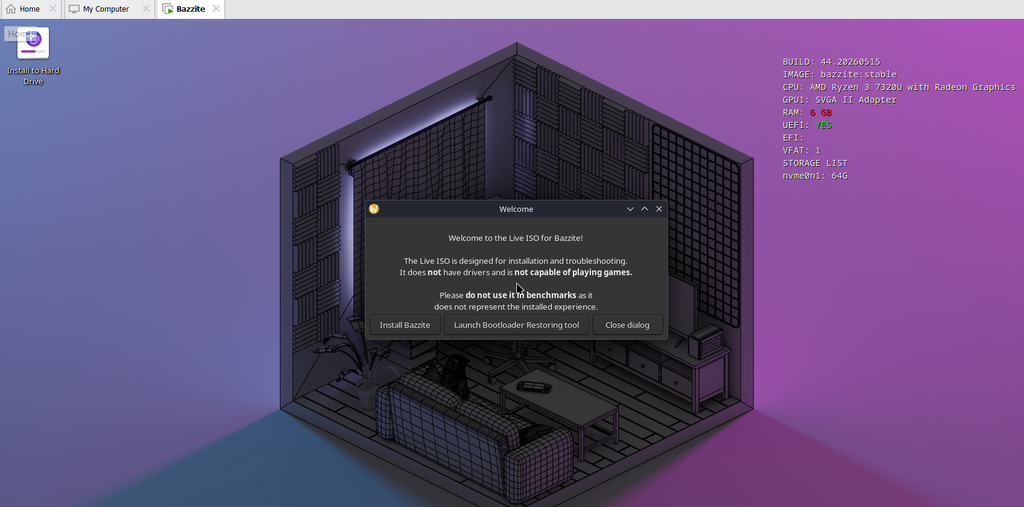
- Then click on the Install option and proceed with the installation of the OS.
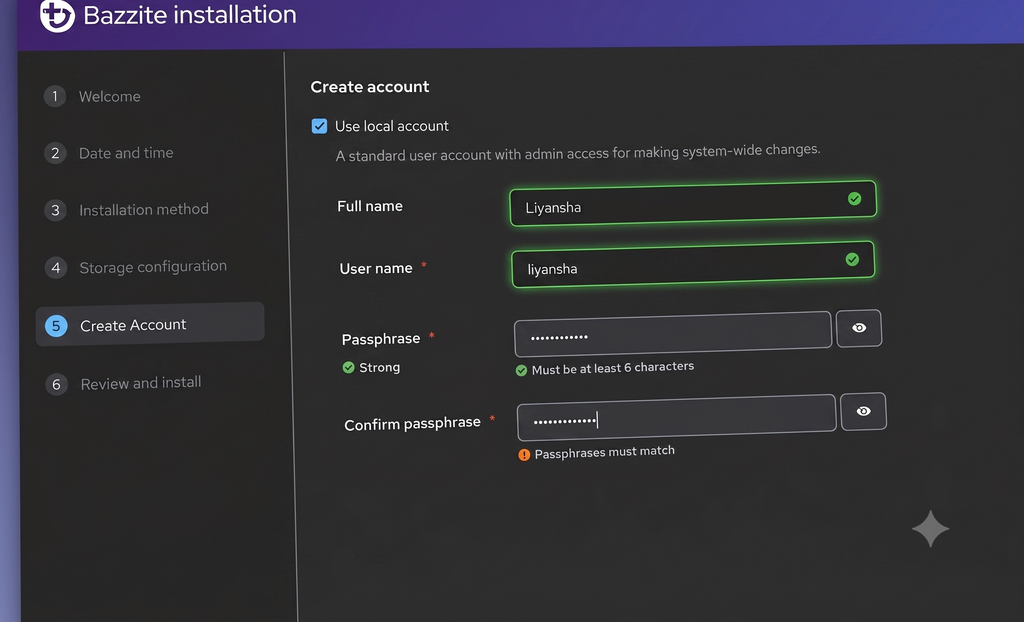
- Then, step by step, fill in all the details as per your requirements and then go on to the Create Account section.
- Afterwards, you will land on the final installation page, which will look like the one below.
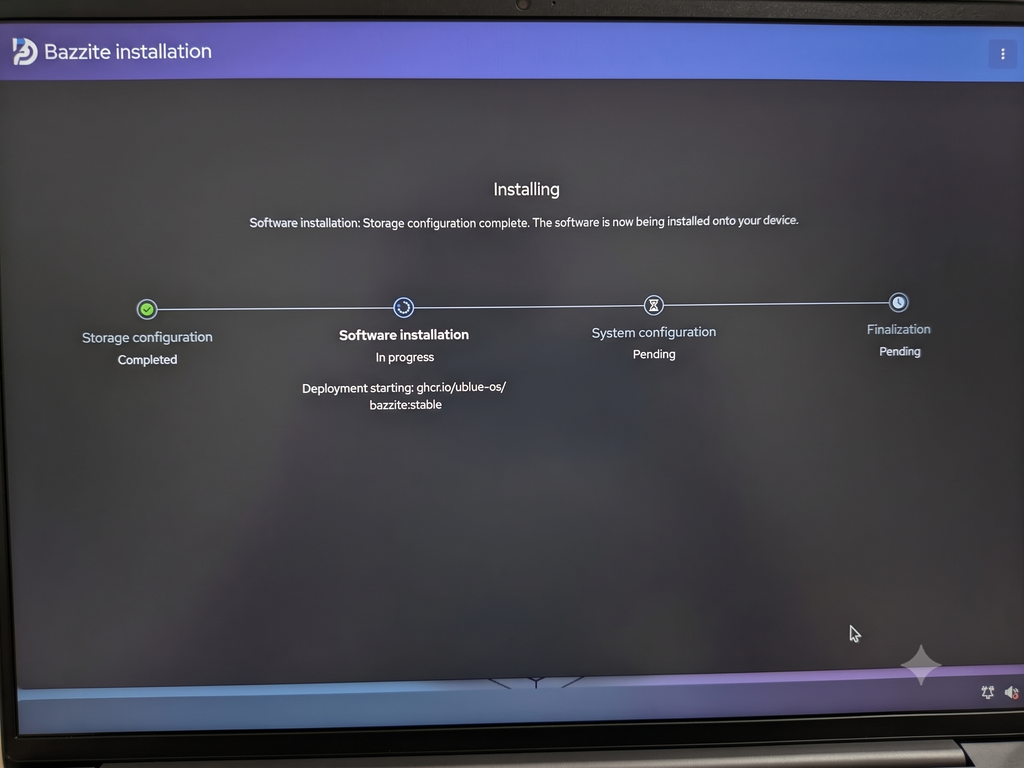
- Afterwards, your installation will be complete. The final installation will take around 25-30 minutes. Hence, don’t lose patience.
Why Bazzite OS is Gaining Popularity?
Bazzite OS is experiencing a massive increase in its popularity. Hence, quietly carving out a space with weekly user growth of around 1.25x & also pulling in roughly 50,000 weekly users. This momentum is driven by a perfect storm of Windows software friction, the explosion of portable gaming handhelds, & huge usage of Linux gaming compatibility options.
Several key factors explain why so many gamers are making the switch to Bazzite OS:
Growing Frustration with Windows Friction
- The timing of Bazzite’s rise is directly linked to Windows 10 reaching its end of life, which has forced many users to evaluate their operating system choices.
- Additionally, many gamers are tired of Windows 11’s invasive elements, such as mandatory Microsoft account sign-ins, aggressive data telemetry, and constant ad nagging for services like Microsoft 365 & Game Pass.
- Bazzite offers a clean, non-invasive alternative that respects user privacy and keeps system updates completely out of your way
The Handheld PC Boom & Touchscreen Clunkiness
While handhelds like the ASUS ROG Ally, Lenovo Legion Go, and MSI Claw have exploded in popularity, Windows 11 remains highly optimized for desktops rather than small touchscreens and controllers. On Windows handhelds, navigation is clumsy, vendor overlays frequently conflict, and sleep/wake mode is notoriously unreliable
Bazzite OS solves this by booting directly into Steam’s controller-friendly Gaming Mode UI. It makes third-party handhelds feel like a polished, dedicated console, complete with reliable sleep/wake functionality and community tools like Handheld Daemon to seamlessly map vendor buttons, gyros, and TDP.
Conclusion
Downloading the Bazzite OS in a structured, step-by-step manner is very important. Following the guide steps is necessary, as new users may find it very tough sometimes. Hence, correct, systematic usage of the above guide is the need of the hour. The gamers will find this guide really fruitful.
FAQs
Q. What is Bazzite OS?
A. Bazzite is a community-built, Fedora-based operating system (OS) that is designed to offer SteamOS-style usability with broader hardware support and also enhanced performance.
Q. What do you mean by Fedora?
A. Fedora Linux is mainly used as a cutting-edge general-purpose operating system for software development, desktop workstations, & also testing new open-source technologies before they enter enterprise systems.
Q. Is Bazzite OS free to use?
A. Yes, Bazzite OS is free to use, as it offers a free version with essential features, along with a Pro edition that includes advanced layouts & premium support.
Q. Is Bazzite OS good for gaming?
A. Yes. Bazzite OS is good for gaming. Hence, its popularity is now the talk of the town. A lot of new or even beginner-level gamers are now downloading this OS. Hence, making their gaming experience quite good.
Discover more from Root Learning
Subscribe to get the latest posts sent to your email.