Introduction of LAMP Server
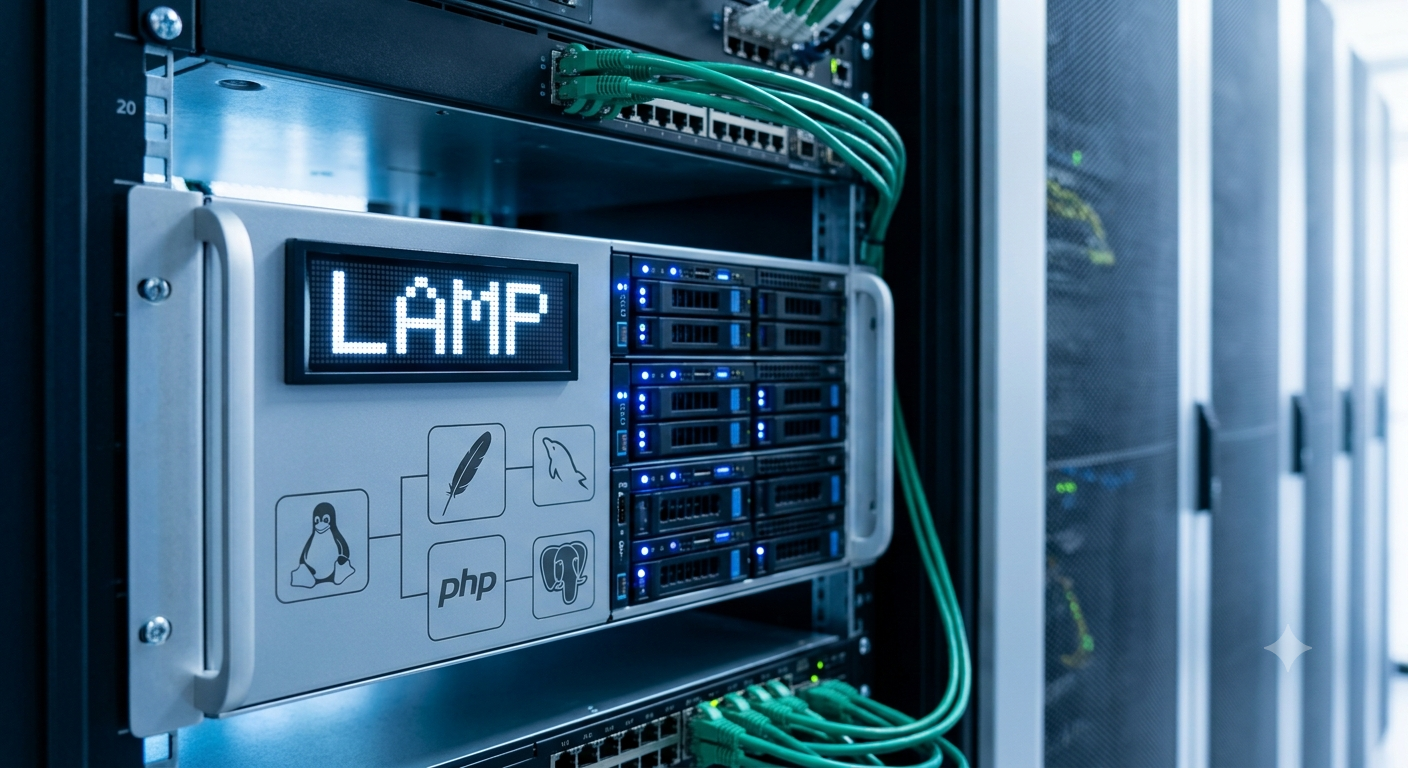
A LAMP server is a popular open-source technology stack used to develop, run, and host dynamic websites and web applications. The name LAMP represents four main components: Linux, Apache, MySQL or MariaDB, and PHP. Linux provides the operating system and manages the server’s hardware and software resources. Apache is a widely used web server that receives requests from users’ browsers and delivers web pages and other content. MySQL or MariaDB is responsible for storing, organising, and managing application data in databases. PHP is a server-side scripting language that processes dynamic content and communicates with the database.
These four components work together to provide a complete environment for web development and hosting. LAMP is widely used because it is flexible, reliable, cost-effective, and supported by a large developer community. It can be installed on physical servers, virtual machines, and cloud platforms such as AWS. For beginners, learning LAMP provides practical knowledge of Linux administration, web servers, databases, PHP, and cloud hosting. In AWS, a LAMP server can be installed on an EC2 Linux instance and configured to host websites and web applications accessible through the internet.
Prerequisites
This tutorial assumes that you have already launched a new instance using Amazon Linux 2023, with a public DNS name that is reachable from the internet. You must also have configured your security group to allow SSH (port 22) and HTTP (port 80), connections. For more information about these prerequisites, see Authorise inbound traffic for your Linux instances in the Amazon EC2 User Guide.
Table of Contents
Step-by-Step Guide to Install LAMP server
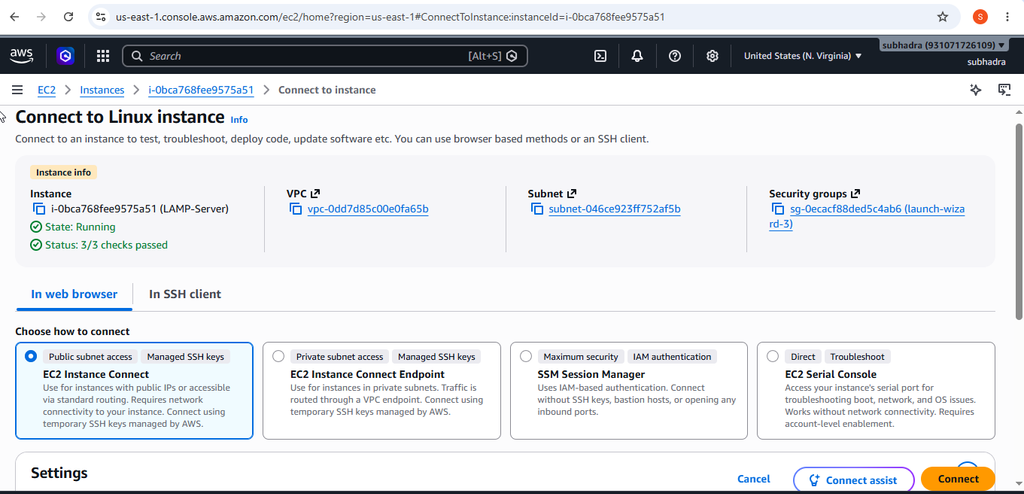
Step 1: Connect to your Linux EC2 Instance.
- open AWS Console.
- Go to EC2- Instances
- Select your running Linux Instance.
- click Connect.
- Select EC2 Instance Connect.
- Click Connect.
You wii see a black terminal such as:
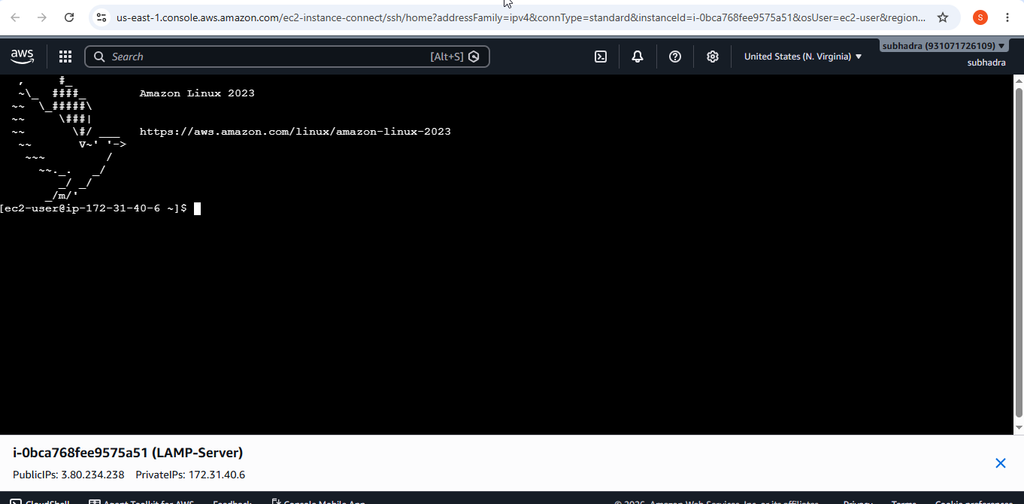
Start entering the commands After $.
Step 2: Update the System
Run:sudo dnf upgrade -y
This updates the installed packages.
Step 3: Install Apache.
Apache is the A (Apache) in LAMP.
Run: sudo dnf install -y httpd
Start Apache: sudo systemctl start httpd
Enable Apache to start automatically: sudo systemctl enable httpd
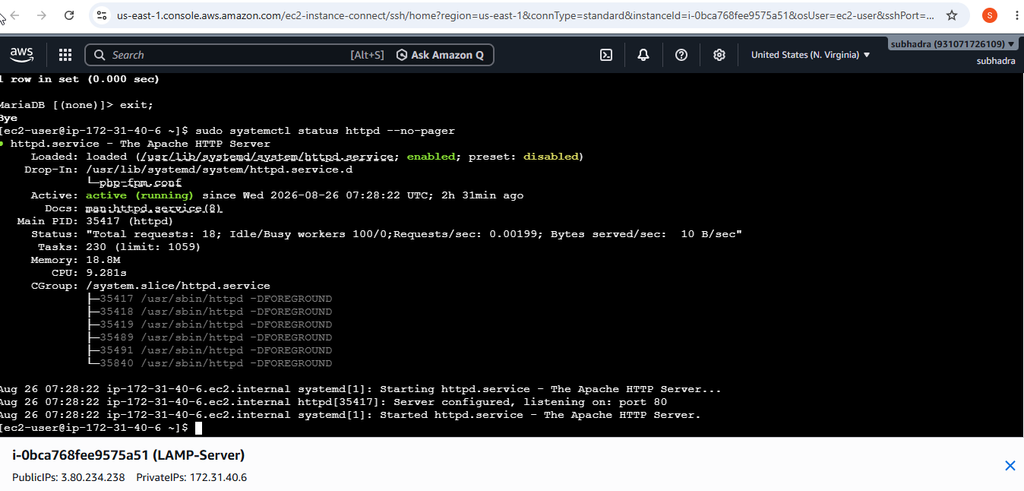
Check whether Apache is running: sudo systemctl status httpd
Look for: Active: active (running)
Press Q to exit the status screen.
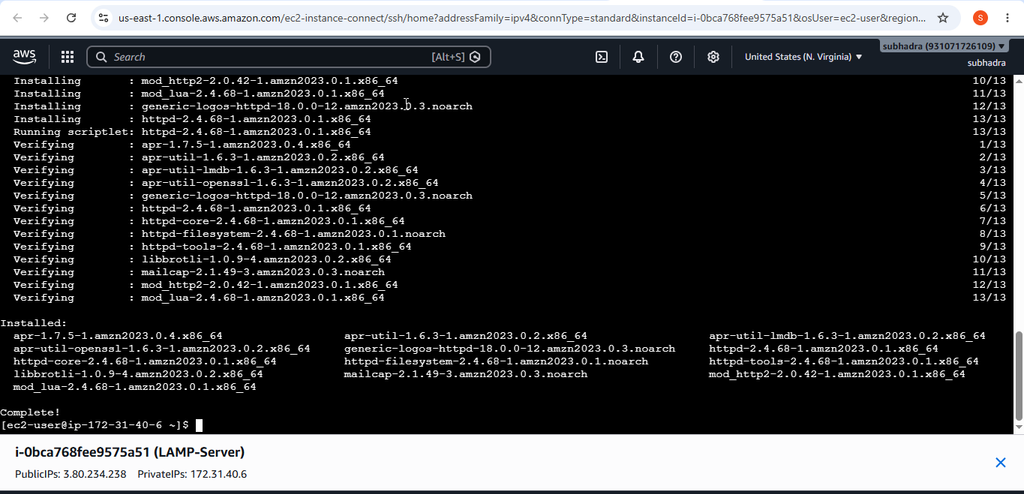
Step 4: Allow HTTP Traffic
Go to:
EC2 → Instances → Your Instance → Security → Security Groups → Inbound rules
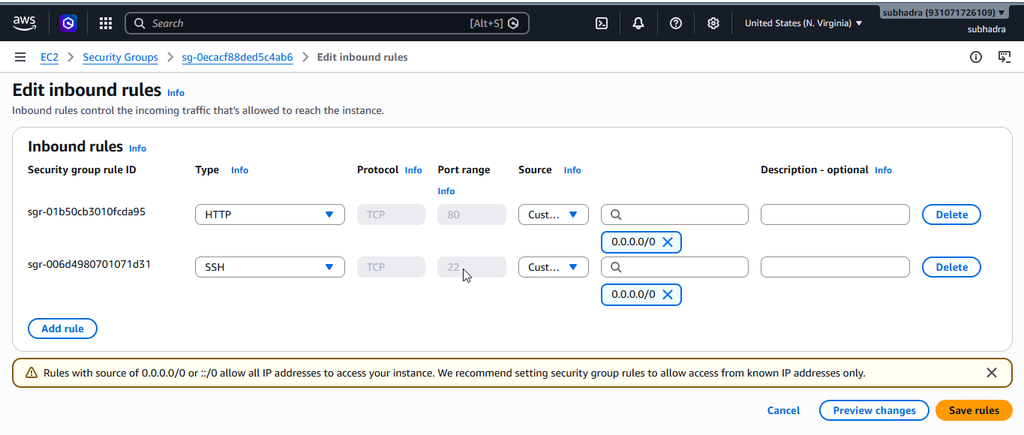
Make sure you have:
Type | Protocol | Port
SSH | TCP | 22
HTTP | TCP | 80
HTTP port 80 is necessary to open your Apache website in a browser.
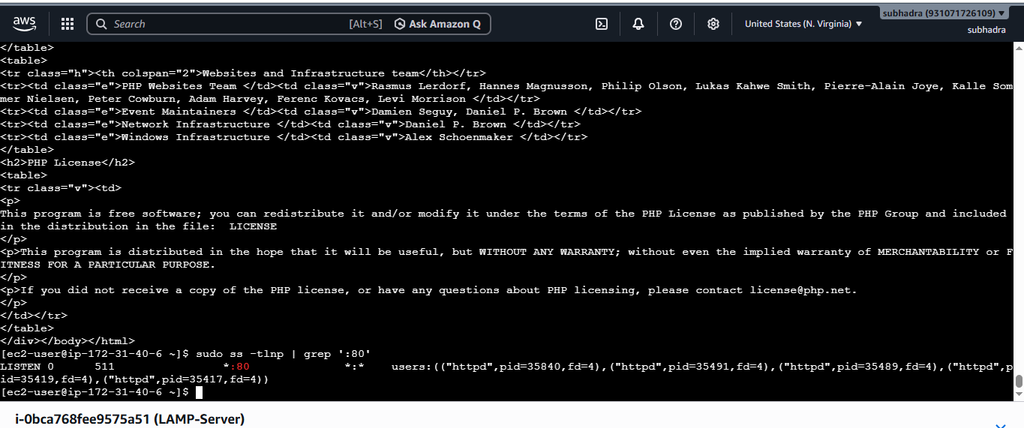
Step 5: Test Apache
- Copy your EC2 instance’s Public IPv4 address.
- Open Firefox or another browser and enter:
- http://YOUR-PUBLIC-IP
For example:
http://13.234.xx.xx
You should see the Apache test page.
Step 6: Install PHP
PHP is the P(PHP) in LAMP
Run:
sudo dnf install -y php-fpm php-mysqli php-json php php-devel
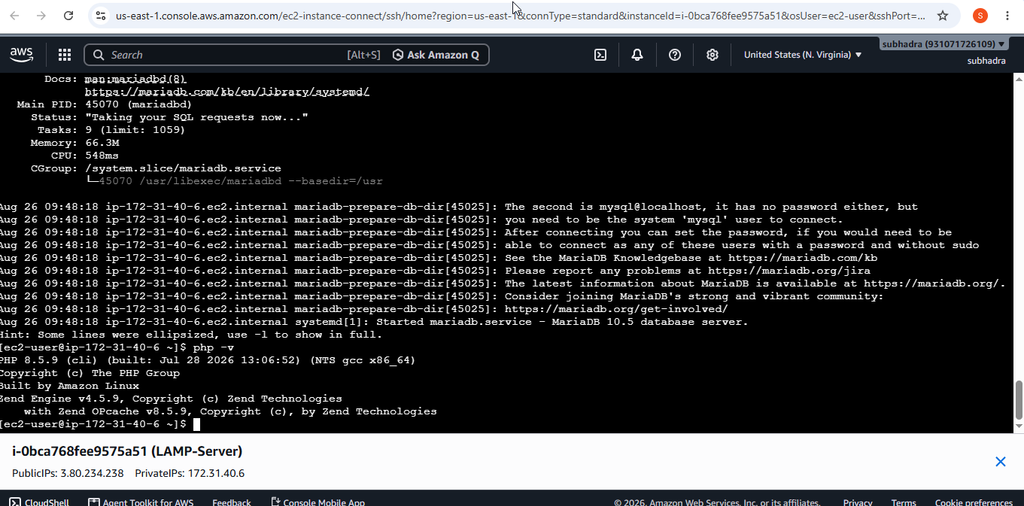
Check the PHP version:
php -v
You should see information about the installed PHP version.
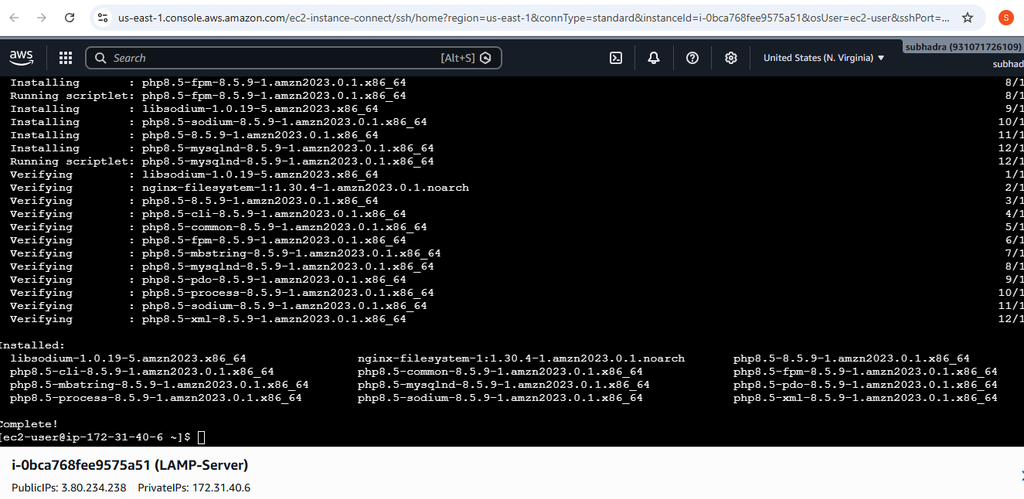
Step 7: Install MariaDB
MariaDB is the M (MariaDB/MySQL) in LAMP.
Run:
sudo dnf install -y mariadb105-server
Start MariaDB:
sudo systemctl start mariadb
Enable it at startup:
sudo systemctl enable mariadb
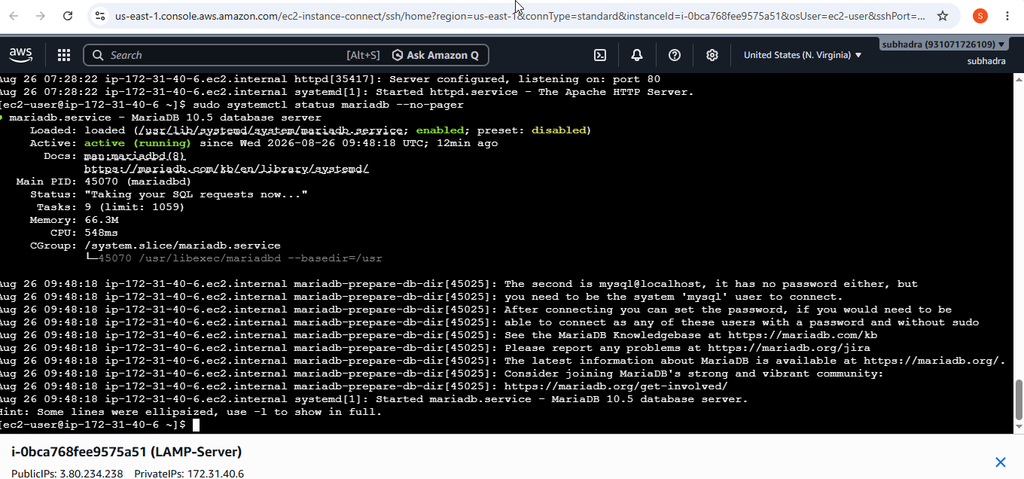
Check its status:
sudo systemctl status mariadb
You should see:
Active: active (running)
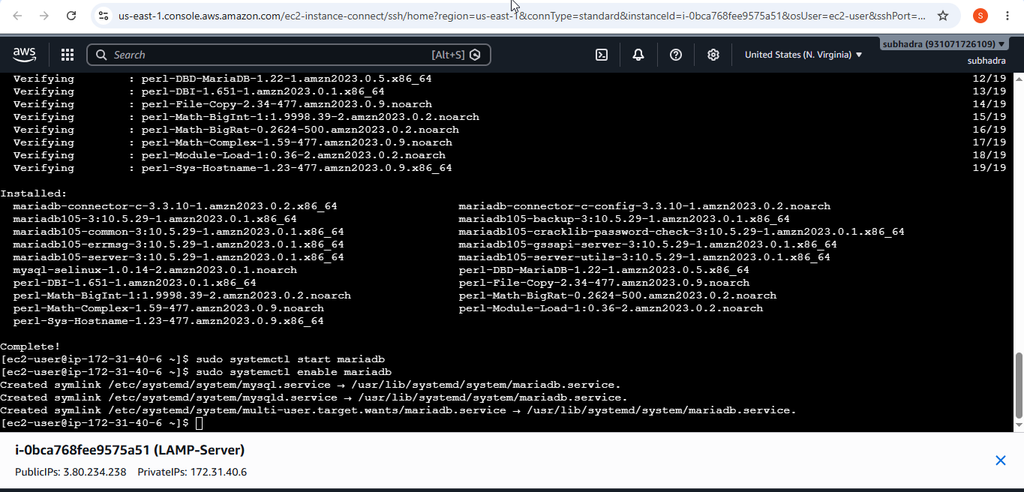
Step 8: Secure MariaDB
Run:
sudo mysql_secure_installation
Follow the questions on the screen. For a basic setup, you can remove anonymous users, disable remote root login, remove the test database, and reload the privilege tables.
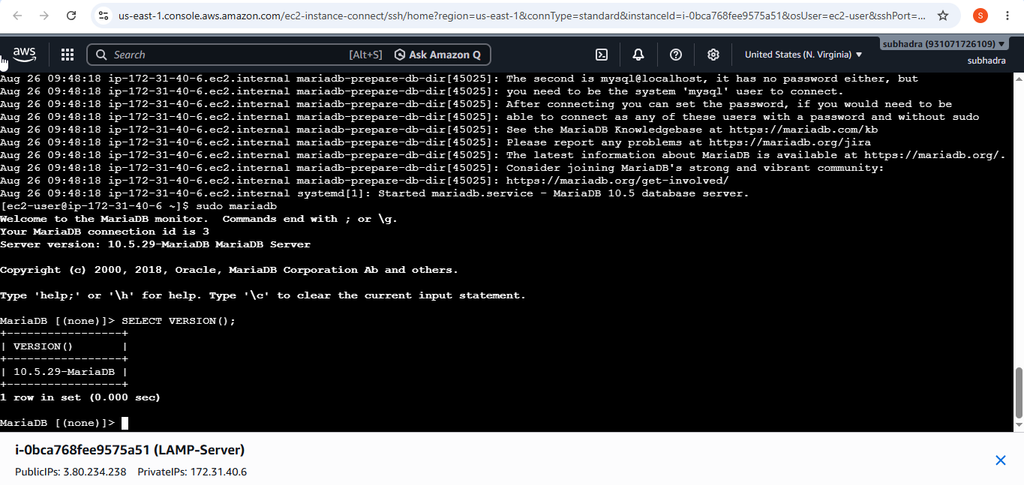
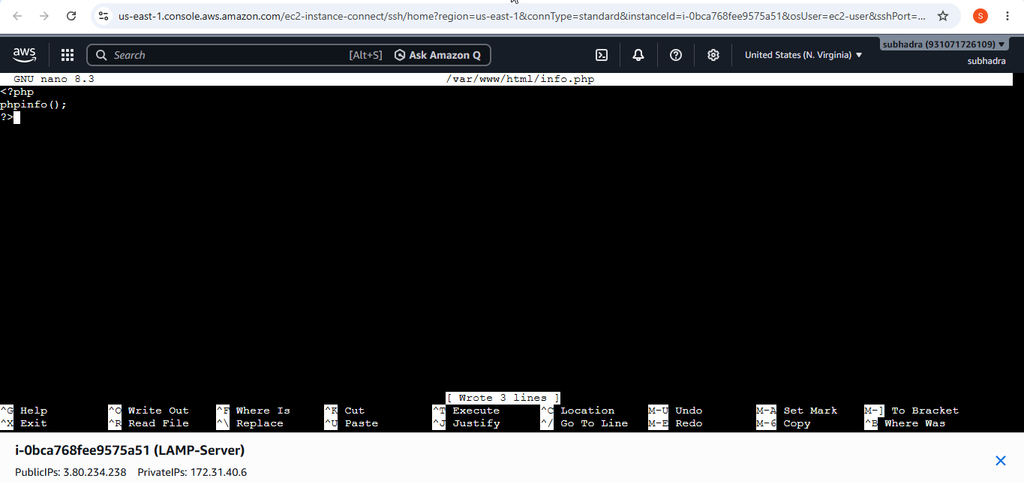
Step 9: Create a PHP test page
Run:
echo “<?php phpinfo(); ?>” > /var/www/html/phpinfo.php
And save it.
This create a PHP test file inside Apache’s document root.
Step 10: Test PHP in your browser
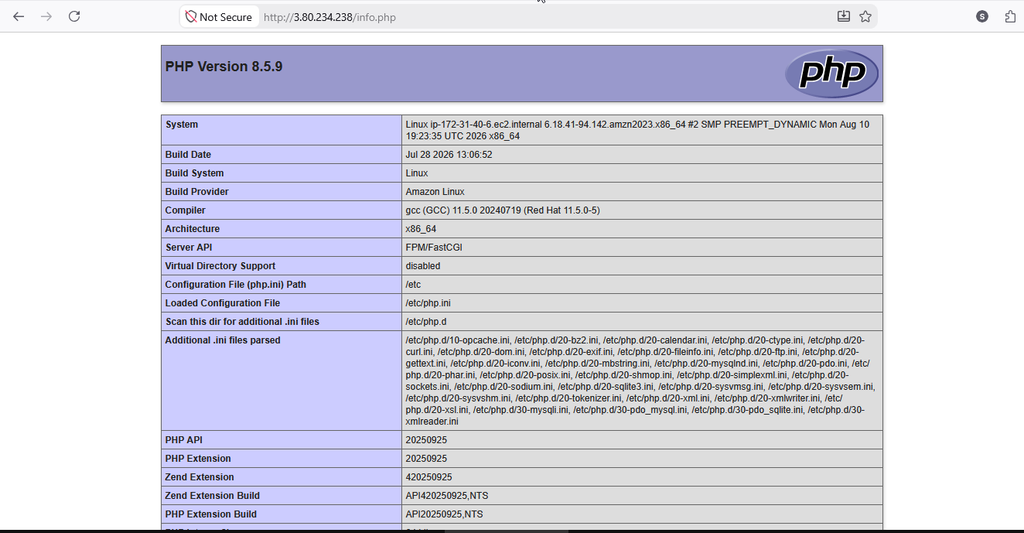
Open:
http://YOUR-PUBLIC-IP/phpinfo.php
For Example:
http://13.234.xx.xx/phpinfo.php
You should see a PHP information page showing the PHP version and configuration.
If you see this page, Apache and PHP are working together.
Final Verification
You can verify each LAMP component with:
Apache:
sudo systemctl status httpd
PHP:
php -v
MariaDB:
sudo systemctl status mariadb
Your completed setup is:
Linux → Apache → MariaDB → PHP → Web Application
Troubleshooting
During the installation of a LAMP server on Linux in AWS, you may face some common issues. The following solutions can help:
1. Apache website is not opening
If the Apache page does not open in the browser, check whether HTTP port 80 is allowed in the EC2 Security Group. Add an inbound rule for HTTP, TCP, port 80, with the appropriate source.
Also check Apache:
sudo systemctl status httpd
If it is not running, start it:
sudo systemctl start httpd
2. PHP page is not working
Check where PHP is installed correctly:
php -v
If PHP is installed but the browser cannot display the PHP page, restart Apache:
sudo systemctl restart httpd
Then try the PHP test page again.
3. MariaDB is not running
Check the MariaDB server:
sudo systemctl status mariadb
If it is stopped, start it:
sudo systemctl start mariadb
4. Cannot connect to the EC2 instance
Make sure the SSH port 22 is allowed in the Security Group. Also check that your EC2 instance is running and that you are using the correct connection method.
Conclusion
Installing a LAMP server on Linux in AWS Cloud provides a practical environment for hosting dynamic websites and web applications. By installing Apache, MariaDB, and PHP on an existing Linux EC2 instance and configuring the required security rules, you can create a functional web server. Verifying Apache, PHP, and MariaDB ensures that all components are working correctly. This setup also provides a strong foundation for learning Linux administration, AWS cloud services, web hosting, databases, and PHP-based application development.
Installing a LAMP server on an existing Linux system in AWS Cloud is a useful way to understand how cloud-based web hosting works. The process involves setting up Apache as the web server, MariaDB as the database management system, and PHP for creating dynamic web content. Properly configuring the AWS Security Group, especially HTTP port 80, is also important for accessing the web server through a browser.
After installation, verifying Apache, PHP, and MariaDB ensures that all components are running correctly. This practical setup helps beginners gain valuable knowledge of Linux administration, AWS cloud computing, web servers, databases, and server-side programming. Overall, learning to install and configure LAMP on AWS provides a strong foundation for developing, testing, and hosting dynamic web applications in a cloud environment.
FAQs
Q. What is a LAMP server?
Lamp is a web development stack consisting of Linux, Apache, MySQL/MariaDB, and PHP.
Q. Why is Apache is used in LAMP?
Apache works as the web server and receives requests from users’ browsers and serves web pages.
Q. Why port 80 is important?
Port 80 is a standard port for HTTP traffic. It allows users to access an Apache website through a web browser.
Q. What is MariaDB used for?
MariaDB is a database management system used to store and manage application data.
Discover more from Root Learning
Subscribe to get the latest posts sent to your email.