Introduction
AWS Identity and Access Management (IAM) is an AWS service that helps you securely control access to AWS resources. With IAM, administrators can create identities, organise users into groups, and assign permissions that determine which AWS resources and actions those identities can access. For example, an organisation may have developers who need to view Amazon S3 resources but should not be allowed to delete or upload objects.
Instead of giving every user broad access, an administrator can create a group and assign an appropriate policy to that group. In this beginner-friendly guide, you will create an IAM user, create a group, assign an Amazon S3 read-only policy, add the user to the group, and test the permissions using an existing S3 bucket.
What You Will Create
For this tutorial, the configuration will be:
- IAM user: test-user
- IAM group: Developers
- IAM policy: AmazonS3ReadOnlyAccess
- AWS resource: An existing Amazon S3 bucket
The workflow demonstrates how permissions can be managed through an IAM group rather than assigning permissions individually to a user.
Table of Contents
Prerequisites
Before starting, make sure you have:
- An AWS account
- Access to the AWS Management Console
- An account with sufficient permissions to manage IAM
- An existing S3 bucket
- A small test file for the permission test
Do not share passwords, access keys, secret keys, or other sensitive credentials in screenshots.
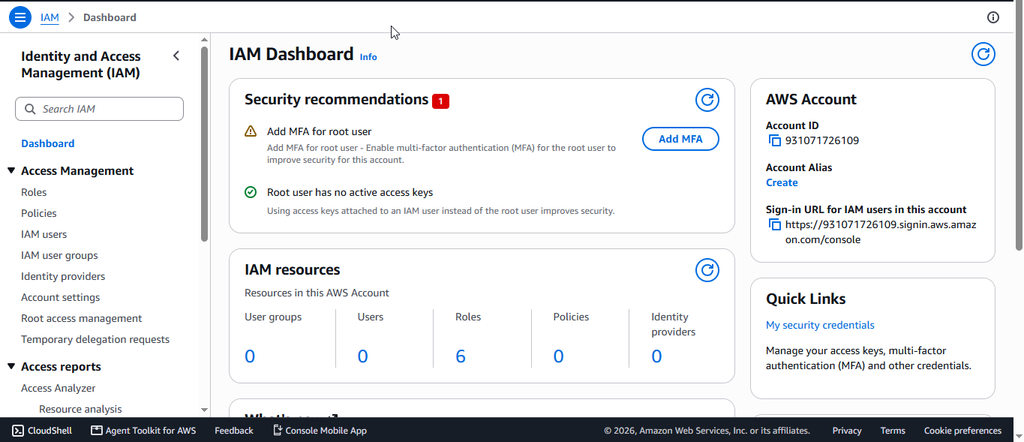
Step 1: Open The AWS IAM Dashboard
Sign in to the AWS Management Console using an account with the required administrative permissions.
- Open the AWS Management Console.
- Use the search bar at the top of the console.
- Search for IAM.
- Select IAM – Identity and Access Management.
The dashboard provides access to important features such as Users, User groups, Roles, and Policies.
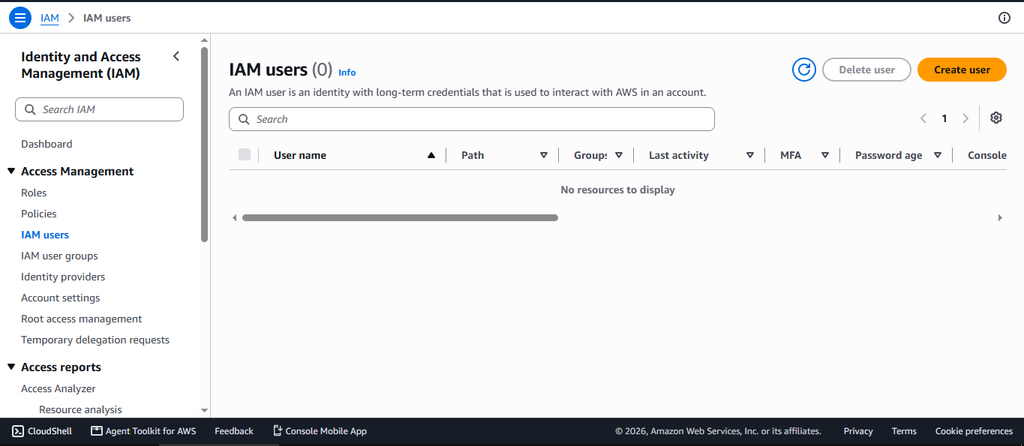
Step 2: Open IAM Users
The next step is to create the IAM user that will be used for this demonstration.
- In the navigation pane, select Users.
- Click Create user.
- The user creation page opens.
An user represents an identity that can receive permissions to access AWS resources.
Step 3: Create the IAM User
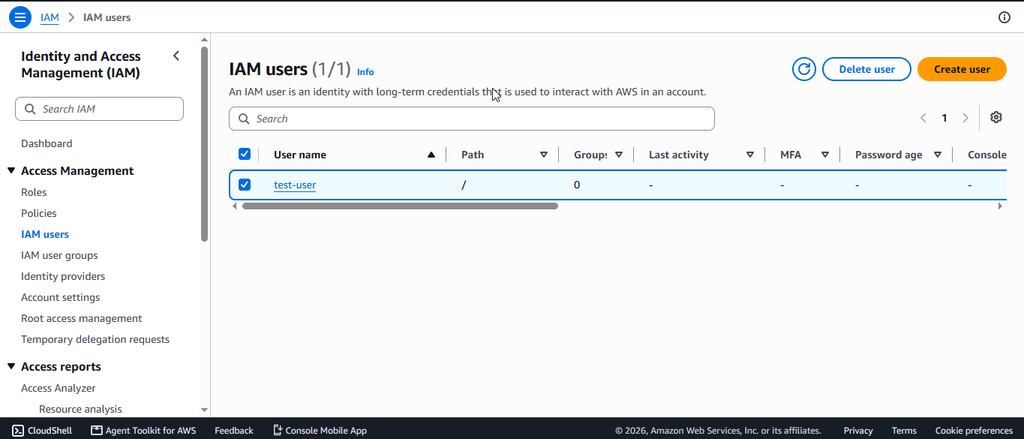
Enter a name for the new user.
- In the User name field, enter: test-user
- Configure console access according to the options shown in your AWS account.
- Continue to the permissions section.
- Review the configuration.
- Create the user.
For this tutorial, the user will receive permissions through the group.
Step 4: Create the Group
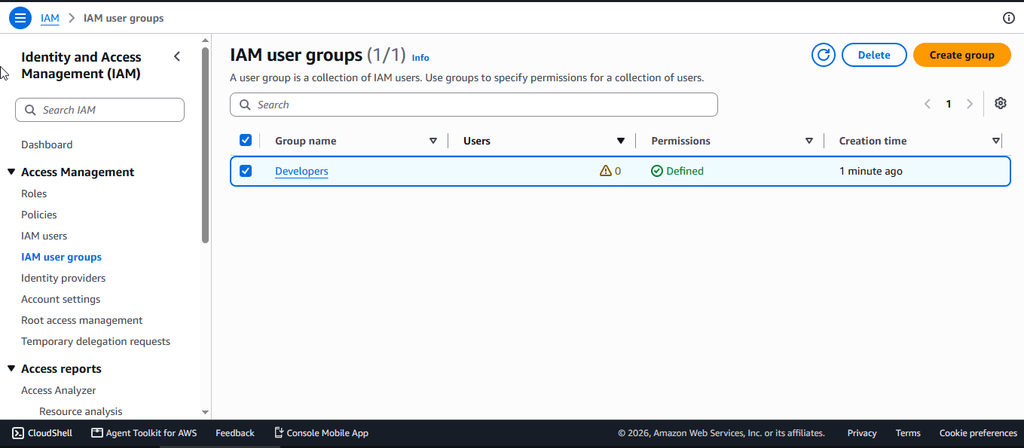
Groups make permission management easier because permissions can be assigned to a group instead of individually to every user.
- From the navigation menu, select User groups.
- Click Create group.
- Enter the group name: Developers
- Continue to the permissions section.
The Developers group will contain the test user and will receive the S3 read-only policy.
Step 5: Attach the S3 Read-Only Policy
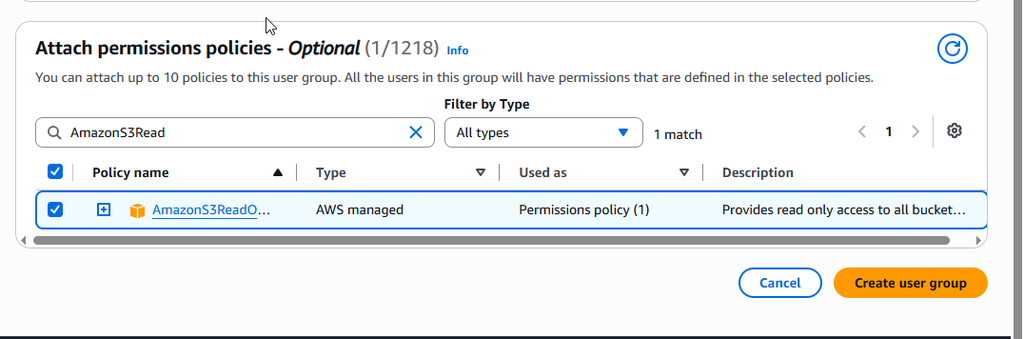
Now assign an appropriate permission policy to the Developers group.
- In the policy search box, search for: AmazonS3ReadOnlyAccess
- Select the policy.
- Review the selected permissions.
- Click Create group or the equivalent confirmation option shown by the AWS console.
The AmazonS3ReadOnlyAccess policy provides permissions for permitted read and list operations in Amazon S3 without providing general write access. Using a read-only policy follows the principle of least privilege, where users receive only the permissions required for their tasks.
Step 6: Add test-user to the Developers Group
After creating the group, add the user to it.
- Go to IAM → Users.
- Select test-user.
- Look for the Groups section.
- If necessary, select Add permissions.
- Choose Add user to groups.
- Select the Developers group.
- Save the changes.
After the user is added, the permissions assigned to the Developers group become applicable to the user.
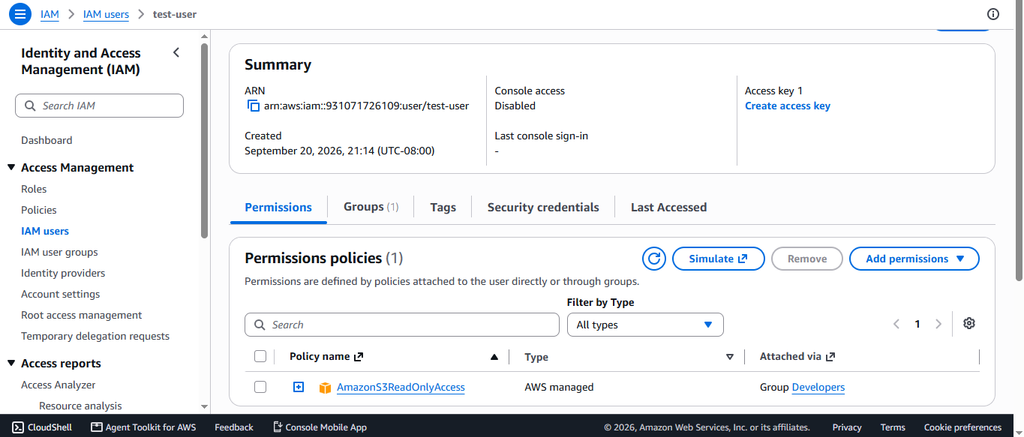
Step 7: Verify User Permissions
It is important to verify that the user’s permissions have been configured correctly.
- Open IAM → Users.
- Select test-user.
- Open the Permissions section.
- Review the permissions associated with the user.
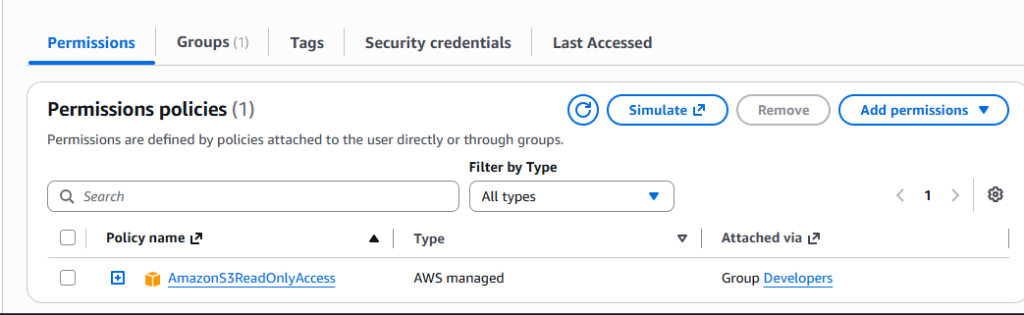
- Confirm that the user receives the S3 read-only permission through the Developers group.
The permission relationship can be represented as:
test-user → Developers → AmazonS3ReadOnlyAccess → S3 read permissions
This structure makes permissions easier to manage when multiple users need the same level of access.
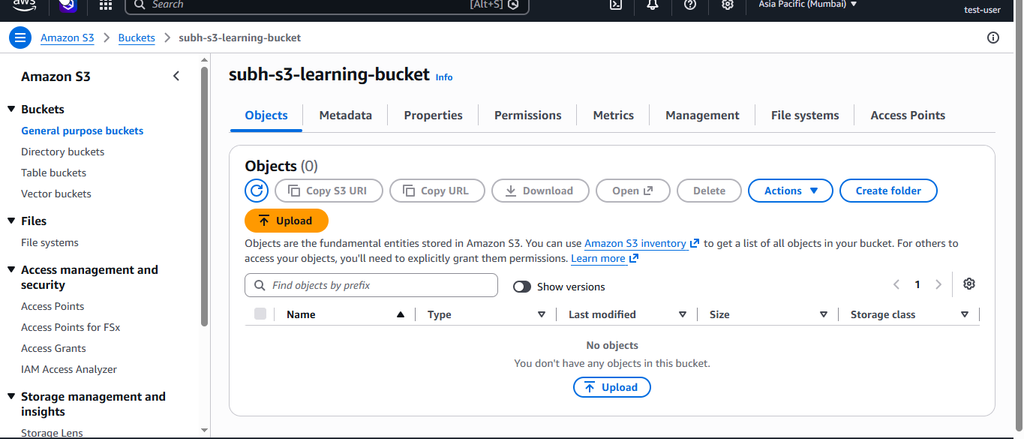
Step 8: Test S3 Read Access
Now verify the permissions by signing in as test-user.
- Sign out of the administrator or root account.
- Sign in using the test-user credentials.
- Open the AWS Management Console.
- Search for S3.
- Open Amazon S3.
- Under General purpose buckets, locate your existing S3 bucket.
- Click the bucket name.
- Open the Objects tab.
You should be able to view the bucket and its permitted contents. Because the user has read-only access, this demonstrates that the assigned S3 permissions are working.
Step 9: Test the Read Only Restriction
The final step is to verify that the user cannot perform an operation that requires write permission.
- While still signed in as test-user, open your existing S3 bucket.
- Go to the Objects tab.
- Click Upload.
- Select a small test file.
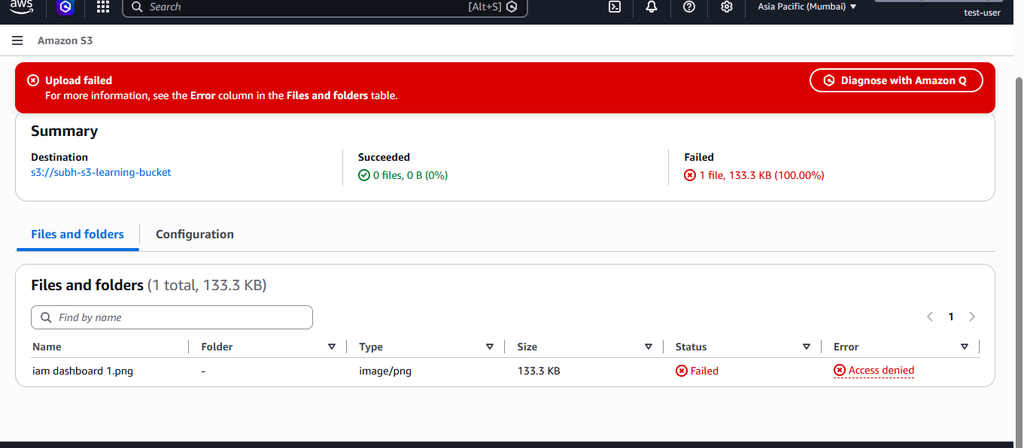
- Attempt to upload the file.
- Review the result.
Because test-user has the S3 read-only policy, the upload operation should be denied if there are no additional policies granting write access. The AWS console may display an Access Denied or similar authorisation error.
This test demonstrates an important concept: having permission to view a resource does not automatically provide permission to modify it.
IAM Security Best Pracices
When working with AWS, follow these security practices:
Use Least-Privilege Permissions
Give users only the permissions they need. Avoid attaching broad administrative policies when a more specific policy is sufficient.
Enable MFA
Multi-factor authentication adds another layer of security to AWS accounts and identities. AWS recommends MFA as part of its IAM security best practices.
Use Groups for Common Permissions
When several users require similar permissions, create a group and assign the appropriate policy to the group. This makes permission management easier.
Protect Credentials
Never share passwords, access keys, secret keys, or other credentials. Avoid putting sensitive information in screenshots, documentation, or source-control repositories.
Review Permissions Regularly
Periodically review users, groups, roles, and policies. Remove unnecessary permissions and identities when they are no longer required.
Conclusion
AWS provides the foundation for controlling access to AWS resources. Users represent identities, groups help organize users, and policies define what actions those identities can perform. In this tutorial, test-user was added to the Developers group, and the group received the AmazonS3ReadOnlyAccess policy. The configuration was then tested using an existing S3 bucket. The user could view the S3 resource but was prevented from performing a write operation. Understanding the relationship between users, groups, policies, and permissions is an important first step toward managing AWS resources securely and applying the principle of least privilege.
Troubleshooting
1. The IAM user cannot sign in
Problem: The “test-user” cannot sign in to the AWS Management Console.
Solution:
- Verify that console access is enabled for the IAM user.
- Check that the correct AWS account ID or account alias is being used.
- Verify the IAM username and password.
- If required, reset the user’s console password.
2. The Developers group does not appear
Problem: You cannot find the “Developers” group when adding “test-user“.
Solution:
- Go to IAM → User groups.
- Confirm that the “Developers” group was created successfully.
- Return to IAM → Users → test-user → Add permissions → Add user to groups.
- Select the “Developers” group and save the changes.
3. S3 access is denied
Problem: “test-user” receives an Access Denied message when trying to view the S3 bucket.
Solution:
- Open IAM → Users → test-user → Permissions.
- Verify that the user belongs to the “Developers” group.
- Check that “AmazonS3ReadOnlyAccess” is attached to the group.
- Review whether another policy or S3 bucket policy is restricting access.
4. The user can upload files even though it has read-only access
Problem: The “test-user” can upload an object despite having “AmazonS3ReadOnlyAccess“.
Solution:
The user may have additional permissions from another group, policy, or role. Review the user’s effective permissions and check all policies attached directly to the user or through groups.
For a clean demonstration, make sure no other policy grants S3 write permissions.
5. The S3 bucket is not visible
Problem: The existing S3 bucket does not appear when signed in as “test-user“.
Solution:
- Verify that you are signed in as “test-user“, not another AWS identity.
- Check that the “AmazonS3ReadOnlyAccess” policy is correctly attached.
- Confirm that the bucket is in the same AWS account if your tutorial assumes an account-local bucket.
- Review the bucket policy if access is still unavailable.
6. The password is not working
Problem: The user cannot log in because the password is rejected.
Solution:
Return to the administrator account and open:
IAM → Users → test-user → Security credentials
Check the console-access settings and reset the password if necessary. Make sure you are using the correct AWS account ID or alias during sign-in.
FAQs
1. What is AWS IAM?
AWS Identity and Access Management is a service used to control access to AWS resources and services.
2. What is an user?
An user is an AWS identity that can be assigned permissions to access AWS resources.
3. What is an group?
An group is a collection of users that can share common permissions.
4. What is an IAM policy?
The policy is a document that defines which actions are allowed or denied for an AWS identity or resource.
Discover more from Root Learning
Subscribe to get the latest posts sent to your email.