
In 2026, MariaDB remains a popular choice for Linux Operating System users who want an open-source, flexible, and performance-focused relational database management system. If you’re building a website, running a web application, or working on a data-driven project, chances are you’ll need a reliable database on a Linux Operating System.
Table of Contents
Why Choose MariaDB on Linux Operating System in 2026?
MariaDB is a community-developed, open-source database platform that originated as a fork of MySQL. Over the years, it has developed its own features, tools, and ecosystem while remaining familiar to many developers and system administrators.
One of its biggest advantages is compatibility with a wide range of Linux environments. Whether you’re managing a small development machine, a web server, or a larger production environment, MariaDB can be adapted to different workloads.
It also supports familiar SQL functionality, making it approachable for developers who already have experience with traditional relational databases.
Quick-Reference Terminology Repository of MariaDB Setup on a Linux Operating System
You can check the quick repository while downloading or setting up MariaDB on a Linux Operating System.
| Term | What it means | Example / Command |
| LAMP | Linux + Apache + MariaDB + PHP web stack | Complete web stack |
| AlmaLinux | Linux operating system used as the server platform | AlmaLinux 9/10 |
| Apache | Web server that delivers websites and web applications | httpd |
| HTTPD | AlmaLinux package/service name for Apache | httpd.service |
| MariaDB | Relational database management system (RDBMS) | mariadb.service |
| PHP | Server-side scripting language | php -v |
| PHP-FPM | PHP process manager used to execute PHP applications | php-fpm |
| DNF | AlmaLinux package-management tool | sudo dnf install mariadb-server |
| systemctl | Command used to manage Linux services | sudo systemctl status mariadb |
| MariaDB Client | Command-line program used to connect to MariaDB | mariadb -u root -p |
| Database | Container used to organize tables and other database objects | company |
| Table | Structure that stores data in rows and columns | staff |
| Row | A single record in a table | One employee record |
| Column | A field that describes a property of a record | name, salary |
| User | MariaDB account used to connect to the database server | company_app |
| Host | Specifies where a MariaDB user is allowed to connect from | localhost |
| Password | Credential used to authenticate a database user | IDENTIFIED BY ‘…’ |
| Privilege | Permission that controls what a user can do | SELECT, INSERT |
| GRANT | Gives privileges to a MariaDB user | GRANT SELECT … |
| REVOKE | Removes privileges from a MariaDB user | REVOKE SELECT … |
| Primary Key | Uniquely identifies each row in a table | id |
Download the Terminology Repository for MariaDB Setup on Linux Operating System
MariaDB Setup on Linux Operating System
On a Linux Operating System, MariaDB works really well. Its setup is very easy and can be done by following the steps. Refer to the MariaDB installation steps (commands) on a Linux Operating System. Here we have used AlmaLinux.
MariaDB Installation on Linux Operating System
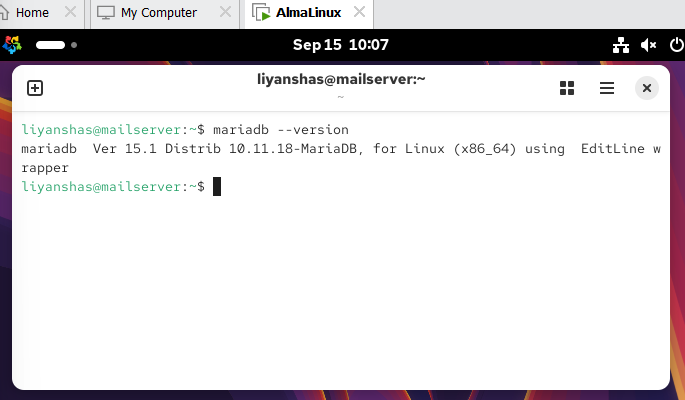
Type the command given below in the terminal:
mariadb –version
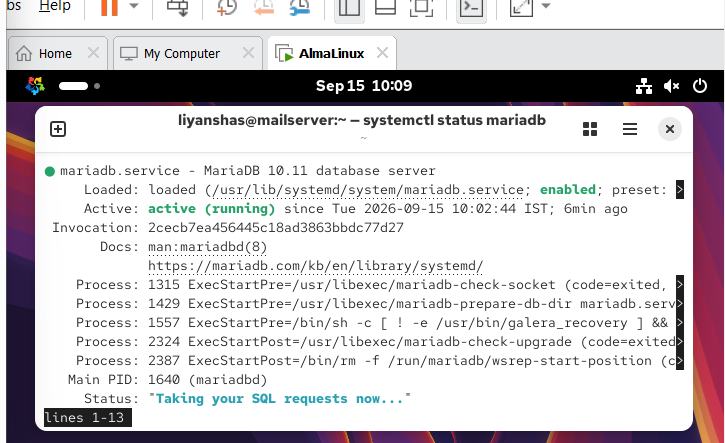
Check whether the MariaDB server is running
systemctl status mariadb
Log in to MariaDB
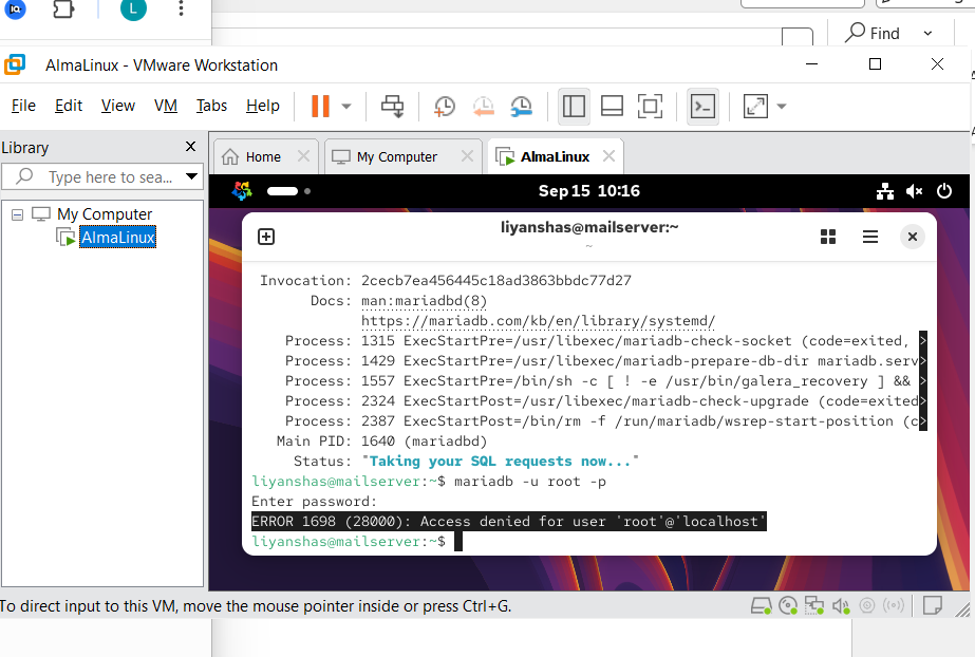
There, you can see an error. Let me tell you how to fix this
sudo mariadb
Then enter the password
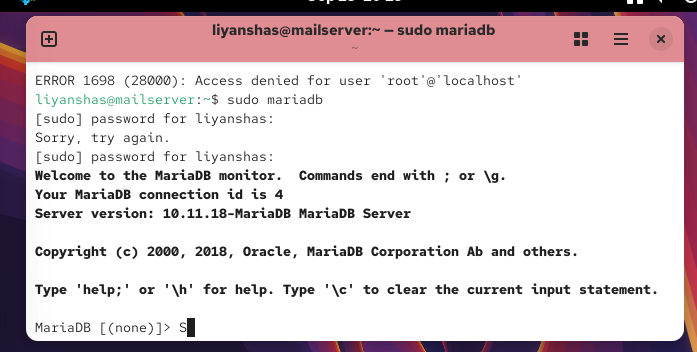
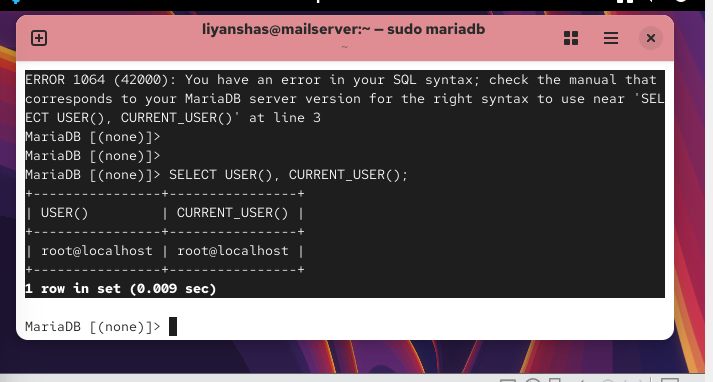
First, let’s verify the current user
You are already inside MariaDB at:
MariaDB [(none)]>
Run:
SELECT USER(), CURRENT_USER();
Both values are the same, so MariaDB is using the root@localhost account for this connection.
Checking Existing Databases and Creating Your First Database.
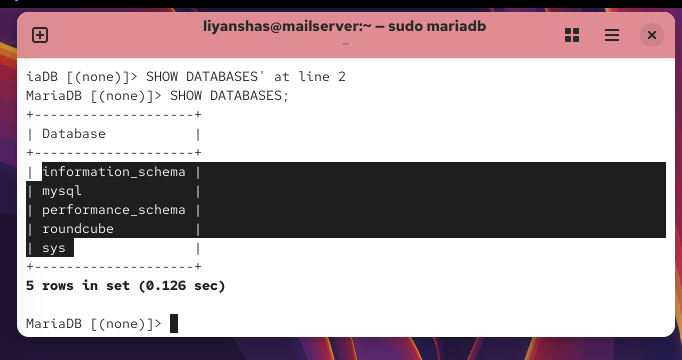
Yes — you’re at the correct prompt:
MariaDB [(none)]>
Now enter the command exactly like this, including the semicolon:
SHOW DATABASES;
The semicolon tells MariaDB that the SQL statement is complete.
You should get a list of databases, for example:
+——————–+
| Database |
+——————–+
| information_schema |
| mysql |
| performance_schema |
| sys |
+——————–+
Now we will create our company database.
We’ll create a separate database called company to demonstrate tables, permissions, and CRUD operations.
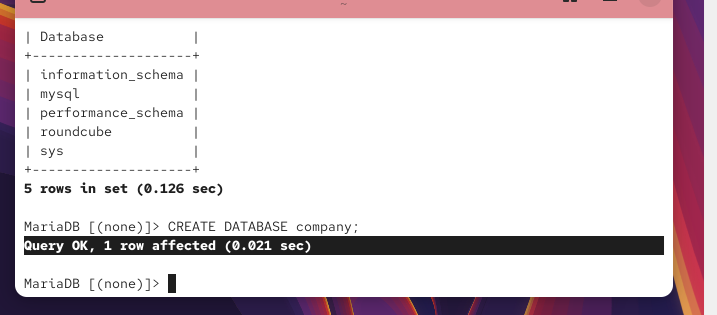
Run:
CREATE DATABASE company;
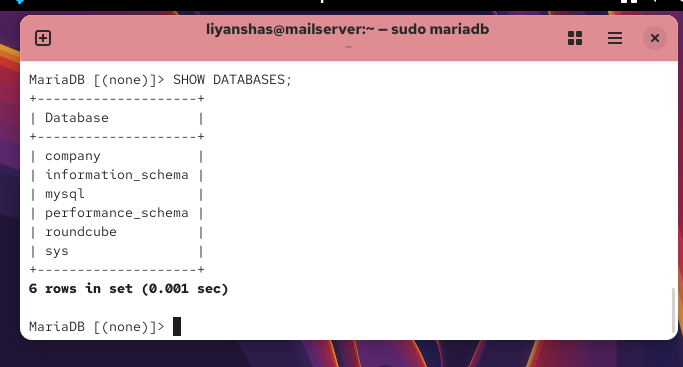
Then verify it:
SHOW DATABASES;
Then verify it:
SHOW DATABASES;
You should see:
company
information_schema
mysql
performance_schema
roundcube
sys
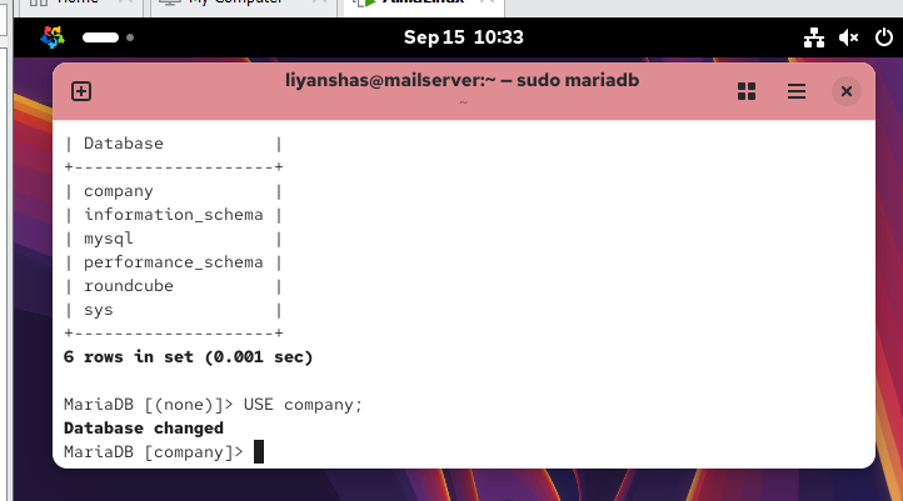
After that, we’ll select the company :
Type USE company;
Select the Database
USE company;
You should see:
Database changed
Your prompt should become:
MariaDB [company]>
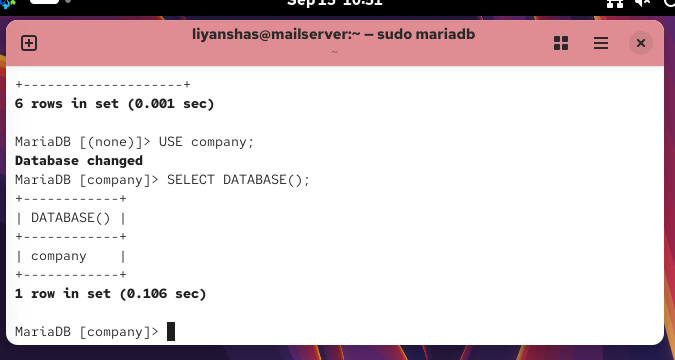
Verify the Selected Database
SELECT DATABASE();
Expected:
+————+
| DATABASE() |
+————+
| company |
+————+
That’s all for this step.
We’ll create a dedicated user for our company database.
View Existing Users
First, let’s see which MariaDB users already exist.
Run:
SELECT User, Host FROM mysql.user;
The important point is that company_user does not exist yet, so this is a good clean environment for our demonstration.
What do User and Host Mean?
MariaDB identifies an account using both the username and the host:
‘user’@’host’
For example:
‘company_user’@’localhost’
means the user company_user is allowed to connect from the local server.
For our LAMP setup, we’ll use localhost.
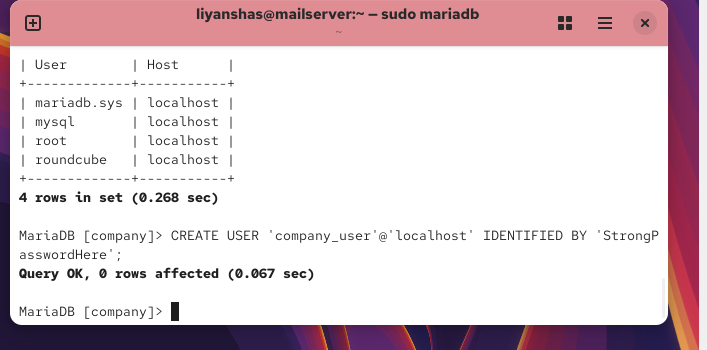
Create a New User
We’ll create a dedicated user for the company database:
CREATE USER ‘company_user’@’localhost’ IDENTIFIED BY ‘StrongPasswordHere’;
Replace StrongPasswordHere with a strong password of your choice.
Then verify it:
SELECT User, Host FROM mysql.user
WHERE User = ‘company_user’;
Query OK, 0 rows affected
means MariaDB successfully created the user:
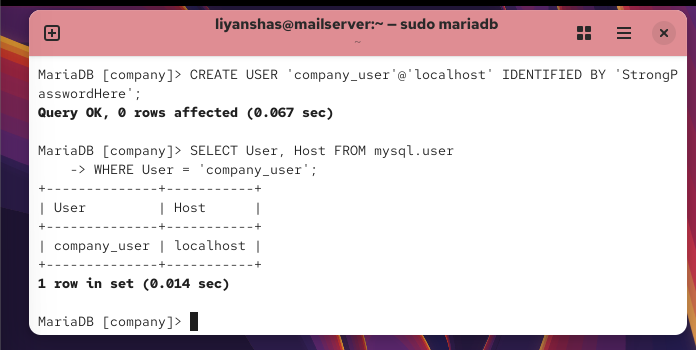
Now let’s verify the user.
Run:
SELECT User, Host FROM mysql.user
WHERE User = ‘company_user’;
You should see:
+————–+———–+
| User | Host |
+————–+———–+
| company_user | localhost |
+————–+———–+
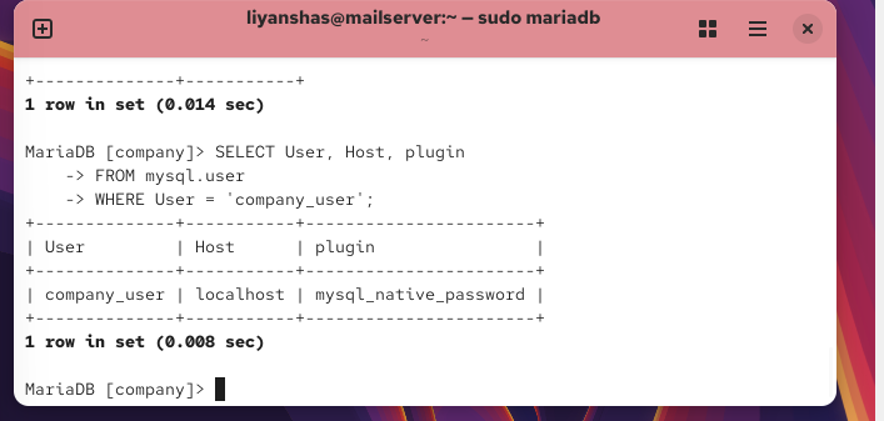
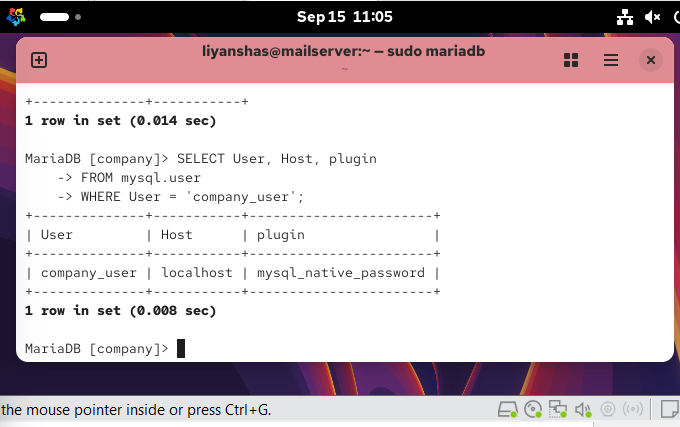
Checking and Changing the user’s password.
Your result shows:
User Host plugin
company_user localhost mysql_native_password
So company_user@localhost exists and is using mysql_native_password authentication.
Change the User’s Password
Now let’s learn how to change the password for an existing MariaDB user.
Use:
ALTER USER ‘company_user’@’localhost’
IDENTIFIED BY ‘NewStrongPasswordHere’;
Use:
ALTER USER ‘company_user’@’localhost’
IDENTIFIED BY ‘NewStrongPasswordHere’;
Replace NewStrongPasswordHere with the new password you want.
For example:
ALTER USER ‘company_user’@’localhost’
IDENTIFIED BY ‘SAMPLE PASSWORD!’;
A successful change will return:
Query OK, 0 rows affected
Test the New Password
Since you’ve changed the password, let’s verify that the new password actually works.
Exit MariaDB
EXIT;
Log in as company_user
From the Linux shell, run:
mariadb -u company_user -p
Enter the new password you set.
If successful, you’ll see:
MariaDB [(none)]>
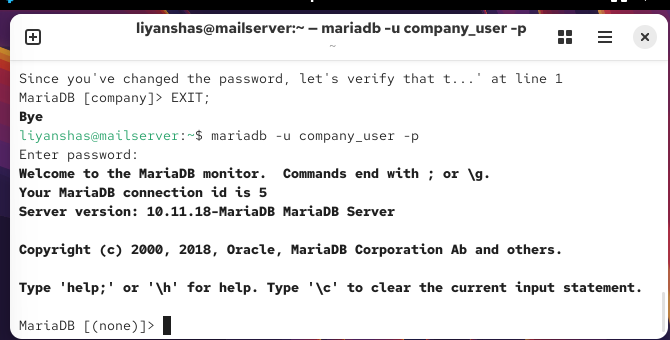
Hence the new password works.
Grant Privileges to a User
We’ll switch back to the MariaDB root account and grant company_user privileges on only the company database.
or now, run:
EXIT;
Then log back in as root:
sudo mariadb
Once you see:
MariaDB [(none)]>
Make sure you’re logged in as root:
MariaDB [(none)]>
Grant company_user full privileges only on the company database:
GRANT ALL PRIVILEGES ON company.* TO ‘company_user’@’localhost’;
Expected result:
Query OK, 0 rows affected
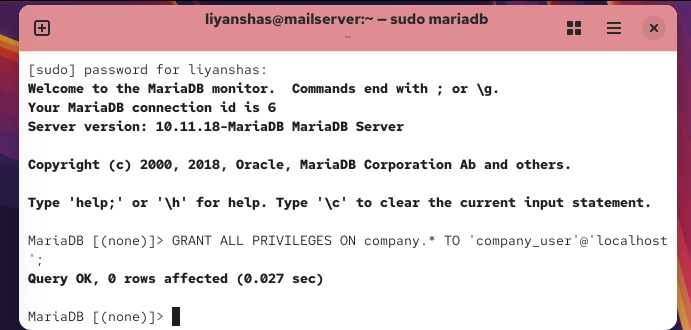
You should see something similar to:
GRANT ALL PRIVILEGES ON `company`.* TO `company_user`@`localhost`
This means company_user can perform operations on the company database, but hasn’t been granted privileges on your other databases such as roundcube.
Important
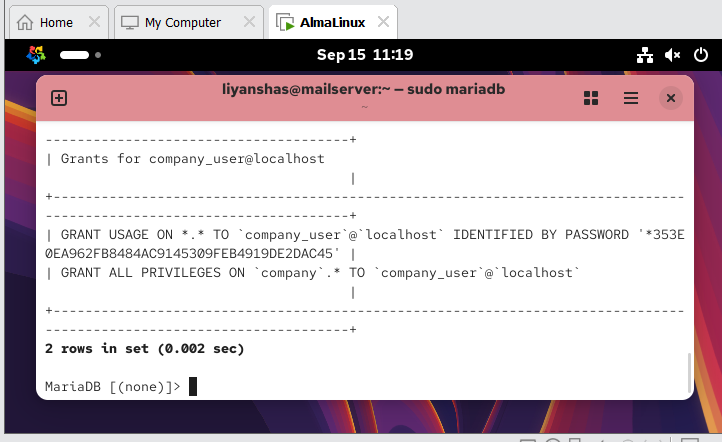
GRANT ALL PRIVILEGES ON company.* TO ‘company_user’@’localhost’;
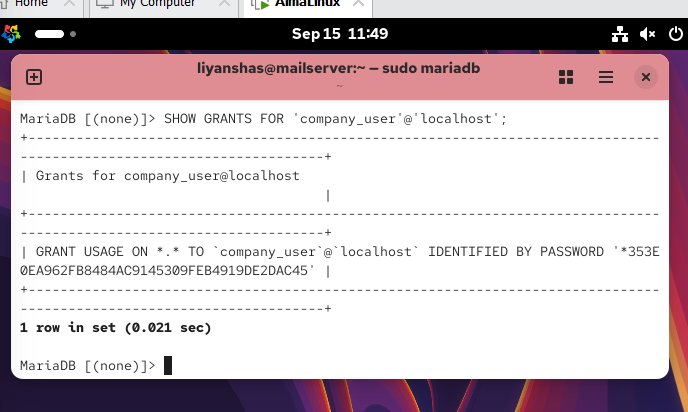
Giving specific permissions
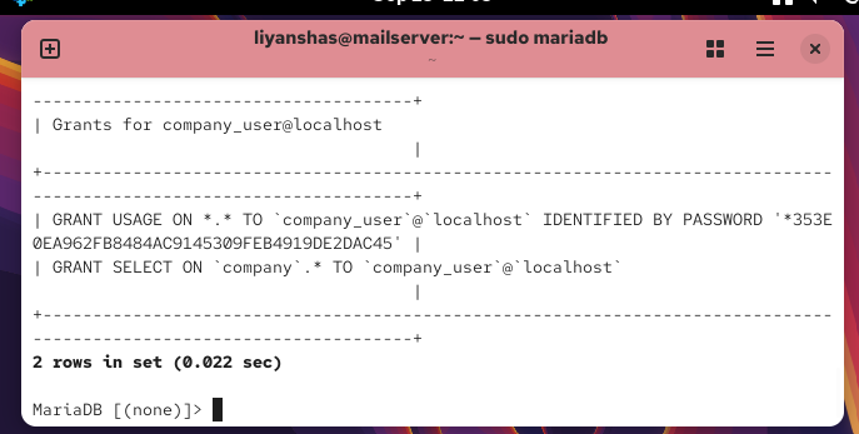
GRANT SELECT ON company.* TO ‘company_user’@’localhost’;
Make sure there is a ; at the end.
You should get:
Query OK, 0 rows affected
Then run:
SHOW GRANTS FOR ‘company_user’@’localhost’;
You should see a grant containing:
GRANT SELECT ON `company`.* TO `company_user`@`localhost`
Change a User’s Name
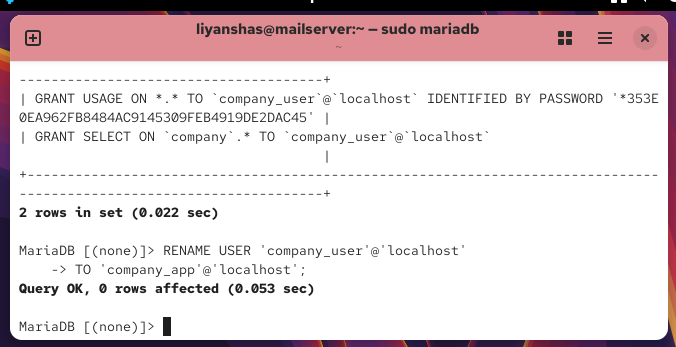
Run:
RENAME USER ‘company_user’@’localhost’
TO ‘company_app’@’localhost’;
Expected result:
Query OK, 0 rows affected
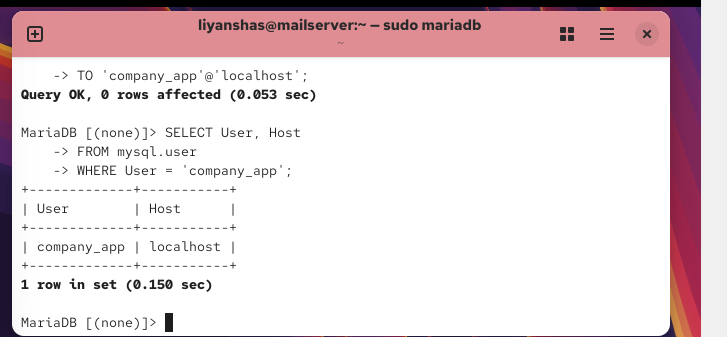
Verify the Renamed User
SELECT User, Host
FROM mysql.user
WHERE User = ‘company_app’;
You should see:
+————-+———–+
| User | Host |
+————-+———–+
| company_app | localhost |
+————-+———–+
Important
Renaming the account doesn’t mean you need to create a new password. The account’s existing authentication information and privileges are associated with the renamed account.
Lock a MariaDB User
MariaDB allows you to temporarily prevent a user from logging in without deleting the account.
We’ll lock:
company_app@localhost
Run:
ALTER USER ‘company_app’@’localhost’ ACCOUNT LOCK;
You may see error then type
SELECT User, Host FROM mysql.user WHERE User = ‘company_app’;
Verify the User Exists
Run:
SELECT User, Host
FROM mysql.user
WHERE User = ‘company_app’;
You should get:
+————-+———–+
| User | Host |
+————-+———–+
| company_app | localhost |
+————-+———–+
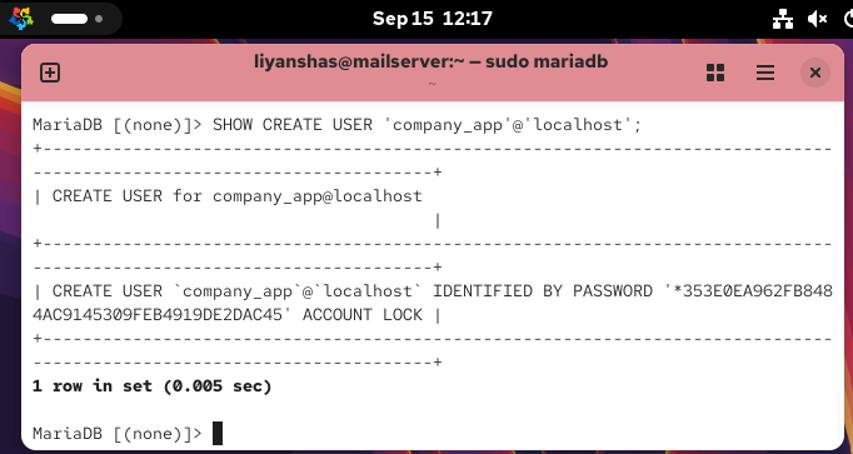
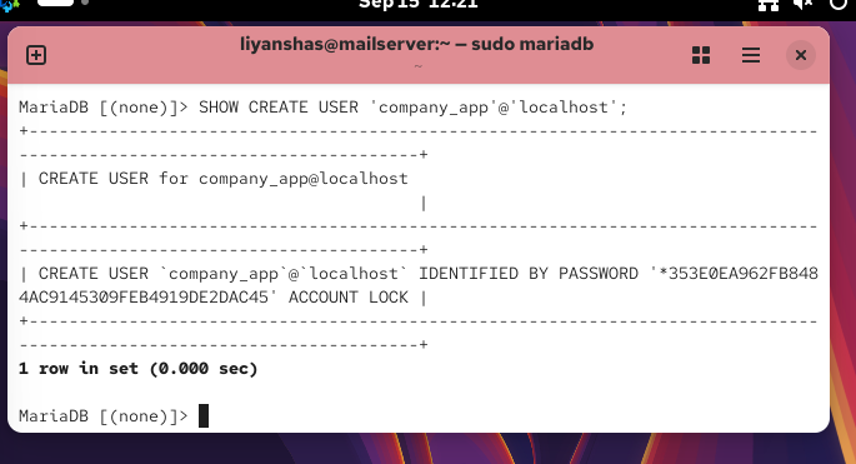
Check the account definition
For a more reliable MariaDB 10.11 check, run:
SHOW CREATE USER ‘company_app’@’localhost’;
This will show how MariaDB has configured the account, including its authentication and account options.
If you already ran:
ALTER USER ‘company_app’@’localhost’ ACCOUNT LOCK;
Delete a user
Create an Employees Table
Run this inside the MariaDB prompt:
CREATE TABLE employees (
id INT AUTO_INCREMENT PRIMARY KEY,
name VARCHAR(100) NOT NULL,
email VARCHAR(150),
department VARCHAR(100),
salary DECIMAL(10,2),
hire_date DATE
);
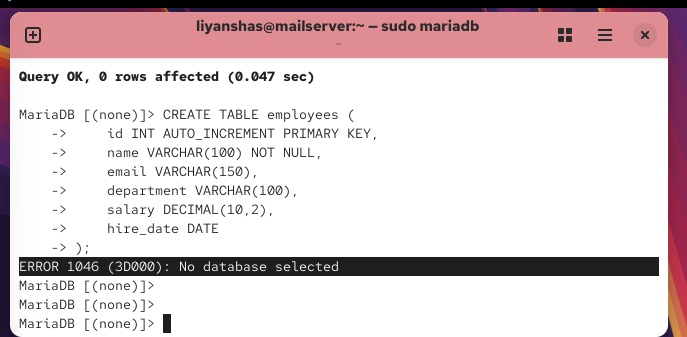
That’s fine. It means your MariaDB session is no longer using the company database.
Run this first:
USE company;
You should see:
Database changed
CREATE TABLE employees (
id INT AUTO_INCREMENT PRIMARY KEY,
name VARCHAR(100) NOT NULL,
email VARCHAR(150),
department VARCHAR(100),
salary DECIMAL(10,2),
hire_date DATE
);
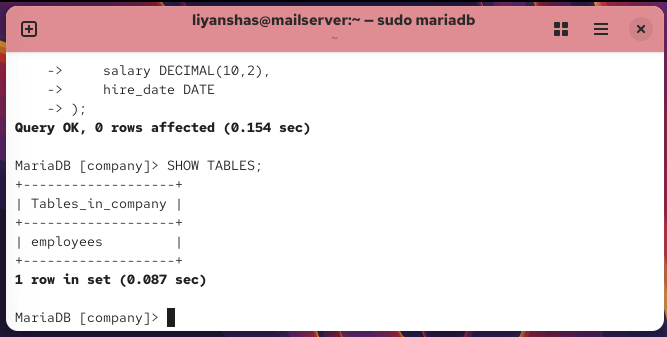
Verify the table
Verify the table
Run:
SHOW TABLES;
You should see something like:
+——————-+
| Tables_in_company |
+——————-+
| employees |
+——————-+
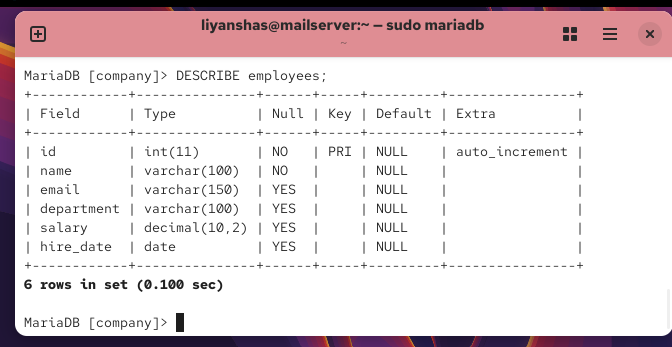
View the table structure
Now run:
DESCRIBE employees;
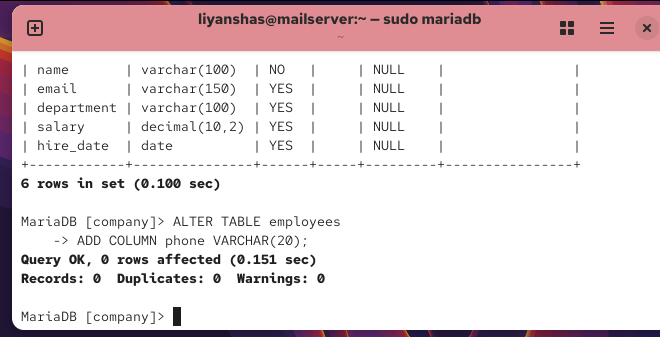
Add a column
Run:
ALTER TABLE employees
ADD COLUMN phone VARCHAR(20);
You should get:
Query OK, 0 rows affected
Add a Column
Run:
ALTER TABLE employees
ADD COLUMN phone VARCHAR(20);
You should get:
Query OK, 0 rows affected
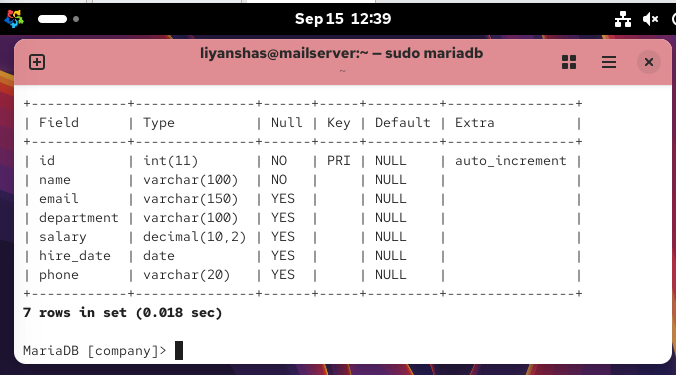
Then verify the change:
DESCRIBE employees;
You should now see phone in the column list.
Change a column definition
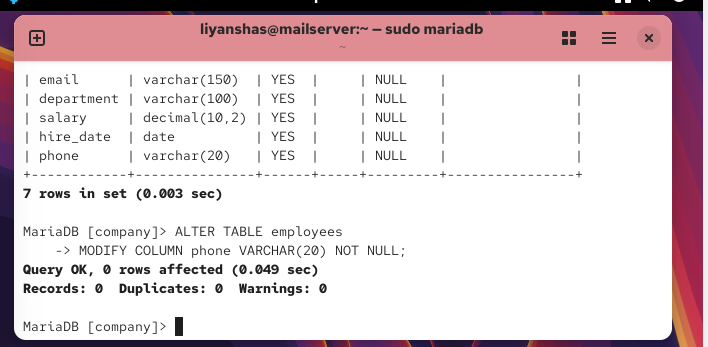
We’ll make the phone column required by adding NOT NULL:
ALTER TABLE employees
MODIFY COLUMN phone VARCHAR(20) NOT NULL;
Then verify:
DESCRIBE employees;
Look at the Null column for phone. It should now show NO.
Change a Column Definition
We’ll make the phone column required by adding NOT NULL:
ALTER TABLE employees
MODIFY COLUMN phone VARCHAR(20) NOT NULL;
Then verify:
DESCRIBE employees;
Rename phone to phone_number
Run:
ALTER TABLE employees
RENAME COLUMN phone TO phone_number;
Then verify:
DESCRIBE employees;
You should now see phone_number instead of phone
Rename the table
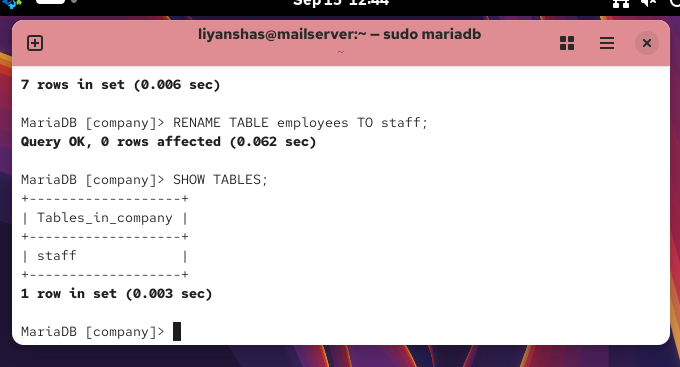
Now let’s practice renaming the entire table.
Run:
RENAME TABLE employees TO staff;
Then verify:
SHOW TABLES;
You should now see:
staff
instead of employees.
Remove a Column
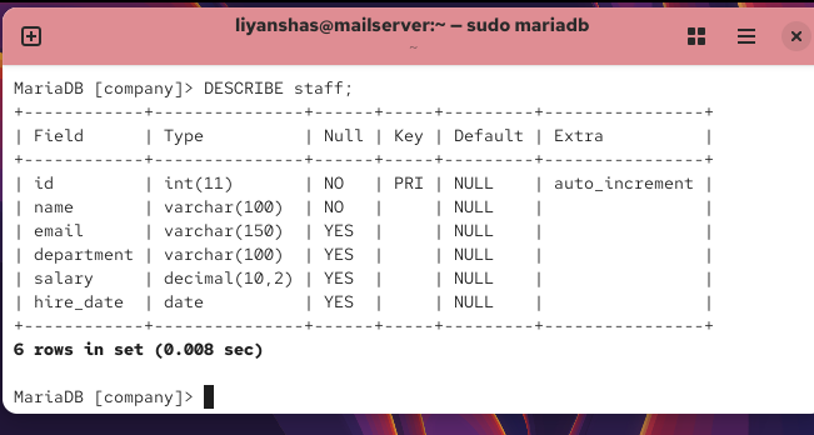
We’ll remove phone_number so you can document the DROP COLUMN operation.
Run:
ALTER TABLE staff
DROP COLUMN phone_number;
Then verify:
DESCRIBE staff;
phone_number should no longer appear.
Insert Data
Now we’ll put some actual records into staff.
Run:
INSERT INTO staff (name, email, department, salary, hire_date)
VALUES
(‘John Smith’, ‘john@example.com’, ‘IT’, 55000.00, ‘2025-01-15’),
(‘Sarah Jones’, ‘sarah@example.com’, ‘HR’, 48000.00, ‘2025-02-10’),
(‘Mike Brown’, ‘mike@example.com’, ‘Finance’, 62000.00, ‘2025-03-05’);
Then verify the records:
SELECT * FROM staff;
This gives you the basic INSERT + SELECT operations for your documentation.
Insert data
Now we’ll put some actual records into staff.
Run:
INSERT INTO staff (name, email, department, salary, hire_date)
VALUES
(‘John Smith’, ‘john@example.com’, ‘IT’, 55000.00, ‘2025-01-15’),
(‘Sarah Jones’, ‘sarah@example.com’, ‘HR’, 48000.00, ‘2025-02-10’),
(‘Mike Brown’, ‘mike@example.com’, ‘Finance’, 62000.00, ‘2025-03-05’);
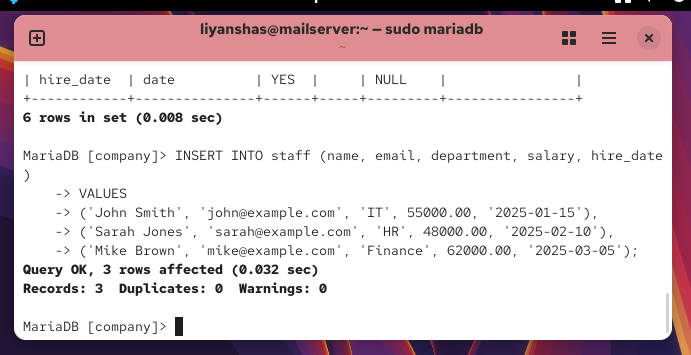
Then verify the records:
SELECT * FROM staff;
This gives you the basic INSERT + SELECT operations for your documentation.
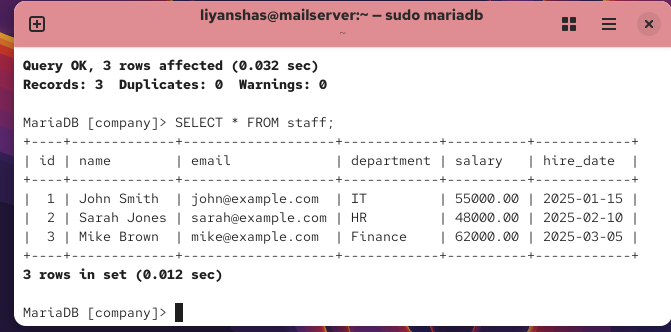
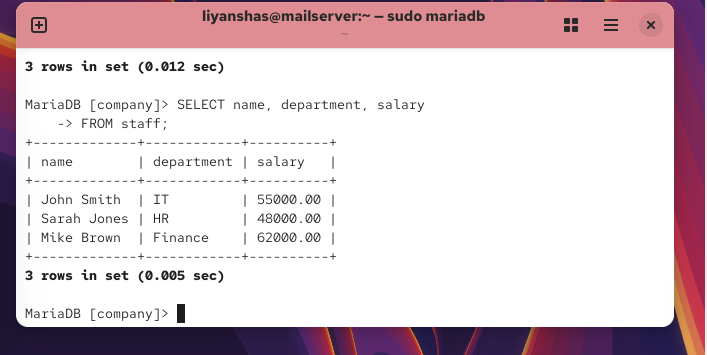
Select Specific Columns
Instead of retrieving everything with SELECT *, retrieve only the information you need:
SELECT name, department, salary
FROM staff;
You should see the three employees with only those three columns.
Then we’ll move on to filtering with WHERE, which is one of the most important SQL operations.
Select specific columns
Instead of retrieving everything with SELECT *, retrieve only the information you need:
SELECT name, department, salary
FROM staff;
You should see the three employees with only those three columns.
Then we’ll move on to filtering with WHERE, which is one of the most important SQL operations.
Use WHERE
Find only employees who work in the IT department:
SELECT *
FROM staff
WHERE department = ‘IT’;
You should get only John Smith.
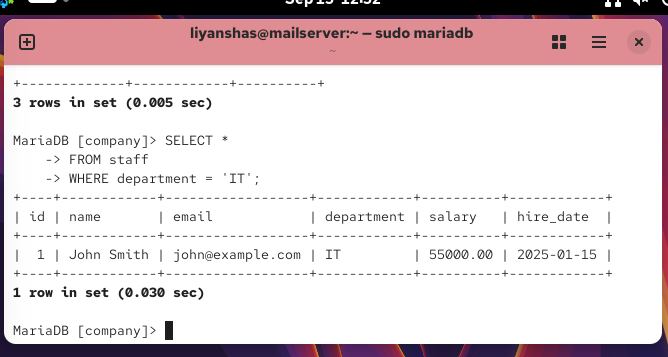
This is the basic pattern you’ll use constantly:
SELECT columns
FROM table
WHERE condition;
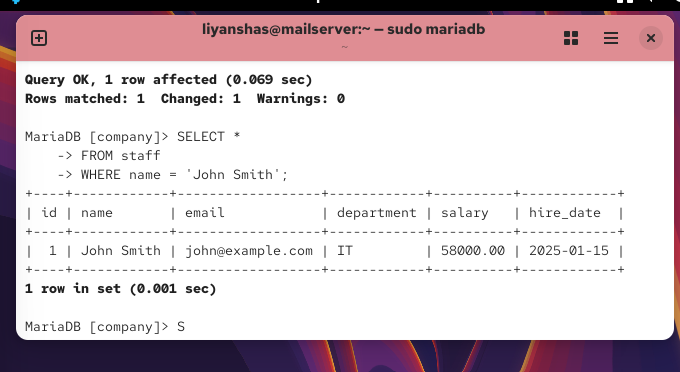
Update a Record
Let’s increase John Smith’s salary from 55000 to 58000.
Run:
UPDATE staff
SET salary = 58000.00
WHERE name = ‘John Smith’;
Then verify:
SELECT *
FROM staff
WHERE name = ‘John Smith’;
You should see his salary as 58000.00.
Important: Notice the WHERE. Without it, every employee’s salary would be changed.
Delete a Specific Record
We’ll remove the demo employee Mike Brown.
Run:
DELETE FROM staff
WHERE name = ‘Mike Brown’;
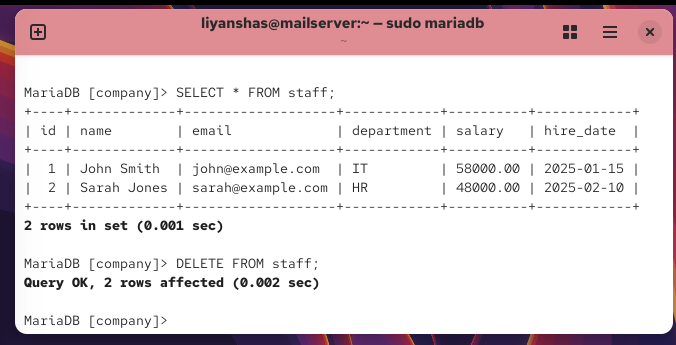
Then verify:
SELECT * FROM staff;
You should now have John Smith and Sarah Jones remaining.
Again, the WHERE is critical. Without it:
DELETE FROM staff;
would delete all rows from the table.
FAQs
Below are the FAQs for the Ultimate Guide to Installing and Configuring MariaDB in 2026 on a Linux Operating System:
Q. What is a Linux Operating System?
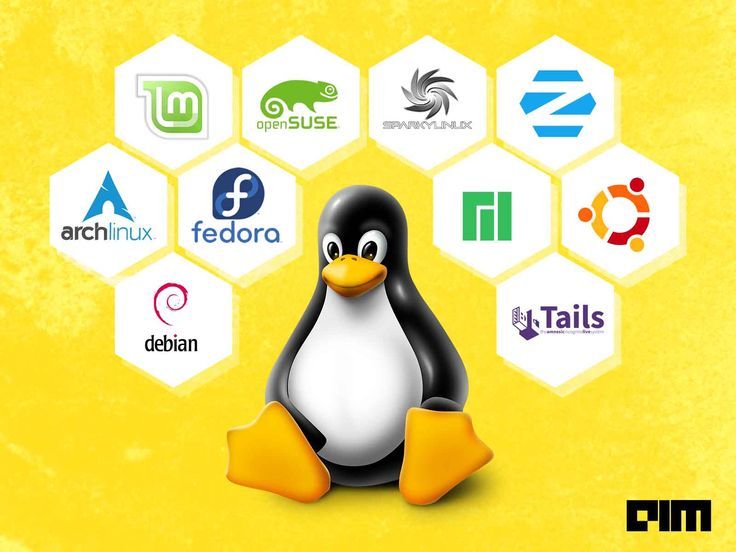
A. A Linux Operating System is an open-source operating system that is used to run computers, servers, cloud infrastructure, & other devices. Unlike proprietary operating systems, Linux is available in many distributions, such as Ubuntu, Debian, Fedora, Rocky Linux, and AlmaLinux. It is widely used for server environments because of its stability, flexibility, security, and strong community support.
Q. How often should MariaDB be updated on a Linux Operating System?
A. MariaDB on a Linux Operating System should be maintained according to its release & support lifecycle, with security updates applied promptly where appropriate. Before updating a production database of MariaDB on Linux Operating system, test the new version and verify application compatibility, especially when making larger version changes.
Q. Can MariaDB be used for production applications on Linux Operating System?
A. Yes. MariaDB on a Linux Operating System can be used for production websites, applications, & other database-driven systems. Production environments should receive additional attention to security, backups, monitoring, availability, resource management, and ongoing maintenance.
Discover more from Root Learning
Subscribe to get the latest posts sent to your email.


One thought on “Ultimate Guide to Installing and Configuring MariaDB in 2026 on a Linux Operating System”