
Cloud storage in Amazon Web Services provides many services for storing, processing, and managing data. One of the most widely used services is Amazon Simple Storage Service (Amazon S3). It is an object storage service designed to store and retrieve different types of data from anywhere through the internet. S3 can be used for storing documents, images, videos, application files, backups, logs, datasets, and website assets. It is highly scalable and includes features for security, access management, versioning, encryption, and data management in cloud storage.
Table of Contents
What is Amazon S3?
Instead of storing files inside traditional folders on a server, S3 stores data as objects inside containers called buckets in cloud storage. An S3 object consists of the actual file and metadata describing that file. A bucket acts as the main container where objects are stored. The basic structure can be understood as:
AWS Account → S3 Bucket → Object → File/Data
S3 is useful because applications can access stored objects through AWS services, APIs, SDKs, or the AWS Management Console.
Key Components of Amazon S3
Before using S3, it is important to understand its main components.
1. Buckets
Create a bucket and give a name for it. Bucket names must follow AWS naming requirements and are designed to be unique within the relevant S3 namespace in cloud storage.
You can use different buckets for different purposes, such as:
- Website files
- Application backups
- Company documents
- Images and videos
- Database backups
- Development data
AWS recommends keeping Block Public Access enabled unless you specifically need public access for a valid use case in cloud storage.
2. Objects
An object is the actual piece of data stored in an S3 bucket. It can be an image, PDF, video, text file, backup, or another type of data in cloud storage.
Each object has a key name that identifies its location within the bucket. For example:
documents/project-report.pdf
Here, documents/ can be treated as a prefix used to organise objects.
3. Object Keys
Object key is name to identify bucket.
For example:
images/aws-logo.png
The images/ portion acts as a prefix, while aws-logo.png is the file name.
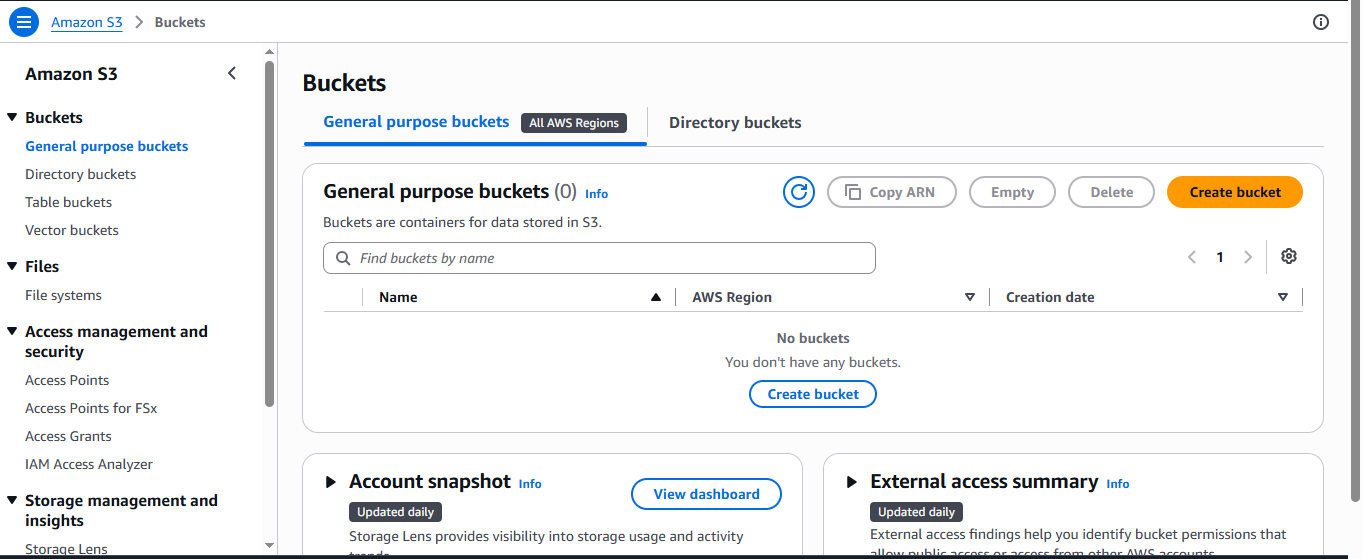
How to Create an S3 Bucket
Creating an S3 bucket is one of the first practical tasks you can perform when learning Amazon S3 cloud storage.
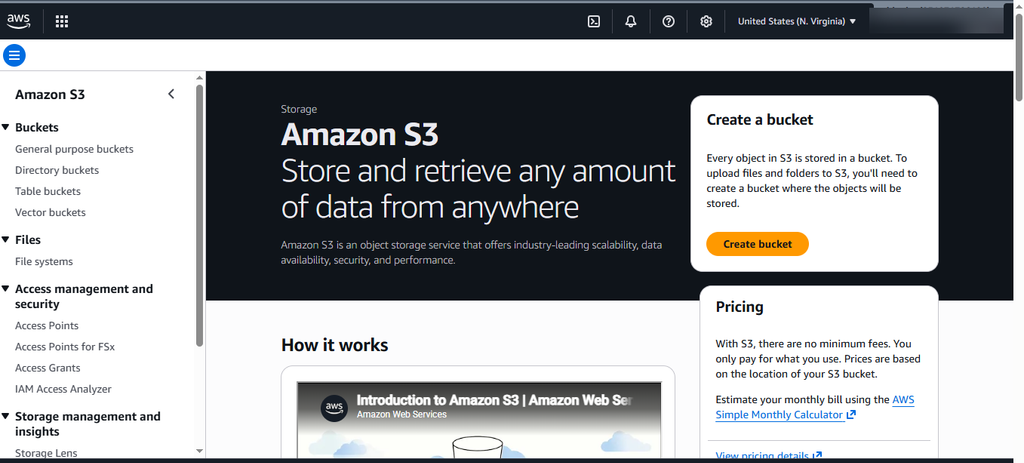
Step 1: Open the S3 Console
Sign in to the AWS management Console and search S3, open S3 service and create bucket.
Step 2: Enter a Bucket Name
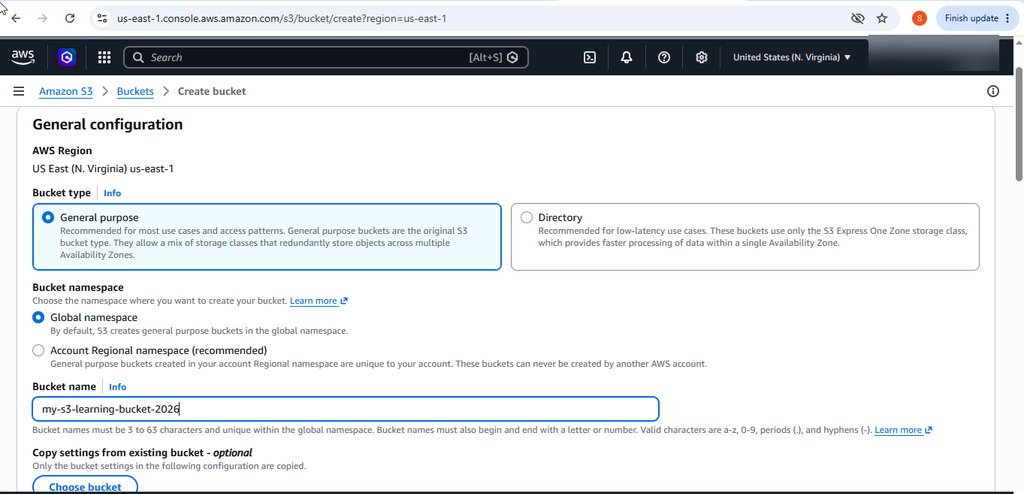
Enter a unique bucket name. For example:
my-aws-learning-bucket-2026
Select AWS region.
Step 3: Configure Object Ownership
For most modern S3 use cases in cloud storage, Bucket owner enforced is the default setting and ACLs are disabled. AWS recommends keeping ACLs disabled unless you have a specific requirement for them.
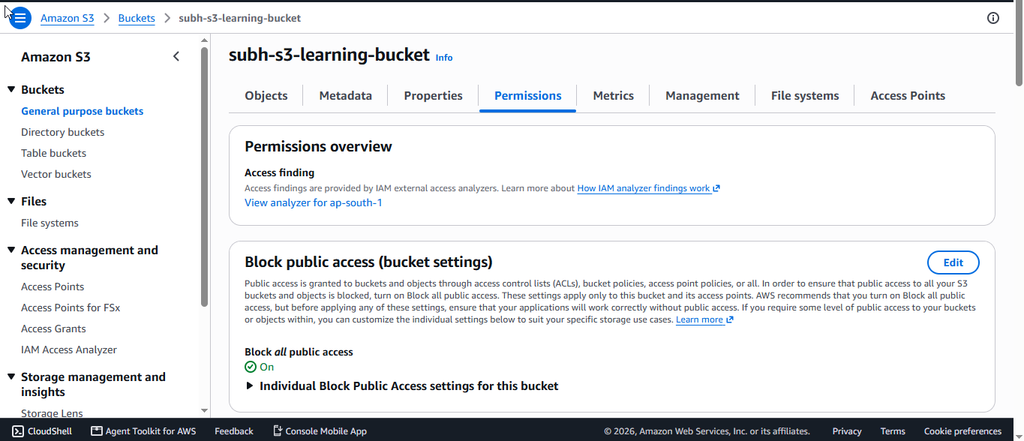
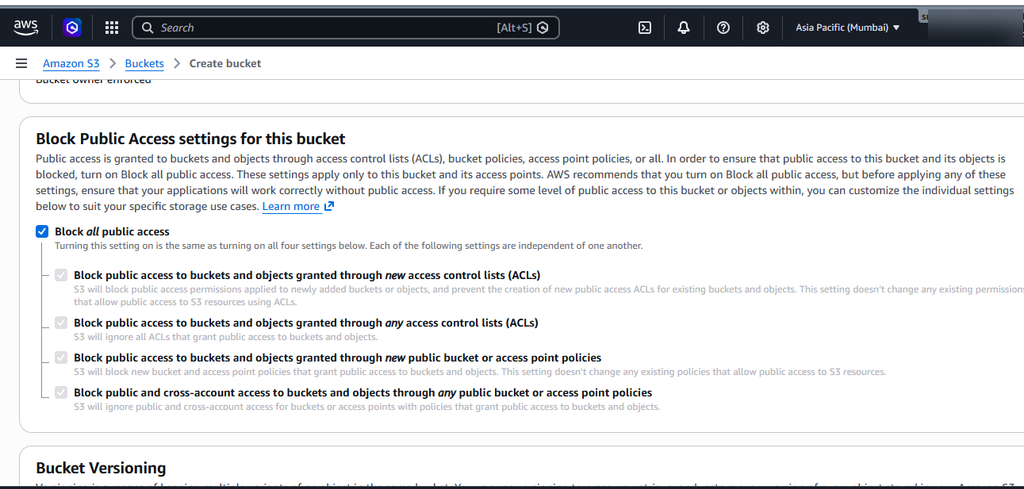
Step 4: Configure Public Access
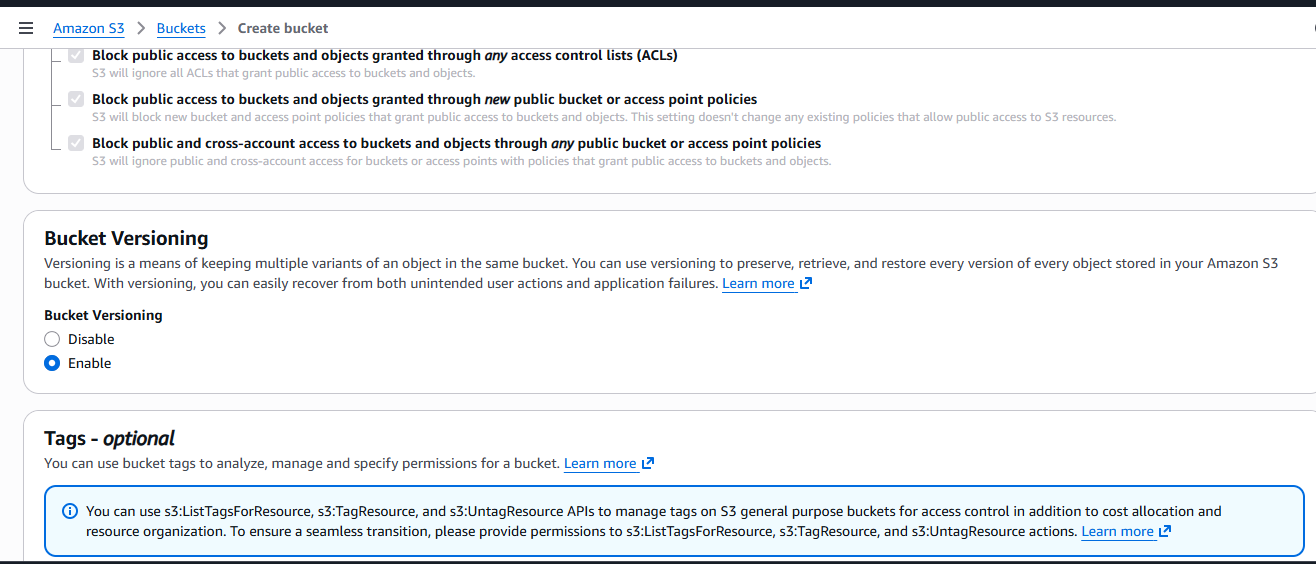
Keep Block all public access enabled for normal private cloud storage.
Do not disable these settings simply to make an object publicly accessible unless you understand the security implications.
Step 5: Configure Versioning
You can optionally enable Bucket Versioning.
Versioning allows multiple versions of an object to exist in the same bucket in cloud storage. This can help recover data after accidental deletion or modification.
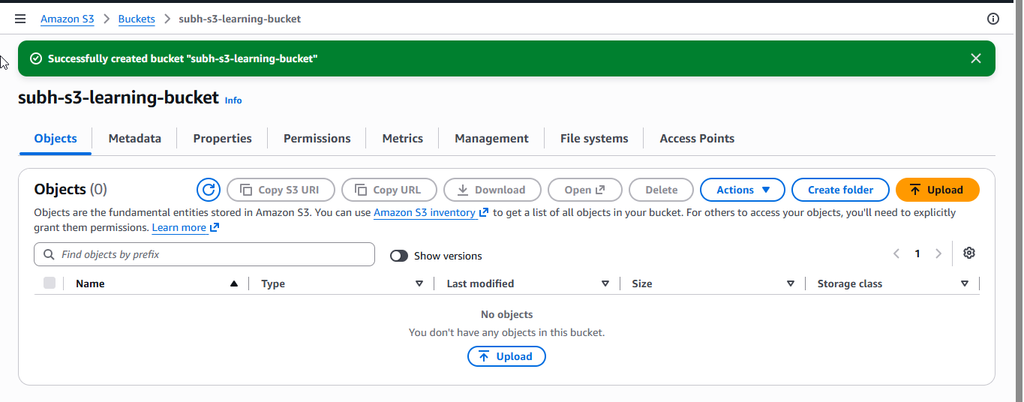
Step 6: Create the Bucket
Review your settings and select Create bucket.
Your S3 bucket is now ready for cloud storage objects.
How to Upload a File to Amazon S3
After completing the bucket, upload files, and objects.
Step 1: Open Your Bucket
From the S3 dashboard, select Buckets and open the bucket you created.
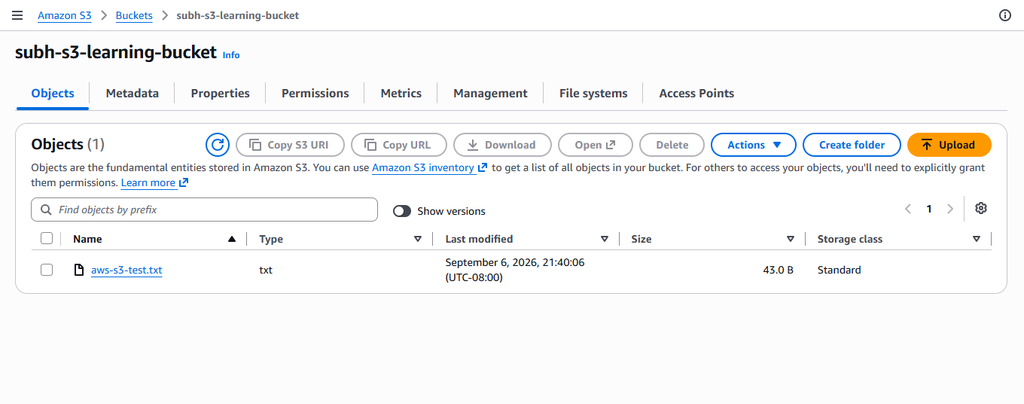
Step 2: Select Upload
Inside the bucket, select Upload.
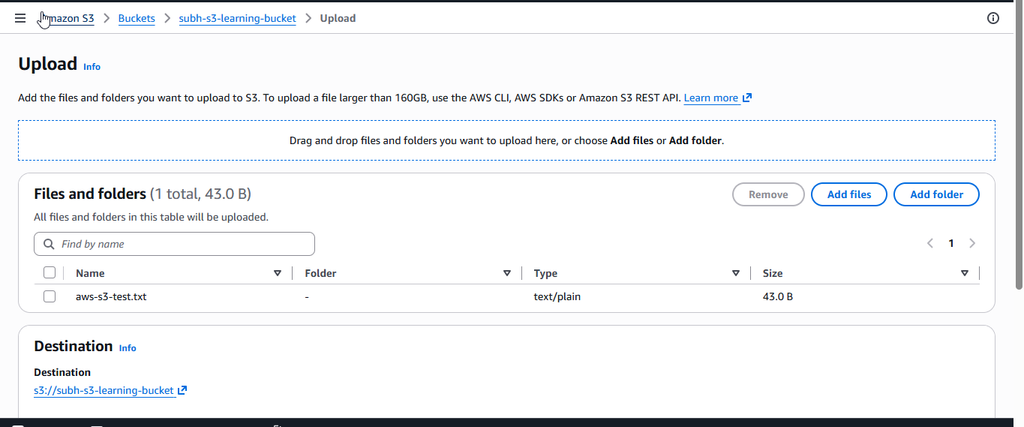
Step 3: Add a File
Choose Add files and select a file from your computer.
You can upload documents, images, videos, backups, and other supported files. AWS documentation notes that the S3 console supports uploads up to 160 GB per file; larger files can be uploaded using the AWS CLI, SDKs, or S3 APIs.
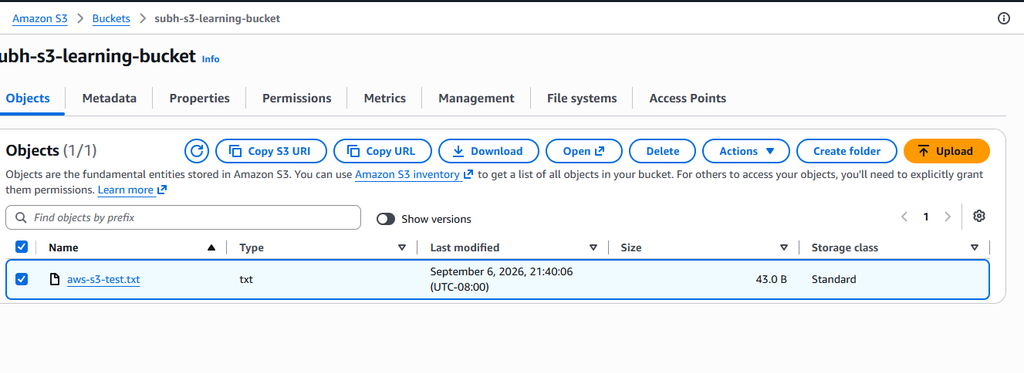
Step 4: Upload the Object
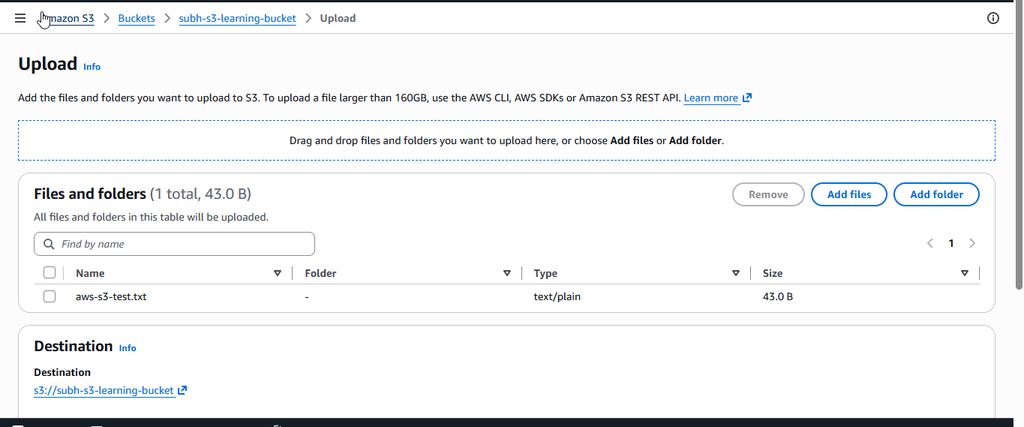
Review the upload settings and select Upload.
The object will appear in bucket after uploading.
S3 Storage Classes
Amazon S3 provides different cloud storage classes for different access patterns and cost requirements.
Common storage classes include:
- S3 Standard – Suitable for frequently accessed data.
- S3 Intelligent-Tiering – Designed for data with changing or unpredictable access patterns.
- S3 Standard-IA – Suitable for data accessed less frequently but requiring quick access.
- S3 One Zone-IA – Designed for infrequently accessed data that can be stored in a single Availability Zone.
- S3 Glacier Instant Retrieval – Designed for archive data that still requires rapid retrieval.
- S3 Glacier Flexible Retrieval – Suitable for long-term archival with flexible retrieval times.
- S3 Glacier Deep Archive – Designed for very long-term archival and rarely accessed data.
Choosing an appropriate storage class can help organizations balance accessibility and storage costs.
S3 Security and Access Management
Security is an important part of working with cloud storage. Amazon S3 provides several mechanisms for controlling access to buckets and objects. S3 buckets and objects are private by default. Access can be managed using AWS Identity and Access Management (IAM), bucket policies, S3 Block Public Access, and other security controls.
For example, an organization might allow a specific IAM role to upload files to an S3 bucket while preventing other users from deleting those files.
Block Public Access
S3 provides Block Public Access settings to help prevent unintended public exposure of data. AWS recommends keeping these settings enabled unless public access is specifically required.
Bucket Policies
Bucket policies are resource-based policies that define who can perform specific actions on an S3 bucket and its objects.
For example, a policy can specify whether a particular IAM role can read or upload objects.
S3 Versioning
Versioning allows Amazon S3 to maintain multiple versions of an object.
For example, suppose you upload:
report.pdf
then upload a modified version with the same object key. If versioning is enabled, S3 can maintain the different versions rather than simply losing the previous version. This makes versioning useful for recovering from accidental changes or deletions.
Versioning can be enabled while creating a bucket or configured later.
S3 Encryption
Amazon S3 supports encryption to protect data stored in the service.
New S3 object uploads are automatically encrypted using server-side encryption, with SSE-S3 as the base level of encryption in cloud storage. AWS also provides options such as SSE-KMS when organisations need additional key-management controls.
Encryption helps protect data at rest while AWS handles the encryption and decryption process when authorised users access the data.
Common Uses of Amazon S3
Amazon S3 is used in many cloud-based applications and business environments.
Backup and Recovery
Organisations can store backups of databases, applications, and important files in S3.
Website Hosting
S3 can be used for hosting static websites containing HTML, CSS, JavaScript, images, and other static resources.
Media Storage
Companies can store images, videos, audio files, and other media content in S3.
Data Lakes
S3 can act as a storage layer for large datasets used for analytics and machine-learning workloads.
Application Storage
Applications can upload and retrieve files from S3 using AWS SDKs, APIs, or other AWS services.
Advantages of Amazon S3
Amazon S3 cloud storage provides several benefits:
Scalability: Store large amounts of data without managing physical cloud storage servers.
Durability: Designed for highly durable object cloud storage.
Security: Provides IAM, bucket policies, Block Public Access, and encryption features.
Accessibility: Applications and authorized users can access objects through AWS interfaces and APIs.
Flexibility: Supports many types of files and workloads.
Cost management: Different storage classes allow organisations to choose cloud storage based on access requirements.
Best Practices for Using S3
When working with Amazon S3, follow these practices:
- Keep Block Public Access enabled unless public access is genuinely required.
- Use IAM permissions based on the principle of least privilege.
- Enable versioning when recovery from accidental changes is important.
- Use appropriate S3 storage classes based on access frequency.
- Use encryption to protect stored data.
- Monitor storage usage and costs.
- Avoid storing sensitive information in publicly accessible buckets.
- Use meaningful bucket and object naming conventions.
Conclusion
Amazon S3 is an important AWS service for storing and managing data in the cloud storage. Its bucket-and-object architecture makes it simple to upload and retrieve files, while features such as versioning, encryption, storage classes, IAM, and Block Public Access provide additional control and protection. For someone learning AWS or technical writing, creating a bucket and uploading an object is a good practical exercise. You can then explore permissions, versioning, encryption, lifecycle management, and AWS CLI commands to develop a deeper understanding of S3.
FAQs
- What is Amazon S3?
Amazon S3 is an object storage service from AWS that allows users and applications to store and retrieve data such as documents, images, videos, backups, and application files. - What is an S3 bucket?
An S3 bucket is a container used to store objects in Amazon S3. Before uploading files to S3, you generally create a bucket to hold them. - What is an S3 object?
An S3 object is a file or piece of data stored inside an S3 bucket. An object includes the data, metadata, and a unique key that identifies it. - How do I create an S3 bucket?
Sign in to the AWS Management Console, open S3, select General purpose buckets → Create bucket, choose a Region, enter a unique bucket name, configure the required settings, and select Create bucket. - How do I upload a file to Amazon S3?
Open your S3 bucket, go to the Objects tab, select Upload, choose Add files, select the file from your computer, and click Upload. - Is Amazon S3 secure?
Yes. Amazon S3 provides security features such as Block Public Access, IAM permissions, bucket policies, and encryption. For private data, keeping public access blocked is an important security practice. - What is S3 Versioning?
S3 Versioning allows multiple versions of an object to be stored in the same bucket. It can help recover objects that were accidentally overwritten or deleted. - What are S3 storage classes?
S3 storage classes are different storage options designed for different access patterns and cost requirements. Examples include S3 Standard, S3 Intelligent-Tiering, S3 Standard-IA, S3 Glacier Instant Retrieval, S3 Glacier Flexible Retrieval, and S3 Glacier Deep Archive. - Can Amazon S3 store images and videos?
Yes. S3 can store many types of data, including images, videos, PDFs, documents, backups, logs, and application files. - Does Amazon S3 cost money?
Amazon S3 is generally a pay-as-you-go service. Costs can depend on factors such as the amount of data stored, requests, data retrieval, and data transfer. AWS provides pricing information and tools to estimate costs, so it’s important to clean up test resources you no longer need.
Discover more from Root Learning
Subscribe to get the latest posts sent to your email.


3 thoughts on “Cloud Storage AWS S3: Powerful Guide to Cloud Storage in 2026”