Every new Ubuntu release tells a small story about where Linux is heading, and Ubuntu 25.10 is no exception. Sitting between the long-term support versions, this release feels like a bridge—connecting familiar stability with fresh ideas that are still taking shape. It brings visible improvements in performance, design, and system updates, making daily tasks feel smoother and more responsive, especially for users who like to keep pace with the latest developments.
At the same time, Ubuntu 25.10 is not without its rough edges. Its shorter support window and reliance on newer, less-tested features mean it may not suit everyone. For some, it represents exciting progress; for others, a reminder that innovation can sometimes come at the cost of predictability. By looking closely at both the advantages and drawbacks, this article examines whether Ubuntu 25.10 is a confident step forward—or a release best approached with measured expectations .
Table of Contents
Ubuntu 25.10 Installation process step by step
To install Ubuntu 25.10, first download the official ISO file from the Ubuntu website and create a bootable USB using tools like Rufus or balenaEtcher. Restart your system and boot from the USB drive by adjusting the BIOS or UEFI settings. Once the installer loads, choose your language and keyboard layout, select the type of installation (normal or minimal), and decide whether to install updates and third-party software during setup. Next,
choose the disk option—either erasing the disk for a fresh install or manually partitioning it—then set your time zone and create your user account with a username and password. After the installation process completes, restart the system, remove the USB drive, and Ubuntu 25.10 will be ready to use.
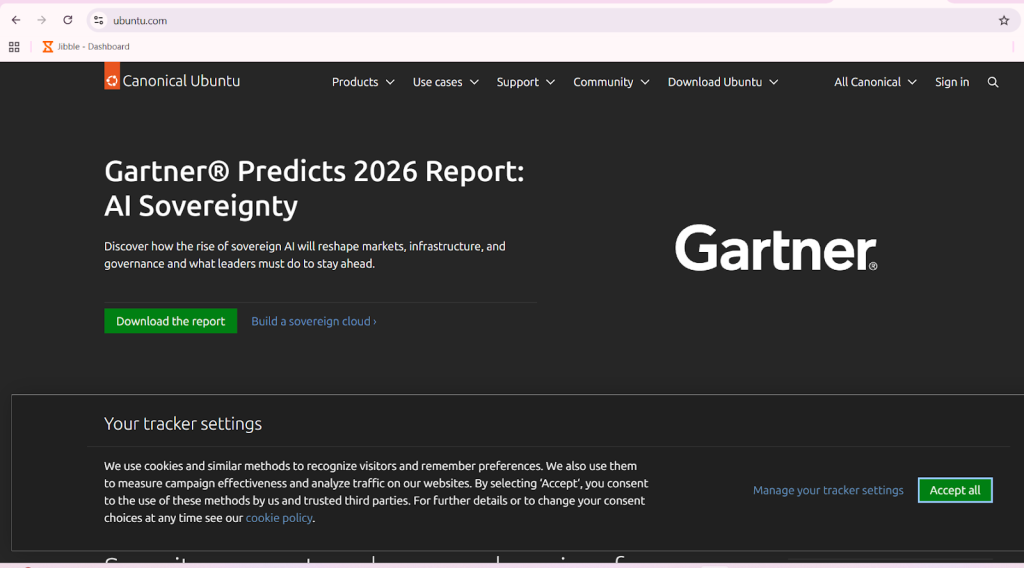
Step 1 . search ubuntu.com on your chrome the home page will open
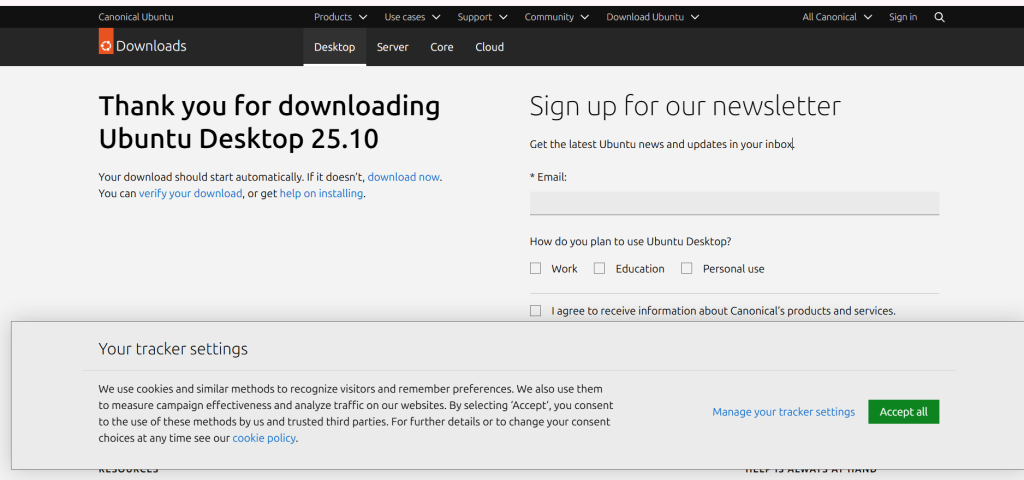
Step 2 download the ISO from the website
Step 3: Create a bootable USB for installation. Now download the balenaEtcher as a tool to create the USB installer from the ISO . It is also available in MacOS .
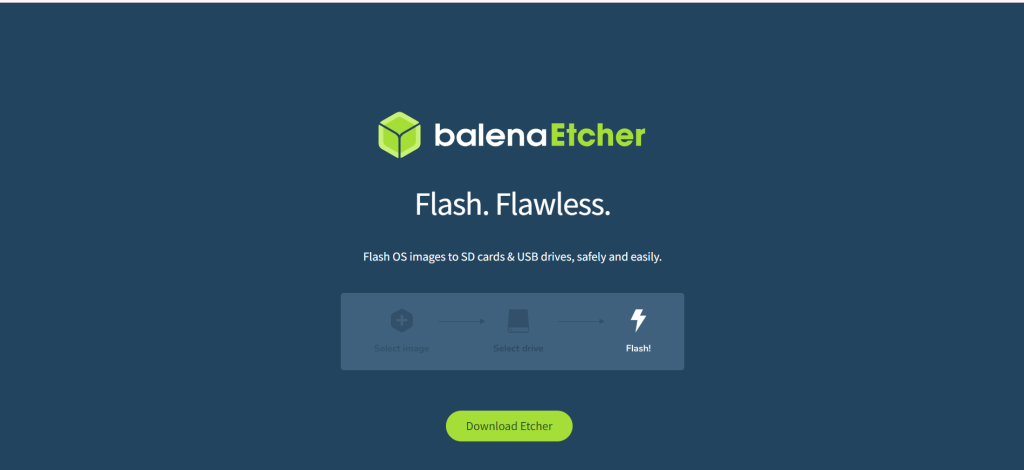
Step 4 (FROM ) Windows preparing USB Ubuntu Installation Media
Insert your USB . click on flash from file and select ubuntu -25.10-desktop-amd64.iso that you downloaded . click on select target and choose your USB driver .Once the USB drive created close balenaEtcher and eject the USB drive from your OS
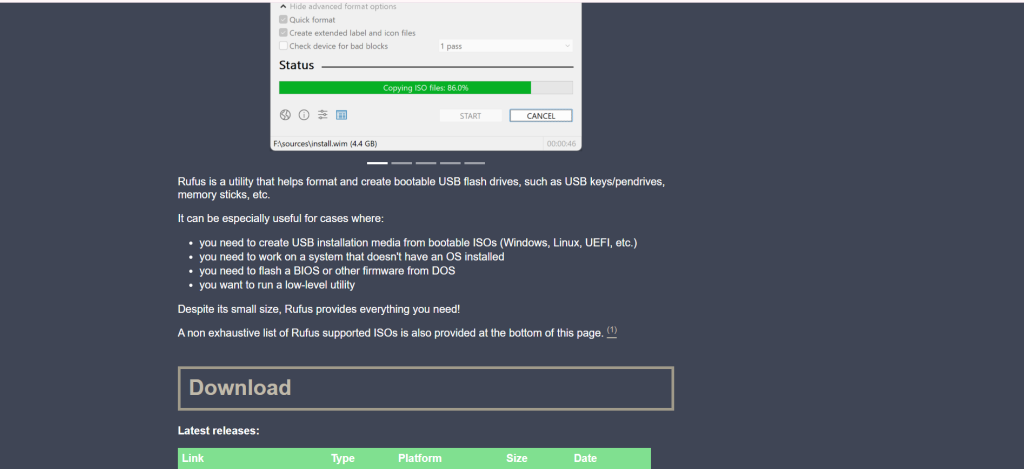
Download Rufus and launch your USB

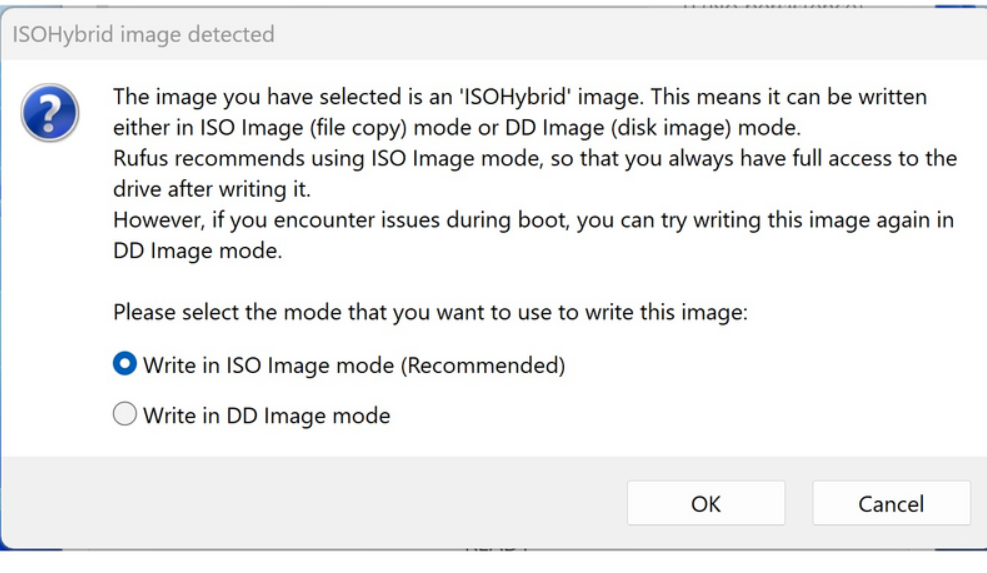
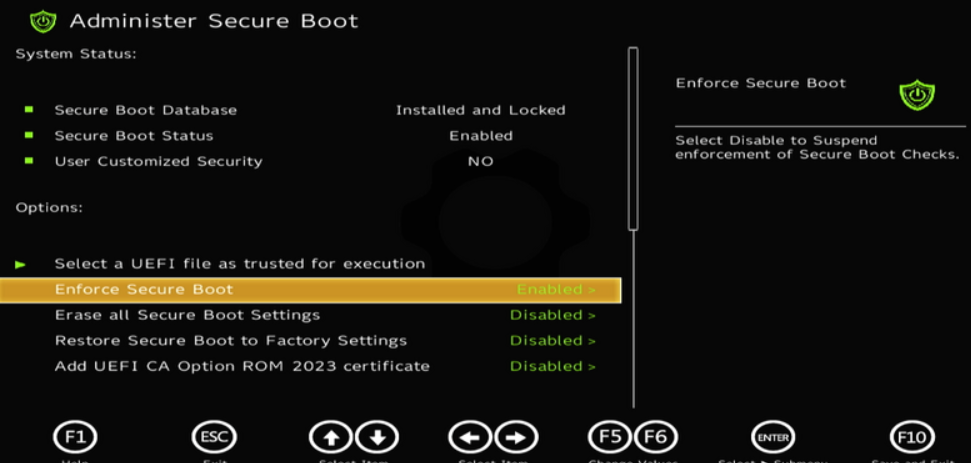
Step 5 secure boot : It is optional but there are trade offs to be aware off .
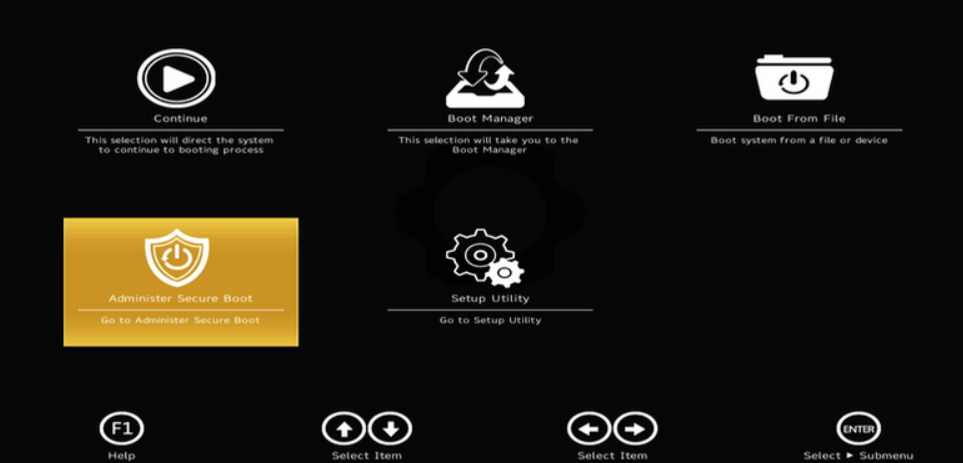
Step 6 : Booting to live ubuntu USB
Insert the USB drive into your powered off Framework Laptop 16, and then power on. If you have an existing OS installed on the Storage drive in your laptop, immediately after the power light comes on begin rapidly tapping (continuously ) the F12 key – you must begin tapping well before you see the Framework logo.
Select Linpus lite (General UDisk) with your arrow keys. Enter key. Next, you will see a white box with Preparing Ubuntu. From there, you will be presented with the option to select your language.Next option is to select your accessibility options. Then keyboard layout and your option for how you wish to connect to the Internet. We recommend you do it at this stage.
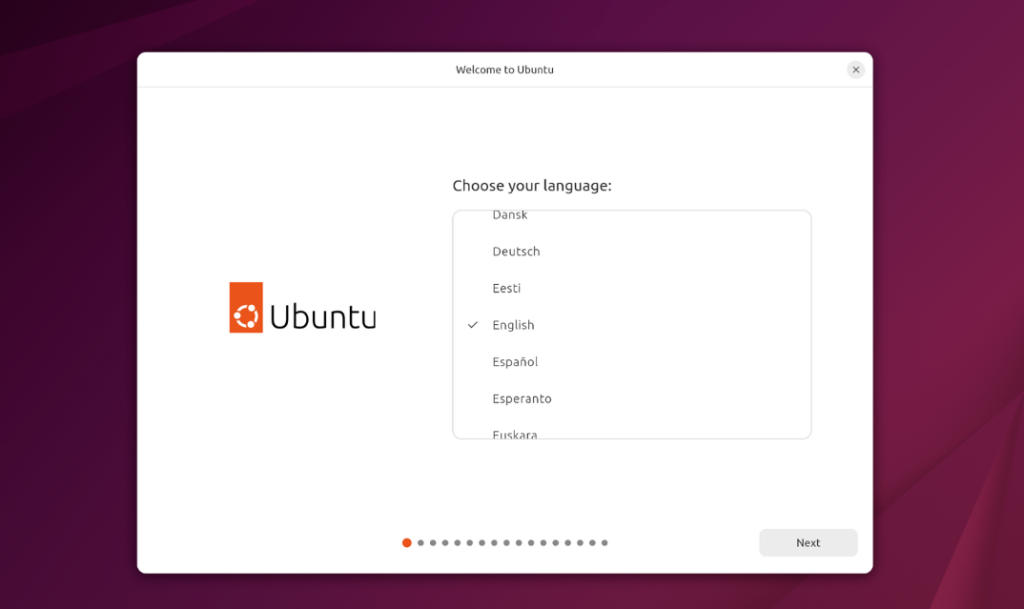
Step 7 : Installing ubuntu
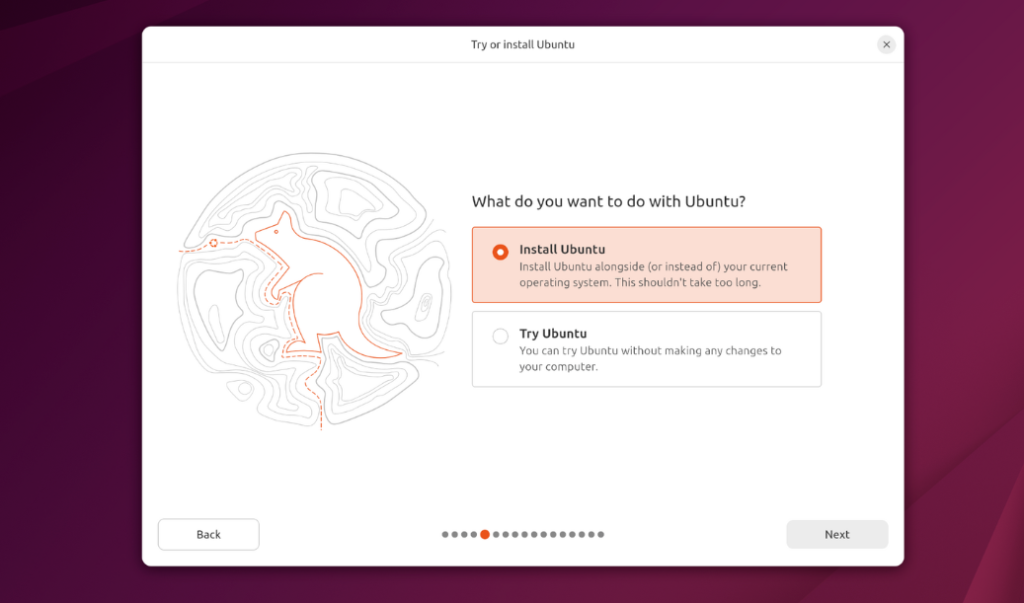
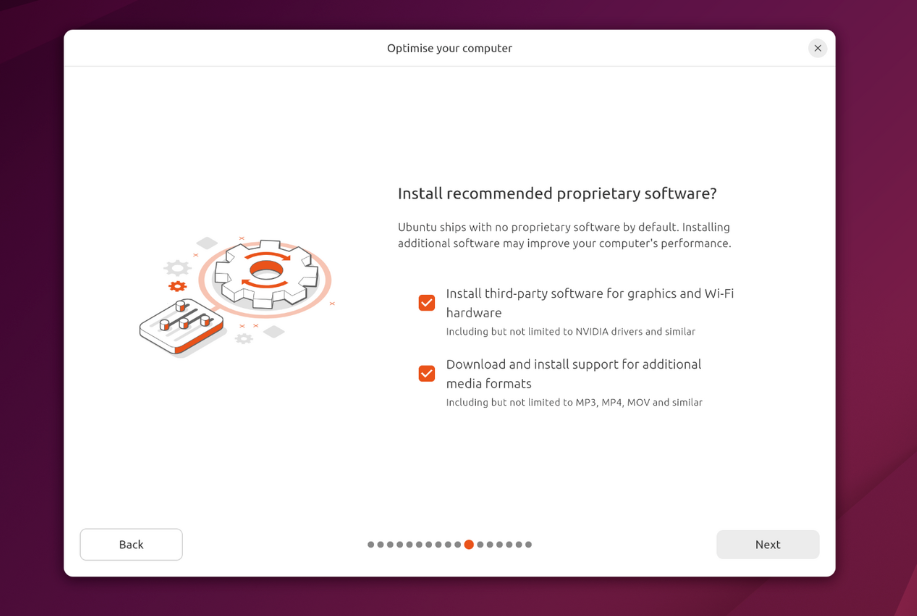
While connected to your network, select Normal installation, Download updates while installing Ubuntu and Install third party software, then press continue. This process may take a few minutes and appear to idle a bit, then the next screen appears – installation type.
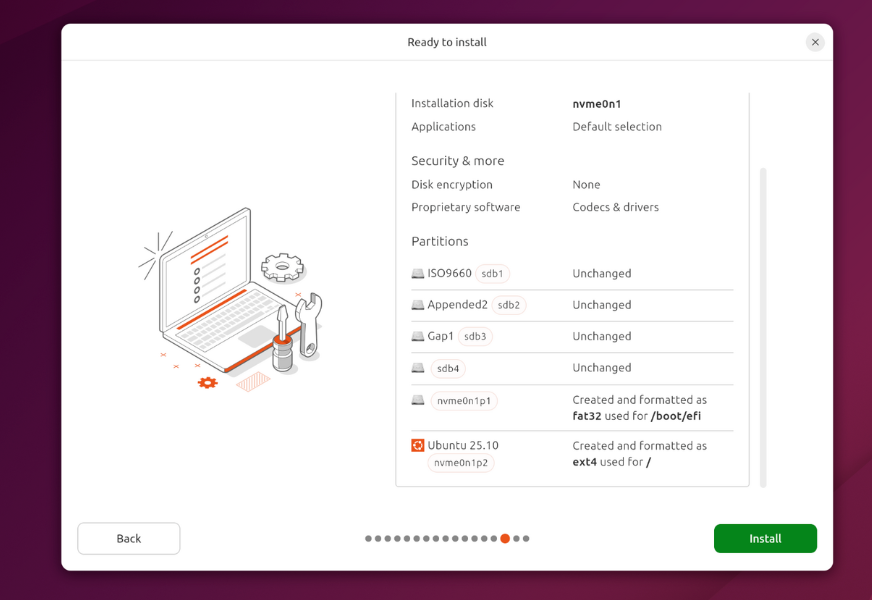
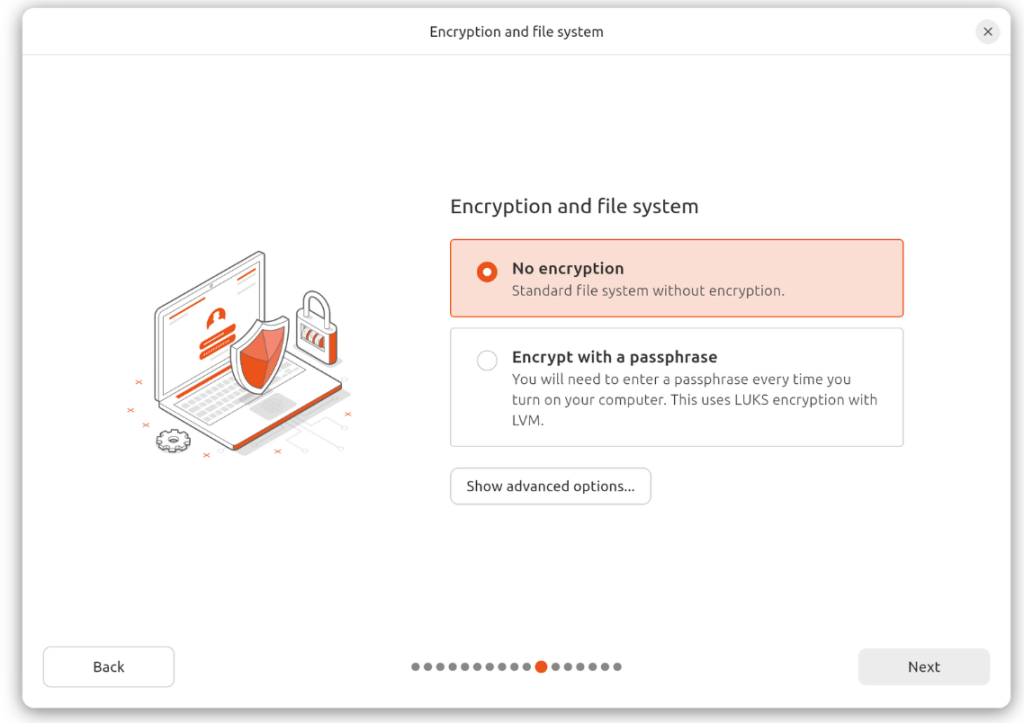
Step 8 Ubuntu 25.10 allows users to set up LUKS encryption.
It is optional but it will prevent the data from being viewed without the LUKS passphrase. Click next
Step 9 :Next we’ll choose the installation type.
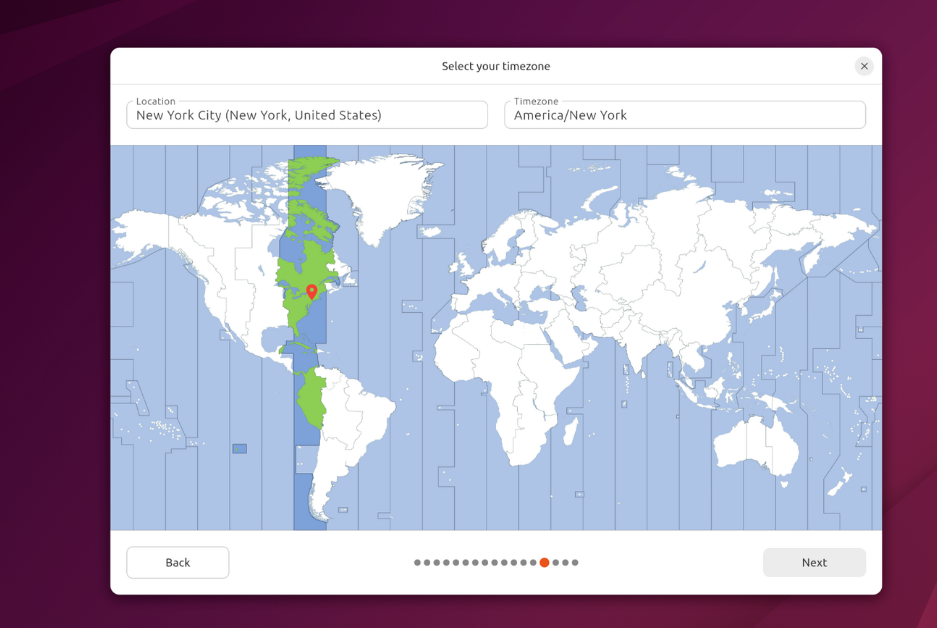
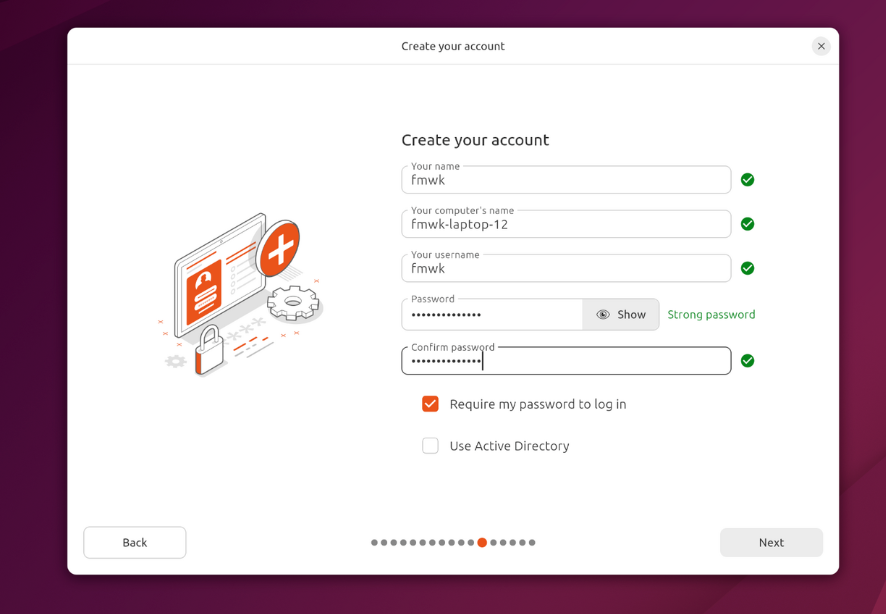
Next you’ll be prompted to choose your location on the world map. Select your time zone location, click Continue.Create a username, a computer name (anything will do), and a password to login with. Also make sure you select Require a password to log in. Then press Continue.
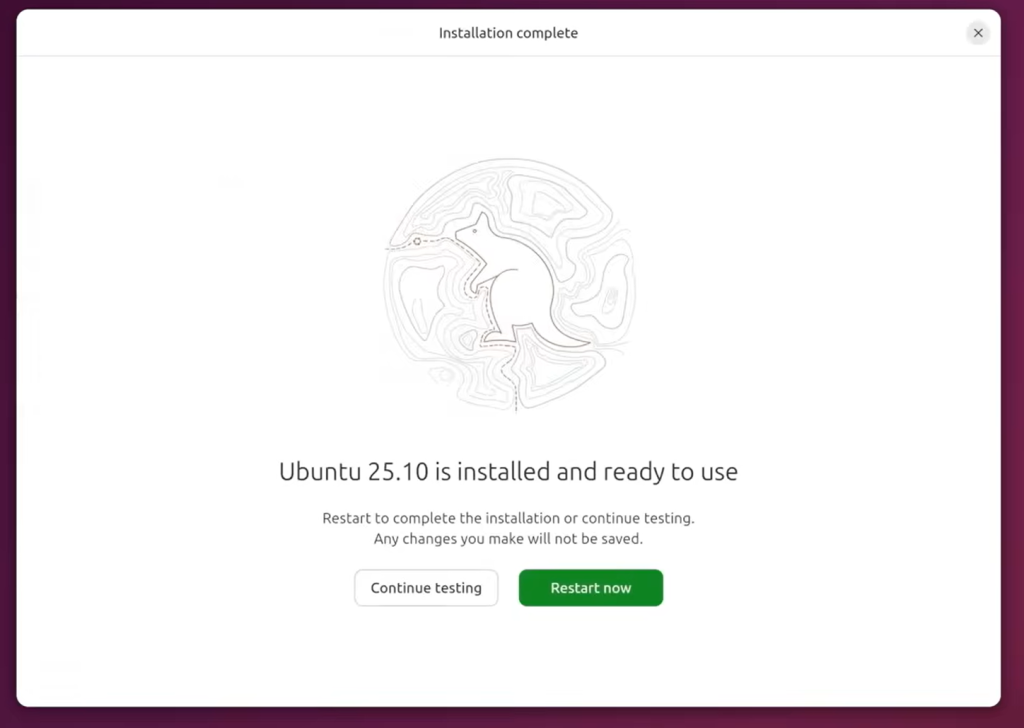
Step 10 : Completion of Installation
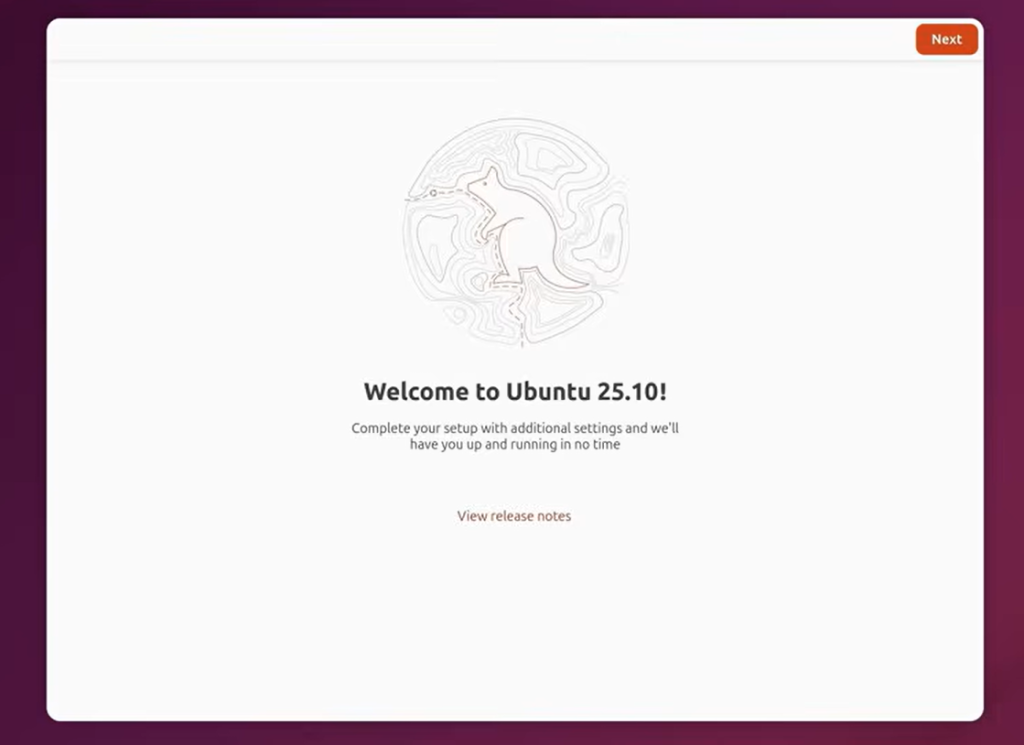
- Once rebooted, simply follow the prompts for whether or not you are using Ubuntu Pro and if you wish to send back error reports.
Advantages of Ubuntu 25.10
Ubuntu 25.10 stands out for giving users a taste of what’s next in the Linux world. With a newer kernel and updated software, it runs faster and works better with the latest hardware, which is especially helpful for newer laptops and systems. The interface feels more polished and responsive, making everyday tasks smoother and less cluttered. Security updates arrive quickly, so the system stays well-protected, and developers get access to modern tools and libraries that support current workflows. Overall, Ubuntu 25.10 feels fresh and flexible—ideal for users who enjoy exploring new features while still relying on Ubuntu’s familiar, user-friendly environment.
Challenges of Ubuntu 25.10
Despite its fresh appeal, Ubuntu 25.10 does come with a few practical challenges. Since it’s a short-term release, the support window is brief, meaning users will need to upgrade again sooner than they might like. Some of the newer features can feel a bit experimental, and this may result in minor bugs or unexpected behavior, particularly on older systems or less common hardware. A few third-party apps and drivers may also take time to catch up, which can be frustrating. For users who prefer a “set it and forget it” system, Ubuntu 25.10 may demand a little more patience and attention than an LTS version.
Conclusion
To sum up, Ubuntu 25.10 feels like a step taken with curiosity and confidence. It offers a fresh, smoother experience with updated features that show where Ubuntu is heading next. At the same time, it asks users to accept shorter support and the occasional hiccup that comes with newer ideas. For those who enjoy exploring updates, learning, and experimenting, Ubuntu 25.10 can be a rewarding choice. But for users who value long-term stability and minimal maintenance, sticking to an LTS release may feel more reassuring. In the end, Ubuntu 25.10 is less about perfection and more about progress.
What is Ubuntu 25.10?
Ubuntu 25.10 is a non-LTS (short-term support) Linux distribution developed by Canonical. It offers the latest features, updated software packages, and improved performance, making it ideal for users who want cutting-edge technology rather than long-term stability.
What are the system requirements for Ubuntu ?
requires a 64-bit processor, at least 4 GB RAM, and 25 GB of free disk space. For smoother performance, 8 GB RAM and SSD storage are recommended.
Who should use Ubuntu ?
best suited for developers, tech enthusiasts, and students who want access to the newest software and desktop features. It may not be ideal for enterprise environments that require long-term stability.
Discover more from Root Learning
Subscribe to get the latest posts sent to your email.