Introduction
AWS VPC gives you full control over defining IP address ranges, setting up subnets, constructing route tables, and regulating data flow. Because of these versatile networking tools, administrators can effectively arrange cloud assets—such as virtual servers, databases, and application components—according to specific project standards. Grasping how to configure a VPC serves as an essential stepping stone for beginners eager to master cloud networking basics and ensure secure communication between AWS services. This tutorial walks you through setting up an Amazon VPC, establishing subnets, linking an internet gateway, configuring route tables, and validating the setup via the AWS Management Console.
Table of Contents
Prerequisites
Before starting the procedure, ensure that you have:
- An active AWS account.
- Access to the AWS Management Console.
- Permission to create and configure AWS VPC resources.
- A selected AWS Region.
This practical uses the following configuration
| Resource | Configuration |
| VPC Name | My-VPC |
| VPC IPv4 CIDR | 10.0.0.0/16 |
| Subnet Name | My-Public-Subnet |
| Subnet IPvR CIDR | 10.0.1.0/24 |
| Internet Gateway | My-IGW |
| Route Table | My-Publiv-RT |
Step 1: Open the Amazon VPC Dashboard
- Sign in to the AWS Management Console.
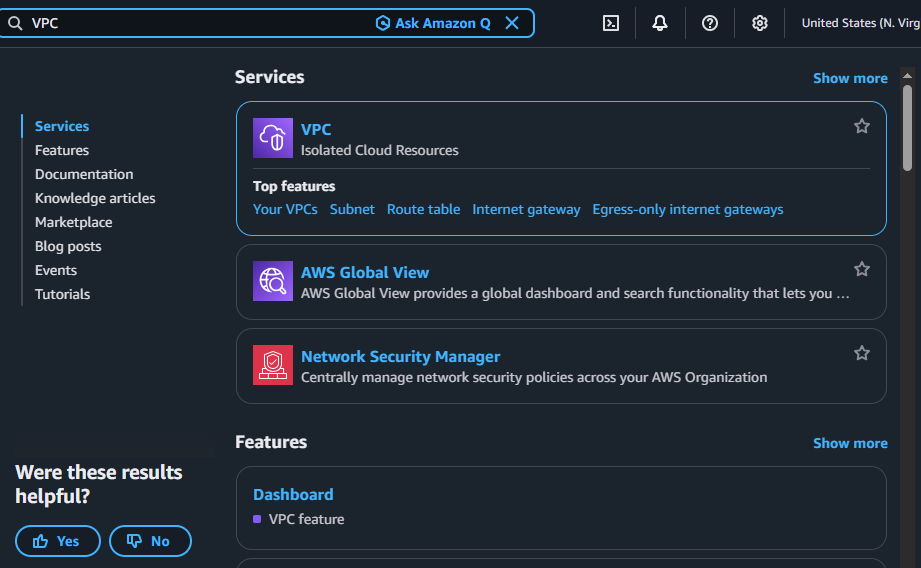
- Enter VPC in the search bar.
- Select the VPC service.
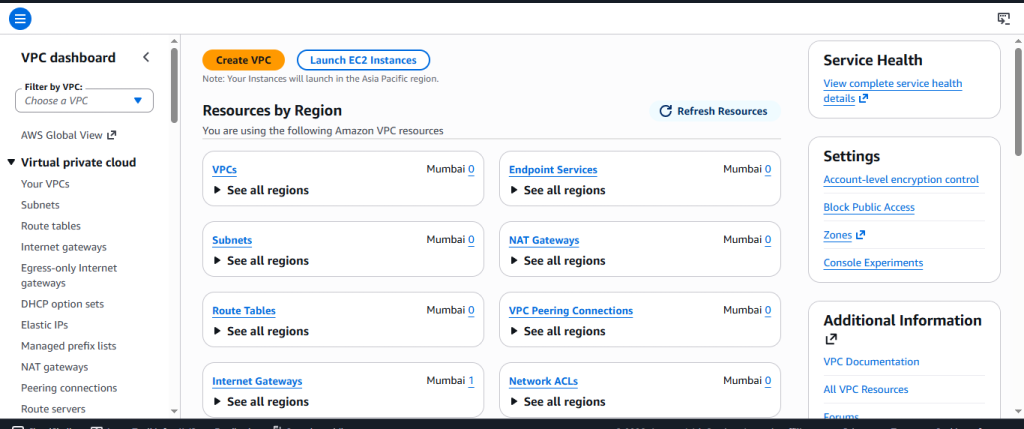
- Verify that the correct AWS Region is selected.
- Open the VPC Dashboard.
Step 2: Create a VPC
AWS VPC will provide main network boundary for the practicle.
- Select Your VPCs from the left options.
- Click Create VPC.
- Select VPC only under Resources to create.
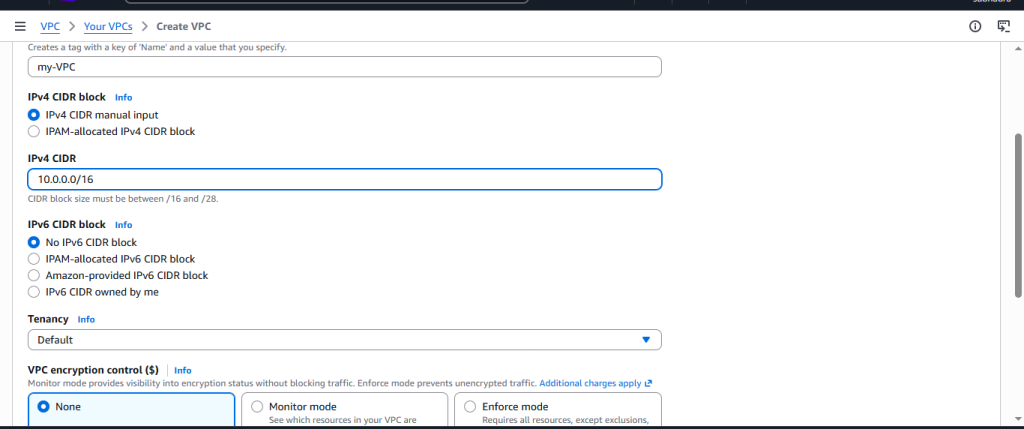
- Enter My-VPC as the Name tag.
- Enter 10.0.0.0/16 as the IPv4 CIDR block.
- Leave IPv6 disabled for this practical.
- Keep the tenancy setting at Default.
- Click Create VPC.
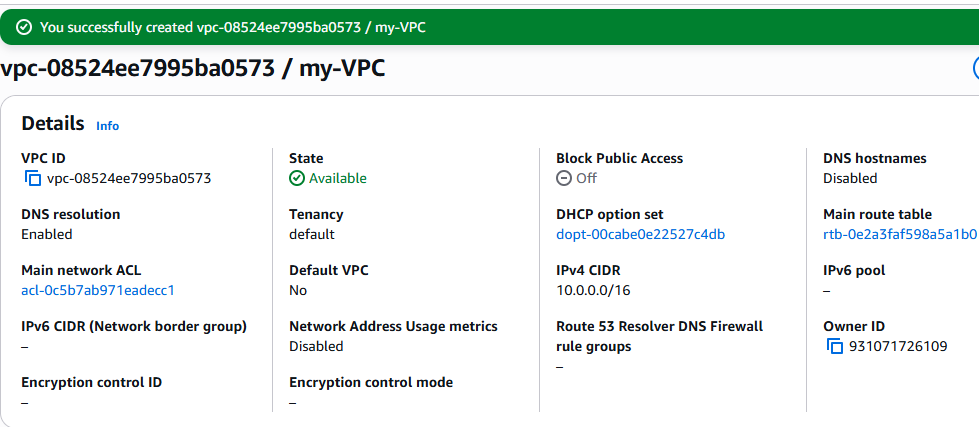
Wait for AWS to finish creating the resource. Verify that the VPC appears in the list and its state is Available.
The CIDR block defines the IPv4 address range allocated to the VPC.
Step 3: Create a Subnet
A subnet divides the AWS VPC’s IP address range into smaller network segments.
- Select Subnets in the left navigation pane.
- Click Create subnet.
- Select My-VPC.
- Enter My-Public-Subnet as the subnet name.
- Select an available Availability Zone.
- Enter 10.0.1.0/24 as the IPv4 subnet CIDR block.
- Click Create subnet.
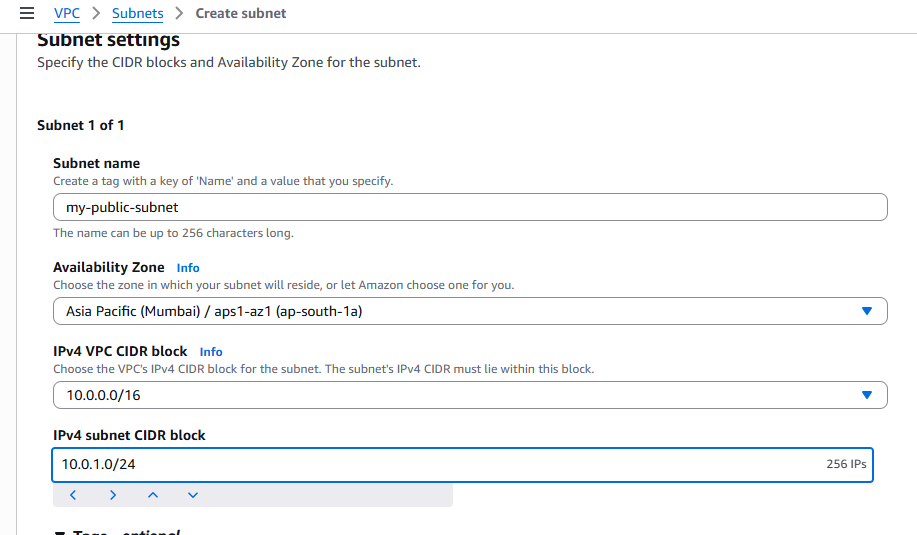
Verify that the subnet belongs to the correct VPC and that its CIDR block is correct.
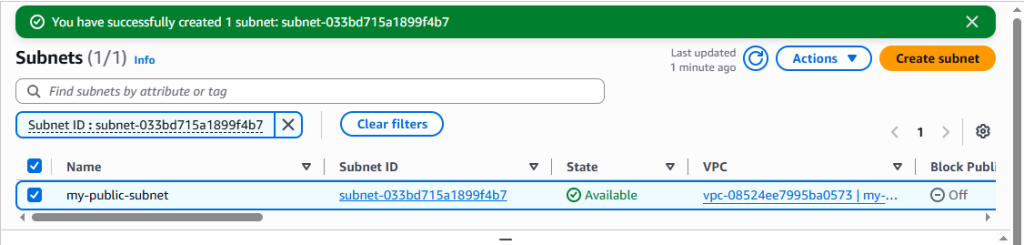
To prepare the subnet for a possible public-facing EC2 instance, select the subnet, open Actions, and choose Edit subnet settings. Enable automatic public IPv4 address assignment if required, then save the changes.
Step 4: Create and Attach an Internet Gatewat
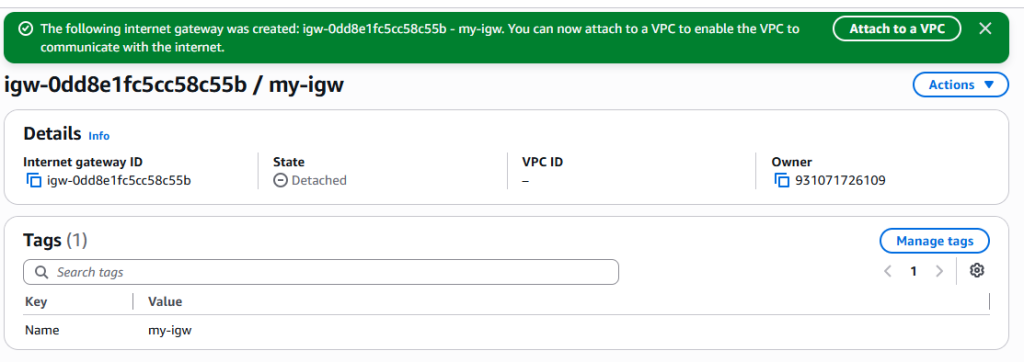
- Select Internet gateways.
- Click Create internet gateway.
- Enter My-IGW as the name.
- Click Create internet gateway.
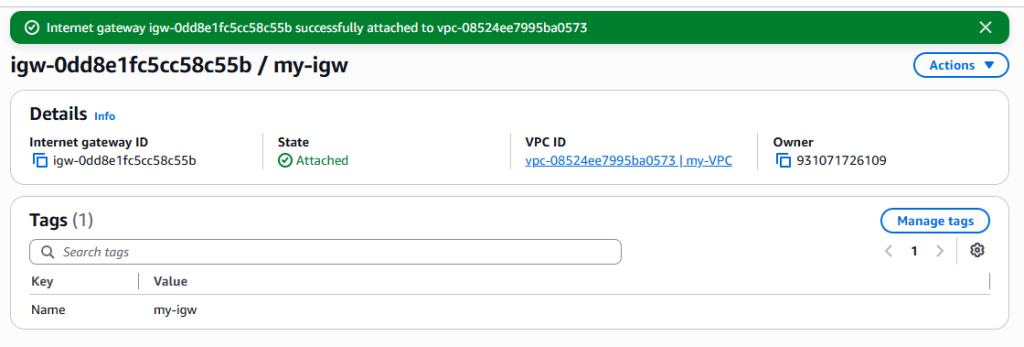
- Select the newly created gateway.
- Open Actions and select Attach to a VPC.
- Choose My-VPC.
- Click Attach internet gateway.
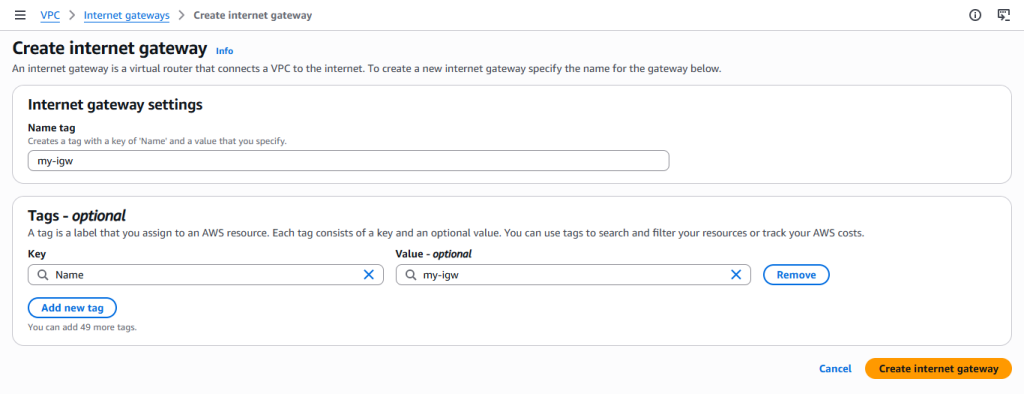
Verify that the internet gateway state is Attached.
Step 5: Create a Route Table
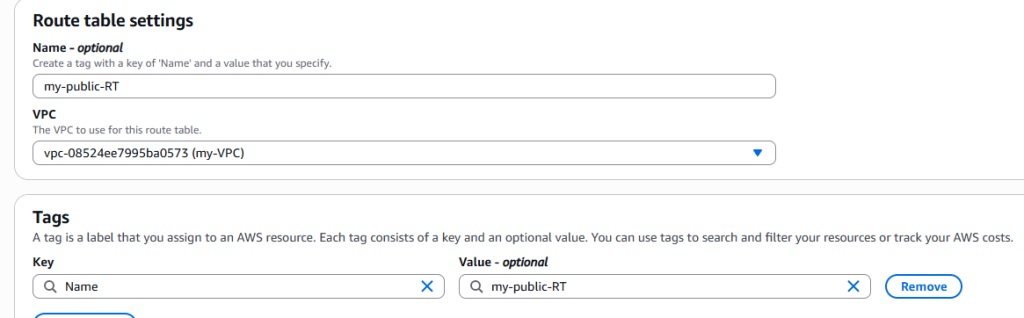
- Select Route tables.
- Click Create route table.
- Enter My-Public-RT as the name.
- Select My-VPC.
- Click Create route table.
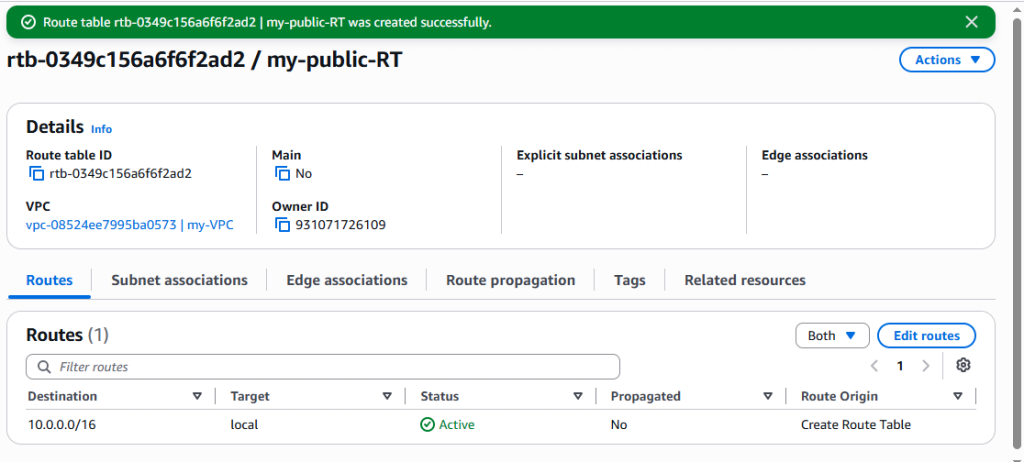
Select the newly created route table and open the Routes tab. A local route should already exist.
It allows routing within the VPC, subject to applicable network controls.
Step 6: Add the Internet Route
To direct internet-bound IPv4 traffic to the internet gateway, add a default route.
Select MyPortfolio-Public-RT.
Open the Routes tab.
Click Edit routes.
Select Add route.
Enter 0.0.0.0/0 as the destination.
Choose the internet gateway as the target.
Select MyPortfolio-IGW or its corresponding gateway ID.
Click Save changes.
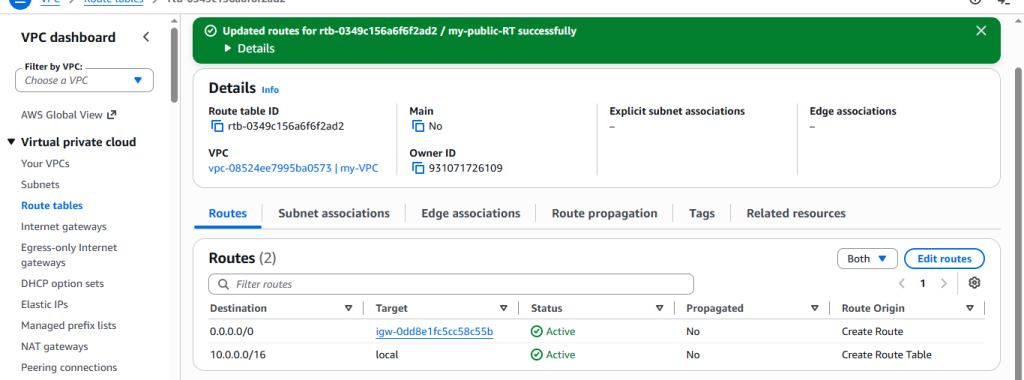
After saving, verify that the route table contains the following entries:
| Destination | Target |
| 10.0.0.0/16 | Local |
| 0.0.0.0/0 | Internet Gateway ID |
For AWS VPC internet gateway ID 0.0.0.0/0 route represents all IPv4 destinations that do not match a more specific route.
Step 7: Associate the Subnet with the Route Table
- Select My-Public-RT.
- Open the Subnet associations tab.
- Click Edit subnet associations.
- Select My-Public-Subnet.
- Click Save associations.
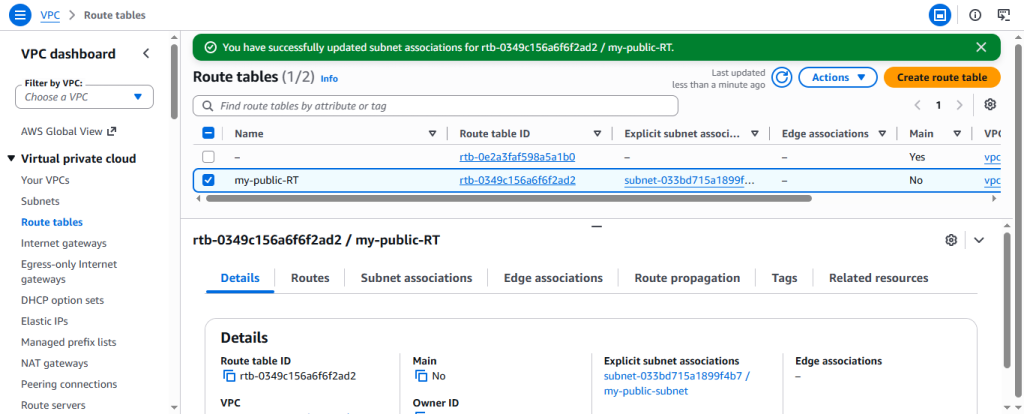
Return to the AWS VPC Subnet associations tab and confirm that the subnet is associated with the route table.
Step 8: Verify the VPC Configuration
Let’s perform a final check of the resources in the AWS VPC dashboard.
- Confirm that My-VPC is Available.
- Verify that My-Public-Subnet belongs to the VPC.
- Confirm that My-IGW is attached.
- Check that the route table contains both expected routes.
- Verify the subnet association.
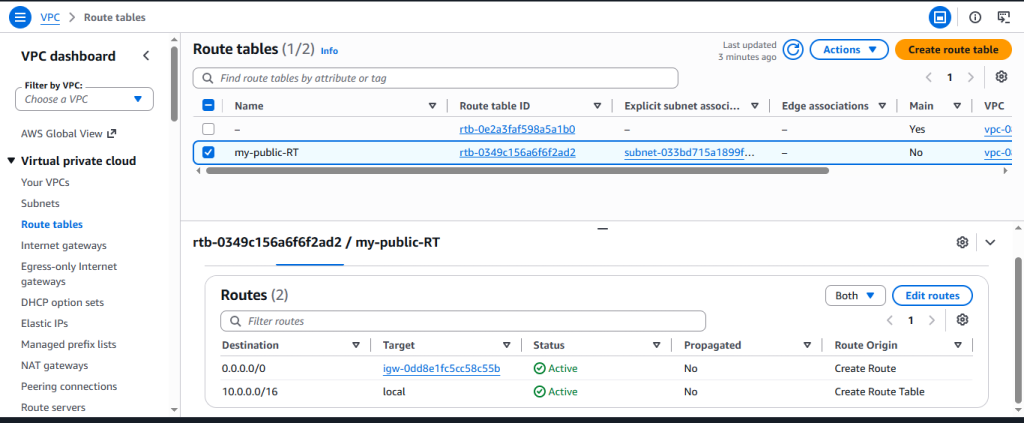
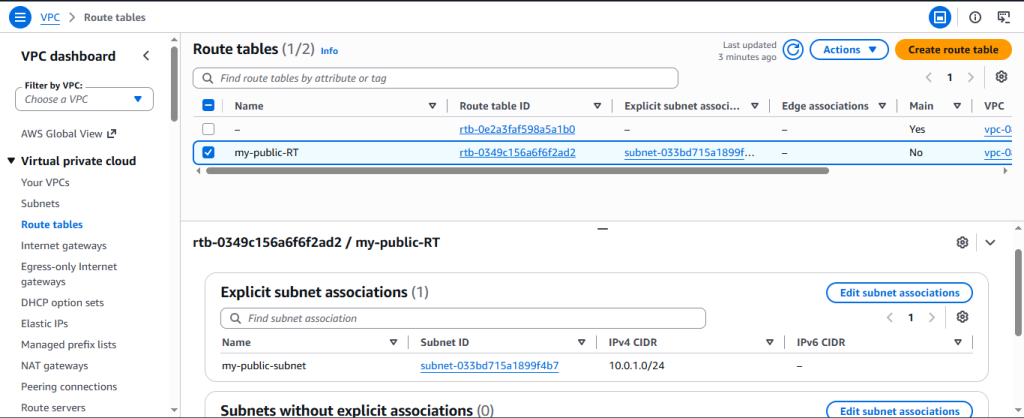
These checks confirm that the basic VPC configuration is in place. They do not prove actual internet connectivity because no EC2 terminal test was performed in this practical.
Troubleshooting Common Issues
- VPC not visible: Check that the correct AWS Region is selected.
- Subnet creation fails: Ensure the subnet CIDR block falls within the VPC CIDR and does not overlap another subnet.
- Internet route is missing: Add the default route with destination 0.0.0.0/0 and target the correct internet gateway.
- Subnet uses a different route table: Review the subnet associations and associate it with the intended route table.
Conclusion
These steps demonstrate the basic process of configuring a public subnet using the AWS Management Console. Although terminal connectivity testing was not included, the configuration checks help verify that the networking components are set up as intended.
For a production environment, additional considerations include security groups, network ACLs, IP addressing, and network architecture requirements.
FAQs
1. What is an AWS VPC?
AWS VPC is a logically isolated virtual network in AWS that allows users to configure IP address ranges, subnets, and routing.
2. What is the purpose of AWS VPC subnet?
A subnet divides a VPC’s IP address range into smaller network segments within an Availability Zone.
3. What does an internet gateway do?
It enables internet connectivity for a VPC when routing, IP addressing, and security requirements are satisfied.
4. Why is a route table required?
It determines where traffic from a subnet or network interface is directed.
5. Is an EC2 instance required to create AWS VPC?
No. A VPC, subnet, internet gateway, and route table can be created and configured without launching an EC2 instance.
6. What is a CIDR block in Amazon VPC?
Itdefines the range of IP addresses allocated to a VPC or subnet. For example, 10.0.0.0/16 provides a larger address range for the VPC, while 10.0.1.0/24 defines a smaller range for a subnet.
7. What is the difference between a public subnet and a private subnet?
A public subnet has a route to an internet gateway for internet-bound traffic. A private subnet does not have a direct route to an internet gateway for general internet access. The appropriate routing and security configuration determines how resources can communicate.
8. Can a VPC have multiple subnets? Yes. A VPC can contain multiple subnets across different Availability Zones, provided their IP address ranges are valid and do not overlap. This helps organise resources and design applications for availability.
9. Does creating an AWS VPC incur charges?
Creating a VPC, subnets, and route tables generally does not incur separate charges. However, associated services, public IPv4 addresses, and data transfer may incur costs. Always check current AWS pricing before deploying resources.
10. How can I verify that an AWS VPC is configured correctly?
You can verify the VPC state, subnet CIDR, internet gateway attachment, route table entries, and subnet associations in the AWS Management Console. To test actual connectivity, you need an appropriately configured resource and must run suitable network tests.
Discover more from Root Learning
Subscribe to get the latest posts sent to your email.