If you’re using Garuda Linux, you’re already enjoying one of the most visually stunning and performance-optimized Linux distributions available today. Built on the power of Arch Linux, Garuda is designed for speed, customization, and a smooth user experience. However, to fully unlock its potential, choosing the right web browser is essential.
.While many users rely on default browsers, exploring alternatives like Opera and Vivaldi can significantly improve your productivity and browsing comfort. Both browsers are Chromium-based, meaning they offer excellent compatibility, speed, and support for modern web technologies.
In this detailed, beginner-friendly guide, you’ll learn how to install Opera and Vivaldi on Garuda Linux step by step, along with useful tips, troubleshooting methods, and performance advice.
Table of Contents
Why Install Opera and Vivaldi on Garuda Linux?
Garuda Linux stands out because of its rolling release model and access to the Arch User Repository (AUR), which provides thousands of community-maintained packages. This makes installing third-party browsers like Opera and Vivaldi incredibly easy.
Opera is known for its built-in features that eliminate the need for extra extensions. It includes a free VPN, ad blocker, battery saver, and integrated messaging apps. This makes it ideal for users who want a complete browsing solution right out of the box.
Vivaldi, on the other hand, is designed for users who love customization. From tab stacking to custom keyboard shortcuts and themes, Vivaldi gives you complete control over your browsing environment. It’s perfect for advanced users, students, and multitaskers.
Both browsers offer a refreshing alternative to traditional options and work seamlessly on Garuda Linux.
Preparing Your System Before Installation
Before installing any software, it’s important to make sure your system is fully updated. This helps avoid dependency issues and ensures a smooth installation process.
Open your terminal and run:

This command synchronizes your package database and updates all installed software to the latest version.
Garuda Linux typically comes with an AUR helper like yay, which simplifies installing packages from the Arch User Repository. If yay is already installed, you can proceed directly. If not, you may need to install it manually.
Having an AUR helper is essential because both Opera and Vivaldi are commonly installed through AUR rather than official repositories.
Step-by-Step Guide to Install Opera Browser
Installing Opera on Garuda Linux is straightforward and beginner-friendly.
First, open your terminal. The terminal is your main tool for installing software in Arch-based systems.
Now run the following command:

This command tells the system to fetch the Opera package from AUR and begin installation. You may see several prompts asking for confirmation. Simply type Y and press Enter to continue.
During installation, the system will download required dependencies and build the package if necessary. This may take a few minutes depending on your internet speed and system performance.
Once the installation is complete, you can launch Opera by typing:

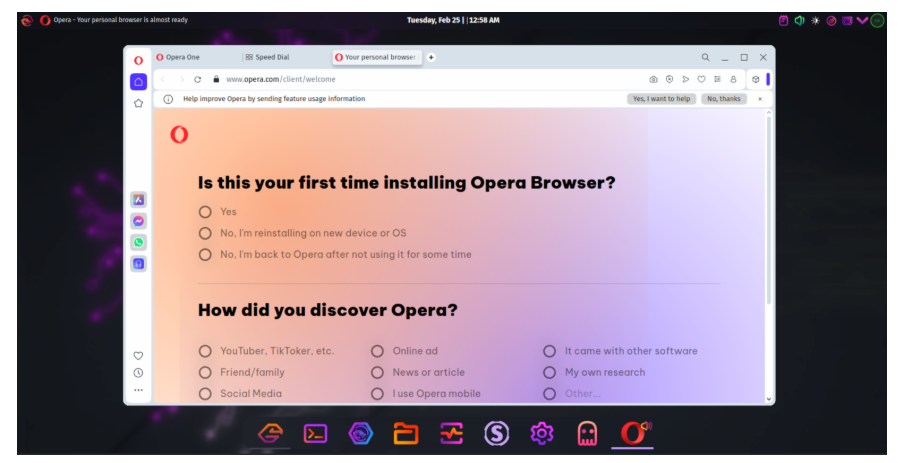
Alternatively, you can find Opera in your application menu. When you open it for the first time, you’ll notice its clean interface and built-in tools like VPN and ad blocker.
Opera is especially useful for users who want a fast and secure browser without installing multiple extensions.
Step-by-Step Guide to Install Vivaldi Browser
Installing Vivaldi is just as simple as installing Opera, thanks to AUR.
Open your terminal
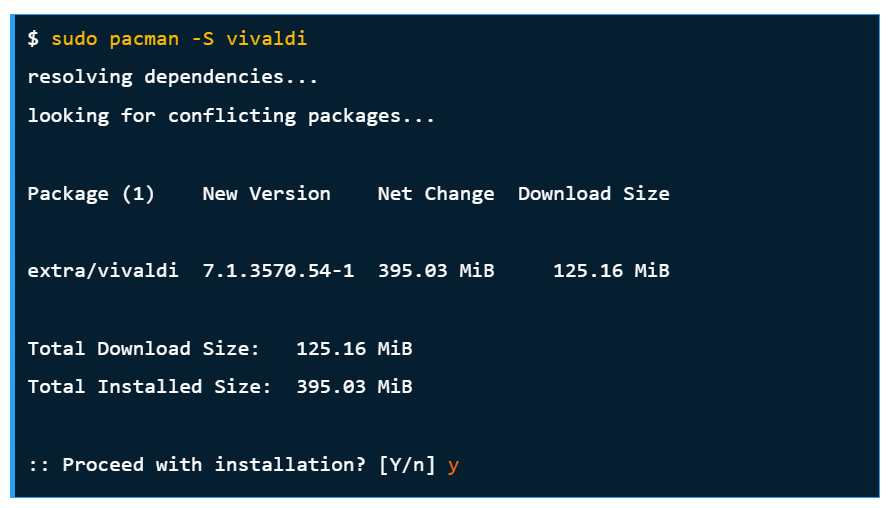
After entering the command, you may be asked to choose between different versions such as stable or snapshot. It is recommended to select the stable version for everyday use.
Confirm the prompts by typing Y and pressing Enter. The installation process will begin and complete automatically.
Once installed, launch Vivaldi using:

When you open Vivaldi for the first time, it will guide you through a setup process where you can choose themes, layouts, and preferences. This initial customization is one of the reasons why many users prefer Vivaldi.
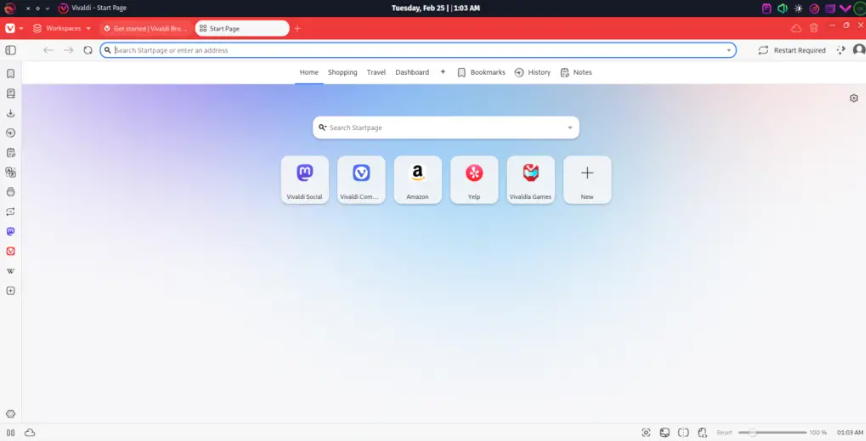
It allows you to create a browsing experience tailored specifically to your needs.
Keeping Opera and Vivaldi Updated
Garuda Linux follows a rolling release model, which means your system is continuously updated. To keep Opera and Vivaldi up to date, simply run:

This command updates both official repository packages and AUR packages. Regular updates ensure better security, improved performance, and access to new features.
How to Uninstall Opera and Vivaldi
If you ever decide to remove these browsers, Garuda Linux makes it easy
To uninstall Vivaldi and opera

These commands remove the browsers from your system. If you want to remove unused dependencies as well, you can use additional cleanup commands.
Troubleshooting Common Installation Issues
Although installation is usually smooth, beginners may encounter some issues.
One common problem is dependency errors. This can often be fixed by updating your system before installation. Running sudo pacman -Syu ensures all required libraries are up to date.
Another issue is AUR build failure. This may happen if there is a temporary problem with the package. Clearing the cache using yay -Scc and retrying the installation often resolves this.
Slow installation is also normal with AUR packages because they may compile from source. Patience is key during this process.
If you face permission-related errors, make sure you are using the correct commands and have the necessary privileges.
Tips to Improve Browser Performance on Garuda Linux
To get the best performance from Opera and Vivaldi, there are a few simple tips you can follow.
Enable hardware acceleration in browser settings. This allows your system to use GPU power for smoother performance.
Avoid installing too many extensions, as they can slow down your browser. Stick to only the ones you really need.
Regularly update your system to maintain compatibility and security.
Garuda Linux already includes performance optimizations like a tuned kernel and fast package management, so pairing it with a well-optimized browser enhances your overall experience.
Opera vs Vivaldi: Which Browser is Better?
Choosing between Opera and Vivaldi depends on your needs and preferences.
Opera is perfect for users who want a simple, ready-to-use browser with built-in features. Its integrated VPN, ad blocker, and social media tools make it convenient for everyday browsing.
Vivaldi is better suited for users who enjoy customization and control. It allows you to modify almost every aspect of the browser, from appearance to functionality.
Many Garuda Linux users install both browsers and switch between them depending on their tasks.
Final Thoughts
Installing Opera and Vivaldi on Garuda Linux is a simple and rewarding process. Thanks to the flexibility of the Arch ecosystem and the power of AUR, even beginners can install advanced software with ease.
Both browsers offer unique advantages, whether it’s Opera’s built-in tools or Vivaldi’s deep customization options. By following the steps in this guide, you can set up both browsers and enjoy a faster, more personalized browsing experience.
Garuda Linux provides the perfect environment for experimenting with different tools, and installing multiple browsers is a great way to find what works best for you.
Is it safe to install this browser from AUR?
Yes, installing from the Arch User Repository is generally safe as long as you take a moment to review the package details, user comments, and build scripts before proceeding, because AUR is community-driven and transparency allows users to verify what is being installed; keeping your system updated and using trusted packages further reduces any potential risks and ensures a secure installation experience.
Does this browser support Chrome extensions?
Yes, since the browser is based on Chromium, it fully supports extensions from the Chrome Web Store, allowing users to enhance their browsing experience with tools for productivity, security, customization, and more, making it highly versatile and suitable for both casual browsing and advanced workflows.
Is this browser suitable for beginners?
This browser is suitable for beginners, although its wide range of customization features might feel overwhelming at first, but the guided setup process and intuitive interface help users gradually understand its capabilities, and over time, many find it more efficient and enjoyable compared to simpler browsers.
How often should I update my system?
It is recommended to update your system regularly, especially since Garuda Linux follows a rolling release model, as frequent updates ensure that your browser and other applications receive the latest features, performance improvements, and security patches, which helps maintain stability and protects your system from vulnerabilities.
Can this browser handle heavy multitasking?
Yes, this browser is designed to handle heavy multitasking efficiently, offering advanced tab management features such as tab stacking, split-screen viewing, and customizable workflows, which allow users to manage multiple tasks simultaneously without compromising performance or usability
Does this browser respect user privacy?
Yes, this browser places a strong emphasis on user privacy by offering built-in features that limit tracking and give users greater control over their data, while also allowing customization of privacy settings according to individual preferences, making it a reliable choice for those who are concerned about online security and data protection.
Discover more from Root Learning
Subscribe to get the latest posts sent to your email.