
Learn how to install Apache on Zorin OS with a practical step‑by‑step guide. Unlock powerful and secure web hosting in 2026 with easy commands, reliable setup, and optimized performance for your Linux environment.
Table of Contents
Getting Started with Apache on Zorin OS: Why It’s the Perfect Choice for Secure Hosting in 2026
When you decide to install Apache on Zorin OS, you’re choosing one of the most reliable and widely used web servers in the world. Apache has a proven track record of stability, flexibility, and security, making it an excellent option for developers and businesses alike.
Zorin OS, built on the strong foundation of Ubuntu, offers a user‑friendly interface while maintaining the power of Linux. This combination makes it ideal for hosting websites, applications, and services. By integrating Apache with Zorin OS, you unlock a seamless environment where performance and security go hand in hand.
In 2026, the demand for secure and efficient hosting solutions continues to grow. Apache’s modular design allows you to customize features, optimize performance, and protect your server against vulnerabilities. Whether you’re setting up a personal project or managing professional web hosting, the decision to install Apache on Zorin OS ensures you’re working with a platform that is both powerful and future‑ready.
Update Zorin OS Before Apache Installation: Ensure Stability and Security in 2026
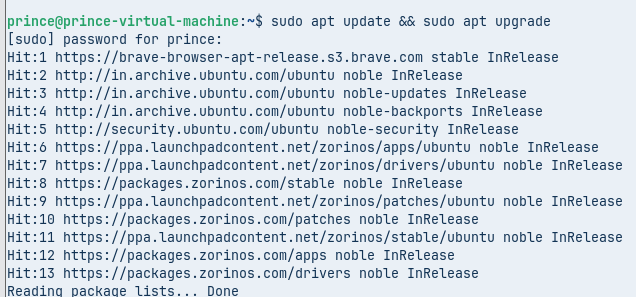
Before you begin to install Apache on Zorin OS, it’s essential to make sure your system is fully updated. Running updates ensures that all packages, libraries, and dependencies are current, which reduces compatibility issues and strengthens overall security.
Zorin OS, being based on Ubuntu, uses the APT package manager. A quick system update guarantees that when you proceed to install Apache, you’ll be working with the latest stable versions of software components. This step is crucial for maintaining a secure and reliable hosting environment in 2026.
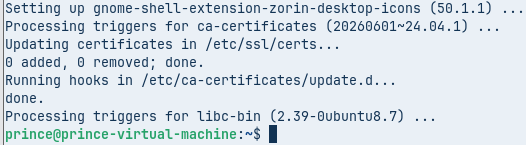
Run Command in the Terminal: sudo apt update && sudo apt upgrade
Install Apache on Zorin OS: Practical Steps for Reliable Web Hosting
Once your system is updated, the next step is to install Apache on Zorin OS. Apache is one of the most trusted web servers, and setting it up on Zorin OS is straightforward with just a few commands.
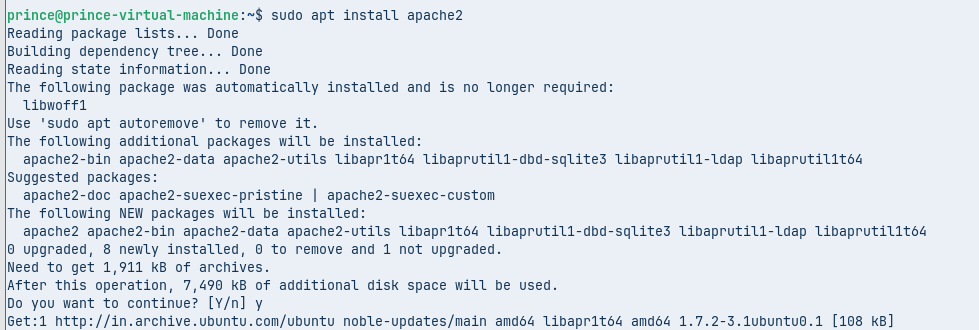
- To download and install the Apache package along with its necessary dependencies.
Run Command: sudo apt install apache2

- After the installation completes, it’s important to verify that Apache is running correctly.
Run Command: sudo systemctl status apache2
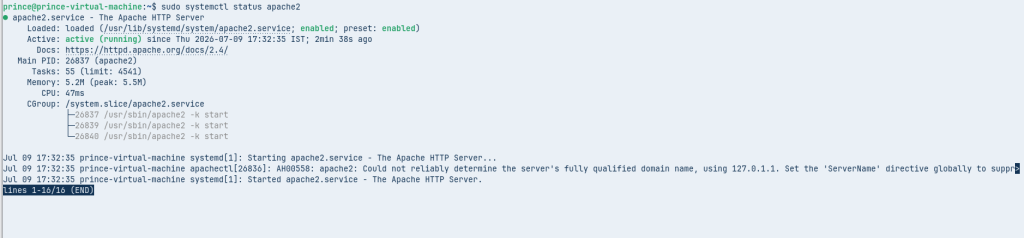
- If the service is active, you can confirm the installation by opening your web browser and visiting
Use http://localhost in browser.
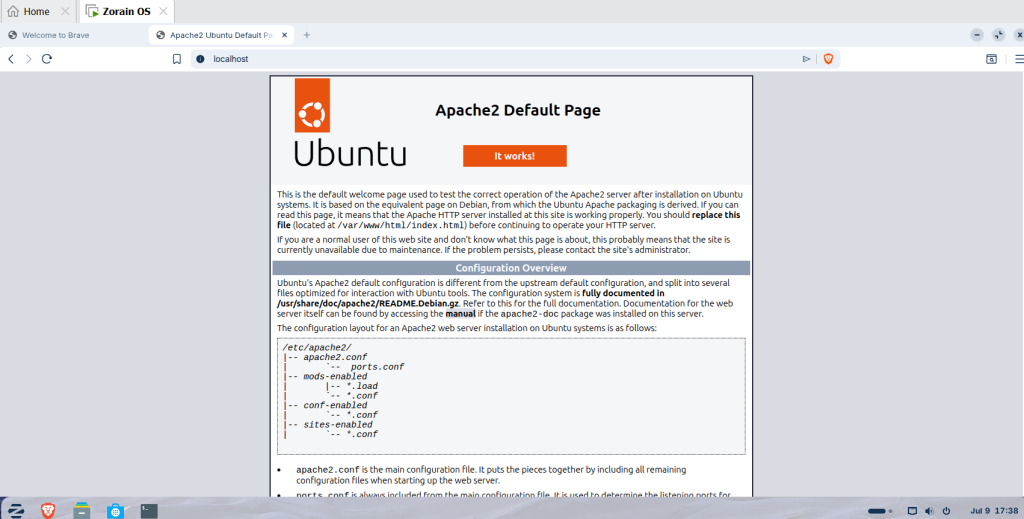
You should see the default Apache welcome page, which means your server is successfully installed and ready to host websites. By following this practical approach, you ensure that the decision to install Apache on Zorin OS leads to a secure and reliable hosting environment.
Enable and Start Apache Service
After completing the installation, the next step is to make sure the service is active and ready to run whenever your system starts. This ensures that your web server remains available without requiring manual intervention each time you reboot.
Run Command: sudo systemctl enable apache2 to configures the service to start automatically at boot.

Run Command: sudo systemctl start apache2 to launches the service immediately, so you can begin hosting content right away.
By enabling and starting the service, you guarantee that your server remains consistent, reliable, and always ready to deliver web pages. This practical step is essential for maintaining a smooth hosting experience in 2026.
Verify Apache Installation: Confirm Your Web Server is Running
After enabling and starting the service, it’s important to confirm that everything is working correctly. This step ensures your web server is active and ready to deliver content.
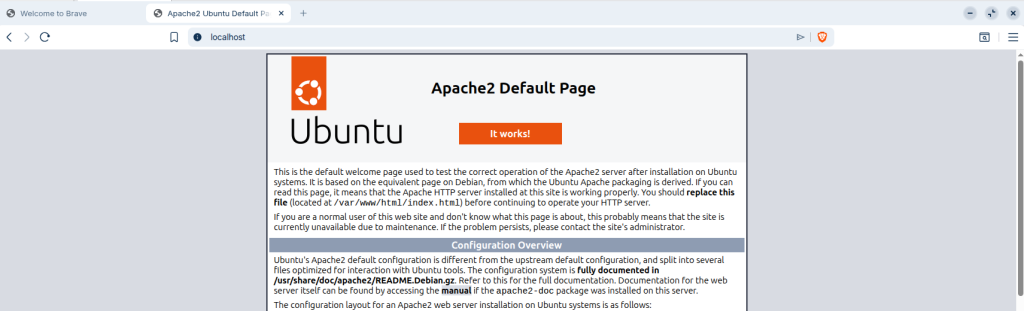
http://localhost if the setup is successful, you will see the default Apache welcome page. This page confirms that the server is running properly and is ready to host websites.
By performing this quick check, you gain confidence that your installation is complete and your system is prepared for the next stage of configuration. It’s a simple but essential step to guarantee smooth hosting performance in 2026.
Configure Firewall for Apache: Strengthen Security with HTTP/HTTPS Access
Securing your server is just as important as installing and running it. A properly configured firewall ensures that only the necessary traffic can reach your system, protecting it from unwanted access.
On Zorin OS, the uncomplicated firewall (UFW) makes this process simple.
To allow web traffic through both HTTP and HTTPS, open your terminal and run command: sudo ufw allow ‘Apache Full’
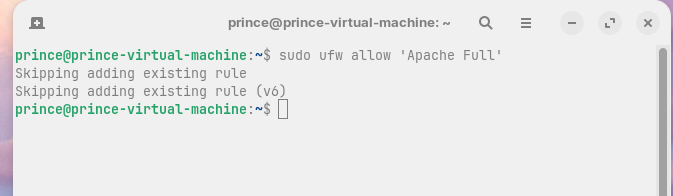
This command creates rules that permit standard web traffic, ensuring your sites are accessible while keeping other ports protected.
By configuring the firewall, you add an essential layer of defense to your hosting environment. It helps maintain reliability, prevents unauthorized access, and ensures that your server remains secure and ready to deliver content.
Test Your Hosting Setup: Confirm Your Website is Live
After configuring the firewall, the next step is to test whether your server can successfully host a website. This practical check ensures that your setup is complete and ready to serve content to users.
- To begin, navigate to the default web directory on your system: /var/www/html

Inside this folder, I had created a simple index1.html file. You can do this by opening a text editor and adding a basic line of HTML, such as:
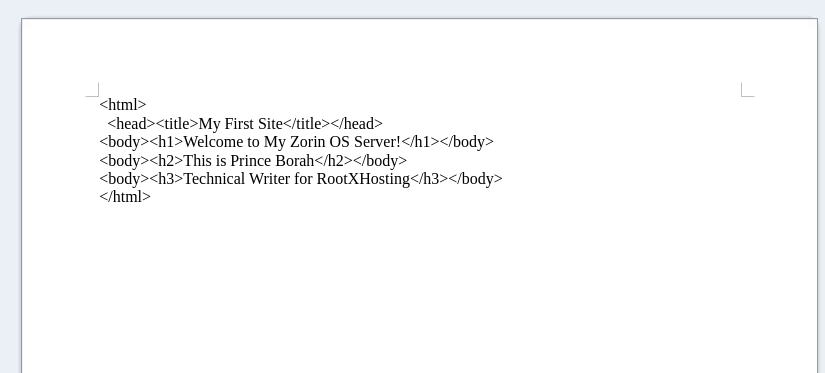
- Now, open your browser and type: http://localhost

You should see the message you placed inside the file displayed on the screen. This confirms that your server is hosting content correctly and is ready for further customization.
Optimize Apache Performance: Enhance Speed and Reliability
Once your server is running smoothly, the next step is to optimize its performance. Fine‑tuning ensures faster response times, better resource management, and a more secure hosting environment.
One of the most useful modules to enable is mod_rewrite. This module allows you to create clean, user‑friendly URLs and is essential for many modern web applications.
- Run Command: sudo a2enmod rewrite

- Run Command: sudo systemctl restart apache2

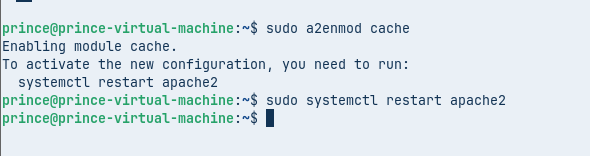
Another important optimization is caching. By storing frequently accessed content, caching reduces server load and speeds up page delivery. You can enable caching modules such as mod_cache and mod expire.
- Run Command: sudo a2enmod cache
- Run Command: sudo a2enmod expires
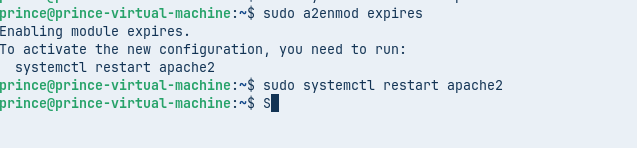
- Run Command: sudo systemctl restart apache2
Additionally, consider adjusting configuration files to fine‑tune settings like KeepAlive, MaxClients, and Timeout values. These tweaks help balance performance and resource usage depending on your hosting needs.
By enabling modules and configuring caching, you ensure your server delivers content quickly and efficiently, providing a smooth experience for users.
Conclusion
By choosing to install Apache on Zorin OS, you have built a strong foundation for secure and reliable web hosting. This setup ensures that your server is not only functional but also optimized for performance and safety. Each step from updating the system to configuring the firewall and testing your hosting, it has contributed to creating a stable environment that can handle modern web demands.
The benefits of deciding to install Apache on Zorin OS are clear: you gain access to a proven web server with modular flexibility, enhanced security through firewall rules, and performance improvements with caching and optimization modules. Together, these features make Zorin OS an excellent platform for hosting websites in 2026, whether for personal projects or professional deployments.
By completing this process, you’ve unlocked the full potential of install Apache on Zorin OS, ensuring a hosting solution that is powerful, secure, and ready to grow with your future needs.
For More Such Technical Content on Linux, Ubuntu: Visit the site www.rootlearning.in
FAQs
How do I install Apache on Zorin OS?
Open the terminal and run sudo apt install apache2
Is it easy to install Apache on Zorin OS?
Yes, the process is straightforward with just a few commands.
Why should I install Apache on Zorin OS?
It provides secure, reliable, and customizable web hosting.
Can I install Apache on Zorin OS for free?
Yes, Apache is open‑source and free to use.
What happens after I install Apache on Zorin OS?
You can host websites locally or on a server, and customize with modules.
Discover more from Root Learning
Subscribe to get the latest posts sent to your email.