
Today we will continue our Apache web server series and talk about how to change the port in Apache. Some people consider it a security measure as well, especially when they want to reduce exposure to default service ports.
Changing the port can also be useful in development environments, testing setups, or when running multiple services on the same server. In this guide, we’ll understand the basic process of modifying the Apache port in a simple and practical way.
The default port for Apache web server is 80, We will try to change it to 8080 at first.
Let’s open its main configuration file by “vim /etc/httpd/conf/httpd.conf” command and look for the port.
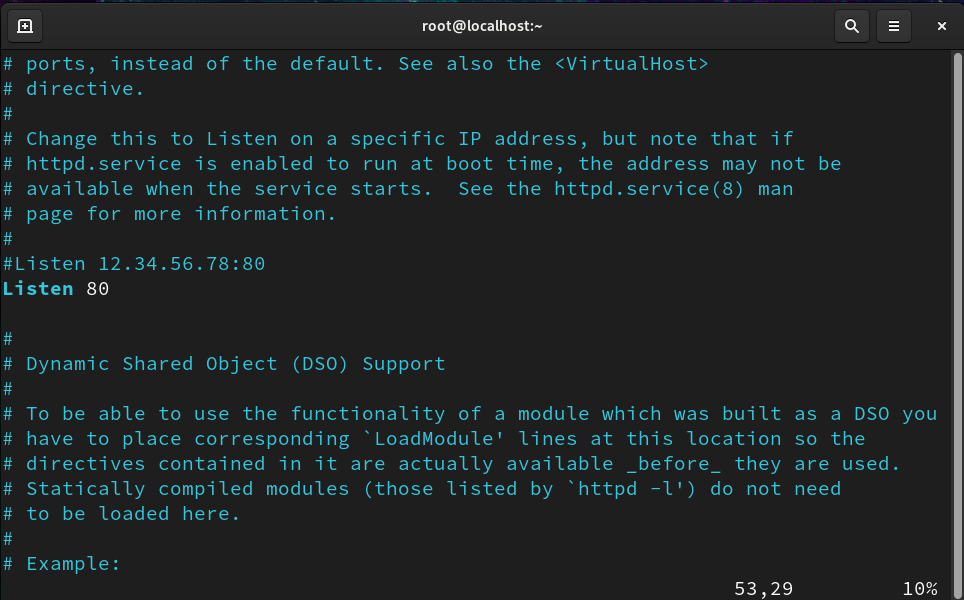
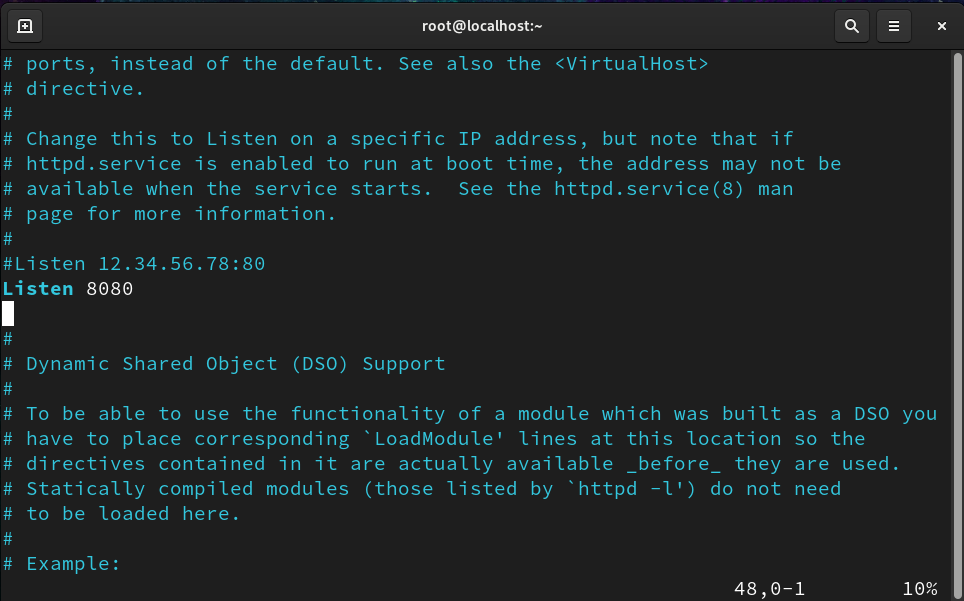
We can see “Listen 80”, which shows that the Apache web server is currently running on port 80. We will change it to 8080 by modifying the line to “Listen 8080”.
After making this change, Apache will start listening on the new port instead of the default HTTP port.
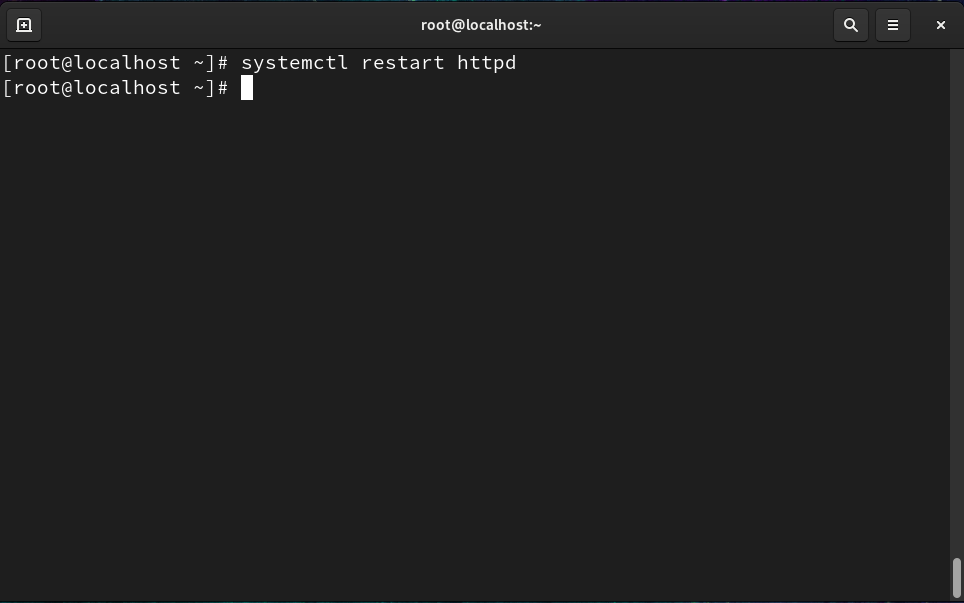
Next, We will exit the vim editor and restart the Apache services by “systemctl restart httpd” command.
We have to see the current port of httpd, We can check that by “netstat -tnulp | grep httpd” command.
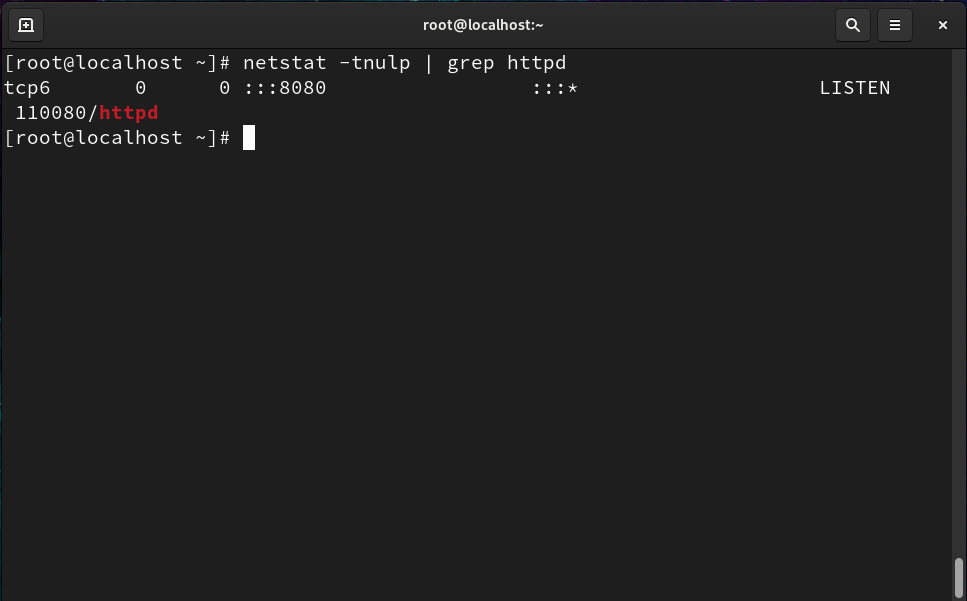
As we can see our httpd port is changed to 8080, This is super simple to do but now we will change the port to a customize port of our choice that is “777“.
We have to open the Apache configuration file one more time.
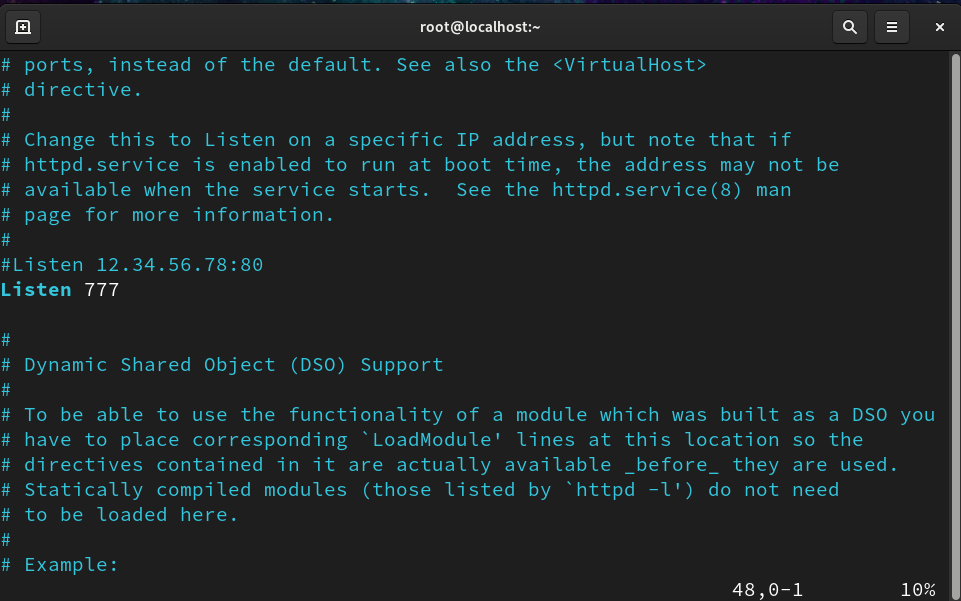
We will again restart httpd service by “systemctl restart httpd” command.
This time we will get error because “777” port for Apache is not aligned with SElinux.
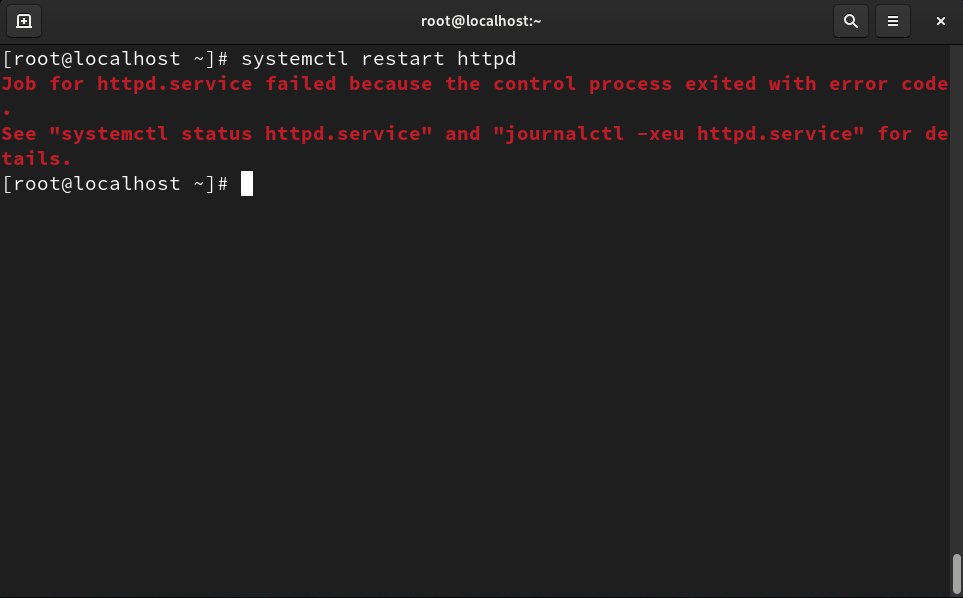
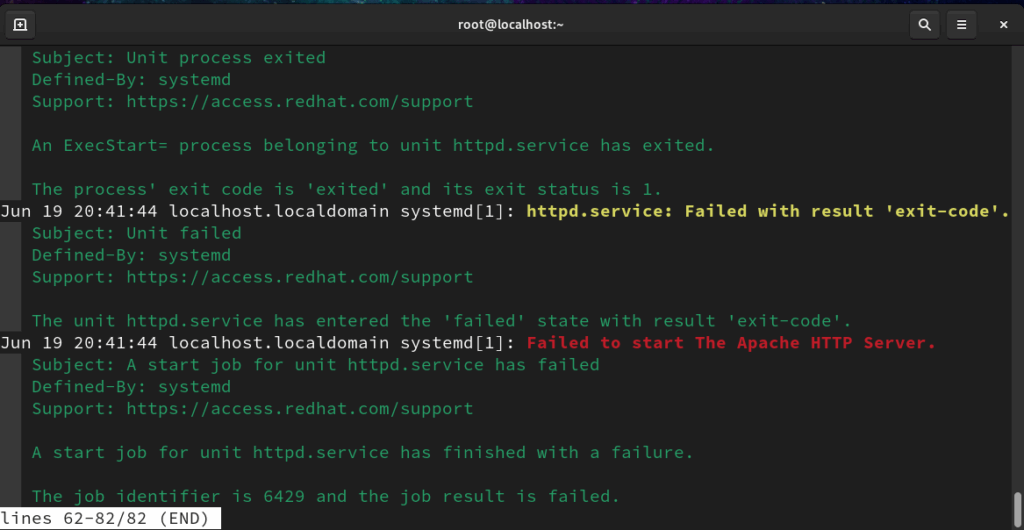
Let’s check our error by the mentioned command “journalctl -xeu httpd.service“.
Now we have to add our port in SElinux but before that we will check all the ports available in default for httpd by “semanage port -l” command.
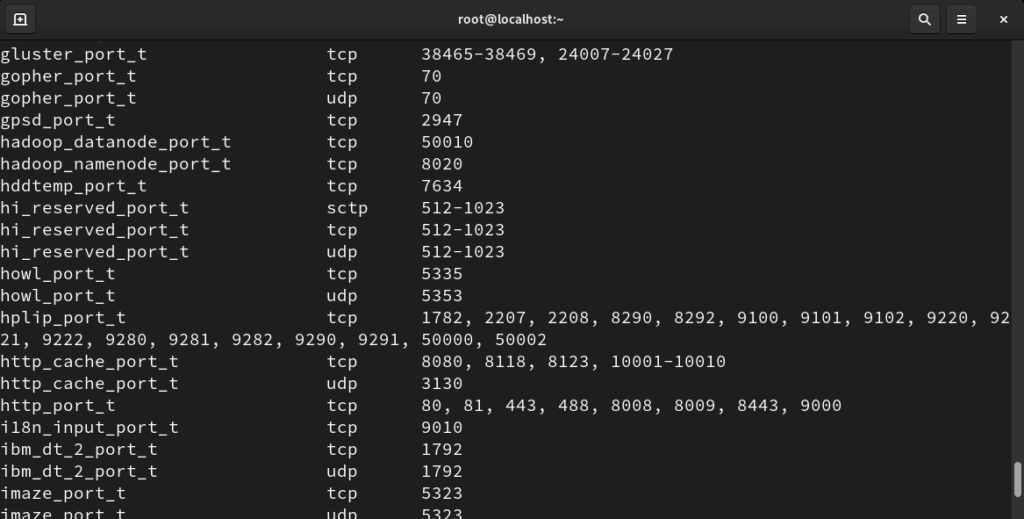
There is no ‘777‘ port is allowed in SELinux for port in Apache.
We have to add ‘777‘ port in SELinux by “semanage port -a -t http_port_t -p tcp 777” command.
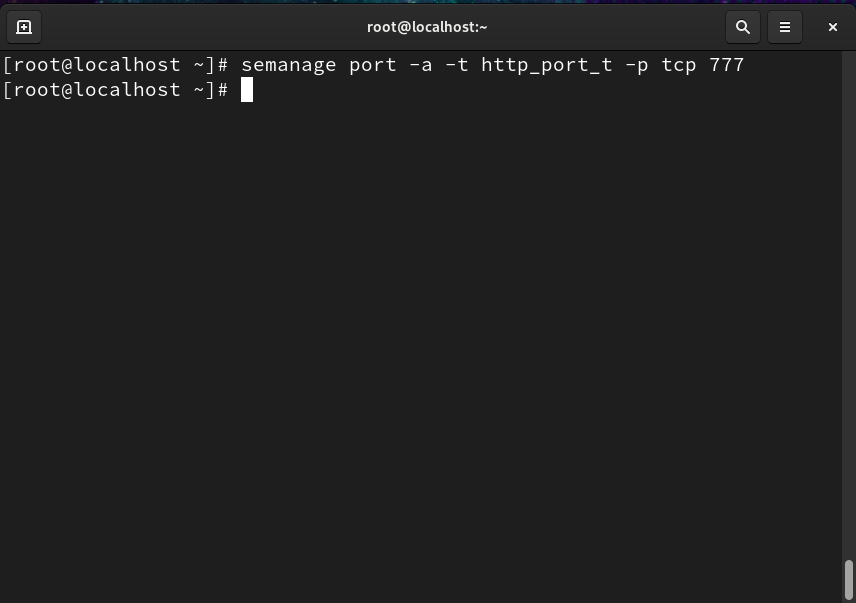
This command has -a for adding, -t for type, -p for port and semanage helps to manage the SELinux.
Now we can again check all the ports of httpd service.
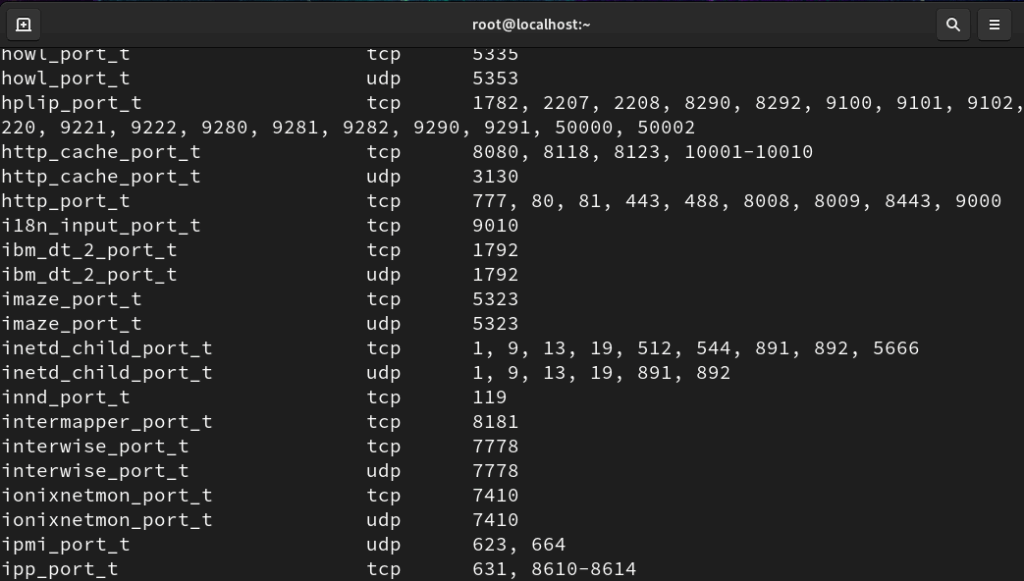
We can see ‘777‘ port is now added in the list.
Let’s start our httpd service again by “systemctl start httpd” command.
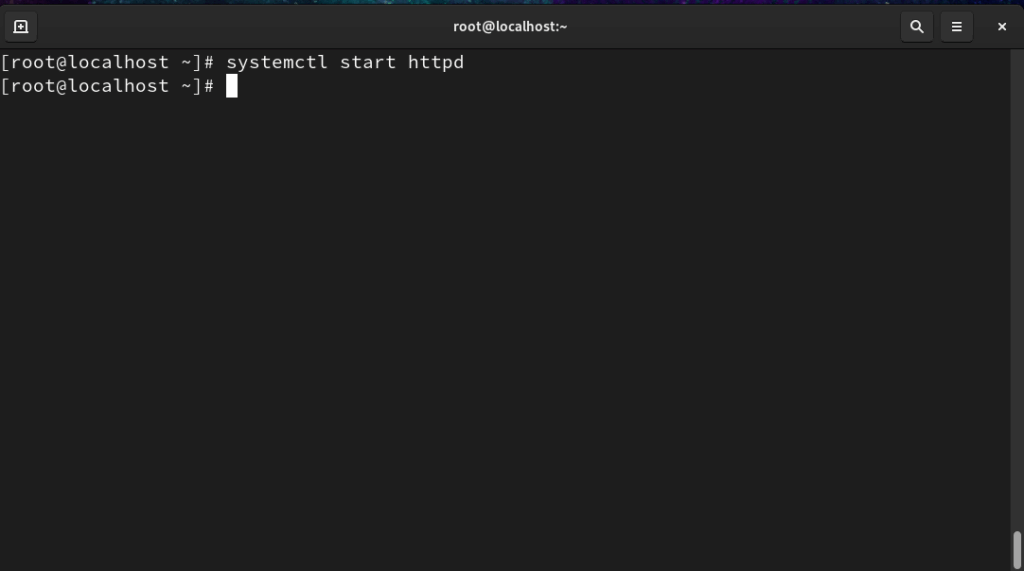
Now we didn’t get any error, and our Apache service has started successfully on the new port. This confirms that the configuration changes were applied correctly.
You can verify it by accessing the server using your IP address followed by :8080 in the browser. If the Apache test page loads, it means everything is working perfectly.
That’s all about how to change the port in Apache. This is a simple but important configuration task that every system administrator should know. In the next part of the series, we’ll explore more Apache configurations to help you manage your web server more efficiently.
You may like our another post about Apache.
Table of Contents
FAQ on How to change the port in Apache
Q. Why would I need to change the Apache port number?
A. You may want to change Apache’s port if:
Port 80 is already in use by another service.
You want to run multiple web servers on the same machine.
You need to secure or isolate your site by running it on a non-default port.
Q. What is the default port in Apache?
A. Apache uses port 80 for HTTP and port 443 for HTTPS by default.
Q. Can I make Apache listen on multiple ports?
A. Yes. Add multiple Listen entries:
Listen 80
Listen 8080
Q. How do I verify which ports Apache is listening on?
A. Use the following command:
netstat -tuln | grep apache
Discover more from Root Learning
Subscribe to get the latest posts sent to your email.