The first time you open a Linux terminal, it feels like staring at a blank wall with a blinking cursor. No buttons, no menus, no hints. Then someone types a few short words, and a whole folder of files appears, gets renamed or vanishes. That quiet power is exactly why learning Linux commands is worth your time.
This guide is written for complete beginners. Instead of dumping a long cheat sheet on you, it walks through ten essential Linux commands in the order you are most likely to need them, with small examples you can try right now. By the end, you will be able to move around the system, organize files, read and search content, and control who can use a file.
Table of Contents
What Are Linux Commands and Why Should You Learn Them?
A command is simply a typed instruction you give to the computer. Where a mouse asks you to click through windows, the terminal lets you say exactly what you want in one line.
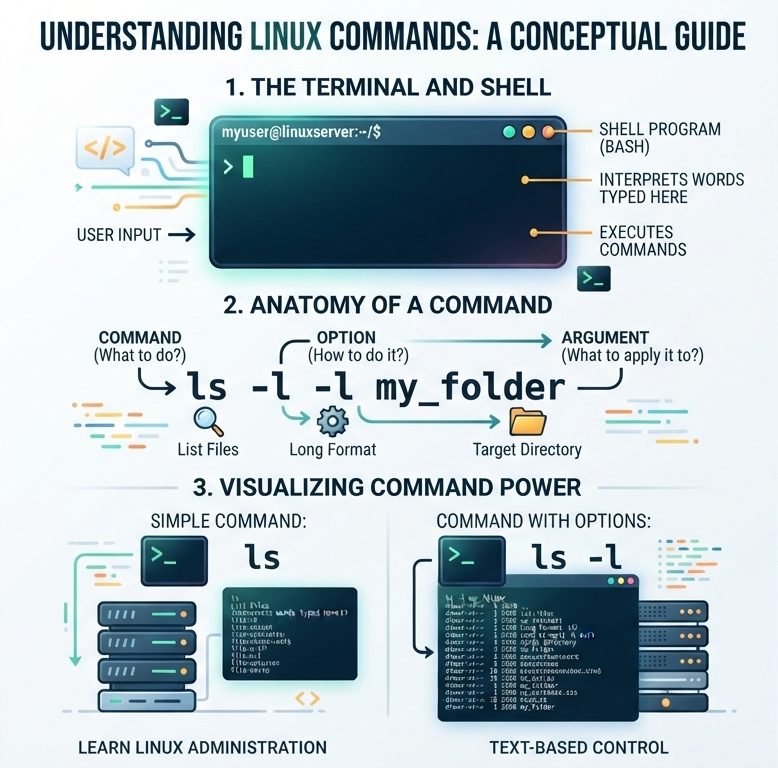
The Terminal and the Shell
The terminal is the window where you type. The shell, most often Bash, is the program inside it that reads your words and runs them. When people talk about Linux commands, they usually mean the instructions you type into this shell.
The Anatomy of a Command
Most commands follow the same pattern:
command -option argument- Command: what you want to do, such as
ls - Option: how you want it done, such as
-l - Argument: what you want it done to, such as a folder name
Once you notice this pattern, new Linux commands stop looking random. You will see the same three parts again and again.
Why Bother in a World of Graphical Tools?
Servers rarely have a desktop screen, so administrators work through the terminal. Commands are also fast, repeatable and easy to automate. A task that takes ten clicks can often be done with one line, and that line can be saved and reused.
Your Mental Map: Think of Linux as a Building
It helps to imagine the file system as a building. The root directory, written as /, is the main entrance. Rooms are folders, and the items inside them are files. Your home folder is your personal room. The first few Linux commands below are simply ways to know which room you are standing in and how to walk to another one.
10 Essential Linux Commands for Beginners
1. pwd: Find Out Where You Are
pwd stands for “print working directory”. It tells you the exact path of the folder you are currently in.
pwdIf the output is something like /home/student, you are in a folder called student inside home. Use this whenever you feel lost. It is the terminal’s version of a “you are here” marker.
2. ls: See What Is Around You
ls lists the files and folders in the current location.
ls
ls -l
ls -a
ls -lh-lshows a detailed list with permissions, owner, size and date-aalso shows hidden files, which start with a dot-hwith-lshows sizes in a human-friendly form like KB and MB
Among all Linux commands, ls is probably the one you will type most often.
3. cd: Walk to Another Folder
cd means “change directory”.
cd Documents
cd ..
cd ~
cd -
cd Documentsgoes into the Documents foldercd ..goes one level upcd ~jumps to your home foldercd -returns to the previous folder you were in
A useful habit is to press the Tab key while typing a folder name. The shell completes it for you, which saves time and avoids typing mistakes.
4. mkdir: Create New Folders
mkdir makes a new directory.
mkdir notes
mkdir -p projects/linux/week1
The -p option creates the whole chain of folders at once, including parents that do not exist yet. Without it, the command would complain if projects or linux were missing.
5. cp: Copy Files and Folders
cp duplicates something and leaves the original untouched.
cp report.txt backup.txt
cp -r photos photos_backup
cp -i report.txt /home/student/Documents/- Use
-rto copy a folder along with everything inside it - Use
-ito be asked before an existing file is overwritten
6. mv: Move and Rename
In Linux, moving and renaming are the same action, so mv does both.
mv old_name.txt new_name.txt
mv report.txt Documents/
The first line renames a file. The second moves it into another folder. Because there is no undo, double-check the destination before pressing Enter.
7. rm: Delete With Care
rm removes files.
rm old_file.txt
rm -i old_file.txt
rm -r old_folder
There is no recycle bin in the terminal, so deleted items are usually gone for good. Use -i while you are learning so it asks for confirmation. The -r option removes folders and their contents, and combining it with -f (force) can erase a lot very quickly. Treat rm -rf with great respect, and never run it on a path you have not checked.
8. cat: Read What Is Inside a File
cat prints the contents of a file on your screen.
cat notes.txtFor a long file, cat will flood the screen. In that case, use less notes.txt to scroll page by page and press q to quit. You can also use head notes.txt to see only the first lines or tail notes.txt for the last lines.
9. grep: Search Inside Files
grep looks for a word or pattern inside text. Many learners say this is the moment Linux commands start to feel like a superpower.
grep "error" logfile.txt
grep -i "error" logfile.txt
grep -n "error" logfile.txt
grep -r "error" /var/log-iignores upper and lower case-nshows line numbers-rsearches through all files in a folder
When a log file has thousands of lines, grep finds the one you need in a blink.
10. chmod: Control Who Can Do What
Every file has permissions for its owner, its group and everyone else. chmod changes them.
chmod +x script.sh
chmod 644 notes.txt
chmod +xmakes a file executable- Numbers such as 644 are shortcuts: each digit stands for read (4), write (2) and execute (1), added together for the owner, the group and others
Run ls -l before and after to see exactly what changed. Once you understand permissions, many “permission denied” errors stop being confusing.
Getting Help Without Leaving the Terminal
Nobody remembers every option, and no one is expected to. Linux has help built in.
Using –help
Most commands accept a help flag.
ls --helpIt prints a short summary of the command and its options.
Using man Pages
For the full manual, use man.
man grepPress the arrow keys to scroll and q to exit. The online Linux man pages project hosts the same documentation in a browser, which is handy when you want to read while you practice.
Safe Habits That Prevent Big Mistakes
Learning Linux commands is easier when you build safe habits from day one.
Read Before You Press Enter
Take two seconds to read the full line, especially if it contains rm, mv or sudo.
Practice in a Throwaway Folder
Create a folder just for experiments, like ~/practice, and keep your important files elsewhere. Mistakes inside it cost nothing.
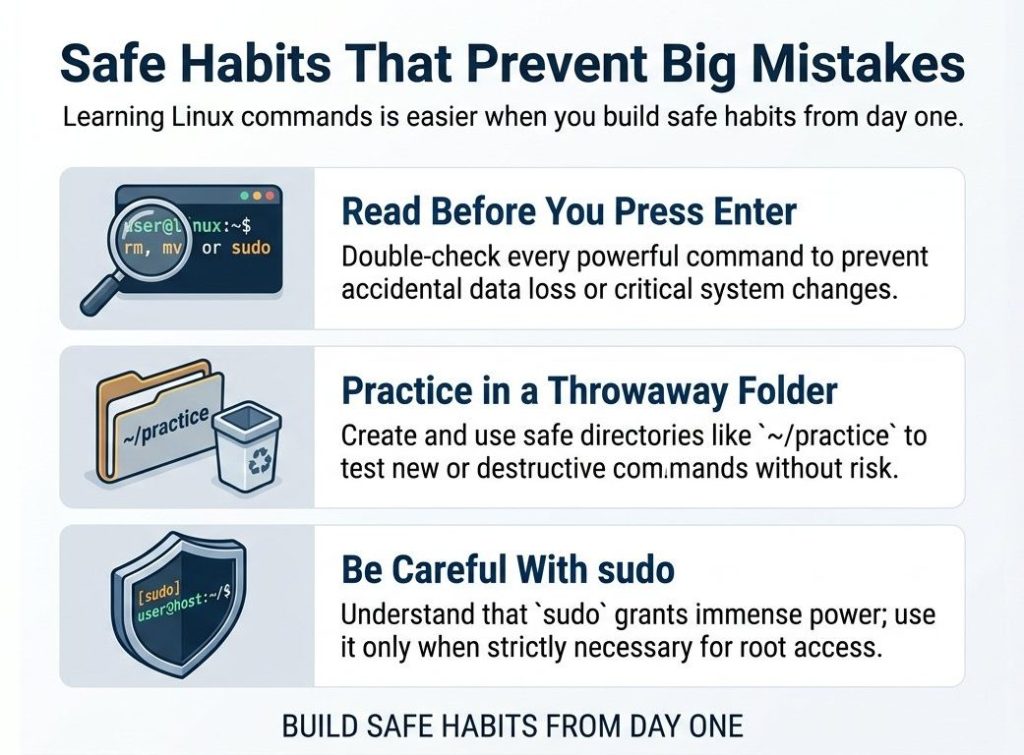
Be Careful With sudo
sudo runs a command with administrator rights. Use it only when you understand what the command does, because it can change system files without further warning.
Use Tab and the Up Arrow
Tab completes names, and the Up arrow brings back earlier commands. Both reduce typing errors and speed you up.
A 7-Day Practice Plan
Reading is not enough. Short daily practice builds memory far better than one long session.
- Day 1: Use
pwd,lsandcdto explore your home folder. - Day 2: Create a practice folder structure with
mkdir -p. - Day 3: Make files with a text editor, then copy them with
cp. - Day 4: Rename and move files with
mv, and delete test files withrm -i. - Day 5: Read files with
cat,less,headandtail. - Day 6: Search for words in a sample file using
grepwith different options. - Day 7: Check permissions with
ls -land change them withchmod.
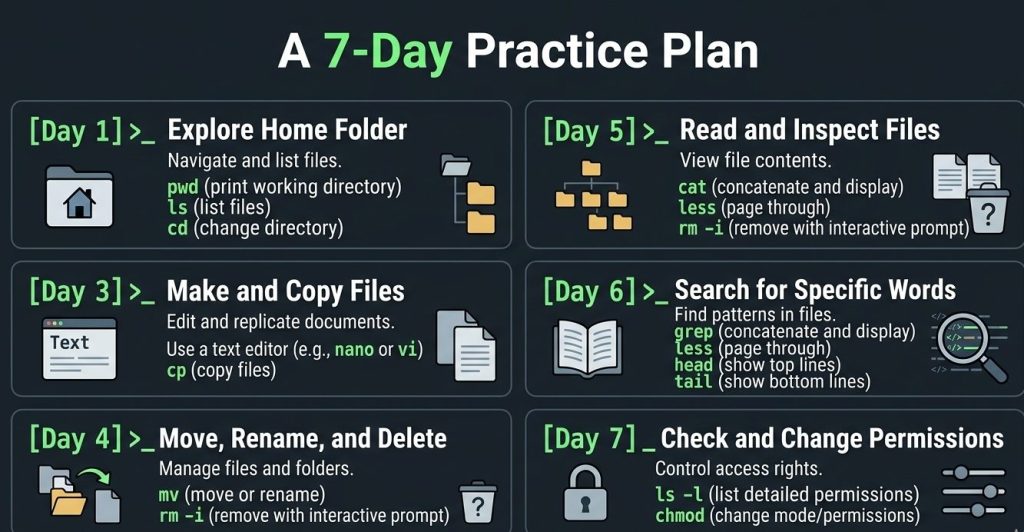
By the end of the week, these ten Linux commands will feel familiar instead of foreign.
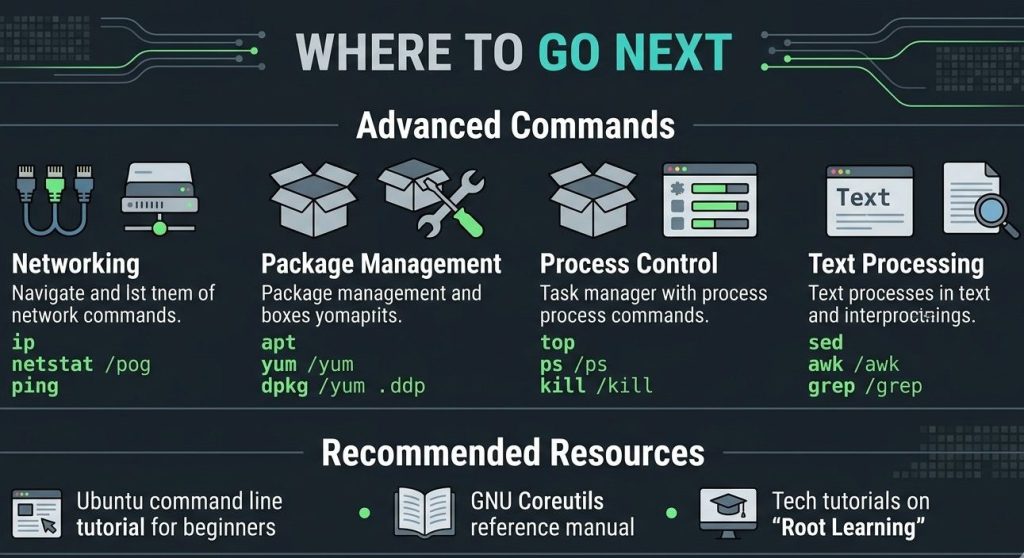
Where to Go Next
Once the basics feel comfortable, you can explore commands for networking, package management, process control and text processing. The Ubuntu command line tutorial for beginners is a good next step, and the GNU Coreutils manual explains many of the core tools in detail. For more step-by-step Linux and tech tutorials, you can also browse Root Learning.
Frequently Asked Questions (FAQs) About Linux Commands
What are Linux commands?
Linux commands are text instructions typed into the terminal that tell the operating system to perform a task, such as listing files, copying a folder or searching for text.
How many Linux commands should a beginner learn first?
Start with about ten. Learning pwd, ls, cd, mkdir, cp, mv, rm, cat, grep and chmod covers most everyday tasks, and you can add more later.
Are Linux commands case sensitive?
Yes. Linux treats upper and lower case as different, so Notes.txt and notes.txt are two separate files. Command names themselves are usually lowercase.
What is the difference between a command, an option and an argument?
The command is the action, the option changes how it behaves, and the argument is what it acts on. In ls -l Documents, ls is the command, -l is the option and Documents is the argument.
How can I undo a Linux command like rm?
In most cases you cannot, because the terminal has no recycle bin. That is why it is wise to use rm -i, double-check paths and keep backups of important files.
How do I find out what a command does?
Type the command name followed by --help for a short summary, or use man followed by the command name for the full manual.
What does sudo mean in Linux?
sudo lets an allowed user run a command with administrator privileges. It is needed for tasks like installing software or editing system files, and it should be used carefully.
Do I need to install Linux to practise these commands?
No. You can use a virtual machine, Windows Subsystem for Linux, a live USB or an online terminal to practise without changing your main system.
Can I use these Linux commands on any distribution?
Yes. The ten commands in this guide work on Ubuntu, Debian, Fedora, Arch and nearly every other distribution, because they are part of the standard toolset.
What is the best way to remember Linux commands?
Practise a little every day, type commands instead of copying them, keep a personal notes file of examples and use the help tools whenever you forget an option.
Conclusion
Learning Linux commands is less about memorising a long list and more about building a few reliable habits: know where you are, look before you act, read the help, and practise in a safe place. Start with the ten commands above, repeat them daily for a week, and the terminal will slowly change from a blank wall into a tool you reach for without thinking.
Discover more from Root Learning
Subscribe to get the latest posts sent to your email.