Backing up your files is one of the most important habits every computer user should develop. Whether you are using Linux for work, study, or personal tasks, losing important files due to system crashes, accidental deletion, or hardware failure can be frustrating. Fortunately, Linux offers many tools that make the backup process easy and efficient. One of the most beginner-friendly options available is Déjà Dup, a simple yet powerful backup utility designed especially for Linux users.
If you are new to Linux and wondering how to keep your files safe, this guide will walk you through how to back up Linux files using Déjà Dup in a simple step-by-step way. By the end of this article, you will understand how the tool works, how to set up backups, and how to restore your data whenever you need it.
Table of Contents
Why Backing Up Your Linux Files Is Important
Many people assume Linux systems rarely fail, and while Linux is known for stability, data loss can still happen. Hardware issues, software bugs, accidental deletions, and even malware can lead to lost files.
Imagine losing years of photos, important work documents, or academic projects in a single moment. Without a backup, recovering that data may be impossible.
Regular backups help you:
- Protect important documents and files
- Recover from system crashes or corruption
- Restore files accidentally deleted
- Safeguard your work before major system updates
Using a reliable backup tool like Déjà Dup ensures that even if something goes wrong, your important data remains safe.
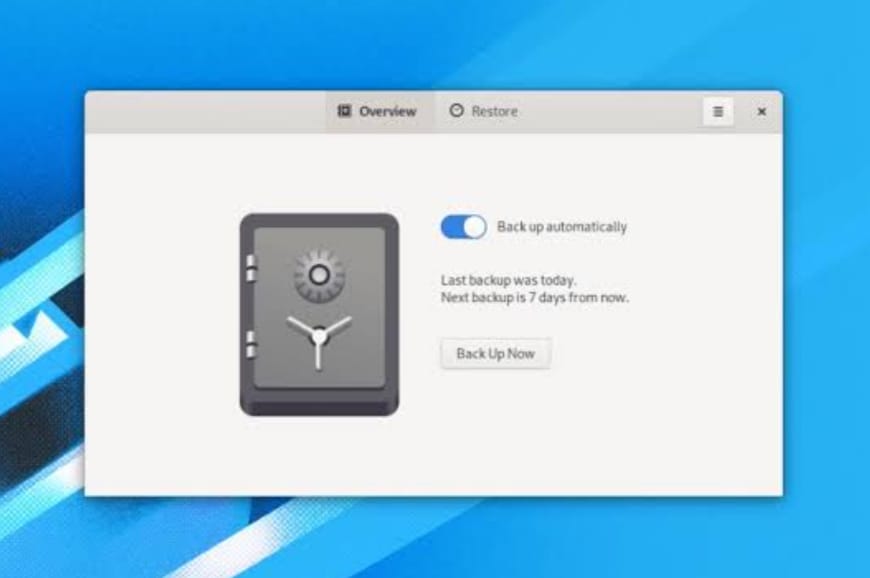
What Is Déjà Dup?
Déjà Dup is a graphical backup application designed primarily for Linux desktops. It provides a simple interface that allows users to schedule automatic backups without needing advanced technical knowledge.
Many Linux distributions, including Ubuntu, come with Déjà Dup pre-installed or available through their software repositories. The application is built on top of Duplicity, a command-line backup tool that supports encrypted and compressed backups.
The best part about Déjà Dup is that it simplifies the complex processes of backup management and makes them accessible to beginners.
Key Features of Déjà Dup
Before learning how to use it, it helps to understand what makes Déjà Dup a great backup solution for Linux users.
Simple and Beginner-Friendly Interface
Unlike many backup tools that rely on command-line operations, Déjà Dup offers a clean graphical interface. Even users with limited Linux experience can easily navigate the application.
Automatic Scheduled Backups
Once configured, Déjà Dup can automatically back up your files daily or weekly. This means you do not have to manually create backups every time.
Secure Encryption
Your backup files can be encrypted with a password, ensuring that your personal data stays protected even if the backup storage device is lost.
Compressed Backup Storage
Déjà Dup compresses your backups, which reduces the storage space required and makes it easier to store large amounts of data.
Cloud and Local Storage Support
You can save backups to external drives, local folders, or cloud services depending on your preferences.
Installing Déjà Dup on Linux
If your system does not already have Déjà Dup installed, you can easily install it through your Linux distribution’s software center.
Alternatively, you can open the Ubuntu Software Center and search for “Déjà Dup Backups,” then click install.
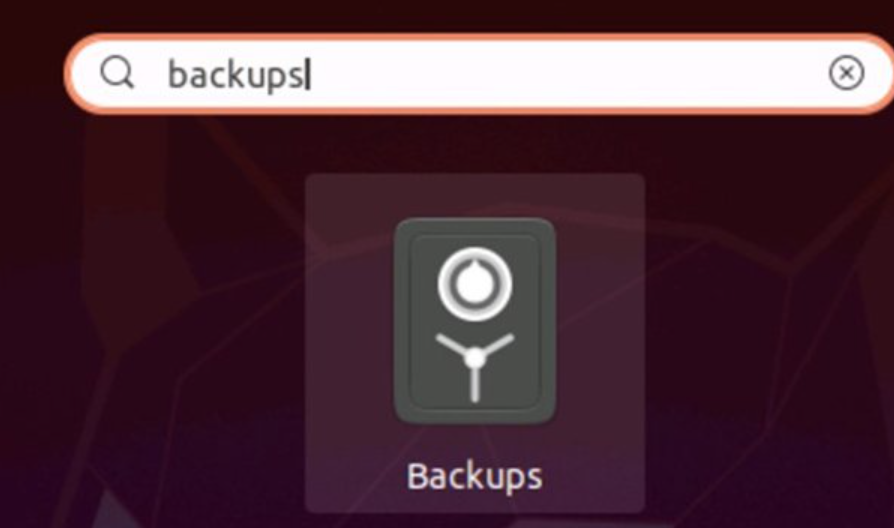
After installation, you will find the application under the name Backups in your system menu.
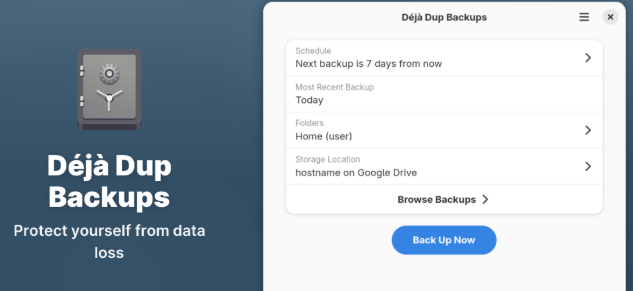
Step-by-Step Guide to Backing Up Linux Files Using Déjà Dup
Now let’s walk through the process of creating your first backup.
Step 1: Open the Backups Application
Start by opening the Backups application from your system menu. This will launch Déjà Dup and display the main dashboard.
The interface is designed to be minimal and easy to understand, making it ideal for beginners.
Step 2: Choose Folders to Back Up
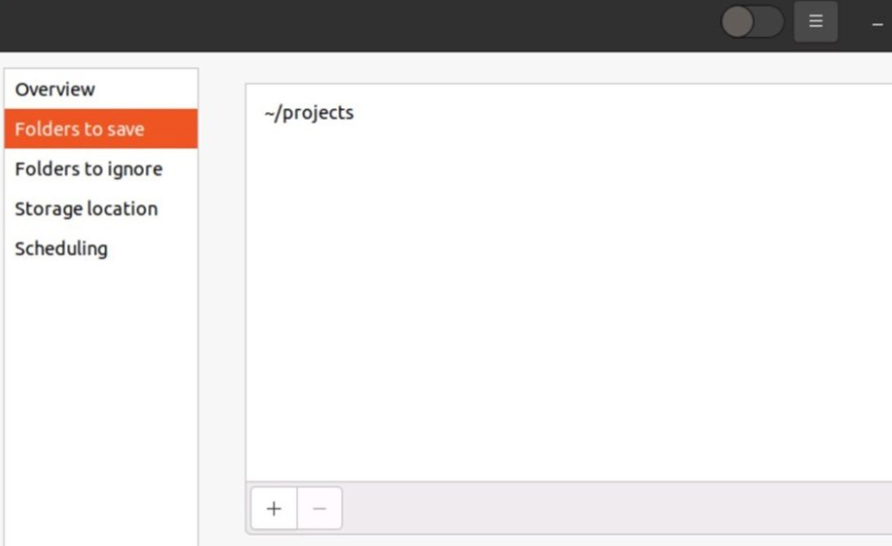
The next step is selecting which files and folders you want to protect.
Most users choose to back up their Home folder, which contains documents, downloads, photos, and personal files.
You can also add specific folders such as:
- Documents
- Pictures
- Work projects
- Desktop files
Selecting only important folders helps keep backups smaller and faster.
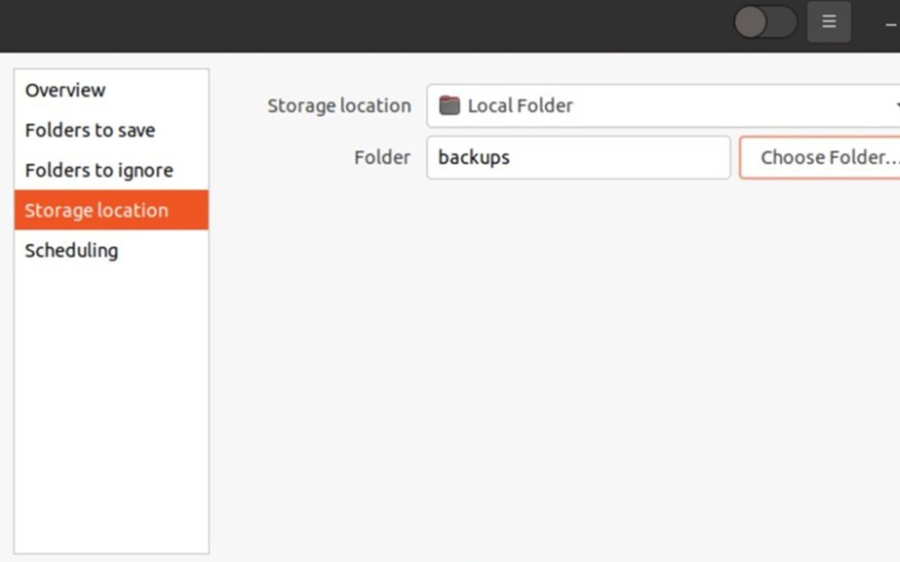
Step 3: Select Backup Location
Now you must decide where your backups will be stored.
Déjà Dup allows you to store backups in several locations:
- External hard drives
- USB storage devices
- Network storage
- Cloud storage
Many users prefer external drives because they provide a physical backup separate from the main computer.
Keeping backups on a different device protects your data if the primary system fails.
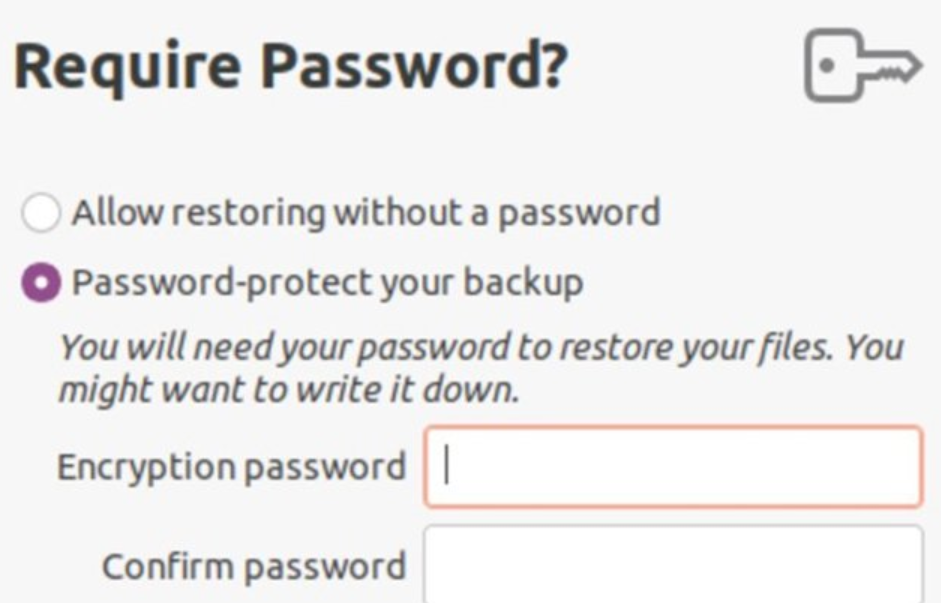
Step 4: Enable Encryption
One of the most useful features of Déjà Dup is backup encryption.
During setup, the software will ask you to create a password for encrypting the backup files.
Encryption ensures that even if someone gains access to the backup files, they cannot read the data without the password.
Be sure to store your password safely because losing it may prevent you from restoring your files.
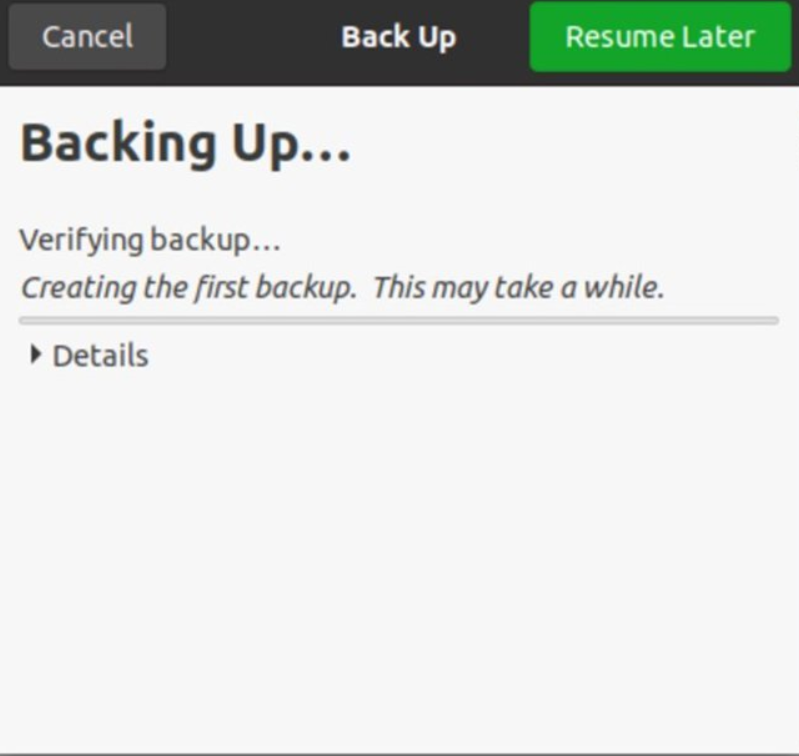
Step 5: Start the Backup Process
Once all settings are configured, click Back Up Now to begin the process.
Depending on the amount of data being backed up, the process may take a few minutes or longer. The first backup usually takes the longest because the entire dataset must be copied.
Future backups will be faster because Déjà Dup only saves changes made since the previous backup.
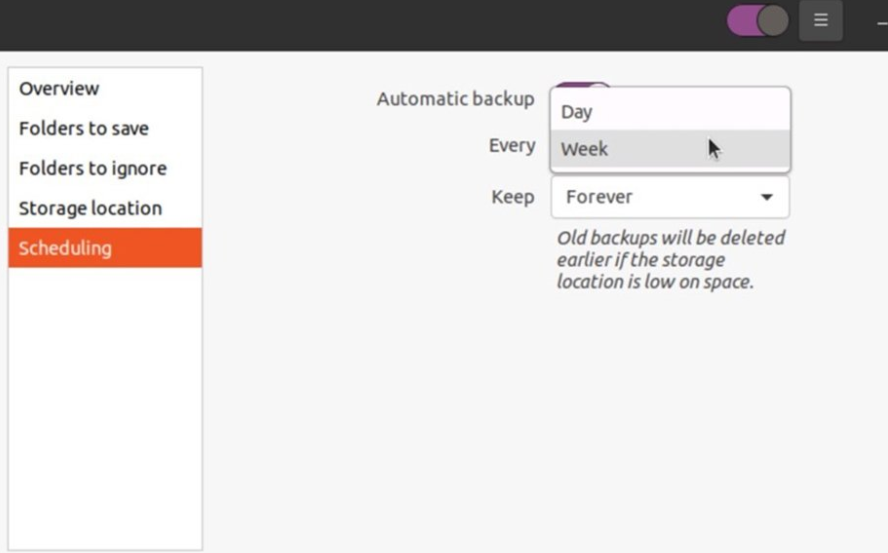
Setting Up Automatic Backups
One of the biggest advantages of using Déjà Dup is its ability to automate backups.
After completing the first backup, you can enable scheduled backups so the system handles everything automatically.
You can configure backups to run:
- Daily
- Weekly
Automatic backups help ensure your data is always protected without requiring manual effort.
How to Restore Files from a Déjà Dup Backup
Backing up data is only useful if you can restore it when needed. Fortunately, restoring files is just as simple as creating backups.
Open the Backups application and click Restore.
You will be guided through several steps:
Choose the backup location
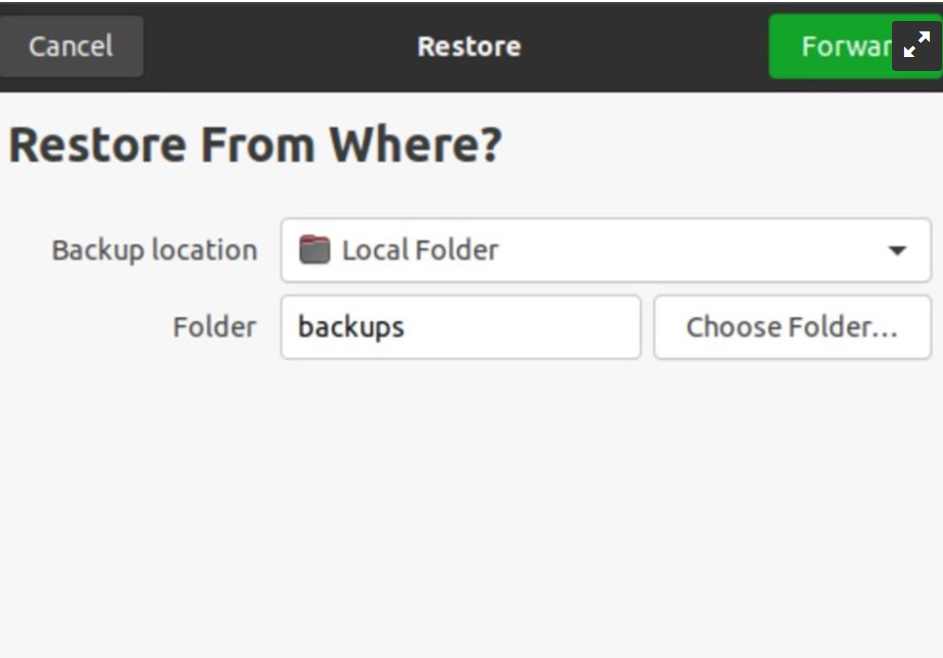
Select the date of the backup
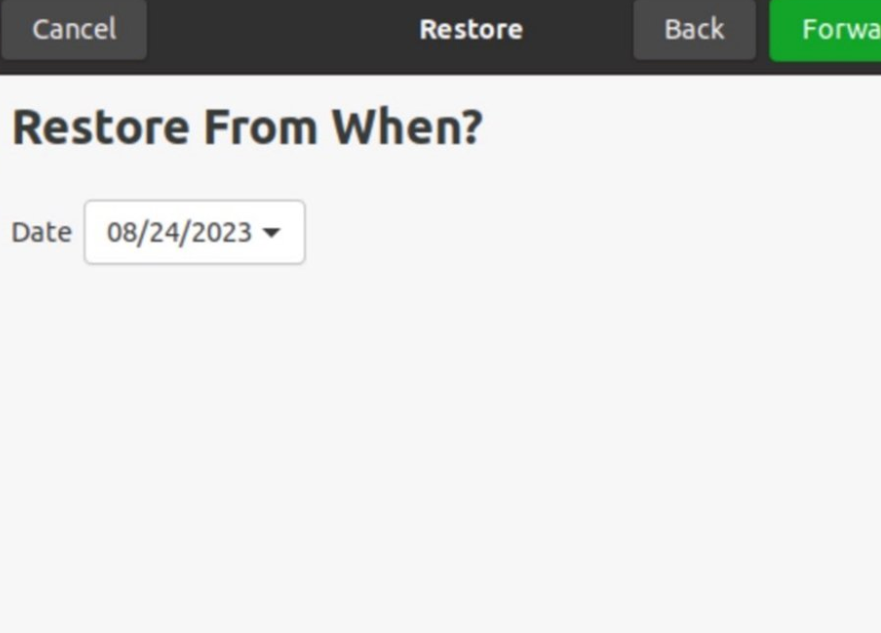
Choose the files you want to restore
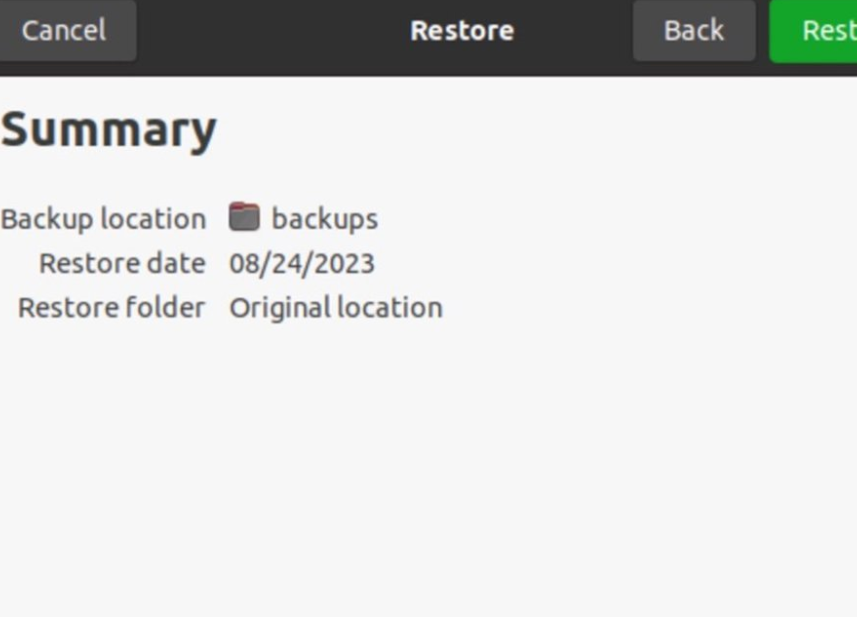
Restore them to their original location or another folder
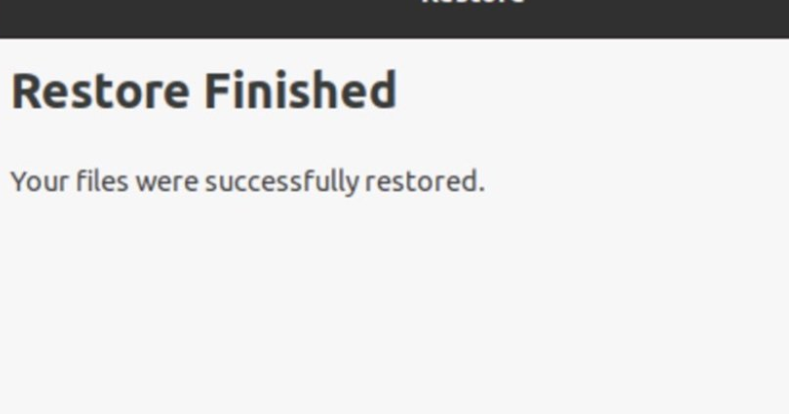
The restoration process is fast and intuitive, making it easy even for beginners.
Tips for Effective Linux Backups
While Déjà Dup simplifies the process, following a few best practices can improve your backup strategy.
Use External Storage
Keeping backups on an external drive protects your data if the main system becomes damaged.
Schedule Regular Backups
Automated backups ensure your data is updated regularly without manual effort.
Test Your Backups
Occasionally restore a file to verify that your backups are working correctly.
Keep Multiple Backup Copies
Having more than one backup location adds an extra layer of security.
Common Backup Mistakes to Avoid
Many users start backing up their data but make mistakes that reduce the effectiveness of their backups.
Some common issues include:
Not backing up frequently enough
Storing backups on the same disk as the original files
Forgetting the encryption password
Ignoring backup errors
Avoiding these mistakes ensures your backup strategy actually protects your data.
Why Déjà Dup Is Perfect for Linux Beginners
There are many backup tools available for Linux, but Déjà Dup stands out because of its simplicity.
Unlike advanced command-line tools, Déjà Dup focuses on usability while still offering powerful features like encryption and automation.
Because it is integrated into many distributions such as Ubuntu, new Linux users can start protecting their files immediately without installing complex software.
Conclusion
Backing up your data is one of the smartest things you can do to protect your digital life. Whether you are a student, developer, or casual computer user, losing important files can be stressful and time-consuming.
Using Déjà Dup makes the process simple and accessible, even for beginners. With just a few steps, you can create secure backups, schedule automatic protection, and restore files whenever needed.
By taking a few minutes to configure backups today, you can save yourself from major headaches in the future. A reliable backup strategy ensures your important files remain safe no matter what happens to your system.
What is the backup tool used in Linux for beginners?
Linux offers several backup tools, but one popular option for beginners is a simple graphical backup utility that allows users to protect files without using complicated commands. It helps create secure and automated backups easily.
Why is backing up files important in Linux?
Backing up files ensures that important data such as documents, photos, and work projects are protected from accidental deletion, system crashes, or hardware failures. Regular backups help users restore their files quickly when something goes wrong.
Can Linux backups be encrypted for security?
Yes, Linux backup tools often allow users to encrypt their backups with a password. Encryption ensures that sensitive files remain secure and cannot be accessed by unauthorized users.
Is it possible to schedule automatic backups in Linux?
Yes, many Linux backup utilities allow users to schedule automatic backups. This means the system can create backups daily or weekly without requiring manual effort.
Where can Linux backups be stored?
Backups can be stored in multiple locations such as external hard drives, USB devices, network storage, or cloud storage services. Keeping backups on a separate device is recommended for better data protection.
Discover more from Root Learning
Subscribe to get the latest posts sent to your email.