Operating systems need a reliable way to decide who can open, change, or run each file on a computer. Without that control, any user or program could read private documents, overwrite important system files, or run harmful software. In Linux, this control is handled by a simple but powerful permission system that has protected servers, laptops, and phones for decades. Most operating systems share this basic idea.
For beginners, Linux permissions often look confusing. A line such as -rwxr-xr-- seems like a secret code, and numbers such as 755 or 644 appear in almost every tutorial without a clear explanation. The good news is that the whole system is built on just a few ideas: users, groups, and three basic actions called read, write, and execute.
In this guide, you will learn what Linux permissions are, how to read them, what the numbers mean, and how special permissions and the root user fit in. You will also see how the Linux approach compares with other operating systems such as Windows and macOS, and you will find the common mistakes to avoid. Everything here is explained in plain language, so you only need to read along. Understanding permissions is also a core skill for anyone studying operating systems.
Table of Contents
What Are Linux File Permissions?
Linux file permissions are rules attached to every file and directory that describe who may do what with it. When you try to open a document, save a change, or start a program, the system checks these rules first. If the rules allow the action, it goes ahead. If they do not, you see a “Permission denied” message.
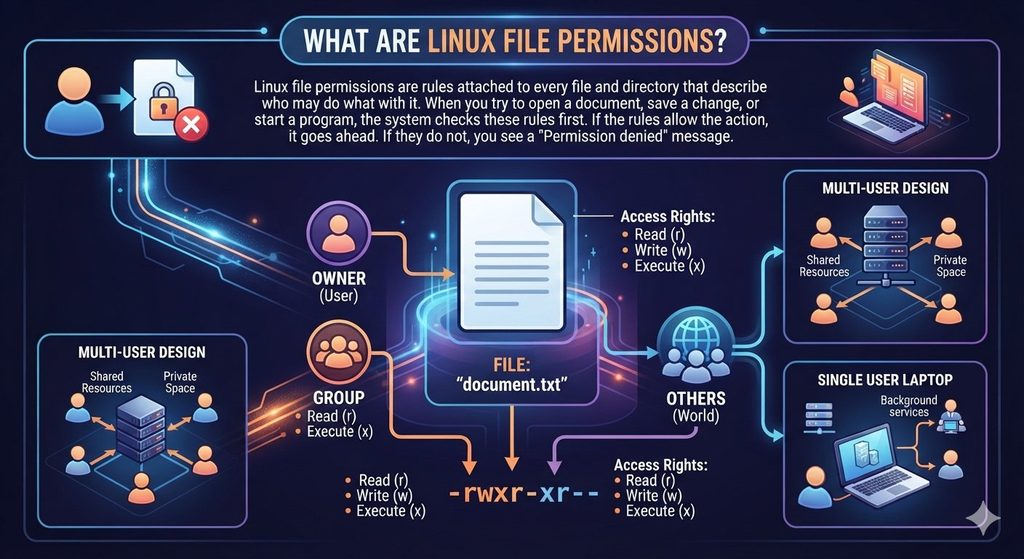
Linux was designed from the start as a multi-user system, like many other server operating systems. Many people could log in to the same computer at the same time, and each one needed private space as well as safe access to shared resources. Permissions made that possible. Even on a personal laptop with only one person, they still matter, because programs and background services also run as separate users and must be kept apart.
All major operating systems include some form of this protection. Every file and directory in Linux has three pieces of permission information: an owner, a group, and a set of access rights for each. Once you understand these three pieces, the rest of the system becomes easy to follow.
Why Permissions Matter in Operating Systems
Permissions are one of the most important security features in modern operating systems. They matter for several reasons:
- Privacy: personal files stay readable only by their owner unless the owner decides to share them.
- Protected operating systems: ordinary users cannot accidentally delete or modify core system files.
- Safe sharing: teams can work on the same project folder while keeping control over who can edit what.
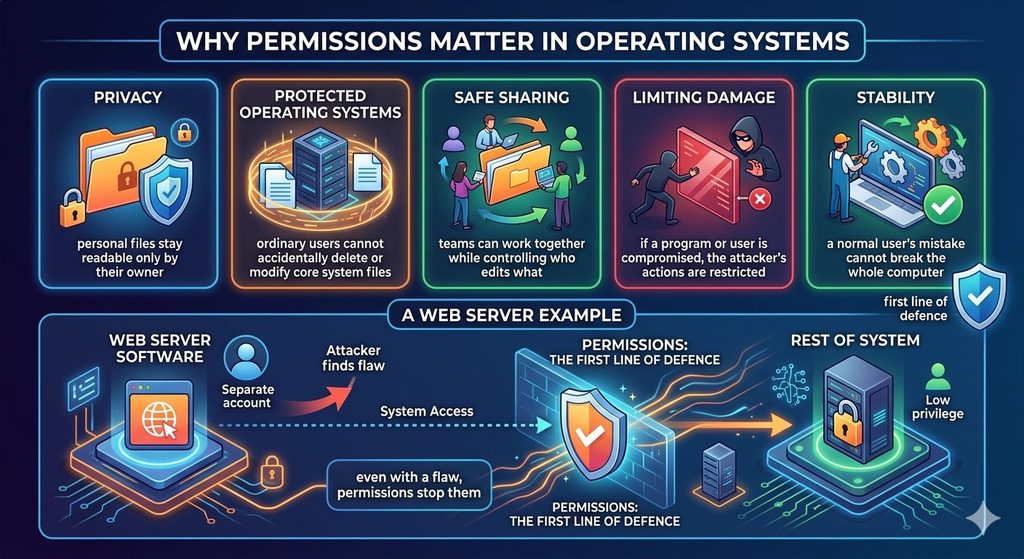
- Limiting damage: if a program or a user account is compromised, the attacker is limited to what that account is allowed to do.
- Stability: a mistake made by a normal user cannot easily break the whole computer.
This last point is why many system administrators say that permissions are the first line of defence. A web server, for example, usually runs under its own low-privilege account. Even if someone finds a flaw in the server software, the permissions stop them from reaching the rest of the system. That is why all serious operating systems rely on permissions of some kind to separate users and programs.
Users, Groups and Others
Linux divides everyone who might access a file into three classes. Each class can have different rights.
- User (owner): the person who owns the file. This is usually the account that created it.
- Group: a collection of users who share access to certain files. For example, a “developers” group may share a project folder.
- Others: everyone else on the system who is neither the owner nor part of the file’s group.
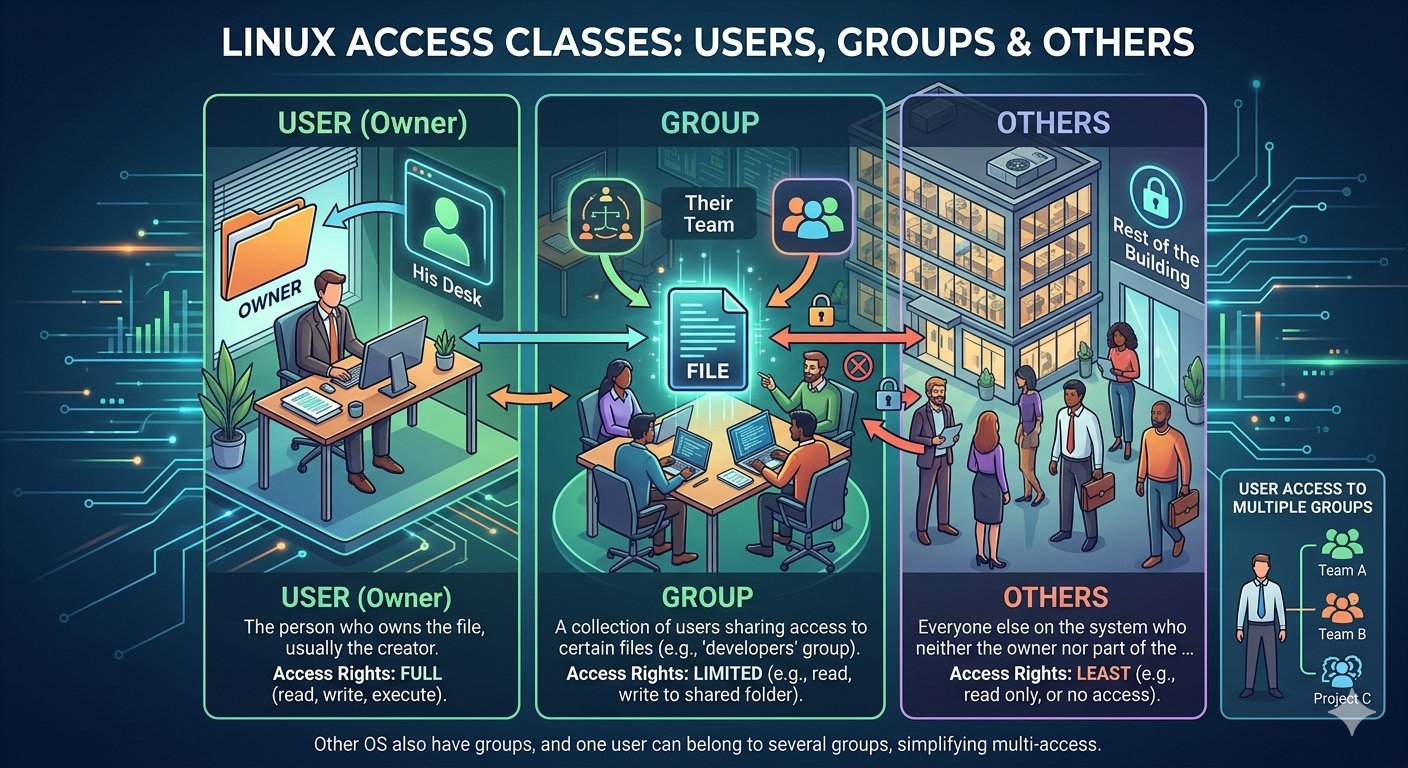
Think of a shared office. The owner is the person whose desk it is, the group is their team, and others are the rest of the building. The owner can do the most, the team gets limited access, and strangers get the least.
Other operating systems have groups too, and a single user can belong to several groups at the same time, which makes it easy to give someone access to many different shared resources without changing the files themselves.
Read, Write and Execute Explained
Each of the three classes can be given three basic rights: read, write, and execute. They are usually shortened to the letters r, w, and x.
| Permission | On a file | On a directory |
|---|---|---|
| Read (r) | View the contents of the file | List the names of the files inside |
| Write (w) | Change or overwrite the file | Create, delete, or rename files inside |
| Execute (x) | Run the file as a program or script | Enter the directory and access items inside it |
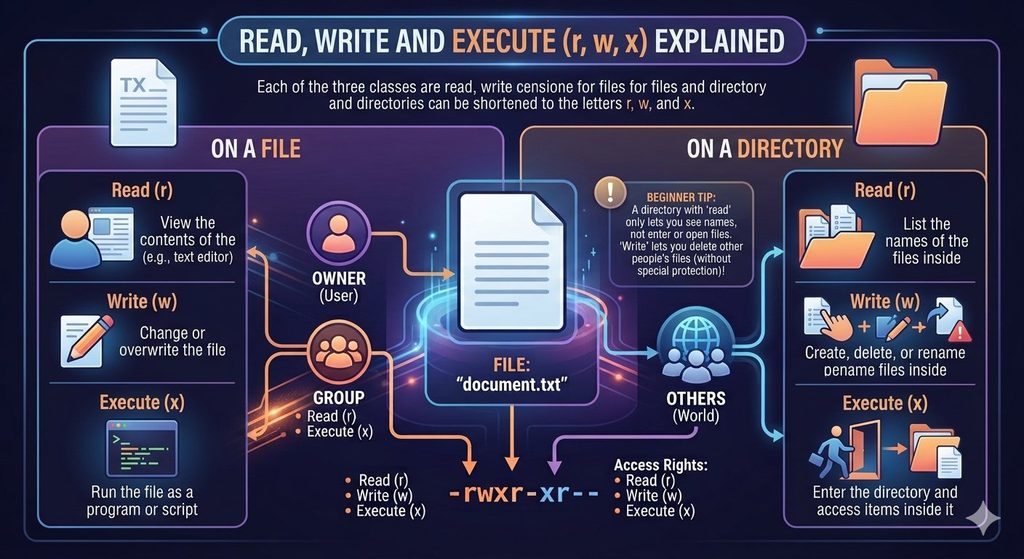
The directory column surprises many beginners. A directory with read permission but no execute permission lets you see the names of the files, but you cannot open them or move into the folder. A directory with write permission lets someone delete files inside it, even files that belong to other people, unless extra protection is applied.
So the same letters mean slightly different things depending on whether you are looking at a file or a folder. Keeping this difference in mind prevents a lot of confusion later, and many operating systems treat folders differently from files in a similar way.
How to Read a Permission String
When Linux shows detailed information about a file, it displays a string of ten characters at the start of the line. For example:
-rwxr-xr--The ten characters break down into four parts:
- First character: the type of item. A dash (
-) means a regular file,dmeans a directory, andlmeans a symbolic link. - Next three characters (
rwx): the permissions for the owner. - Next three characters (
r-x): the permissions for the group. - Last three characters (
r--): the permissions for others.
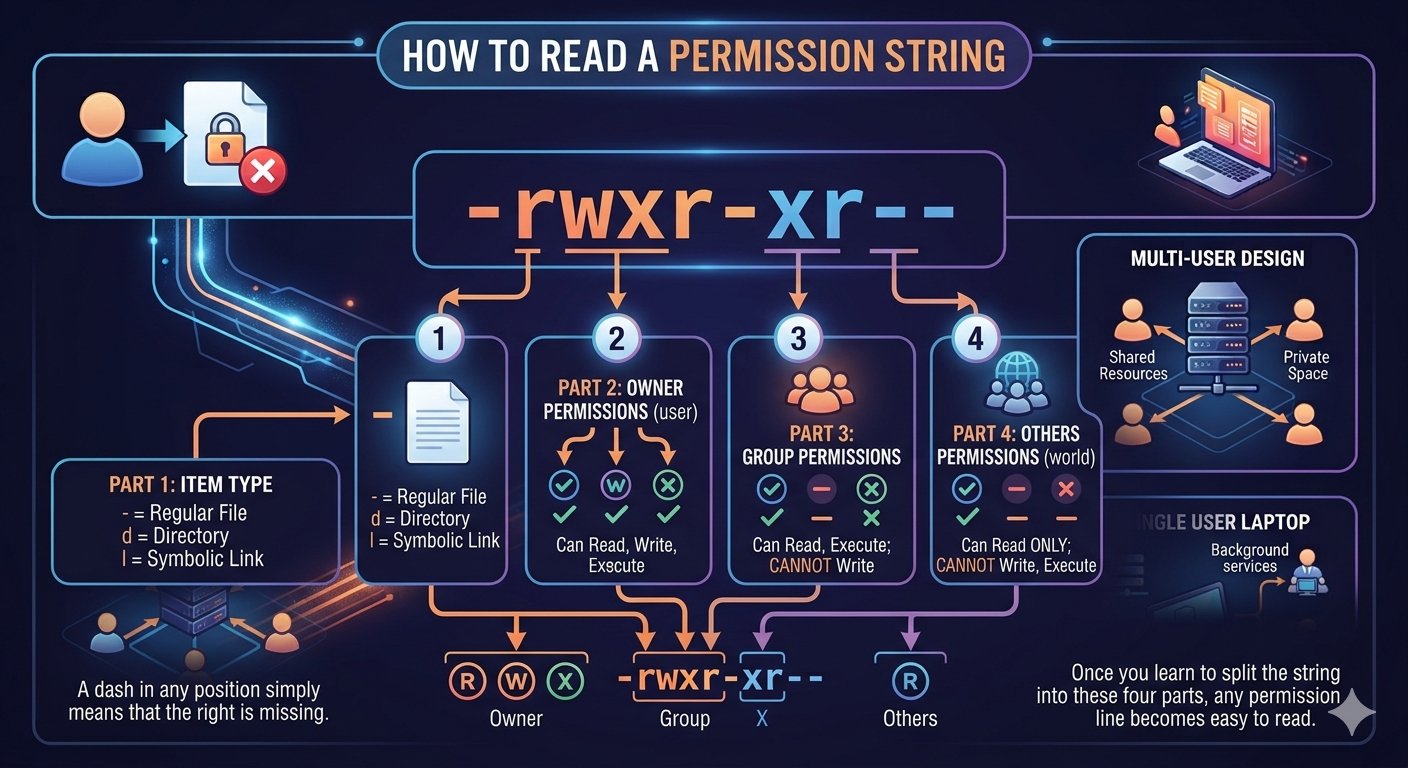
Reading the example above, the owner can read, write, and execute the file. The group can read and execute it, but not change it. Everyone else can only read it. A dash in any position simply means that the right is missing.
Once you learn to split the string into these four parts, any permission line becomes easy to read at a glance. This compact format is one reason Linux and other Unix-like operating systems are popular with administrators.
Understanding Numeric Permissions
Instead of letters, permissions can also be written as numbers. Each right has a value:
- Read = 4
- Write = 2
- Execute = 1
You add the values for each class to get a single digit. For example, read plus write is 4 + 2 = 6, and read plus write plus execute is 4 + 2 + 1 = 7. Three digits together describe the owner, the group, and others, in that order.
Few other operating systems offer such a compact shortcut. Here are the combinations you will see most often:
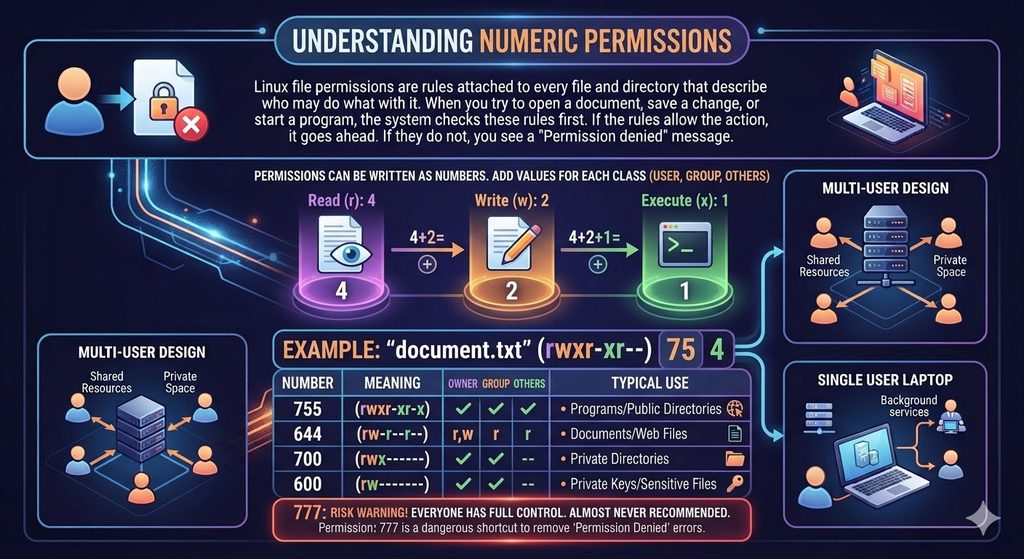
| Number | Meaning | Typical use |
|---|---|---|
| 755 | Owner: read, write, execute; group and others: read, execute | Programs and public directories |
| 644 | Owner: read, write; group and others: read only | Ordinary documents and web files |
| 700 | Owner only: read, write, execute | Private directories |
| 600 | Owner only: read, write | Private keys and sensitive files |
| 777 | Everyone can read, write, and execute | Risky; almost never recommended |
The number 777 deserves a warning. It gives every user full control, which is a common shortcut that people use to remove a “Permission denied” error. It solves the problem by removing the protection, and it can create a serious security hole on a server.
File Ownership: Who Controls What
Besides permission bits, every file has an owning user and an owning group. The owner is usually whoever created the file, and the group is typically that person’s main group at the time.
Ownership is a basic idea in all multi-user operating systems, and it decides which class of permissions applies to a person. If you are the owner, the owner permissions apply to you. If you are not the owner but belong to the file’s group, the group permissions apply. Otherwise, the “others” permissions apply. Linux checks these in that order and uses the first one that matches.
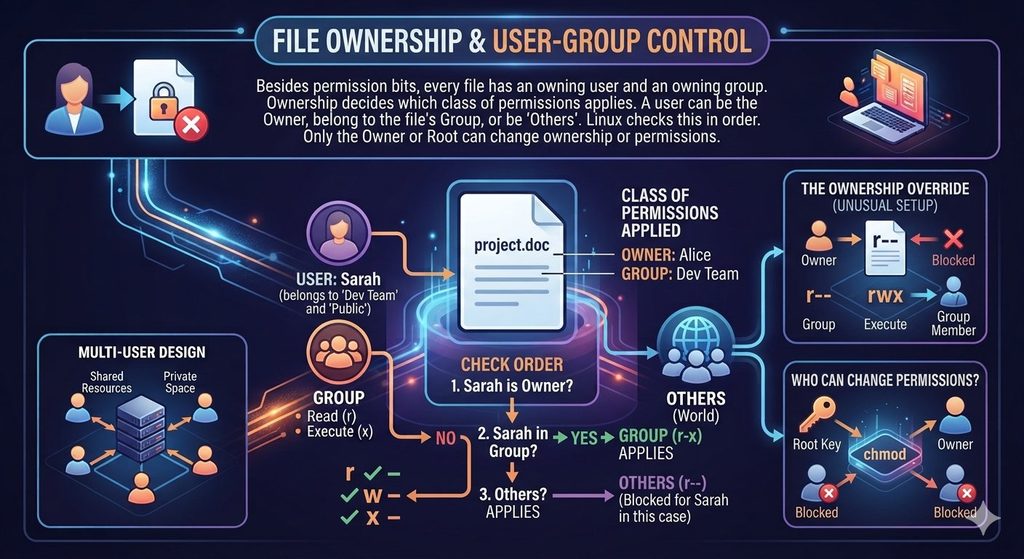
This leads to an interesting situation. A file might have restrictive owner permissions but generous group permissions, and the owner could still be blocked from an action that their group is allowed to perform, because the owner rules are applied first. Such setups are unusual, but they show how strictly the order is followed.
Only the owner of a file or the root user can change who owns it or what its permissions are. Ordinary users cannot take over files that belong to others.
Special Permissions: setuid, setgid and the Sticky Bit
Beyond the basic read, write, and execute rights, Linux, like other Unix-like operating systems, has three special permissions that handle unusual situations.
1. setuid (set user ID). When this is set on an executable file, the program runs with the permissions of the file’s owner, not of the person who starts it. This is how a normal user can change their own password. The password program needs to edit a protected system file, so it temporarily runs with higher rights. Because this is powerful, setuid files must be carefully controlled.
2. setgid (set group ID). On a program, it works like setuid but for the group. On a directory, it is even more useful: any new file created inside automatically belongs to the directory’s group. Teams use this to keep shared project folders consistent.
3. Sticky bit. When set on a directory, it means that only the owner of a file, the owner of the directory, or the root user can delete or rename files inside, even if others have write permission to the folder. The common temporary directory on Linux systems uses it, so users can create files there without deleting each other’s work.
Unix-like operating systems use these special permissions to handle jobs that basic rights cannot. They appear in the permission string as an s or a t in place of the x, which is why you might see a string such as -rwsr-xr-x.
Default Permissions and umask
When a new file or directory is created, Linux must decide which permissions to give it. This is controlled by a setting called the umask, which acts as a filter. It removes certain permissions from the starting values, and Unix-like operating systems use this filter every time something new is created.
New files start from a base of 666 (read and write for everyone), and new directories start from 777. The umask then subtracts rights from these. With a common umask of 022, the result is:
- New files: 644, which means the owner can read and write, and everyone else can only read.
- New directories: 755, which means the owner has full control and everyone else can read and enter.
Files do not get execute permission automatically, and most secure operating systems follow the same rule. This is a deliberate safety choice, because it stops a downloaded or newly created file from running as a program until someone intentionally allows it.
A stricter umask, such as 077, would make new files private to the owner. System administrators often adjust it to match the security needs of a server or a shared workspace.
The Root User and Superuser Access
Linux has one special account called root, also known as the superuser. It has the user ID 0 and can do almost anything on the system. Every major family of operating systems has some form of administrator account, and operating systems such as Windows use the Administrator account for a similar purpose. Root ignores the usual permission checks, so it can read, change, or delete any file.
This level of power is necessary for tasks such as installing software, managing users, and configuring the system. It is also dangerous, because a single typing mistake by root can damage the whole machine, and a hacker who gains root access controls everything.
For this reason, most modern distributions encourage the use of sudo. It lets a normal user run a specific task with root rights for a short time, after checking their identity. This follows an important security idea called the principle of least privilege: every user and program should have only the access it needs to do its job, and nothing more.
On a personal computer, you will rarely log in directly as root, and good practice on all operating systems is to work as a regular user. Instead, you work as a regular user and ask for extra rights only when a task truly requires them.
How Linux Permissions Compare With Other Operating Systems
Different operating systems solve the same problem in different ways. Almost all modern operating systems control access to files, but each one has its own approach. Comparing them helps you see what is special about Linux.
Linux. It uses the owner, group, and others model with read, write, and execute rights. It is simple and fast, and it works the same way on every Linux distribution, and many other Unix-like operating systems share it. Many systems also support access control lists (ACLs) as an extra layer for more detailed rules.
Windows. It uses a more detailed model based on access control lists. Each file can list many users and groups, and each entry can allow or deny specific rights such as full control, modify, read and execute, read, and write. This gives fine control but can be harder to understand at first glance.
macOS. It is built on a Unix foundation, so it uses the same owner, group, and others model as Linux. It also supports ACLs and adds extra system protection that blocks even administrators from changing certain core files.
Android. It is based on Linux and gives each app its own user identity. This keeps one app from reading another app’s private data unless the system explicitly allows it.
The main idea is the same across all these operating systems: identify who is asking, check the rules, and allow or block the request. Linux simply expresses this idea in a compact, easy-to-learn form. Learning how these operating systems differ makes it easier to move between them.
Common Permission Mistakes and Best Practices
Even experienced users sometimes make permission mistakes. Here are the most common ones, along with better habits:
- Using 777 to fix errors. It removes all protection. Find the real cause, such as wrong ownership or a missing execute right, and fix only that.
- Working as root all the time. One wrong action can cause serious damage on any of the operating systems. Use a normal account and elevated rights only when needed.
- Leaving private files open. Keep keys, passwords, and personal data at 600 or 700 so that only the owner can reach them.
- Forgetting directory execute permission. A folder without execute rights cannot be entered, even if the files inside are readable.
- Ignoring ownership. Many “Permission denied” problems come from a file belonging to the wrong user or group, not from the permission bits themselves.
- Granting broad group access. Add people to a group only when they need to share those files.
- Never reviewing permissions. Check important directories regularly, especially on servers, so that old or unsafe settings do not stay in place.
The best habit is to follow the principle of least privilege. Give each user and program the smallest set of rights that lets the work get done. These habits apply to Linux and to most other operating systems.
Conclusion
Linux permissions are not as complicated as they first appear, and many other operating systems use similar ideas. Every file has an owner and a group, and three classes of users (owner, group, and others) each receive some combination of read, write, and execute rights. Those rights can be written as letters or as numbers, and special permissions and the umask add extra control for unusual cases.
Understanding this system makes you a more confident Linux user, and it also helps you understand how security works across all operating systems. Whether you are a student, a developer, or a future system administrator, knowing who can do what with each file is one of the most useful basics you can learn.
Learning one of the operating systems well makes the others easier to learn. Keep the key rule in mind: give only the access that is truly needed. It keeps your files private, your systems stable, and your work safe in 2026 and beyond.
Frequently Asked Questions (FAQs)
1. What are Linux file permissions?
Like other operating systems, Linux uses file permissions. They are rules that decide who can read, write, or execute a file or directory. Every file has an owner, a group, and separate rights for the owner, the group, and everyone else.
2. What do r, w and x mean in Linux?
These rights exist in most Unix-like operating systems. The letter r means read, w means write, and x means execute. For a file, they allow viewing, changing, and running it. For a directory, they allow listing its contents, creating or deleting items inside, and entering it.
3. What does 755 mean in Linux permissions?
The number 755 means the owner has read, write, and execute rights (7), while the group and others have read and execute rights (5). It is commonly used for programs and public directories.
4. What does the permission string -rwxr-xr– mean?
The first dash means it is a regular file. The next three characters (rwx) give the owner full rights, the following three (r-x) let the group read and execute, and the last three (r–) let others only read.
5. Why is chmod 777 considered dangerous?
Setting 777 gives every user on the system full read, write, and execute rights over the file or folder. This can let unauthorised users change or run it, which makes it a serious security risk, especially on servers running Linux or other operating systems.
6. What is the difference between the root user and a normal user?
Root is the superuser account with full control over the system and it ignores normal permission checks. A normal user is limited to its own files and the rights it has been given, which protects operating systems from accidents and attacks.
7. What are setuid, setgid and the sticky bit?
They are special permissions. In Unix-like operating systems, setuid makes a program run with its owner’s rights, setgid makes a program run with its group’s rights or makes new files in a directory inherit the group, and the sticky bit stops users from deleting each other’s files in a shared directory.
8. What is umask in Linux?
The umask is a setting that decides the default permissions of newly created files and directories by removing certain rights from the starting values. A common umask of 022 results in 644 for new files and 755 for new directories, and Unix-like operating systems apply it automatically.
9. How are Linux permissions different from permissions in other operating systems like Windows?
Linux uses a simple model of owner, group, and others, with read, write, and execute rights. Windows relies mainly on access control lists, where each file can have a detailed list of users and groups with specific allow or deny rules.
10. Do other operating systems use similar permission systems?
Yes. macOS uses the same Unix-style model as Linux, and Android builds on Linux by giving each app its own user identity. Windows uses a different, ACL-based approach, but the goal in all of these operating systems is the same: control who can access what.
Discover more from Root Learning
Subscribe to get the latest posts sent to your email.